This article highlights some of the many features available to simplify and streamline your experience navigating and interacting with Campus.
Learn more about navigating Campus here:
Menu item, tool, and category structure
In the Campus interface, all tools within a menu item (i.e., Instruction, Student Information, Behavior) are displayed on a single screen, organized by category. You can quickly and easily see all available tools and understand their relationships by category.
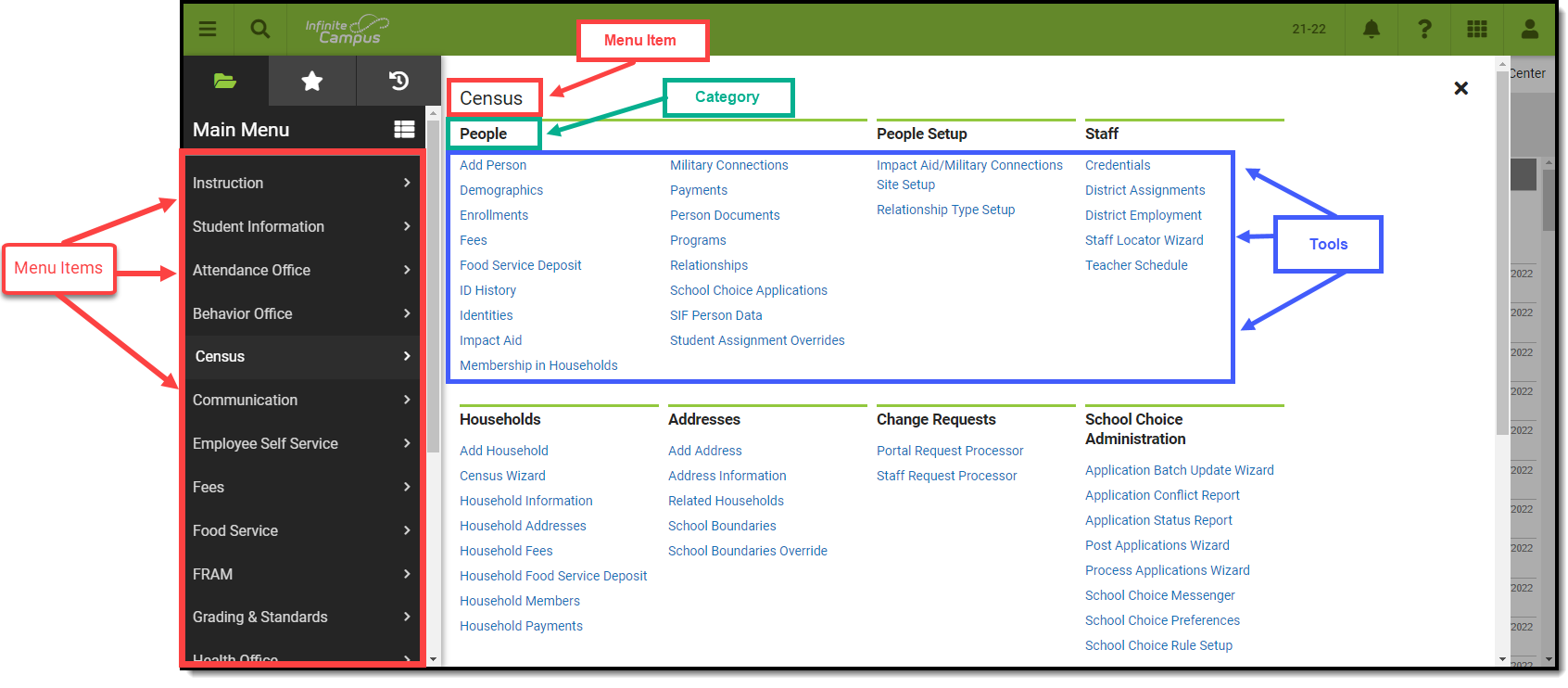 An image highlighting the heirarchy of the Campus Interface.
Campus also remembers the last tool you selected, so navigating back to the tool you were working in is as easy as hitting the back button in your browser. Infinite Campus will even retain the student you are currently working on.
For users who access a small number of tools or prefer a different navigation style, you can toggle the Main Menu to display tools in a flat, organized list per menu item by clicking the  icon. You can then return to the other navigation style at any time by clicking the
  button.
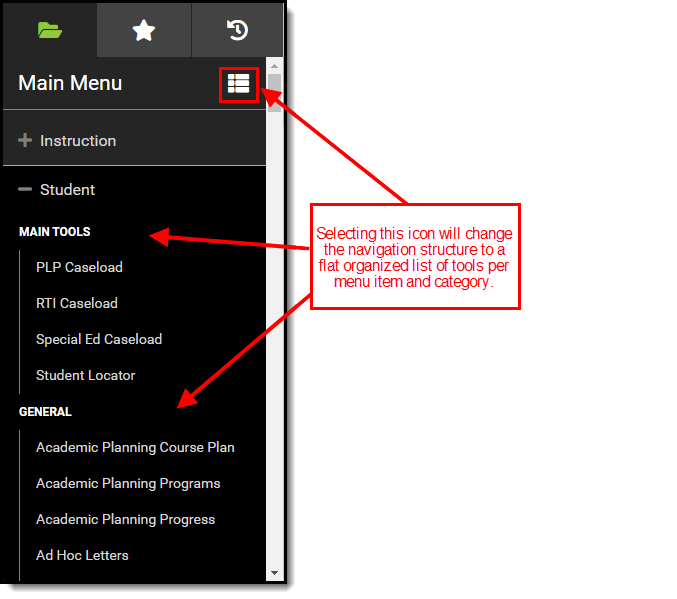 An image showing the location of the Main Menu button and what is impacted.
Responsive UI design
Campus is designed with a responsive UI. This means no matter the size of the screen or device, you will still have access to the same functionality and tooling.
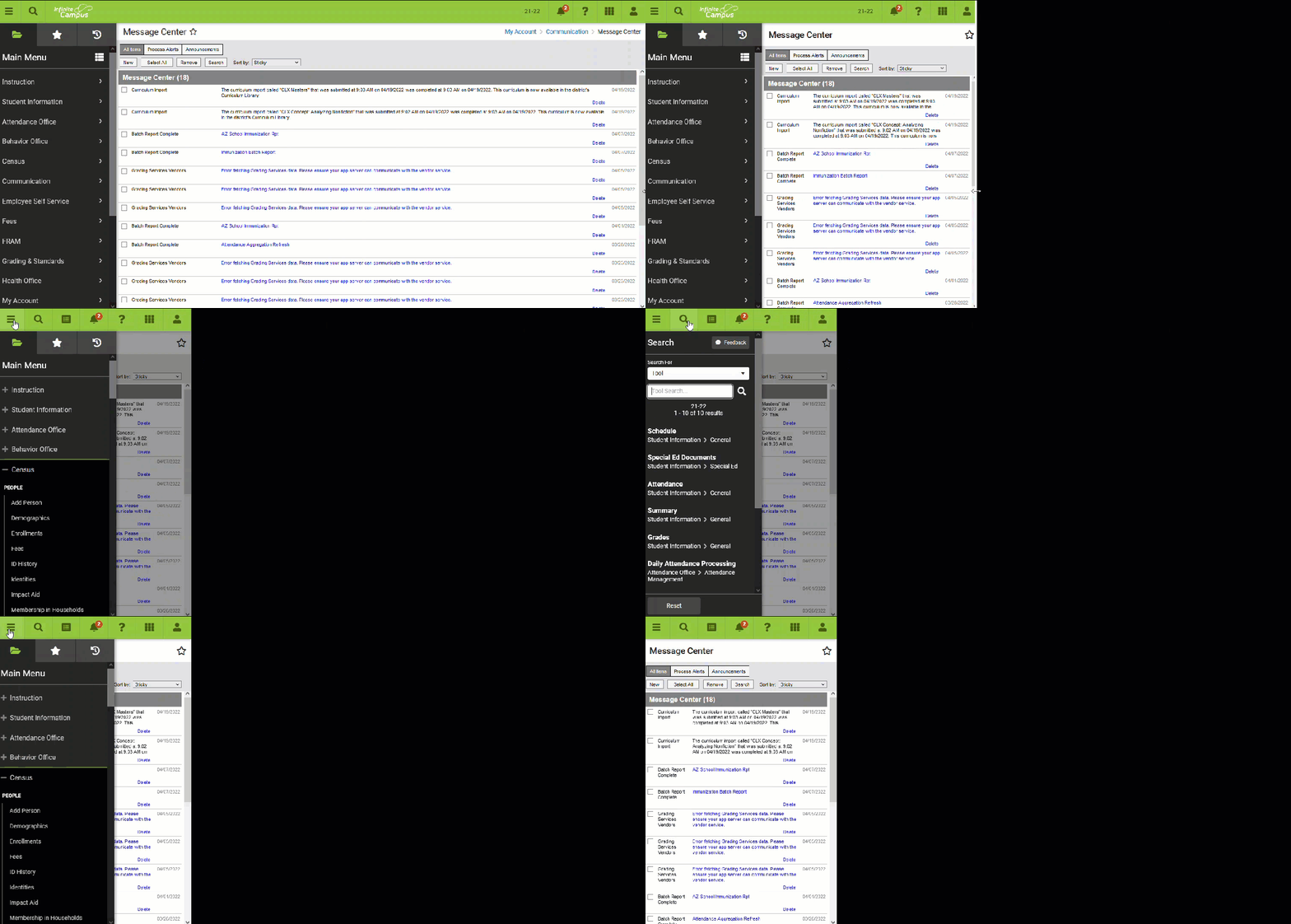 A gif demonstrating how the UI responds as the screen size changes.
As the screen gets smaller, the banner shrinks until it becomes a series of icons. For usability on smaller screens, such as a phone, the Main Menu becomes a flat list of tools. Related Tools are not available on small screens. On smaller screens, flags are visible by selecting the  icon (see image below). icon (see image below).
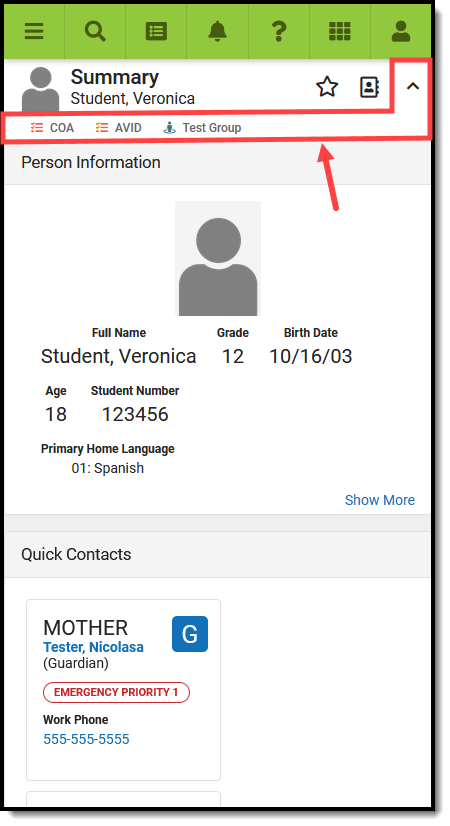 How the UI looks on a smaller screen, such as a mobile device How the UI looks on a smaller screen, such as a mobile device |
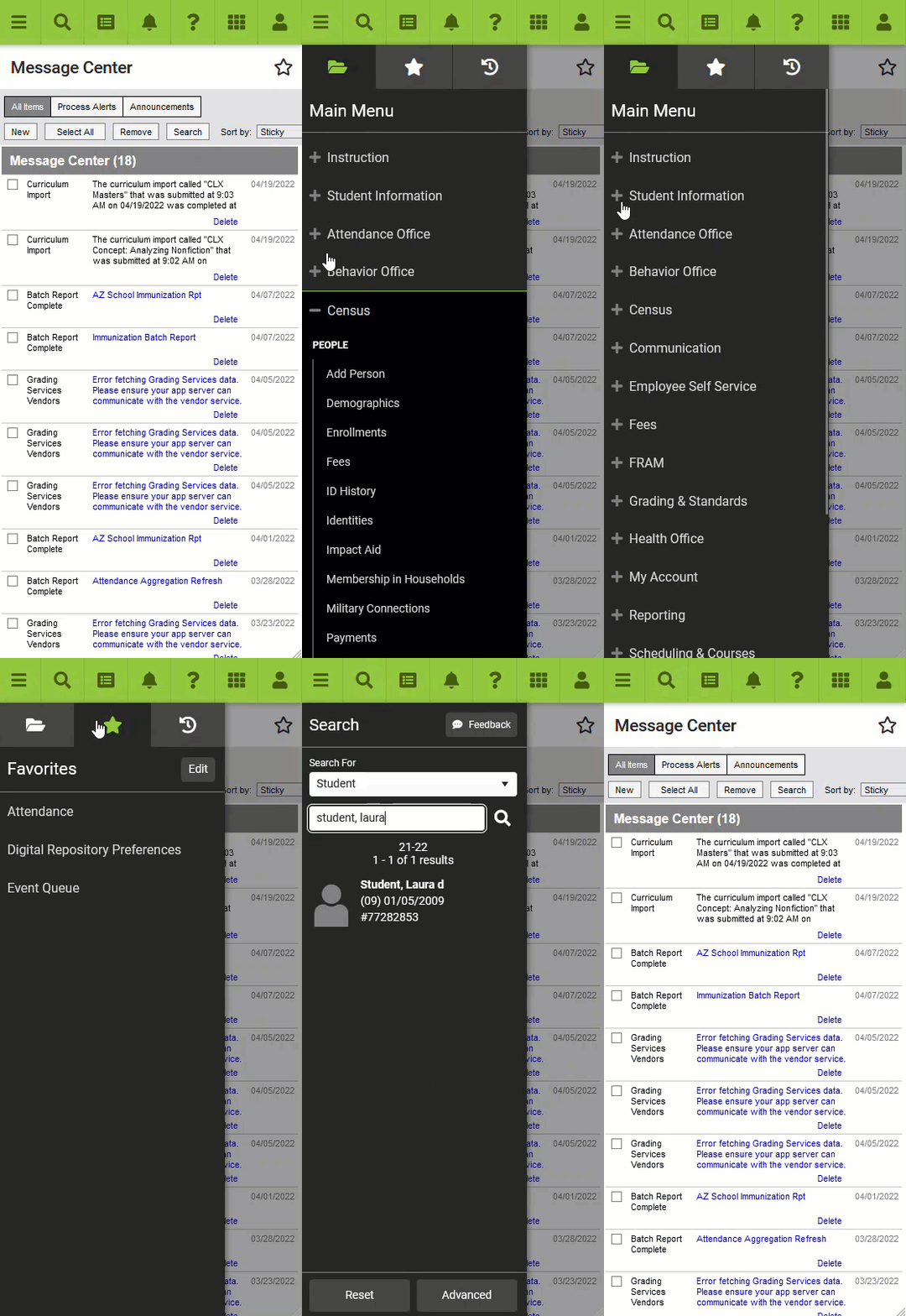 A gif showing how the Index appears on a mobile device A gif showing how the Index appears on a mobile device |
User-created menu of favorite tools
You can mark tools as favorites so they populate a separate menu. This provides easy access to the tools you use most and find most important on a day-to-day basis. To add a tool to your favorites menu, select the  next to the tool name. To edit the order of this menu, click the Edit button.
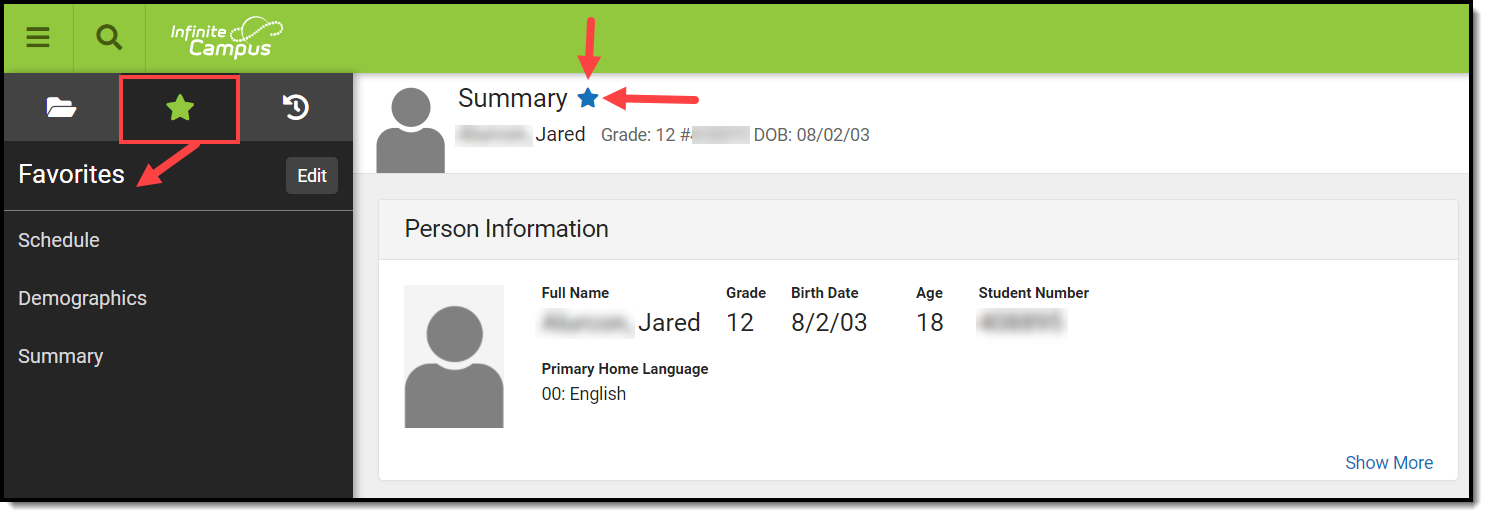 An image highlighting where the Favorites menu exists.
Quick access to recently used tools
You can also quickly access a menu of recently visited tools by clicking the  icon. This speeds up the process of switching between different tools when working through various workflows.
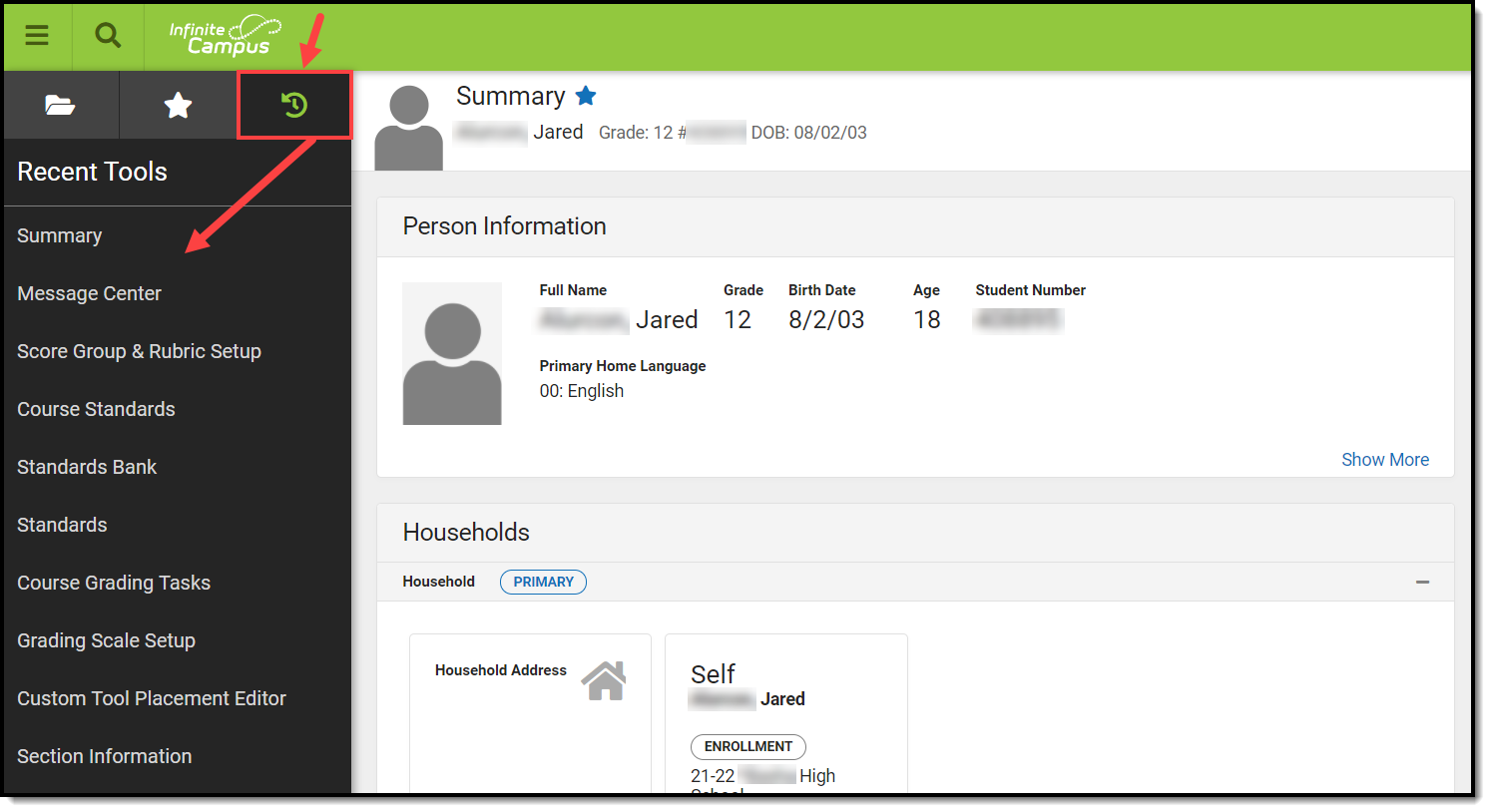 A screenshot highlighting where the Recent Tools menu exists.
Intuitive Related Tools toolbar
Many tools throughout Campus provide a Related Tools toolbar on the right-hand side of the screen. This toolbar lets you see which tools are related and easily navigate to them to fill out related data.
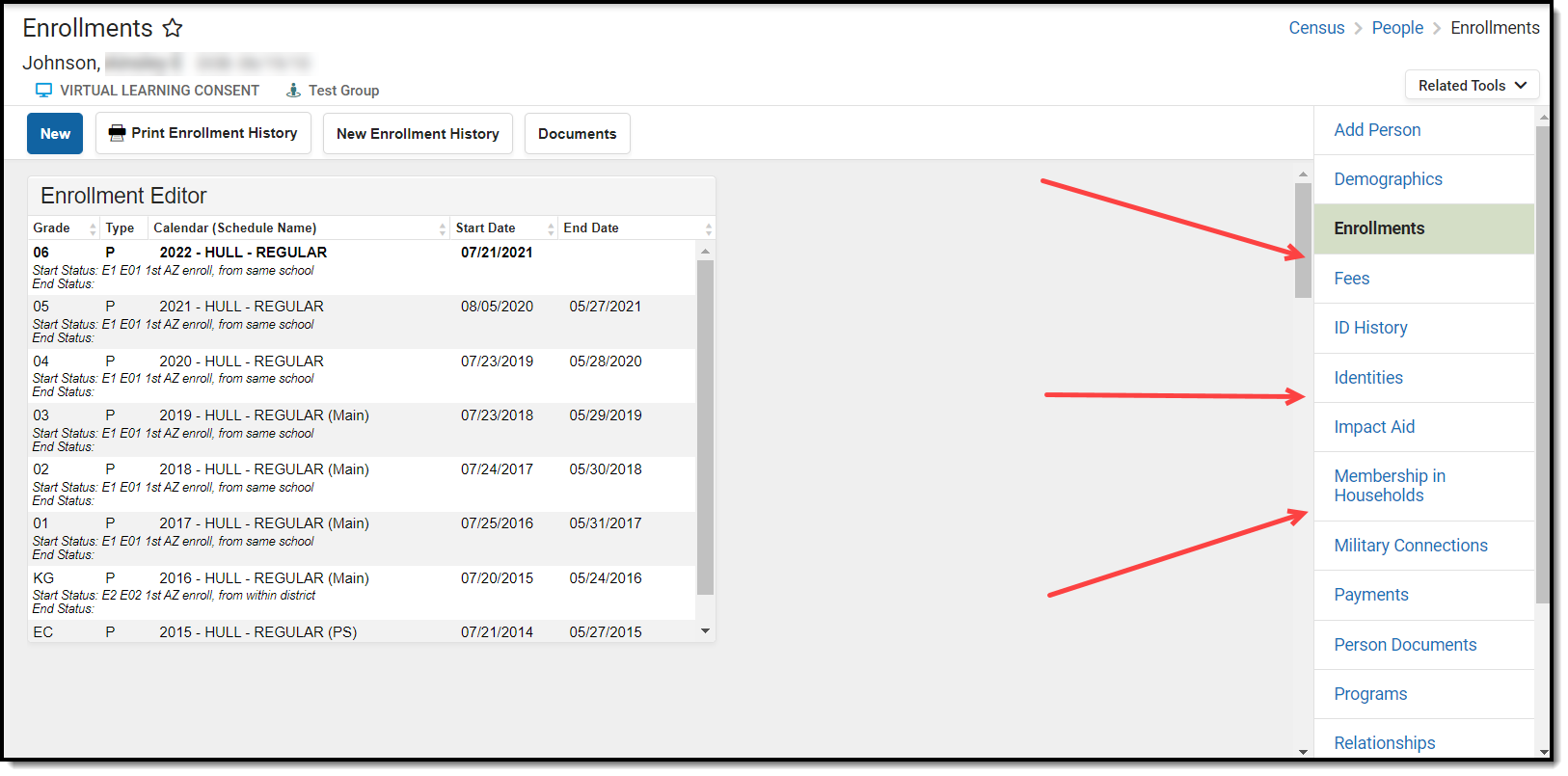 An image highlighting where the Related Tools toolbar exists.
Another useful aspect of the toolbar is its ability to remember the context of what you are working on.
For example, if you are filling out a student's enrollment record, navigating to Demographics automatically opens that student's Demographics record without needing to search for and select the student again.
Navigable breadcrumbs
Navigable breadcrumbs are provided on the right-hand side of the screen when working within a tool. Clicking an item in the breadcrumb will take you to the selected category or menu item.
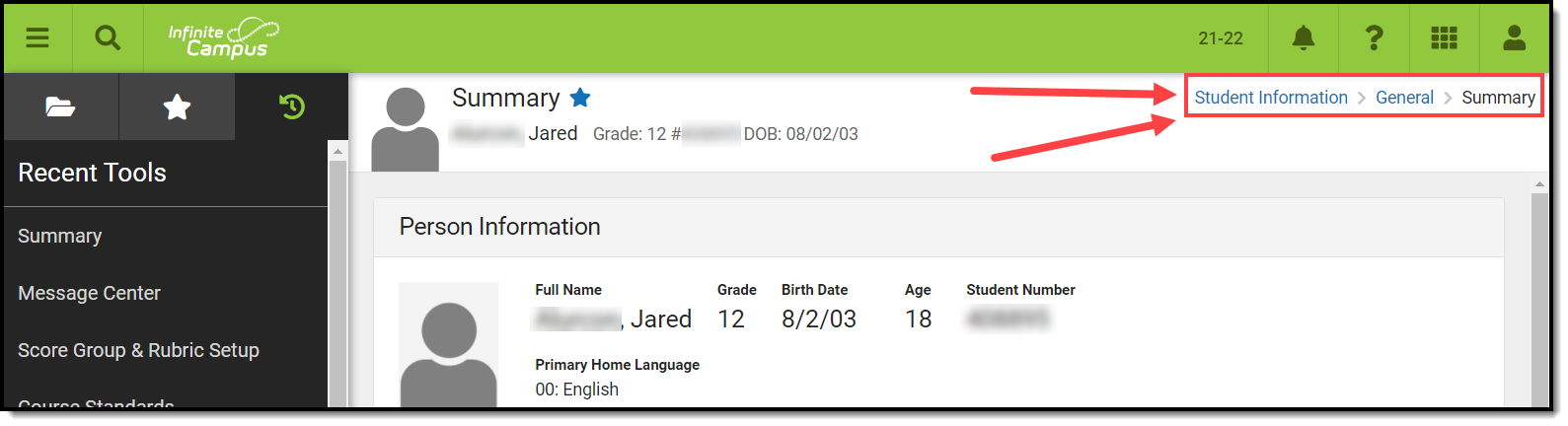 An image highlighting where breadcrumbs exist on the screen.
Robust in-tool person search
When selecting a tool that requires a person to be selected, a robust person search prompt is provided, allowing you to search for the person using a variety of options.
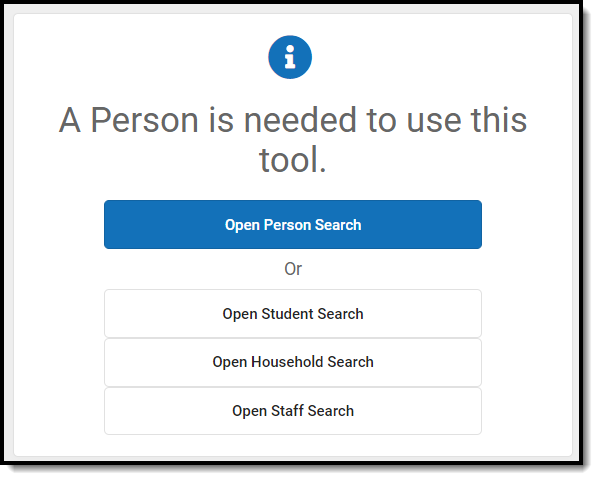 An example of the Person Search tool.
Unified search menu
The search menu allows you to quickly and easily search a multitude of data within Infinite Campus. Simply click the magnifying glass icon  , select the type of data you wish to search (i.e., Student, Household, Tool, etc), and enter your search criteria. Results will appear below the search box.
 An image highlighting where to access the search menu
Selecting a search result will take you to the appropriate tool for that information.
 An image highlighting how selecting a search result takes you to the appropriate tool.
The search menu also remembers your last search results, allowing you to quickly toggle back and forth between the list of tools within the Main Menu and search results without losing your place in either screen. Search results also remain visible within the left-hand panel while you interact with a tool by selecting a search result.
Advanced search
To do an advanced search, click the magnifying glass icon, select the search context, and click the Advanced button (see image below).
For more information about this feature, see the Searching in Campus article.
Note: Some search contexts do not have advanced search functionality.
 An image explaining where to access the Advanced Search.
Person information card
Tools focused on a specific person include a useful information card that, when selected, details important person information and a summary of their enrollment record(s) for the active school year. This is especially useful for reviewing enrollment information without the need to navigate away from the tool you are currently working in.
The card is also useful for viewing information that is no longer displayed in the banner on small-screen devices (such as phones or tablets).
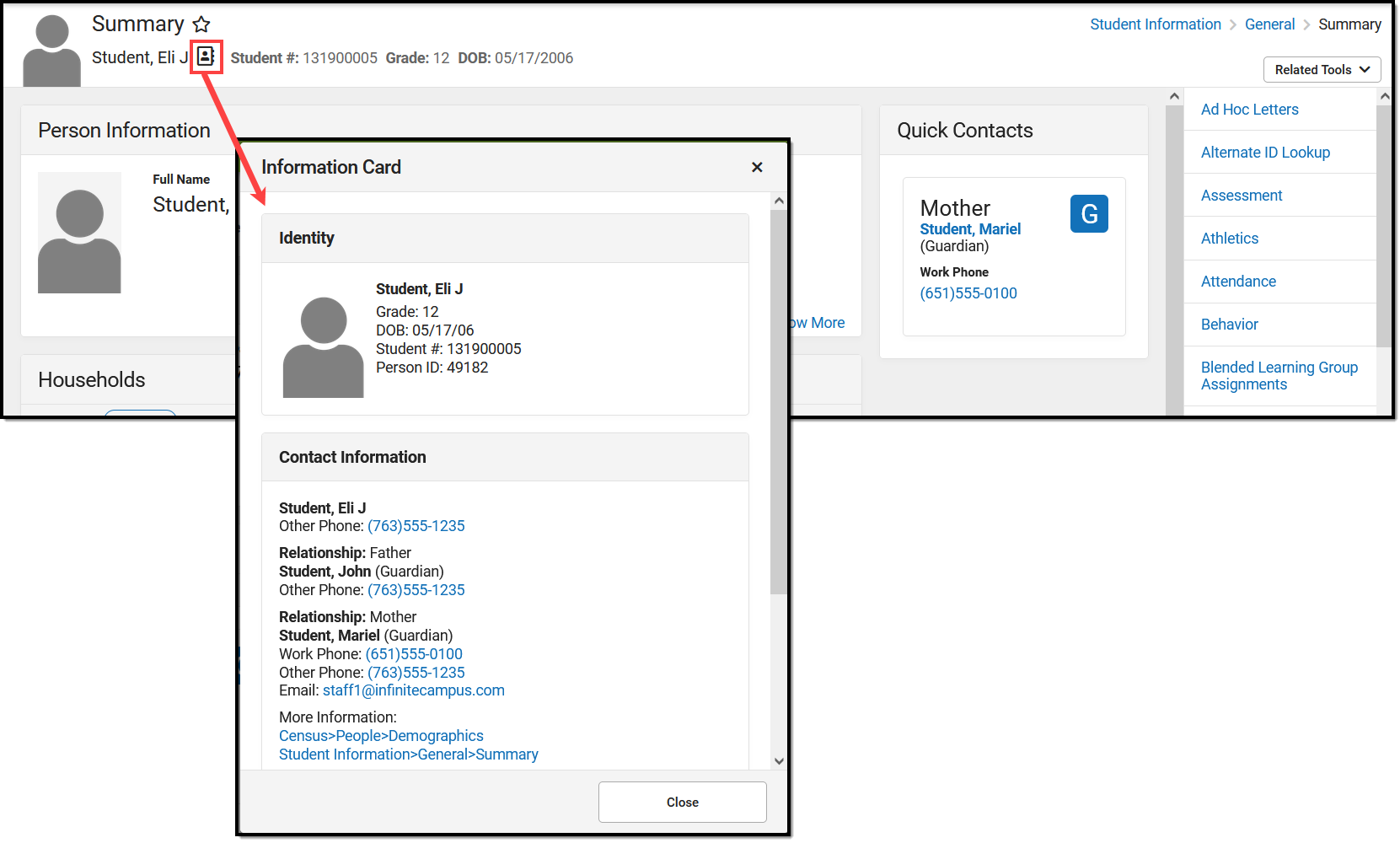 An image highlighting the location of the Person information card.