Tool Search: Graduation
The Graduation record provides districts with the ability to track graduation information used in state reporting, AYP (Average Yearly Progress) determinations, and report cards. This tool also allows districts to track when a student first entered ninth grade and calculate his/her expected graduation date.
See the State Edition Graduation article for guidance related to using the Graduation tool at the State level or at districts linked to a state edition.
 Student Graduation Record
The District Edition user interface displays one graduation record for each student on the Graduation tab. Collected graduation data varies by state.
The Graduation record contains the same information at the district and state levels. Data entered or modified at the district level syncs to the state level. However, changes made at the state level do NOT sync to the district and are NOT reflected in district-level data.
Changes made to fields on the Graduation record by district-level users sync to the state level. Changes made by state-level users are NOT reflected at the district level.
State-linked districts see a State Graduation record section at the top of the Graduation editor. This is the student's graduation information available at the state.
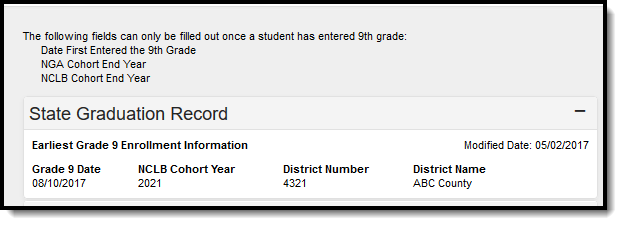 State-linked District Graduation Editor
Refer to the Graduation Scenarios and Logic section for information.
Enrollment data
The Enrollment Data section repeats the information from the student's General Enrollment Information editor. It cannot be modified from the Graduation tab.
Deletion of graduation data
When the student's last enrollment record in the district is deleted, the entire graduation record is also deleted.
When the last enrollment in grades 9-12 is deleted, the data in the following fields is also deleted:
- Grade 9 Date
- NGA Cohort End Year
- NCLB Cohort End Year
When a ninth grade enrollment record or enrollment history record is deleted:
- The auto-populated fields are recalculated using the data from the remaining ninth grade enrollment/enrollment histories.
- The auto-populated fields may update to a later date when the earliest ninth grade enrollment or history is deleted.
Warning messages display in the noted areas indicating that graduation information has been deleted. These messages display when modifying enrollment information.
- When a student's last enrollment record (the student has only one enrollment remaining) is deleted, the graduation information is also deleted.
- When a student's last 9-12 grade enrollment or enrollment history is deleted, any existing graduation information associated with that student is also deleted.
- When saving an enrollment record for students who shouldn't have graduation data (i.e., the student's grade level is no longer in grades 9-12), the graduation data is deleted.
Addition of Graduation Data
When an enrollment record for grade 9 is created for a student, a graduation record is also created. When a student is newly enrolled in a district after grade 9, their graduation record must be manually created.
Information can only be added for the above fields for students in grades 9-12. When the student is not enrolled in these grade levels, the graduation fields are grayed out, and the user cannot enter data.
When data exists for a student who is not enrolled in grades 9-12, the entered data can be seen but is not editable and is removed upon re-saving the Graduation tab.
When changes are made to the ninth-grade enrollment or enrollment history, all graduation records are synced across all districts.
Graduation Detail
The Graduation Detail section lists the student's general graduation information (diploma date, NGA cohort information, etc.) and any required fields necessary for state reporting.

Enter Graduation data
- Enter the Diploma Date in mmddyy format or by selecting the Calendar icon and choosing a date.
- Select a Diploma Type from the dropdown list.
- Select a Diploma Period from the dropdown list.
- Enter the Date First Entered the 9th Grade in mmddyy format or by selecting the Calendar icon and choosing a date. This date should match the Start Date listed in the Enrollment Data section. Overrides are allowed for users with proper tool rights.
- Select the NGA Cohort End Year from the dropdown list. This field auto-populates based on enrollment information. Overrides are allowed for users with proper tool rights.
- The NCLB Cohort End Year auto-populates with the year four years following the Date First Entered the 9th Grade.
- Select the student’s Post Grad Location from the dropdown list
General Graduation Information
| Field | Description |
|---|---|
| Diploma Date | Entered date (MMDDYY format) indicates when the student received their high school diploma or equivalent measure of achievement (GED, etc.). |
| Diploma Type | Selection indicates the measure of achievement the student received upon high school graduation. Options for this field vary by state. |
| Diploma Period | Selection indicates the time of year the student received the diploma. |
| Date First Entered the 9th Grade | Entered date (MMDDYY format) indicates when the student first entered the ninth grade. This date may also be auto-populated based on the student's enrollment or historical enrollment records.
This year compares the enrollment start date for the student's ninth grade enrollment to a hard-coded July 1 to June 30 date range. The School Years setting on the Calendar is not used, the type of calendar (regular vs. summer school) is not referenced in the logic of this end year, and the type of enrollment (primary vs. partial vs. special education) is not referenced.
It is up to the district, in most cases, to determine when a student's first ninth grade enrollment occurs. However, there may be specific guidance from the state's department of education that should be followed.
In instances where a student's first-time enrollment in ninth grade falls into a Summer School calendar where the student is taking some required ninth grade courses during the summer, and the student is still in ninth grade in the fall of that year, the summer school date should be entered. When the student is taking eighth grade courses in the summer school calendar before being considered a ninth grader, the student would still be considered an 8th grader in the summer school calendar.
Summer School calendars that begin in June (before July 1) are part of the previous school year (June 2016 calendars are part of the 2015-16 school year); summer school calendars that begin in July (on or after July 1) are part of the upcoming school year (July 2016 calendars are part of the 2016-17 school year). |
| NGA Cohort End Year | This field is used as part of the National Governors’ Association graduation calculation rate. The selected year is often four years after the ninth grade start year; when a student has not graduated high school in four years (could be less than or more than four years), this selection can be changed.
A System Preference exists that allows districts to set the year value for this field. |
| NCLB Cohort End Year | This field is the end year of the four-year cohort used as part of NCLB legislation, auto-populated from the Date First Entered the 9th Grade field. |
| Post Grad Location | Selection indicates where the student is participating in after-high school activities, either IS: In-State or OS: Out-of-State. These activities are based on the selection for the Post Grad Plans fields. |
| Post Grad Plans | Selection indicates what the student plans to do after high school graduation. |
Graduation Endorsement and State Seals
The Graduation Endorsement/State Seals section allows the addition of graduation endorsement records or an indication of a State Seal of Biliteracy to a student's graduation record.
The Endorsements and Seals display on a student's transcript.

Enter Graduation Endorsements and State Seals
- Select the student's Endorsements.
- Click Add Graduation Endorsement to add more endorsements.
- Click Save.
Graduation scenarios and logic
District-level scenarios
The following scenarios apply to district-level information. When the district is part of a Campus State Edition product, the data syncs to the state to reflect existing information at the district level.
| Scenario | Logic |
|---|---|
| Normal Promotion to Ninth Grade using Enrollment Roll Forward | When the Enrollment Roll Forward Wizard is used to move students from eighth to ninth grade. Graduation entries for all newly created ninth-grade enrollments calculate and populate the values for the Date First Entered the ninth Grade, NGA Cohort End Year, and NCLB Cohort End Year fields. |
| Mid-Year Promotion by Manual Operation | When a user creates a ninth-grade enrollment for a student and ends the student’s current enrollment record in eighth grade after the year has started, Campus calculates and populates the values for the Date First Entered the ninth Grade, NGA Cohort End Year, and NCLB Cohort End Year fields for the student. |
| Creation of Enrollment History Record | Upon creation of an Enrollment History record (entering enrollment information for previous years/grades), Campus calculates and populates the values for the Date First Entered the ninth Grade, NGA Cohort End Year, and NCLB Cohort End Year fields for the student when a ninth-grade enrollment exists. |
| New Student in Ninth Grade (first enrollment in District/State) | Upon creation of a new enrollment record, Campus calculates and populates the values for the Date First Entered the ninth Grade, NGA Cohort End Year, and NCLB Cohort End Year fields for the student when a ninth-grade enrollment exists. |
| New Student in 10-12 Grade (first enrollment in District/State) | When a tenth-, eleventh-, or twelfth-grade student is new to the district/state, the user should enter an Enrollment History record for ninth grade for this student (even if the student did not attend ninth grade within the district/state). Upon creation of an Enrollment History record, Campus calculates and populates the values for the Date First Entered the ninth Grade, NGA Cohort End Year, and NCLB Cohort End Year fields for the student. |
| New Student in 9th Grade (previous enrollment in state) | When the student has already started ninth grade elsewhere in the state, the new district creates a ninth-grade Enrollment History record, and Campus calculates and populates the values for the Date First Entered the 9th Grade, NGA Cohort End Year, and NCLB Cohort End Year fields for this student in the District Edition. When a student starts ninth grade for the first time in the new district, upon creating an enrollment record, Campus calculates and populates the values for the Date First Entered ninth Grade, NGA Cohort End Year, and NCLB Cohort End Year fields for this student in the District Edition. |
| New Student 10-12 Grade (previous enrollment in state) | Enter a ninth-grade Enrollment History record for this student. Upon creation of an Enrollment History record, Campus calculates and populates the values for the Date First Entered the ninth Grade, NGA Cohort End Year, and NCLB Cohort End Year fields for the student. |
Cleanup scenarios
If changes are necessary, a user must have tool rights to modify graduation fields.
| Scenario | Logic |
|---|---|
| Modifications to Date first entered 9th grade and/or NGA Cohort End Year after District Imports Data | The appropriate determination field is set to the user when a user modifies information. |
| Deletion of a 9th grade enrollment | When the district or state user deletes a ninth grade enrollment or Enrollment History record, the system does not delete data from the Date First Entered the ninth grade, NGA Cohort End Year or NCLB Cohort End Year fields. Users need to manually clear the data in the Date first Entered ninth Grade field to remove the cohort information. |
Graduation Cohort fields logic and validations
The cohort fields (NGA Cohort End Year, NCLB Cohort End Year, and the cohortYearNGADetermination element) auto-populate for all of the following scenarios:
Scenario |
Example |
Comments |
|---|---|---|
System detection of an existing ninth-grade enrollment(former or current) when a new enrollment is created. |
Cohort fields are auto-populated when a student transfers districts within a state edition. The previous district’s ninth-grade enrollment records set the Date First Entered the th Grade in the new district. |
Transfers between districts trigger a value to be set in the Date First Entered the 9th Grade field of the new district when a ninth-grade enrollment exists. User-defined, converted, and imported values for this field do not transfer. |
Creation of a new ninth-grade enrollment or enrollment history. |
Cohort fields are auto-populated when a new ninth-grade enrollment is created or a historical ninth-grade enrollment is entered. User-defined values in the Date First Entered the 9th Grade override auto-populated values. |
|
Imported ninth-grade enrollments
|
Cohort fields are auto-populated when a new ninth-grade enrollment is created through the use of an import tool. The user receives a warning that the enrollment entered may affect the graduation cohort fields. |
|
Creation of a new ninth-grade enrollment with the Enrollment Roll Forward tool. |
Example: Cohort fields are auto-populated when the Date First Entered the 9th Grade field is NULL or when the new Date First Entered the 9th Grade is earlier than the existing Date First Entered the 9th Grade. The fields should not auto-populate for enrollments where a graduation date has already been populated or when the grade9Determination field is set to "User Modified." |
|
Auto-population logic
The logic of the auto-population process is as follows.
- Compare the current Date First Entered the 9th Grade and NGA Cohort End Year to find the existing cohort length.
- Save the new Date First Entered the 9th Grade.
- Save the NGA Cohort End Year as the new Date First Entered the 9th Grade plus the previous cohort length.
- Save the cohortYearNCLB as the new Date First Entered the 9th Grade plus four years (the end year of the Date First Entered the 9th Grade plus three years).
- Set the grade9Determination status to "Auto" or "Import."
- Save the cohortYearNGADetermination status to "Auto" or "Import."
The following situations prevent auto-population of the cohort fields (Date First Entered the 9th Grade, NGA Cohort End Year, or NCLB Cohort End Year):
- When the grade9Determination field is set to "Auto" and the Date First Entered the 9th Grade is not NULL, a user has prevented auto-population by manually changing the Date First Entered the 9th Grade. None of the cohort fields auto-populate.
- When the grade9Determination field is set to "Convert," converted data was manually entered at some point and was placed in the Date First Entered the 9th Grade and/or NGA Cohort End Year fields. None of the cohort fields should auto-populate.
NGA Cohort End Year validation
Users are only able to change the value to a year that is four, five, or six years after the ninth-grade start date. When a student’s ninth-grade start date is 08/08/2022, the NGA Cohort End Year field can only be a value of 2026, 2027, or 2028.
Related tools
The Enrollment End Batch and Enrollment Roll Forward tools contain logic for adjusting graduation items at the start and end of a school year.
Manage documents
To view documents, click the Documents button on the action bar. Users with the appropriate tool rights may also complete the following tasks.
