Path: Student Information > Assessment Administration
The CAASPP Import tool allows users to import student scores for seven different assessments. Users have the option to import results for the California Assessment of Student Performance and Progress (CAASPP) and the English Language Proficiency Assessments for California (ELPAC Summative or ELPAC Initial).
This process is not related to the CAASPP Paperless Reporting tools.
 Use the CAASPP Import Wizard to configure and import statewide assessment data.
CAASPP Import Workflow
| Step | Campus Tool | |
|---|---|---|
| 1. | Students take the assessment.
This step is performed outside of Campus. |
N/A |
| 2. | Scores are received from ETS, usually in a caret-delimited or comma-delimited format.
This step is performed outside of Campus. |
N/A |
| 3. | Use the Import tool to import CAASPP scores (imports all seven files) or ELPAC (imports files dependent on choices made in the report editor). | CAASPP Import |
| 4a. | When parent tests are available in Campus, those test structures are located, and scores are imported. | Assessment Center |
| 4b. | When parent tests are not available in Campus, those test structures are created. This is only a skeletal entry of the test that includes the Date, State Code, and Result. Additional setup can be done AFTER scores have been imported. | |
| 5. | When the import is complete, the scores display on the Student Assessment tool and in Campus Student/Campus Parent (when assessments are selected to display on Display Options). |
|
Report Logic
This import tool imports CAASPP assessment data for all CAASPP tests (nine different import layouts). The student's State Identification Number (SSID) is used to match data from the file to the student's record in Campus.
When a record for one of these layouts exists in the Assessment Center, scores can be imported to that record when the name of that assessment is chosen on the Import tool. For example, when importing scores for Smarter Balanced for ELA, choose that item from the dropdown list for that assessment.
Multiple records in the Assessment Center may exist for an assessment. Each of those records are listed on the editor when selecting an existing test to import results.
Or, when a test structure record for a particular test does NOT exist in the Assessment Center, the Import tool can create a test structure in the Assessment Center with the required fields (date, score type, state code) and the scores are imported to that record. Once the import is complete, you can add additional items to the Assessment Center record (like comments or passing score values, etc.)
See the CAASPP Test Setup article for details on what is imported when no Test Detail record exists.
ELPAC
Both the ELPAC Summative and the ELPAC Initial assessments import scores for the following:
- ELPAC Listening
- ELPAC Oral
- ELPAC Reading
- ELPAC Speaking
- ELPAC Writing
- ELPAC Written
CAASPP
The following CAASPP tests can be imported:
| CAASPP (California Assessment of Student Performance and Progress) 2025-2026 | CAASPP (California Assessment of Student Performance and Progress) 2024-2025 |
|---|---|
|
|
| CAASPP (California Assessment of Student Performance and Progress) 2023-2024 | CAASPP (California Assessment of Student Performance and Progress) 2022-2023 |
|
|
| CAASPP (California Assessment of Student Performance and Progress) 2021-2022 | CAASPP (California Assessment of Student Performance and Progress) 2019-2021 |
| |
| CAASPP (California Assessment of Student Performance and Progress) 2018-2019 | CAASPP (California Assessment of Student Performance and Progress) 2017-2018 |
|
|
Import Editor
| Option | Description | |||
|---|---|---|---|---|
| Import Type | Determines which assessment is imported:
| |||
| Work to Perform | Indicates that the process is either a Test (recommended to do this first) or an actual Import.
| |||
| Assessments to Import | Based on the selected Import Type, determine whether a specific test should be imported. For each test listed, select one of the following:
|
Import Assessment Data
Because the students take these tests at this time of year, it is assumed this Import is used several times throughout the year to import the different assessment types. Therefore, the procedures for using the Import tool are broken into three separate sections depending on which assessment data is being imported.
Please note that Excel files cannot be imported.
It is highly recommended that you test the import before importing scores.
Import Assessment Data for ELPAC Summative
- Select the ELPAC Summative option as the Import Type. Only the ELPAC Overall field is highlighted for import.
- For the Work to Perform field, select Test or Import. Or, when scores should not be imported, choose Do not import these assessments.
- In the ELPAC Overall dropdown, select either the ELPAC Overall option or the Import to newly created test setup.
- Locate and choose the appropriate file to import. Follow the instructions on your screen for locating the file.
- Click the Run Import button. After creating any new test/assessment setups, refresh the screen. This adds the newly created Test Setup to the dropdown list. The system processes the import, and a Summary file of the data imported displays, and lists any warnings or errors that may have occurred (see image below).
- Review the student's Assessment record for the newly imported scores.
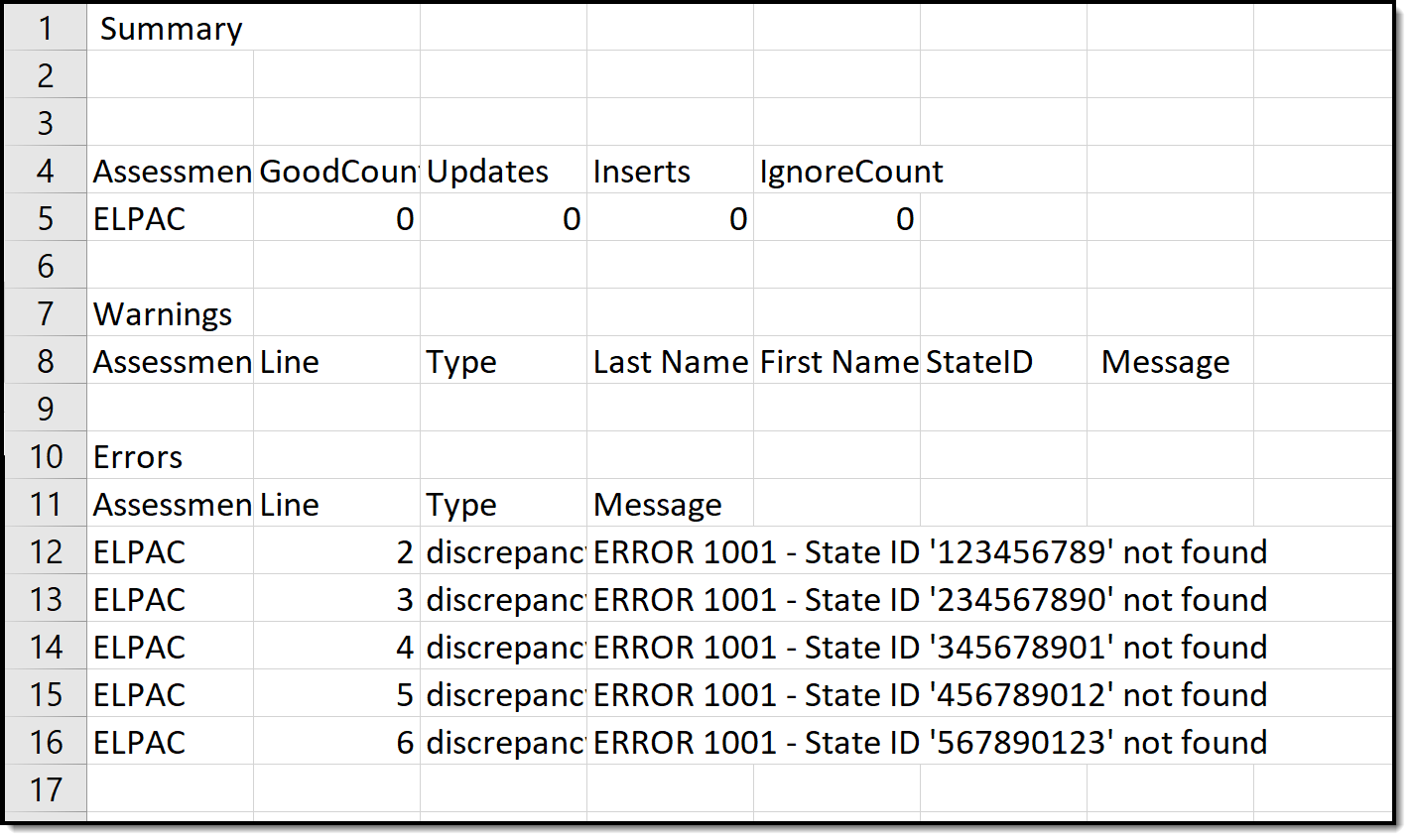 ELPAC Summary Import Results
Import Assessment Data for ELPAC Initial
- Select the appropriate ELPAC Initial options for the appropriate year as the Import Type.
- For the Work to Perform field, select Test or Import.
- In the Initial ELPAC - Overall 2018-2019, Initial ELPAC - Overall 2019-2020, Initial ELPAC - Overall 2020-2021, or Initial ELPAC - Overall 21-22/22-23, or Initial ELPAC - Overall 2024-2025 dropdown (depending on which import type is selected) , or Initial ELPAC - Overall 2025-2026, select either the Initial ELPAC - Overall option or the Import to newly created test setup. Or, when scores should not be imported, choose Do not import these assessments.
- When ELA Status should also be imported, mark the Import Initial ELPAC with ELA Status checkbox.
- Locate and choose the appropriate file to import. Follow the instructions on your screen for locating the file.
- Click the Run Import button. After creating any new test/assessment setups, refresh the screen. This adds the newly created Test Setup to the dropdown list.
- The system processes the import, and a Summary file of the imported data is displayed, listing any warnings or errors that may have occurred.
- Review the student's Assessment record for the newly imported scores.
Import Assessment Data for CAASPP
- Select the appropriate CAASPP option for the appropriate year as the Import Type.
- For the Work to Perform field, select Test or Import.
- For each CAASPP assessment, select either the assessment name or Import to the newly created test setup. Or, when scores should not be imported, choose Do not import these assessments.
- Locate and choose the appropriate file to import. Follow the instructions on your screen for locating the file.
- Click the Run Import button. After creating any new test/assessment setups, refresh the screen. This adds the newly created Test Setup to the dropdown list.
- The system processes the import, and a Summary file of the data imported displays, and lists any warnings or errors that may have occurred.
- Review the student's Assessment record for the newly imported scores.
Error and Warning Descriptions
The CAASPP Import tool follows the regular Assessment Center functionality for reporting errors and warnings. The following errors and/or warnings definitions apply here.
- Ambiguity – Multiple student matches found or multiple records in the source file for one student.
- Discrepancy – No match or partial match found.
- Exception – Invalid value or format of data to be imported OR a student is found who does not match the selected school(s) of the import. For these exceptions, error messages are returned indicating an invalid value for a specific field was found and the user is instructed on the appropriate format.
Reasons for Import Failures
An import immediately fails when any of the following are true:
- Import is missing the data file to be imported.
- Import encounters unexpected errors (details are listed in the error details).
- A test (parent or child) does not import unless at least one of the following fields contains a value:
- Test Type
- Scale Score
- Raw Score
- Result
Data Matching Errors
Data from the file being imported must exactly match the student to whom it is mapped. Matching is based on the student identifier selected for matching/mapping when the import is created.
The import returns an error when any of the following applies to the attempted match:
- Student identifier could not be found.
- First name does not match student identifier.
- Last name does not match student identifier.
- Date of birth does not match student identifier.
