Tool Search: Student Records Transfer
The Student Records Transfer tool allows districts to transfer integral student data electronically to other districts using the same regional or State Edition of Campus. The state or regional edition acts as the intermediary that facilitates the exchange process between districts.
This document contains information about how import wizards work for different types of student records data imports.
Records Transfer functionality varies from state to state.
See the Student Records Transfer Tool Rights article for information about tool rights needed to complete this process.
Data Import Wizards
Within the body of a released records transfer, users will have the option to directly import student records.
Using a Data Import Wizard may require the new district to adapt and map codes/values used by the former district to fit those of the new district. Users should be aware that running an Import Wizard more than once for the same student may produce duplicate records.
School/district's cannot access and import data via a Records Transfer request after 4 years have passed since the initial transfer request date. After four years, schools that would like to access and import an expired records transfer request will need to request a new records transfer.
The following Import Wizards are available in a release records transfer (as long as the student has records related to that type of Import Wizard):
- Transcript Import Wizard
- Extended Census Import Wizard
- Enrollment History Import Wizard
- Assessment Import Wizard
- Immunization Import Wizard
- Health Condition Import Wizard
- Health Screening Import Wizard
- IEP Import Wizard
- Special Education Evaluation Import Wizard
- Special Education Document Import Wizard
- DE Meeting Invite Import Wizard (Delaware Only)
- Special Education Summary Import Wizard
- PLP Import Wizard
- PLP Documents Import Wizard
- State Reporting Elements - Available in some states
- EL Import Wizard - Available on a state-by-state basis
The following tables are general representations of the fields available for import. Transfer results will vary, depending on the student's actual data. Users should expect to map elements that differ between districts.
Transcript Import Wizard
The following fields from the student's Transcript tab will transfer from the former district to the requesting district:
Montana Only: Transcript Session Type, Session Number, and Secondary Credit information is also transferred and saved upon import of transcript data via the Transcript Import Wizard.
Kentucky Only: Difficulty Level data is transferred and saved upon import of transcript data via the Transcript Import Wizard.
If the Default for Transfer preference is set on a transcript, this transcript is the default transcript sent when performing a records transfer via the National Records Exchange or Student Records Transfer. Only one transcript report per school can be marked as Default for Transfer.
Transcript History | ||
|---|---|---|
Actual Term |
End Term |
Score |
Attempted |
GPA Max |
Standard Name |
Bonus Points |
GPA Value |
Standard Number |
Comments |
GPA Weight |
Start Term |
Course Name |
Grade |
State Code |
Course Number |
Percent |
Terms Long |
Date |
School Import |
Transcript Credit |
District Number |
School Name |
Unweighted GPA Value |
Earned |
School Number |
SCED Subject Area This field is only available for states using SCED course codes. |
|
SCED Course Identifier This field is only available for states using SCED course codes. | |
Transcript data may be mapped and imported into the new district. Records may be saved as the names and numbers defined by the former district or as local names and numbers defined by the new district.
If a student has left and then returned to the same district, mark the "Don't Import" checkbox for each transcript correlating to enrollment records already in your system.
The print format must be defined. If more than one transcript exists for the calendar, the latest one (in database order) will be sent.
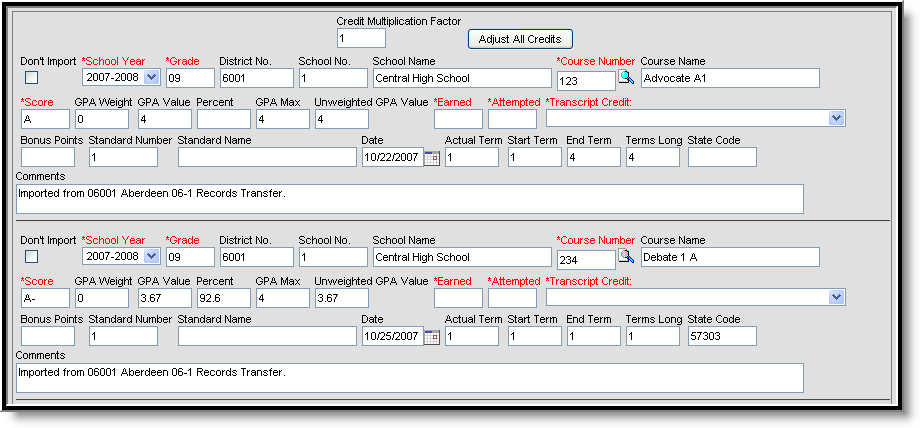 Transcript Import Wizard
Fields in red are required for the transcript entry to be properly saved to the student's record.
When transferring transcript records, the Earned and Attempted fields will be populated with data as entered on the Transcript tab.
If flagged, the Don't Import checkbox indicates that the selected transcript entry will not be imported as part of the student's transcript history.
When importing transcript information, districts will want to consider adjusting credit types, which may differ substantially between the exchanging districts. The Credit Multiplication Factor field and Adjust All Credits button can be used to mass-adjust credit amounts. Individual entries may also be adjusted.
Extended Census Import Wizard
The following fields from the student's Demographics tab will transfer.
Extended Census | |
|---|---|
Birth Country |
Date Entered US |
Date Entered US School |
Home Primary Language |
Birth Verification |
Nick Name |
Alternate Language |
|
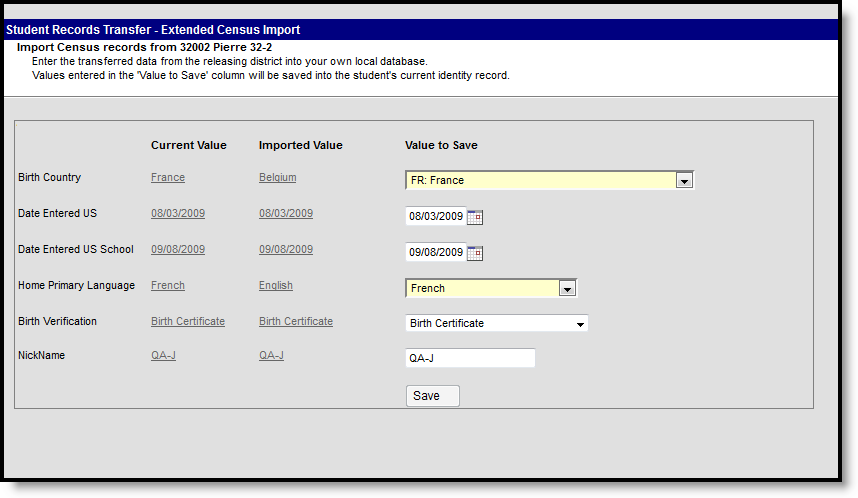 Extended Census Import Wizard
Enrollment History Import Wizard
The following fields from the student's Enrollments tab transfer when not null in the former district:
Enrollment History | ||
|---|---|---|
Calendar Name |
State End Status |
Start Date |
District Name |
Grade |
State Start Status |
End Comments |
Service Type |
End Action |
End Date |
Start Comments |
|
For Enrollment Statuses, the Local Start Status and Local End Status do not transfer; however, data in those fields are populated based on the receiving district's list of start and end statuses.
All historical enrollments recorded by the former district can be mapped and imported to the new district. This includes any out-of-district enrollments that were recorded in the former district.
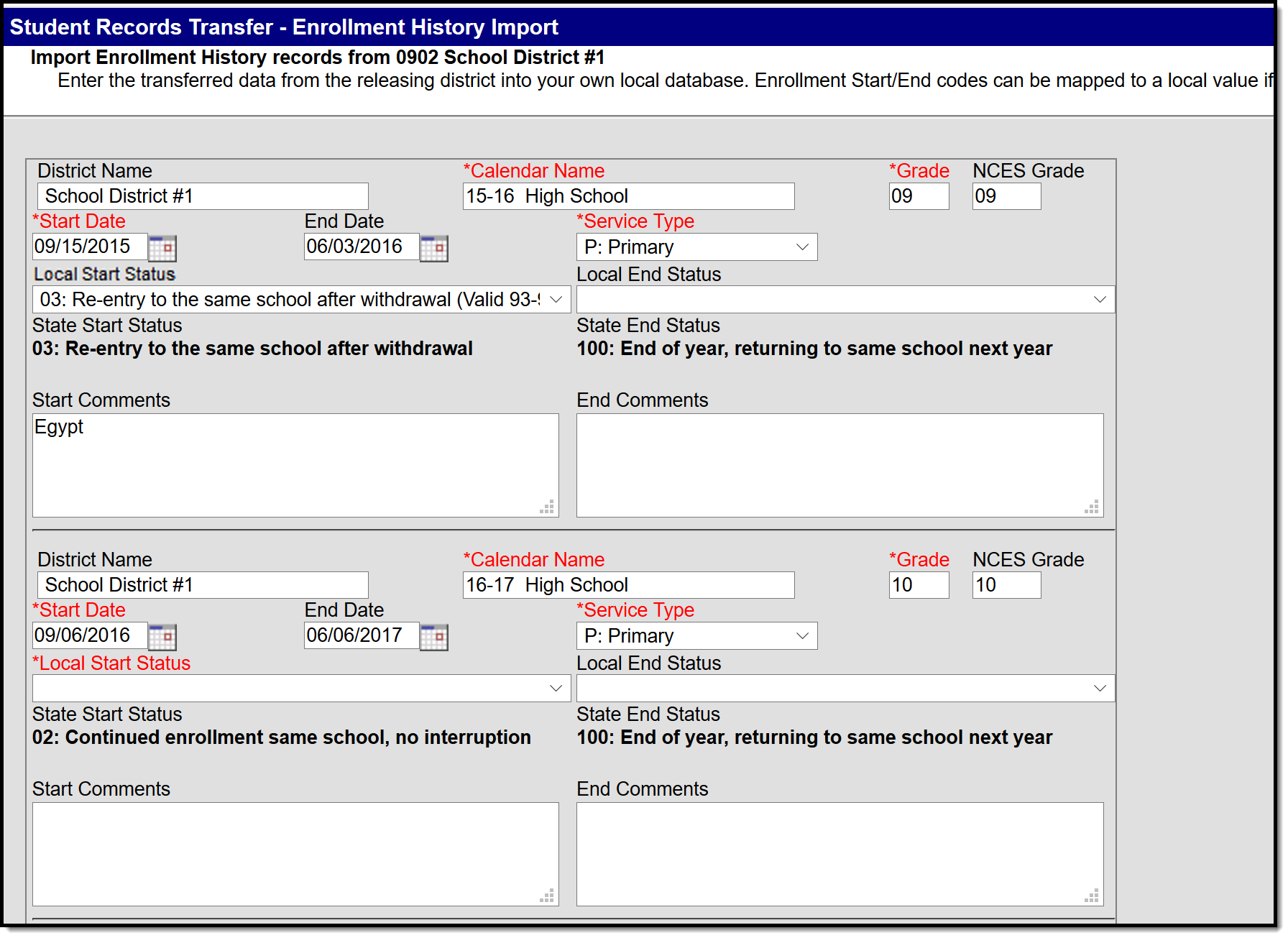 Enrollment History Import Wizard
When importing enrollment history information, users may need to enter Local Start and Local End Status codes. No graduation, state-reporting, special education or custom elements are included.
Fields in red are required for the record to properly save.
For Same State Transfers
| Local Start Status | Local End Status |
|---|---|
Local Start Status is not a required field when data is transferred, but it is required on the student's enrollment record.
Local Start Status populates based on the State Start Status transferred from the prior district.
If the receiving district has defined a Local Start Status in the Enrollment Status Mapping tool that meets the following requirements, the Local Start Status is populated with that value:
If there is no local code that meets the above requirements, the Local Start Status field displays blank. If the user saves the local enrollment Start Status with a blank value, the existing State Start Status must save to the database and displays on the student's enrollment record.
The Local Start Status on the enrollment history import remains available for selection to allow for a district override. If the district overrides the value, the State Start Status tied to the Local Start Status is saved. |
The Local End Status populates based on the State Status transferred from the prior district. If the receiving district has defined a Local End Status in the Enrollment Status Mapping tool that meets the following requirements, the Local End Status populates with that value:
If no local code meets the above requirements, the Local End Status field displays blank. If the user saves the local enrollment End Status with a blank value, the existing State End Status saves to the database and displays on the student's enrollment history record.
The Local End Status on the enrollment history import remains available for selection to allow for a district override. If the district overrides the value, the State End Status tied to the Local End Status is saved. |
For National Records Exchange - State A to State B
There are no data transfers in the Enrollment History Import Wizard. The existing state and local enrollment statuses are transferred via the PDF Enrollment History document.
For National Records Exchange and State Records Transfers
Local Start Status is not a required entry on the Import Wizard. However, it is still required on the student's Enrollment record. If a Local Start Status has not been provided, data imports with a blank Local Start Status and must be entered when any modification is made to the Enrollment record.
Assessment Import Wizard
At this time, Assessment records are not included as part of a National Records Exchange request. NRE users will only receive an assessment summary for the student.
The following fields from the student's Assessments tab will transfer when not null in the former district:
Assessments | ||
|---|---|---|
Comments |
Percent |
Result |
Date |
Percentile |
Scale Score |
Equivalent |
Question Count |
Test |
Normal Curve |
Raw Score |
|
Assessment information, including test scores, can be mapped and imported to the new district as long as the new district has already established the proper test structure.
The test structure MUST exist before the import can occur. It must be formatted in a manner appropriate to receiving the assessment information.
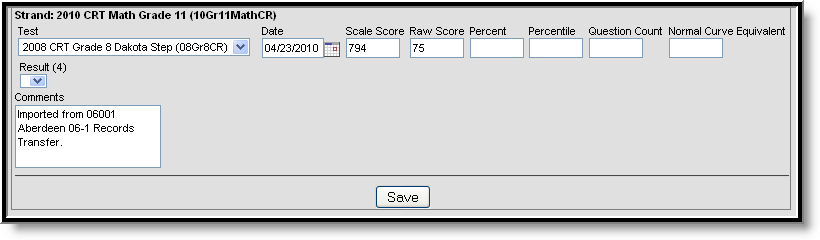 Assessment Import Wizard
The new district may not wish to import all tests results. Any time a test score should not be imported, the user can set the Test field value to Not Imported and the results will be excluded from the import.
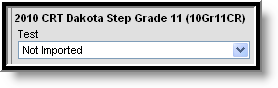 Excluding a Test from Import
Immunization Import Wizard
The following fields from the student's Immunization tab will transfer when not null in the former district:
Immunization Certificate | ||
|---|---|---|
Certificate Date |
Expiration Date |
Type |
| Vaccine | ||
Dose Date(Shot Date) |
Waiver Date |
Vaccine Name |
Waiver (Exemption) |
|
|
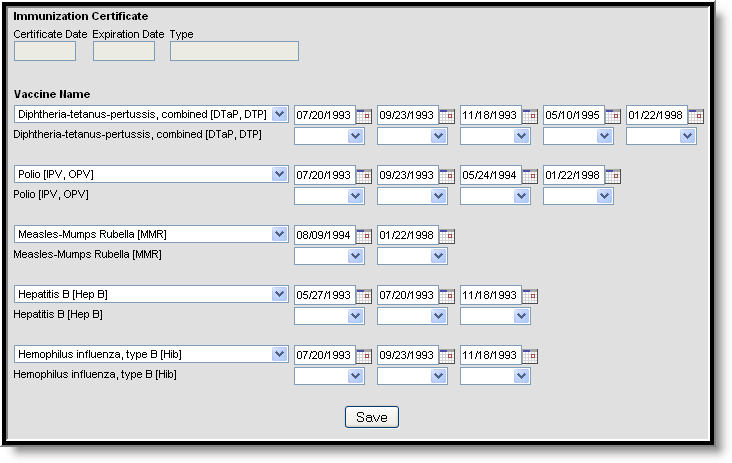 Immunization Import Wizard
Immunization certificates, vaccine names, shot dates and exemptions can be imported to the new district. In the Vaccine Name fields, the import wizard will display the vaccine it presumes to be the correct match.
Vaccine names are core fields in Campus and should not vary between districts; however, if necessary, the Vaccine Name field allows the user to specify the vaccine to which the record should be mapped.
When importing immunization data to a student that already has an existing Immunization Certificate record, the existing record is deleted and the new Immunization Certification is imported.
Health Condition Import Wizard
The following fields from the student's health Conditions tab will transfer when not null in the former district:
Health Conditions | ||
|---|---|---|
Code |
Doctor Name |
Initials |
Comments |
Doctor Phone |
Start Date |
Description |
End Date |
Status |
| Additional State-Specific fields such
as Auto Accident Related, Auto Accident State, etc. | ||
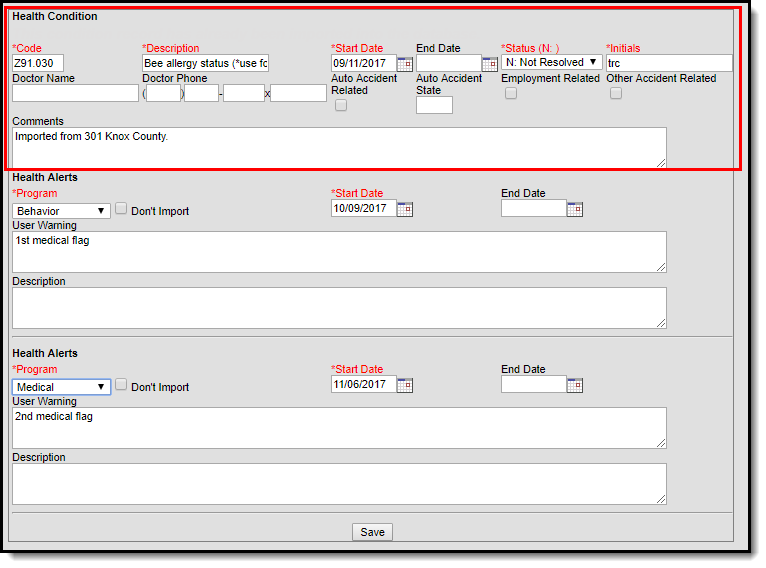 Health Conditions Import Wizard - Health Condition
For existing flagged Programs with a Program Type = Medical, the receiving district is allowed to import these records via the Health Alerts import section.
For programs that should not be imported, select the Program and mark the Don't Import checkbox.
The following Medical Programs values will be imported per selected program:
| Health Alerts | ||
|---|---|---|
| Program | Start Date | End Date |
| User Warning | Description | |
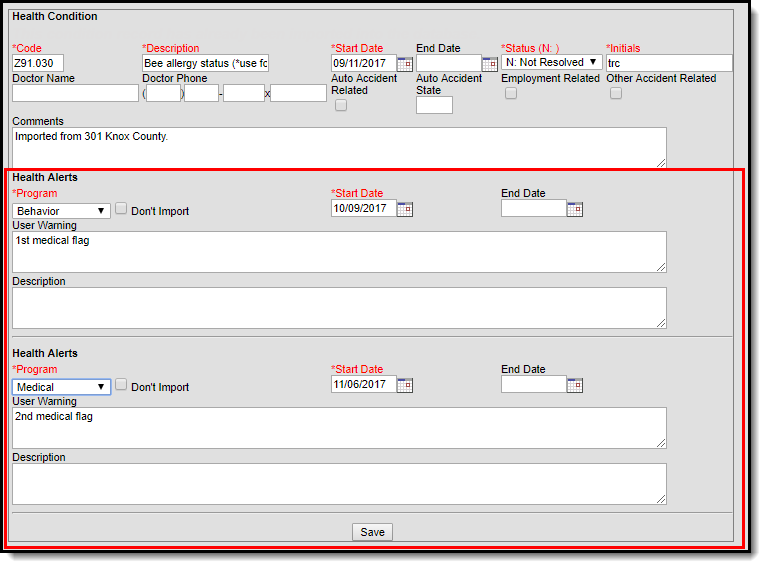 Health Conditions Import Wizard - Health Alerts
Fields in red are required for the record to properly save.
The health conditions and treatment records can be mapped and imported into the new district as desired.
Health Screening Import Wizard
The following data from the student's health Screenings tab will transfer when not null in the former district:
Health Screenings |
|---|
All data entered for a student in the health Screenings tab can be imported to the new district. Each screening type and associated field data will transfer. |
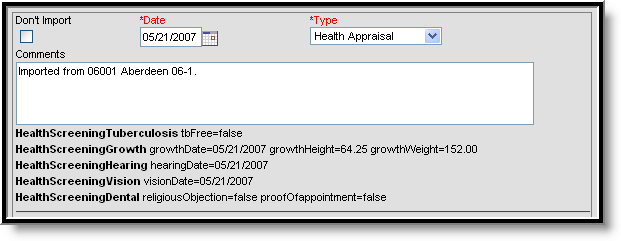 Health Screening Import Wizard
Fields in red are required for the record to properly save.
The text below the Comments field contains the screening information that will be imported to the student's Screening tab. If flagged, the Don't Import checkbox indicates that the selected screening entry will not be imported.
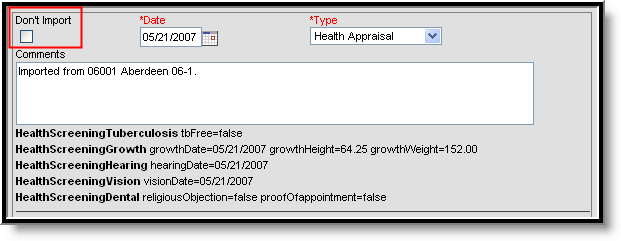 Health Screening Import Wizard - Don't Import Option
IEP Import Wizard
IEP data is pulled from the Plan folder of the Special Education Documents tab in the former district.
IEP Import |
|---|
The former district sends a student's most recent, active and locked IEP plan for importing in the new district database. All services related to the plan are included.
Bolded text indicates values sent from the former district. These values are NOT imported into the new district. |
If the plan should be imported as a PDF to the Forms section of the Documents tab, flag the Import as PDF only checkbox. When this box is flagged, the IEP will NOT be imported to the Plan area of the Documents tab and will NOT be editable.
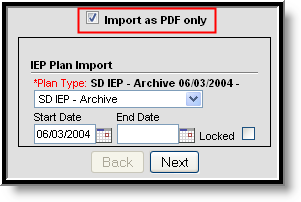 IEP Plan Import - Import as PDF Only
When importing the plan, the new district is required to map the Plan Type to a similar item within the district. The closest match is auto-selected upon import.
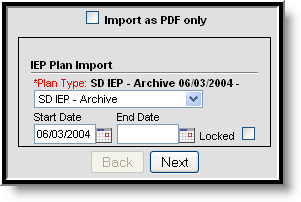 IEP Plan Import
The Start Date/End Date(s) are transferred from the former district and may be modified, as necessary.
The Locked checkbox should be flagged if the new district wants to import the plan in locked format so only an administrator with the proper tool rights can modify it.
Each Service associated with the plan will be included in the import. If the service should be imported, it must be mapped to a similar item within the district. If a service should not be imported, the Do Not Import the following service checkbox should be flagged.
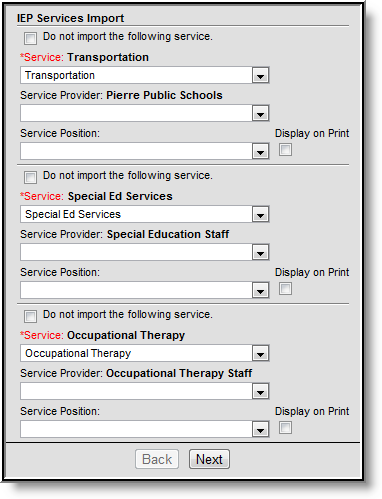 IEP Services Import
The Service Provider and Service Position fields may be mapped, as desired. The Display on Print checkbox should be flagged if the Service Position field should display when the plan is printed in lieu of the Service Provider’s name.
After importing, the transferred IEP will appear in the Plans section of the current school year on the student's Documents tab.
 Plans Section of the Documents tab
If a document that has the same name as a document already in the system is imported, the Student Records Transfer compares the last modified date on the form. Several import options are available:
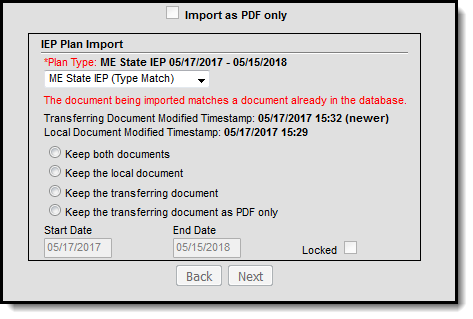 Import Comparison Options Special Education Evaluation Import Wizard
 Import Comparison Options
Evaluation data is pulled from the Evaluations folder of the Special Education Documents tool in the former district.
Kentucky Only: The KY Consent to Evaluation and KY Referral documents do NOT transfer using this import tool; instead, they are imported through the Special Ed Documents as read-only PDF documents.
Evaluation Import |
|---|
The former district sends the student's most current special education evaluation.
Bolded text indicates values sent from the former district. These values are NOT imported into the new district. |
If the plan should be imported as a PDF to the Forms section of the Documents tool, flag the Import as PDF only checkbox. When this box is flagged, the IEP will be NOT be imported to the Plan area of the Documents tab and will NOT be editable.
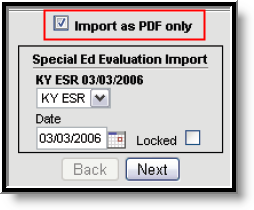 Special Ed Evaluation Import
When importing, the new district is required to map the evaluation to a similar item within the district. When an evaluation is mapped, all data will transfer, provided the proper editors are enabled for that evaluation in the new district (System Administration > Special Education > Eval Types).
The evaluation Date is transferred from the former district and may be modified, as necessary.
The Locked checkbox should be flagged if the new district would like the import the evaluation in locked format so only an administrator with the proper tool rights can modify it.
After importing, the transferred evaluation will appear in the Evaluations section of the current school year on the student's Documents tab.
 Locked Evaluation on the Documents Tab
If a document that has the same name as a document already in the system is imported, the Student Records Transfer compares the last modified date on the form. Several import options are available:
Import Comparison OptionsSpecial Education Documents Import Wizard
All existing materials are transferred from the Special Education Documents tab in the old district.
SPED Documents Import |
|---|
The former district sends ALL existing special education documents related to the student, including any documents stored in the Plans, Evaluations, Forms, Uploaded Forms, Progress Reports and historical folders.
The most recent, locked IEP plan and evaluation are transferred in separate import wizards and not through this import. |
Users have the option to exclude documents from the import process by flagging the Do not import the following document checkbox, as necessary.
The Name must be designated for all import documents. The original name will display as transferred from the former district.
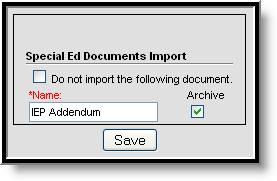 Special Ed Documents Import
After importing, transferred documents will be uploaded to the appropriate folder on the student's Documents tool within the current school year.
 Other Documents on the Documents tab
If a document that has the same name as a document already in the system is imported, the Student Records Transfer compares the last modified date on the form. Several import options are available:
Import Comparison OptionsSpecial Education Summary Import Wizard
The most recent State Reported and Data Entry record from the Special Education Summary tool transfers as live, editable data. The only fields that apply are Start Date, End Date, and Special Ed Setting.
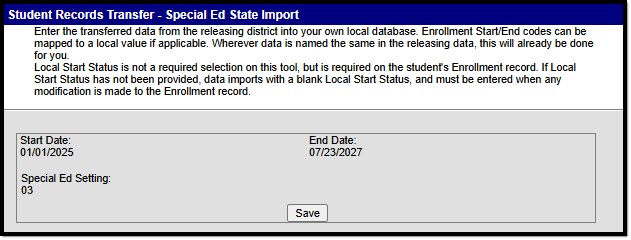 Special Education Summary Import Wizard
Click Save to import the Special Education Summary record.
PLP Plan Import Wizard
PLP data is pulled from the Plan folder of the PLP Documents tab in the old district.
PLP Plan Import |
|---|
The former district sends a student’s most recent, active, and locked PLP plan for import into the new district database. The plan includes all related services.
Bold text indicates values sent from the former district. These values are NOT imported into the new district. |
If the plan should be imported as a PDF to the Forms section of the Documents tab, flag the Import as PDF only checkbox. When this box is flagged, the PLP will be NOT be imported to the Plan area of the Documents tab and will NOT be editable.
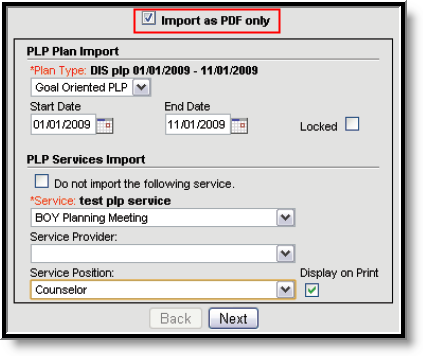 PLP Plan Import Wizard
When importing the plan, the new district is required to map the Plan Type to a similar item within the district. The closest match is auto-selected upon import.
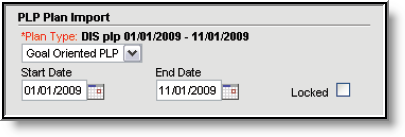 PLP Plan Import
The Start Date/End Date(s) are transferred from the former district and may be modified, as necessary.
The Locked checkbox should be flagged if the new district would like the import the plan in locked format so only an administrator with the proper tool rights can modify it.
Each Service associated with the plan will be included in the import. If the service should be imported, it must be mapped to a similar item within the district. If a service should not be imported, the Do Not Import the following service checkbox should be flagged.
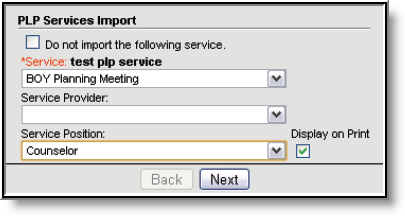 PLP Services Import
The Service Provider and Service Position fields may be mapped, as desired. The Display on Print checkbox should be flagged if the Service Position field should display when the plan is printed in lieu of the Service Provider’s name.
After importing, the transferred PLP will appear in the Plans section of the current school year on the student's Documents tab.
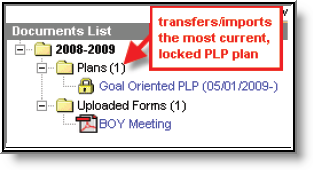 Locked Plans on the PLP Documents Tab
If a document is imported that has the same name as a document already in the system, the Student Records Transfer compares the last modified date on the form. Several import options are available:
Import Comparison OptionsPLP Documents Import Wizard
All existing materials are transferred from the PLP Documents tab in the former district.
PLP Documents Import |
|---|
The former district sends ALL existing PLP documents related to the student, including any documents stored in the Plans, Forms, Uploaded Forms and historical folders.
The most recent, locked PLP plan in transferred in a separate import wizard and not through this import. |
Users have the option to exclude documents from the import process by flagging the Do not import the following document checkbox, as necessary.
A Name must be designated for all import documents. The original name will display as transferred from the former district.
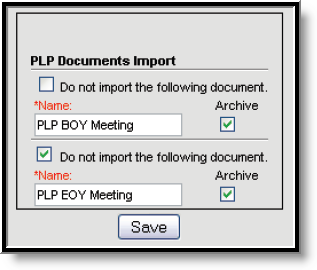 PLP Documents Import
After importing, transferred documents will upload to the appropriate folder within the current school year on the student's Documents tab.
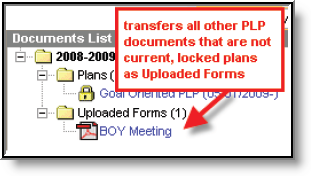 Other Documents on the PLP Documents Tab
EL Import Wizard
Available on a state-by-state basis
The following fields from the student's EL tab will transfer from the former district to the requesting district:
EL Import | ||
|---|---|---|
Program Status |
Identified Date |
Expected Exit Date |
Program Exit Date |
Parent Notified |
Parent Declined |
The EL Import wizard is a read-only editor displaying the student's current EL record information. Review the data and select the Save button to save the EL record to the database. The district who released the record is displayed in the Comments field.
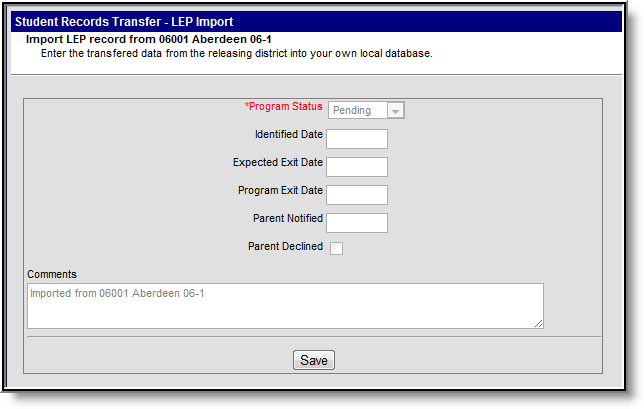 EL Import
If the imported EL record is still active, it will remain active within the district that imported it.
Records Transfer Objects Table
The following table provides information on the recordsTransfer table.
The former district cannot preview or control which records are sent in the transfer. In addition, after a record is requested or released, it cannot be canceled.
Description |
Transfer Objects |
|---|---|
Information about the specific transfer request |
|
Information about the district and user requesting the records |
|
Comparison of the student's state ID and person IDs at all levels (both districts and state) |
|
Basic student information |
|
Information about the district and user releasing the records |
|
The student records transferred when released
|
|
Exchange information |
|
All items are not applicable to all states.
