Tool Search: Scheduling Board
The Scheduling Board provides a visual representation of a school's overall schedule. Users can easily view the schedule as it is being built in real-time, along with any conflicts involving teachers and rooms. Course sections can be dragged and dropped onto the schedule grid, and if needed, those sections can be moved around to other terms and periods, or removed completely. Within this one tool, schedulers can build and unbuild courses, load and unload course sections, lock section rosters, plan schedules to meet staff restrictions, and much more.
The Scheduling Board improves upon previous technology and functions available with the Schedule Wizard. The Scheduling Board is accessible without logging in to another tool or applet. As long as access is granted through tool rights, access to the Scheduling Board is available.
Opening the Scheduling Board first requires selecting a Scheduling Board Trial, which is accessible from the Scheduling Board tool.
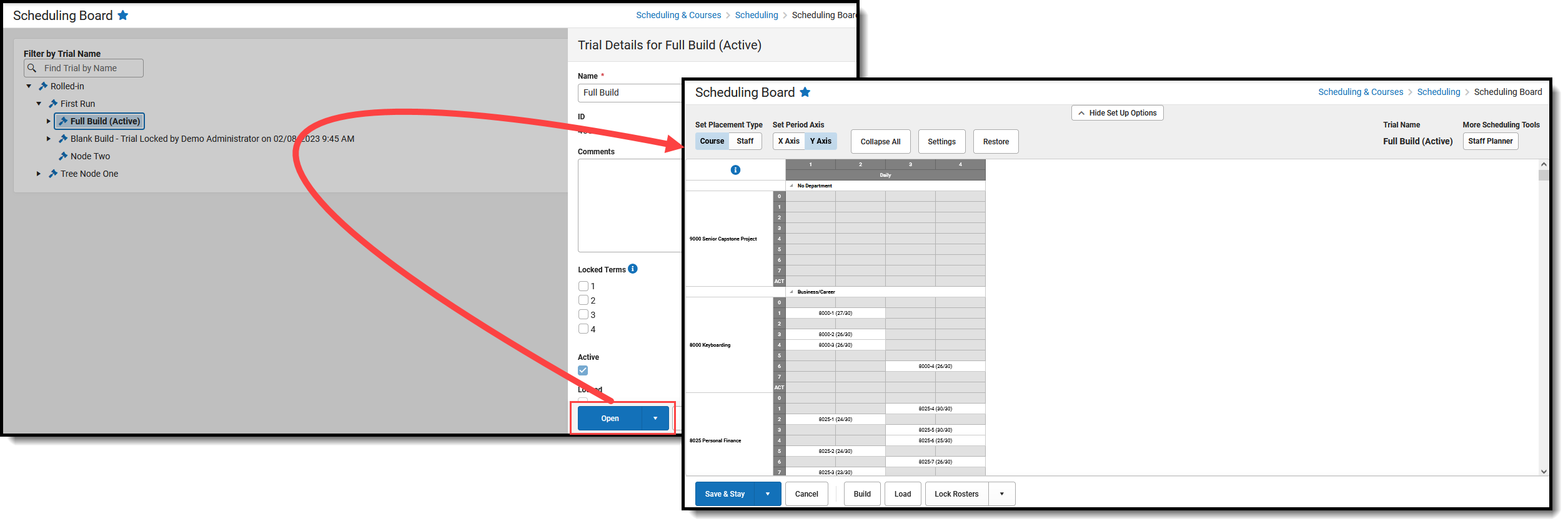
Select Trial to Open Scheduling Board
See the Scheduling Board Tool Rights article for information on available tool rights for Scheduling Board and Scheduling Board Trials.
Scheduling Timeline
Refer to the Checklist of Scheduling to stay on top of all tasks that need to be done for a successful scheduling season. Additionally, the Scheduling Center can be used to stay on top of tasks throughout the scheduling season.
It is time to use the Scheduling Board when:
- The next School Year has been created.
- Calendars have been rolled forward, and calendar start and end dates have been updated.
- The grade levels for the school have been reviewed.
- Calendar Schedule Structures, Terms, and Periods have been updated.
- Calendar Days have been set.
- Enrollments for the next school year have been rolled forward.
- Students have requested courses for the next school year.
Best Practices
Complete all scheduling work in the Scheduling Board BEFORE the start of the school year. Once the school year starts, changes to courses, sections, and student schedules should be made at the course, section, or student level.
When the desired trial for the next school year is made active, remove access to the Scheduling Board. This prevents unintended changes to courses, sections, etc.
Security and Data Precautions
- Limit the number of users per school who have access to the Scheduling Board. Once scheduling has been completed for the year, remove access to the tool.
- Districts that use OneRoster connections to sync to other systems, including Campus' Digital Learning Partners, should NOT use the Scheduling Board at any point after their data has been synced during that school year. Districts should not sync with OneRoster vendors at the beginning of the school year until student scheduling is finalized. Syncing before finalizing scheduling may result in data issues for OneRoster vendors, such as duplicate class records or loss of class data.
- Using the Scheduling Board after the start of a term can result in the loss of section rosters. Schedule changes should be made at the student level through the Walk-In Scheduler and NOT in the Scheduling Board.
Kentucky Districts
After using the Scheduling Board, rerun the Attendance Refresh tool.
Next Steps
- Review the Scheduling Center and the Checklist for Scheduling to see tasks that need to be completed for scheduling.
- Try the new Scheduling Board Trials and Scheduling Board to build courses and load schedules for the next school year!
