Tool Search: Meetings
The guidance provided below is for Foster Care Meetings only. Please see the Homeless Meetings (Delaware) for more information on Homeless Meetings.
NOTE: Before a meeting can be saved, it is important to note that ALL required fields in ALL sections for the meeting have been entered with data.
 Foster Care Meeting Information Editor
Foster Care Meeting Information Fields
| Field | Guidance |
|---|---|
| Module Required | Use the Module drop-list to select Foster Care. |
| Type of Meeting Required | The Type of Meeting drop-list is used to select the purpose of the meeting. Once the Foster Care module is selected, users may only select meeting types related to Foster Care. |
| Start Date and Time | This field is used to enter the date and time at which the meeting started. |
| End Date and Time | In this field, enter the date and time at which the meeting ended. |
| Title Required | Enter a Title for the meeting. The Title name may not exceed 100 characters. |
| Meeting Format | Use the Meeting Format to select the format in which the meeting was conducted: In-Person or Virtual. |
| Location | The Location drop-list is used to select the location at which the meeting occurred. |
| Requested By Required | Use this drop-list to select the person, or persons, who requested the meeting. Users must enter at least one name. To remove a person from this list after selection, click the X by their name. If the person requesting the meeting does not appear in the list, use the Other Requested By field to manually type in the appropriate name(s). |
| Purpose Required | Use the Purpose drop-list to select the purpose for the meeting. Only one item from the drop-list may be selected. If the purpose of the meeting does not appear in the drop-list, or the meeting has multiple purposes, use the Other Purpose field to manually type in these purposes. A purpose for the meeting must appear in either the drop-list field or the manual section. A meeting cannot be saved without a purpose. |
| Outcome Required | Use the Outcome drop-list to select the outcome of the meeting. Only one item from the drop-list may be selected. If the outcome of the meeting does not appear in the drop-list, or the meeting has multiple outcomes, use the Other Outcome field to manually type in these outcomes. An Outcome for the meeting must appear in either the drop-list field or the manual section. A meeting cannot be saved without an outcome. |
State Defined Elements
The State Defined Elements fields allow users to make changes specific to the state.
 Meetings State Defined Elements
| Field | Guidance |
|---|---|
| School of Origin Transportation | This field is not used for state reporting. |
| Date of Placement Change | Enter the date on which foster care placement for the student changed. |
| School to Attend | Use the drop-list to select the school the student will attend. |
Required Attendees
Use these fields to enter all required attendees for the Foster Care Meeting.
 Meetings Required Attendees Editor
| Field/Name/Role/Title | Guidance |
|---|---|
| Birth Parent(s), Guardian(s), Relative Caregiver Required | In the Name field, use the drop-list to select a Birth Parent, Guardian, or Relative Caregiver for the student. Only one name may be chosen. To add additional people to this meeting role, add them through the Attendees option. Only persons with Birth Parent, Guardian, or Relative Caregiver status linked to the student display in this list. Use the Invited and Attended checkboxes to record if the person was invited to the meeting and if they attended the meeting. A checked box indicates the person was invited or attended. If the person disagrees with the determination, mark the Disagrees with Determination checkbox. If this box is checked, you MUST enter the reason for disagreement in the I disagree with the determination because field. |
| Representative of DSCYF Required | In the Name field, type in the name of the Representative of DSCYF. Only one name may be added. To add additional people to this meeting role, add them through the Attendees option. Use the Invited and Attended checkboxes to record if the person was invited to the meeting and if they attended the meeting. A checked box indicates the person was invited or attended. If the person disagrees with the determination, mark the Disagrees with Determination checkbox. If this box is checked, you MUST enter the reason for disagreement in the I disagree with the determination because field. |
| Education Decision Maker Required | In the Name field, type in the name of the Education Decision Maker. Only one name may be added. To add additional people to this meeting role, add them through the Attendees option. Use the Invited and Attended checkboxes to record if the person was invited to the meeting and if they attended the meeting. A checked box indicates the person was invited or attended. If the person disagrees with the determination, mark the Disagrees with Determination checkbox. If this box is checked, you MUST enter the reason for disagreement in the I disagree with the determination because field. |
| Representative of the School of Origin Required | In the Name field, type in the name of the Representative of the School of Origin. Only one name may be added. To add additional people to this meeting role, add them through the Attendees option. Use the Invited and Attended checkboxes to record if the person was invited to the meeting and if they attended the meeting. A checked box indicates the person was invited or attended. If the person disagrees with the determination, mark the Disagrees with Determination checkbox. If this box is checked, you MUST enter the reason for disagreement in the I disagree with the determination because field. |
| Representative of the School of Residence Required | In the Name field, type in the name of the Representative of the School of Residence. Only one name may be added. To add additional people to this meeting role, add them through the Attendees option. Use the Invited and Attended checkboxes to record if the person was invited to the meeting and if they attended the meeting. A checked box indicates the person was invited or attended. If the person disagrees with the determination, mark the Disagrees with Determination checkbox. If this box is checked, you MUST enter the reason for disagreement in the I disagree with the determination because field. |
| Student Required | In the Name field, the name of the Student displays. This may not be edited. To add additional students to this meeting role, add them through the Attendees option. Use the Invited and Attended checkboxes to record if the student was invited to the meeting and if they attended the meeting. A checked box indicates the sudent was invited or attended. If the student disagrees with the determination, mark the Disagrees with Determination checkbox. If this box is checked, you MUST enter the reason for disagreement in the I disagree with the determination because field. |
Attendees
Use the Attendees section to add any additional Attendees not covered in the Required Attendees section.
 Meetings Attendees Editor
| Field | Guidance |
|---|---|
| Name | The Name of the added attendee displays in this column. |
| Role/Title | Use the Role/Title drop-list to select the attendee's role or title. |
| Attended | Mark this option to indicate the person Attended the meeting. Leave the option unchecked if the person did not attend. |
| Invited | Mark this option to indicate the person was Invited to the meeting. Leave the option unchecked if the person was not invited. |
| Remove | Press Remove to remove the person from the list of Attendees. |
Adding an Attendee
To add additional attendees to a meeting, use the Attendees section.
- Press the Add button to search for an attendee.
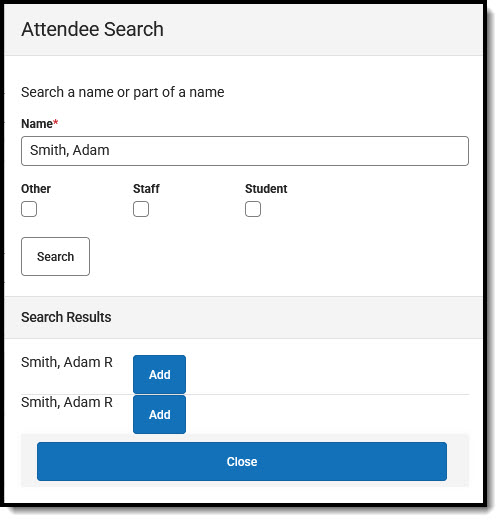 Attendee Search
 - In the Name field, enter the name of the Attendee, or partial name, of the person for whom you're searching.
- Use the Other, Staff, and Student checkboxes to further narrow your search. Depending on the checked boxes, search results will filter out any names not fitting the criteria. If there are no marked checkboxes, all people are included in the search results.
- Once finished, press Search. A list of Search Results displays.
- From the list, find the person you'd like to add and press the Add button next to their name.
- People not in the database (those who do not appear in the search results) cannot be added to the meeting.
- When finished, press Close.
Removing an Attendee
This option allows users to remove any additional attendees who were added to the meeting.
- Find the Attendee you'd like to remove and press Remove.
- The attendee is removed from the meeting.
NOTE: There is no deletion confirmation, so be sure you are removing to appropriate attendee before pressing Remove.
Agenda
If there are any additional agenda items for the meeting, users may enter them here. This is not required.
 Meetings Agenda Editor
Use the Agenda section to type in any additional agenda items. Users may use the toolbar to format their notes.
Notes
This section allows users to add any additional notes for the meeting. This is not required.
 Meetings Notes Editor
Use the Notes section to type in any additional meeting notes. Users may use the toolbar to format their notes.
Saving a Meeting
Before a meeting can be saved, it is important to note that ALL required fields in ALL sections for the meeting have been entered with data.
Press Save to save the meeting.
Deleting a Meeting
Meetings can be deleting by opening the meeting you'd like to remove.
- From the Meetings Dashboard, find the meeting you'd like to remove and press View.
- Once the meeting details are displayed, press Delete. At the prompt, press Delete to remove the meeting or Keep to cancel the deletion of the meeting.
