Path: Reporting > Ed-Fi
This article describes the steps you should take in order to set up an Ed-Fi Configuration for the 2026-27 school year in Tennessee.
Step 1. Update to the most recent version of Campus
In order to have the schema and logic in place, it is critical to update to the most recent version of Campus. Failure to do this will result in an inability to properly report data for the current 2026-2027 school year.
Step 2. Enable Ed-Fi functionality
Enable Ed-Fi functionality via the Enable Ed-Fi system preference (System Settings > System Preferences > System Preferences) if not already done.
- Yes = Ed-Fi functionality is enabled and Ed-Fi data will sync from Campus to the Ed-Fi system (if properly enabled via Ed-Fi Configuration tools).
Tools Only = You are able to fill out Ed-Fi fields (such as Ed-Fi ID) within Campus but this data will not sync to the Ed-Fi system until this field is set to Yes. This is especially useful when setting up Ed-Fi IDs for students within a school or district so that data properly syncs between Campus and Ed-Fi prior to enabling it.
No = Ed-Fi functionality is not enabled for the district and users cannot access Ed-Fi tools within Campus.
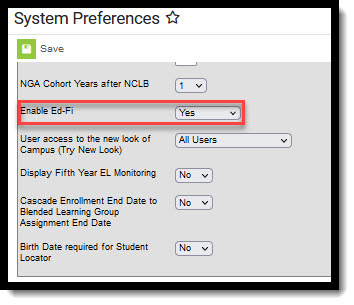 System Preferences
Step 3. Create a new Ed-Fi Configuration for 2026-2027
Create a new Ed-Fi configuration for the 2026-2027 school year.
 Connection Detail
To do this:

- Navigate to the Ed-Fi Connection Configuration tool.
- Reporting > Ed-Fi > Ed-Fi Configuration > Connection
- Select New.
- Select the Connection Type as State.
- Enter a Connection Name.
- Select a School Year.
Enter the following values:
Field Value Ed-Fi Connection Type State O-Auth URL https://edfi-ods-api.tneducation.net/v7/2027 API URL https://edfi-ods-api-tneducation.net/v7/2027 Post-Amble /data/v3/ ID Post0Amble /identity/v2/ Timeout in Seconds This field defaults to a value of 60 seconds and determines (in seconds) the amount of time allowed to pass before the connection between Campus and Ed-Fi is considered timed out and Ed-Fi events are not processed. These Ed-Fi events are then re-processed the next time a quartz job runs. Client Key The Client Key will be provided by the Tennessee Department of Education. Client Secret The Client Secret will be provided by the Tennessee Department of Education. - If desired, a certificate can be imported for the Ed-Fi configuration. For more information, please see the 'Import Certificates' section of the Ed-Fi Configuration article.
- Click the Save button.
Step 4. Set Ed-Fi Tool Rights
Set the appropriate Ed-Fi tool rights for users. Review the Ed-Fi Tool Rights article for more information.
 Ed-Fi Tool Rights
Step 5. Update the active year to 2026-27
Next, set 2026-27 as the active school year within the School Years tool. If you have already set 2026-27 as the active school year, skip to Step 6.
 School Year Setup
Step 6. Set Resource Preferences
Set all Resources to 'Off' and map the Ed-Fi Codes to Campus Codes via the Resource Preferences in:
- Reporting > Ed-Fi > Ed-Fi Configuration > Resource Preferences
Step 7. Assign Ed-Fi IDs
Assign Student Ed-Fi IDs via Census > People > Demographics > Person Identifiers. See the Enter Ed-Fi ID article for more information.
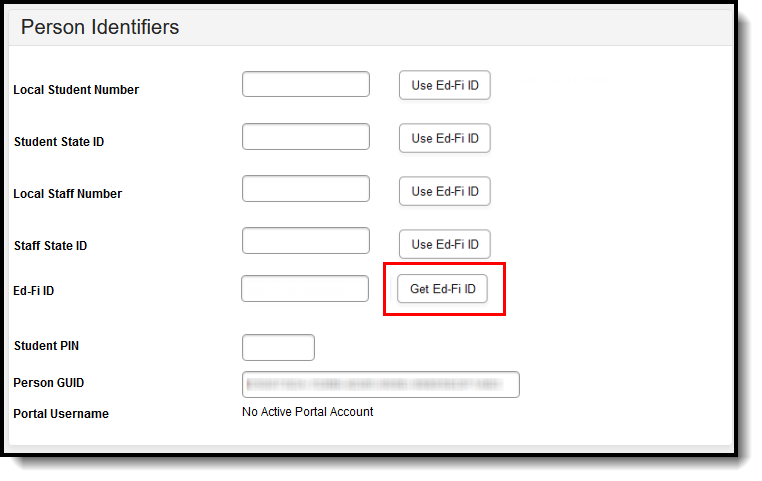 Person Identifiers - Ed-Fi ID
Step 8. Toggle Resource Preferences to on
Toggle Resources to 'On' in Resource Preferences once all data setup is complete.
- Reporting > Ed-Fi > Ed-Fi Configuration > Resource Preferences
Step 9. Perform an Ed-Fi Resync for the 2026-2027 scope year
Now that the 2026-27 Ed-Fi configuration is in place and data has been properly reviewed, an ordered resync should be completed as the first resync of the year. This is completed using the Resync tool.
 Ed-Fi ResyncTo do this:
- Go the Resync tool.
- Reporting > Ed-Fi > Ed-Fi Resync
Select the appropriate Configuration.
Select the resources to resync.
Once data sets have been marked and you are ready to resync, select the Start Resync button.
Step 10. Review the Event Queue
Navigate to the Event Queue. Wait until all records have been processed in the Event Queue (when it reads “0 records total” as seen below). Once there are no events in the Event Queue, turn off all Resource Preferences.
- Reporting > Ed-Fi > Ed-Fi Event Queue
 Event Queue
Step 11. Review the Error Log
Navigate to the Error Log. Review the Error Log and note any errors that exist. When you feel like you’ve addressed all of the underlying causes for the errors, click “Archive All Entries” on the Error Log tab (which will remove them from the list) and return to Step 9, retrying the resync of data.
- Reporting > Ed-Fi > Ed-Fi Error Log
 Ed-Fi Error Log
