Tool Search: System Settings > Data Utilities > Split Student Wizard
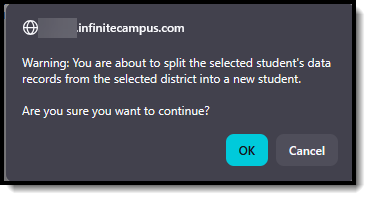
The Split Student Wizard is a data utility tool that allows you to separate a student's records when they have been enrolled in multiple districts. When you "split" a student, you create a new student record and move all data from one specific district to that new record, while the original student keeps data from all other districts.
When to use this tool
- Duplicate Student Records - Two different students were accidentally combined into one person record. For example, John Smith from District A and a different John Smith from District B were merged together.
- Incorrect Multi-District Enrollment - A student was incorrectly enrolled in multiple districts under the same person record when they should have been separate students.
- Data Cleanup - During data migration or consolidation, records need to be separated to maintain accurate district-specific student information.
Before you start
Before using the tool, ensure the following:
- The student exists in the system
- The student has enrollment records in at least two different districts
- The district you want to split off to exists in the system
- The student has at least one enrollment record in the selected district
Do NOT use this tool if:
- The student legitimately attended multiple districts and should have a unified record
- You're trying to fix enrollment dates or school assignments
- The student only has one district enrollment
- You're unsure whether the records should be separated
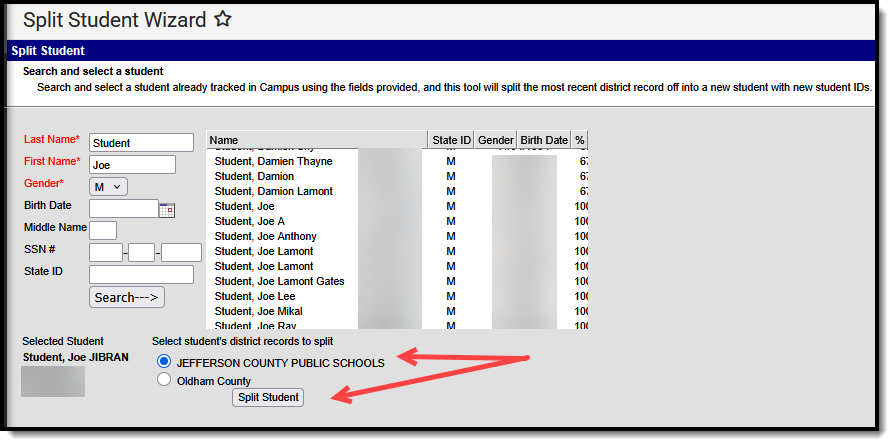
Search for and split a student
To split a student, you must first search for and locate them:
|
   |
What happens during a split?
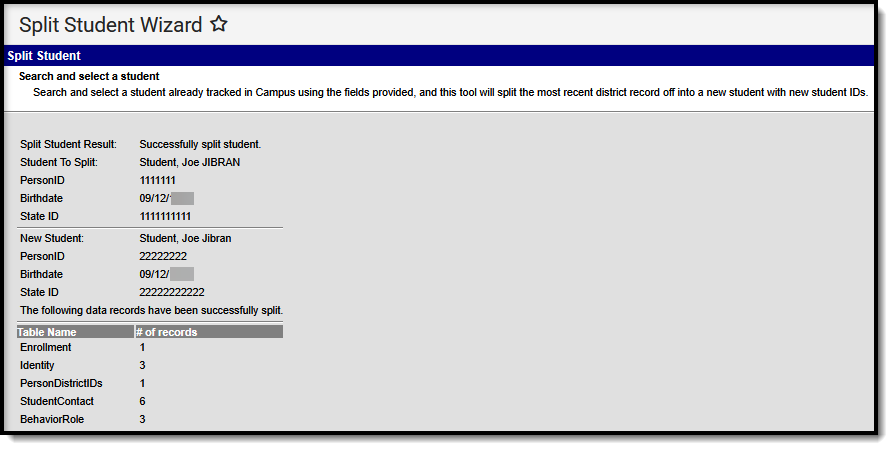
When you split a student, the system performs these actions:
| Action | Description |
|---|---|
| Creates New Person | A brand new person record is created with a new PersonID and State ID |
| Moves Enrollments | All enrollment records from the selected district are moved to the new student |
| Moves Related Data | All district-specific data (grades, attendance, contacts, etc.) is moved |
| Updates Identities | Identity records for the selected district are moved to the new student |
| Preserves Original | The original student keeps all records from other districts |
Data tables affected
The following types of records are moved to the new student for the selected district:
- Enrollment Data: Enrollment, EnrollmentHistory, CustomStudent
- Contact Information: ContactLog, StudentContact
- Academic Records: TestScore, Evaluation
- Programs: ProgramParticipation, Plan, PlanGuardian, PlanProgressReport
- Behavior: BehaviorRole
- Identity: Identity, PersonDistrictIDs
- Documents: DocumentFile
- Employment: Employment, EmploymentAssignment
- System: UserAccount, TeamMember
