The OLR Setup tool determines which configuration is available for application entry, which configuration displays in the Campus Portal, and which school year's applications can be submitted.
The OLR System Settings sets specific rules concerning Online Registration applications and processes.
This article provides information on the recommended tool rights for OLR Setup and OLR System Settings.
OLR Setup
At least one Configuration Group must exist in the same year as the current active year in Campus for OLR to properly determine whether a person is an active student.
See the OLR Setup article for information on using that tool.
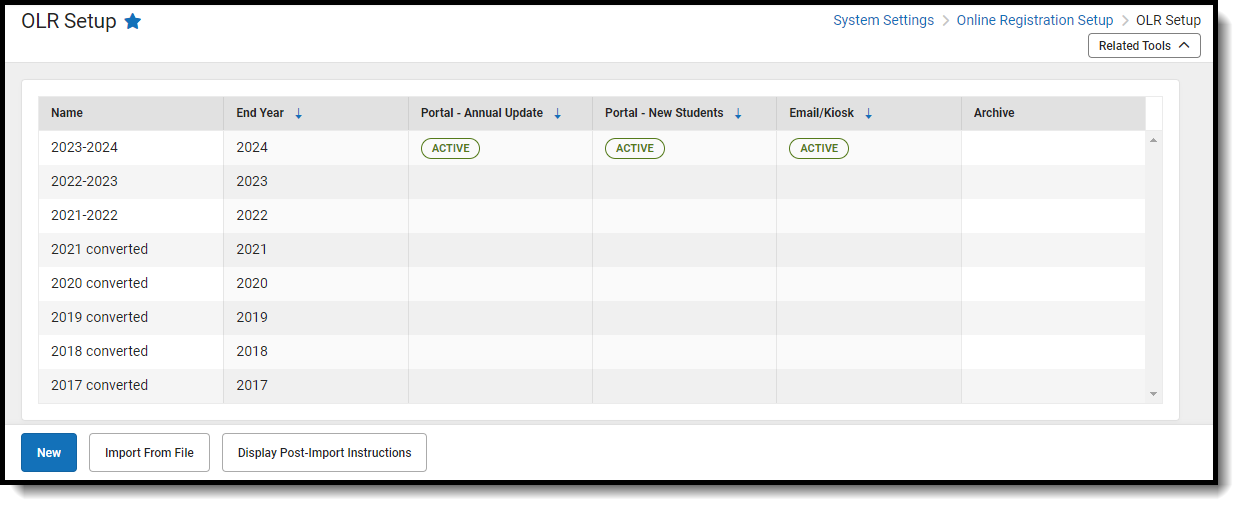
For full access to the OLR Setup tool, users need Read rights to OLR System Settings to view the details of the selected configuration year and Read, Write, Add rights to Custom Tool Setup to use the Export to File option.
Available Tool Rights
| R | W | A | D |
|---|---|---|---|
|
|
|
NOTE: Deleting a configuration year can be done only when there are zero applications associated with it. |
OLR System Settings
OLR System Settings set specific rules concerning Online Registration applications and processes for the selected configuration year.
See the OLR System Settings article for information on using the tool.
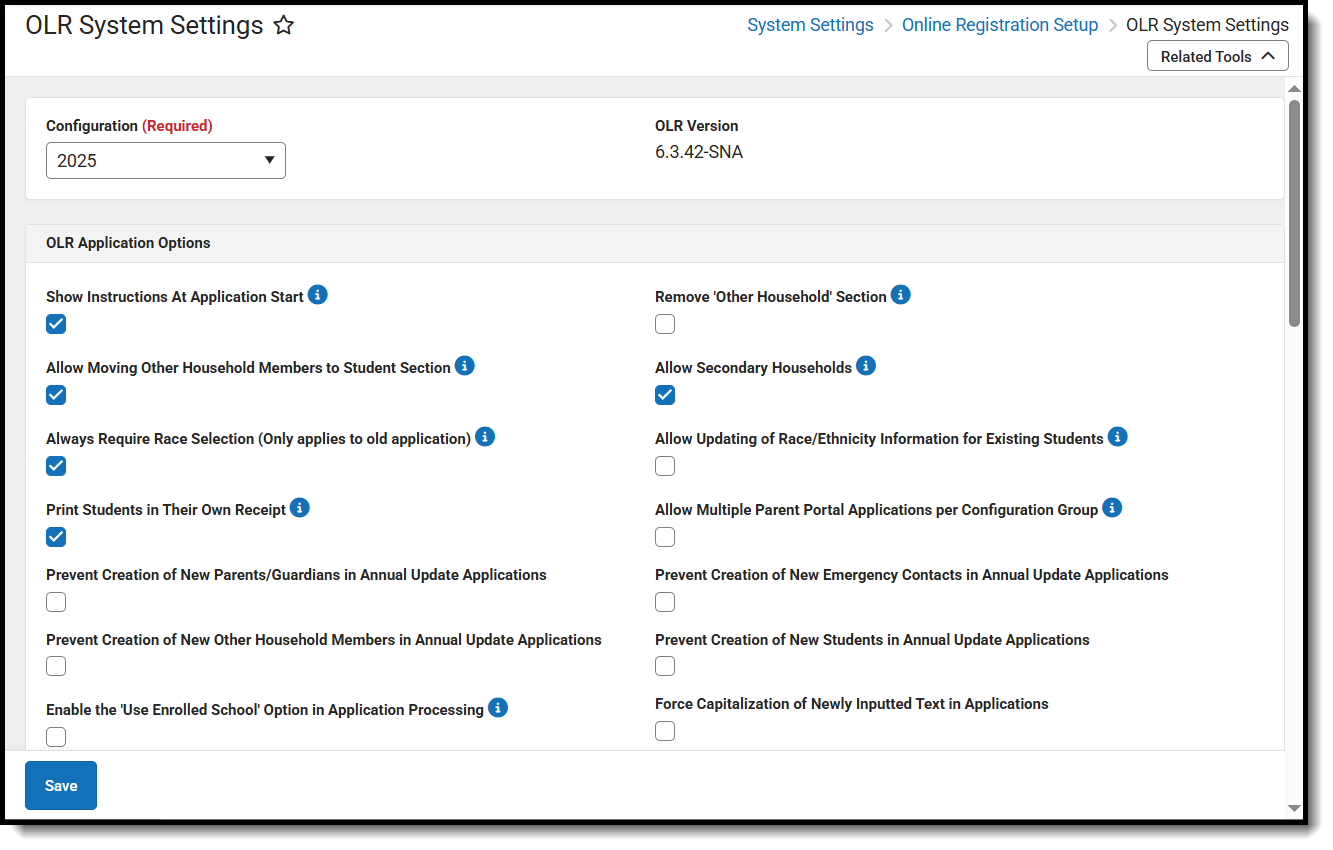 OLR System Settings determine guidelines for processing OLR applications.
Available Tool Rights
| R | W | A | D |
|---|---|---|---|
|
|
|
|
Suggested User Groups
See User Groups and Suggested Roles for more information.
