Tool Search: Calendar Wizard
The Create new blank calendars option should be used if there is a new school in the district or if a district wants to create calendars from scratch. It will only create a calendar frame (start and end dates). Courses, grading tasks, standards, calendar terms, and schedule structures will not be rolled forward and will need to be created manually.
 Create New Blank Calendars
Select Mode
- Select the Create New Blank Calendar option.
- Click the Next button.
Edit Calendar Attributes
- Select the Year for this new calendar from the dropdown list. This selection should match the new school year that was previously created. Years are created in the School Year tool.
- Select how the calendar is named in the Name Template dropdown. The field to the left of the dropdown may be used to add additional information (such as a school number) at the start of the calendar name.
- Enter a Number for the calendar. This field is used internally for state reporting purposes and is a three-digit field (001 – 999).
- Enter the Start Date and the End Date of the calendar. These dates should be before and after the dates for the actual school year to accommodate for staff development, weather make-up days, etc.
- Select the Schools for which to build the new empty calendars. Listed will be all of the existing schools in the district.
- Click the Run Wizard button.
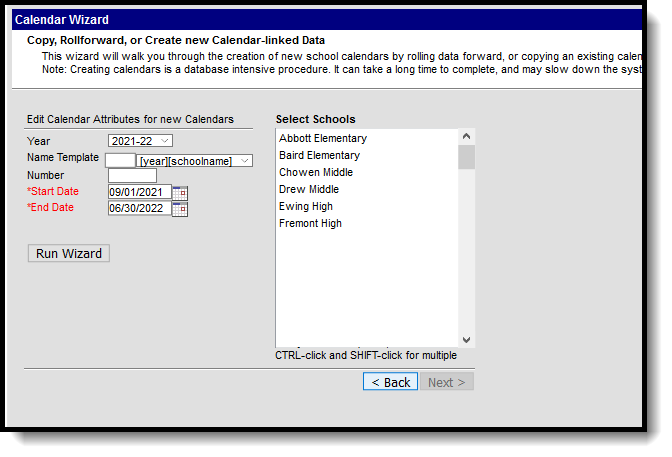 Calendar Attribute Selection
Progress and Completion
The Progress screen displays, indicating the status of the new calendar. When the wizard is finished, the new calendar will be available to select in the dropdown list (after refreshing the screen). When it is not, users needs to be given rights to that calendar. Since this was a blank calendar that was created, everything in the calendar structure needs to be established – term dates, period times, etc.
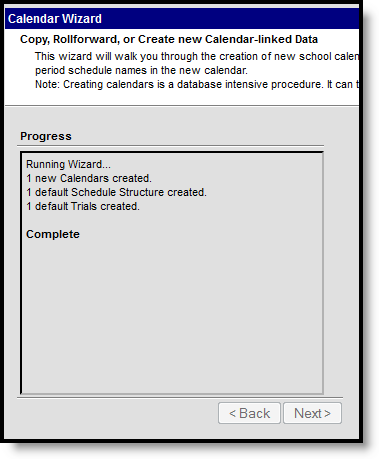 Calendar Creation Progress
