Since generating a report doesn't add or change existing data, only Read rights are required. Write/Add/Delete rights, if granted, have no impact. This article contains descriptions of the School Store report and summaries of what each report is used for.
To learn more about these reports and how to run them, consult the individual articles in School Store Reports.
Inventory On Hand Report
The Inventory On Hand Report provides a complete list of items you have available for sale at this point in time. The report includes the Product Name, SKU, and Quantity on Hand.
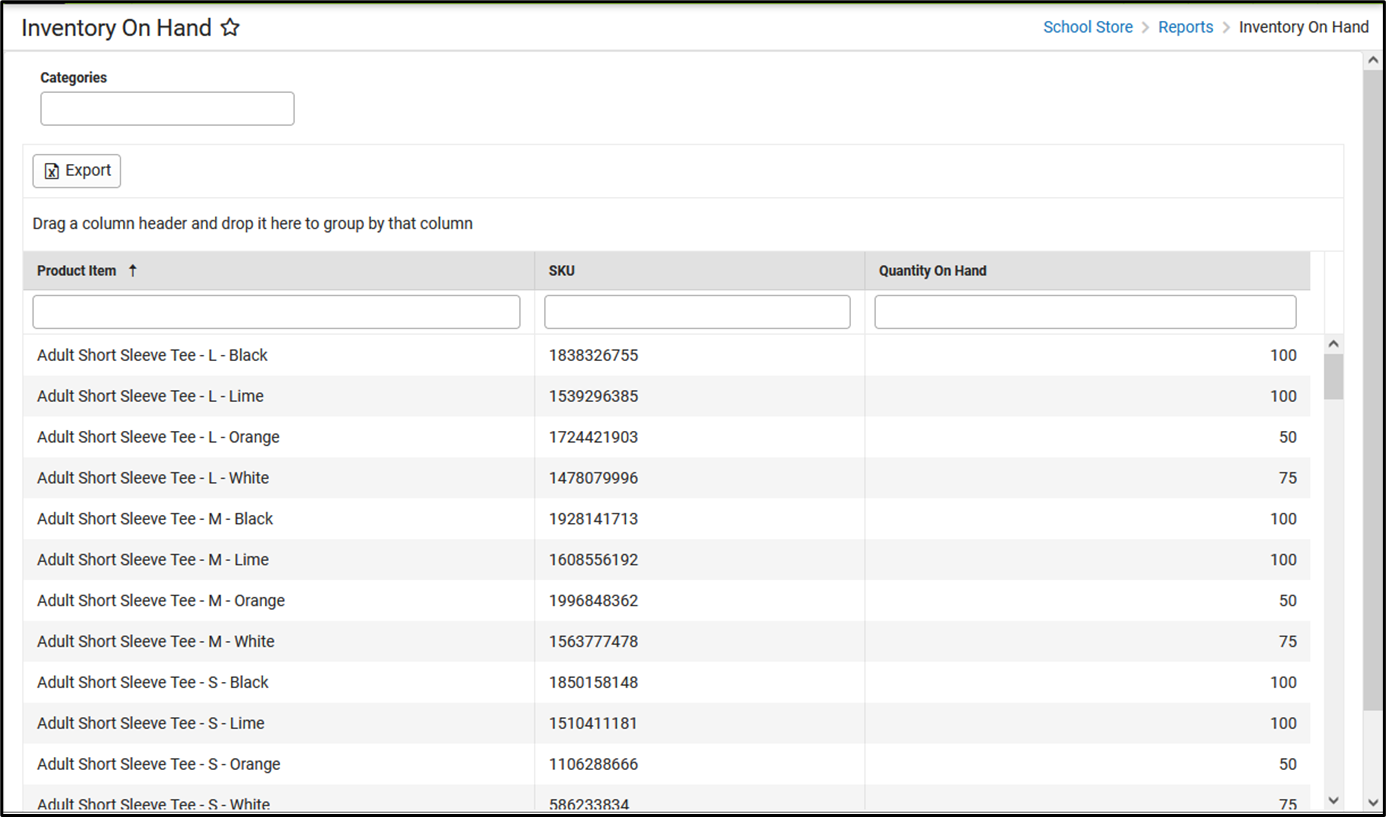 Export the list of inventory to CSV to review total inventory
Orders Report
The Orders Report provides detailed information about purchases made in the School Store.
 See what items have been purchased in the Orders report.
Pick List Report
The Pick List report provides a comprehensive list of purchased items. Use the Start Date and End Date fields to narrow report results.
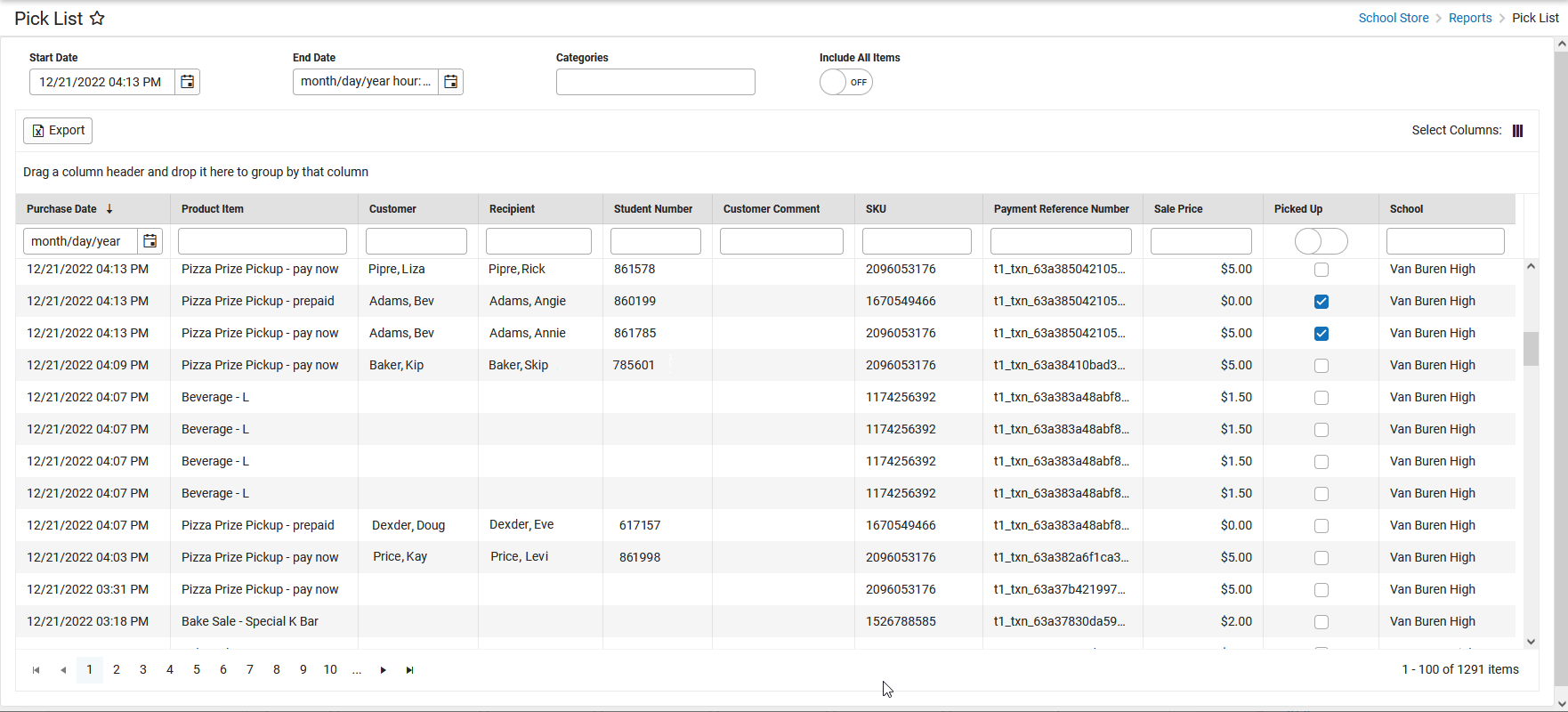 Enter start and end dates to view items that have been "picked"
Sales Report
The Sales Report provides a comprehensive record of sales activity across all of your district's stores.
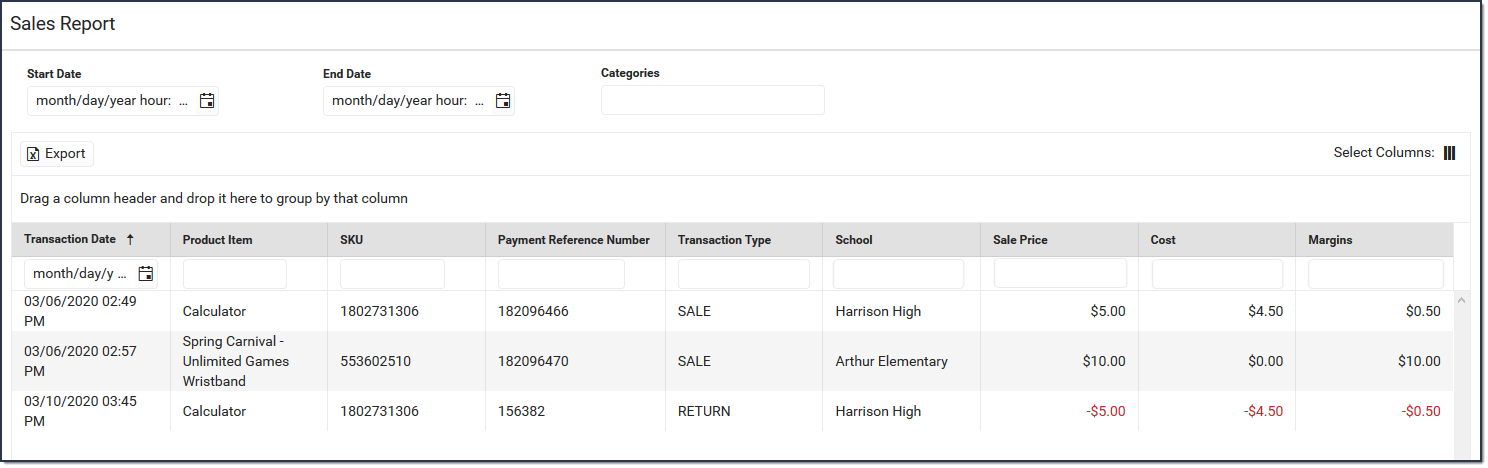 Print the Sales Report to see all sales activity from all school stores across the district.
Summary Report
This report summarizes the items purchased on a specific day and is useful if you would like to send this information via email to specific staff members. The email message can be set up in the School Store Notifications tool.
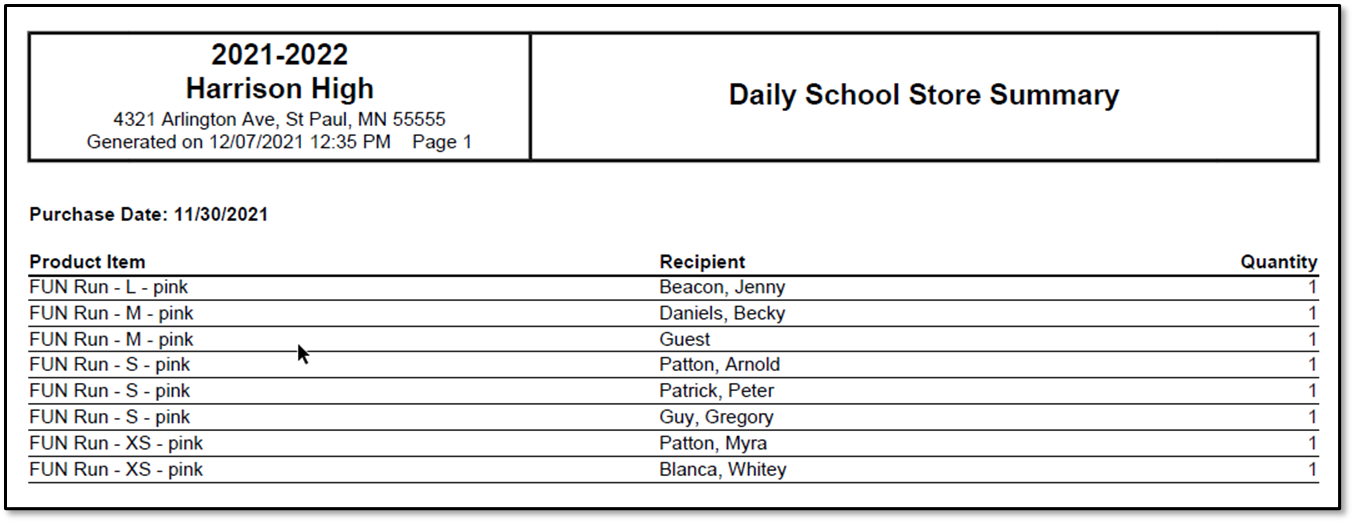 See what items were purchased on a specific day with the School Store Summary Report
