This document serves as a resource that provides more detailed information regarding how the Course Plan tool functions.
New students (after start of school year)
Courses can be planned for the current year if a new student enrolled after the start of the school year meets the following criteria:
- No scheduled course sections in the current year (no roster records).
- No transcript records in the current year.
Course plan alerts are applicable for the current year, as are grade level planning alerts.
Transfer students with previously planned courses
A student with an existing Course Plan who transfers to another school within the district may have course numbers and/or course names on their plan that do not match course numbers and names in their new school of enrollment, or have courses on their plan that are inactive in their new school. Administrators at the new school can review these discrepancies and modify the course plan accordingly.
- If the course numbers match, but the course names do not match, the student still retains that planned record; however, note that this may not be the correct course that needs to be planned.
- An Invalid course is defined as a course that existed in a student's plan at the previous school but does not exist in the student's new school. Courses match at the Course Number level. If a course with a number of 1234 in the previous school is Math and in the new school is English, the course is technically not considered invalid because there is a match.
- As soon as the Course Plan tool is accessed, an Invalid Courses Found pop-up message displays, indicating which courses need to be corrected (either by ignoring this message as they are deleted when the course plan is saved, or by copying the course to the clipboard and later modifying the course plan).
 Invalid course alerts display course plan issues.
The invalid course number displays in red text with other Invalid Courses. Click the Exclamation Point to view the pop-up warning again to see the invalid courses.
 Invalid courses are flagged on the course plan.
To capture invalid course information for correction:
- Click Copy to Clipboard (only copies course number and name)
- Paste the copied information to an an application (i.e. Word or Notepad).
- Add the student's name to capture which student needs the course numbers corrected.
- Click Continue. This clears the popup.
- Modify the Course Plan and Save.
- The first time modifications are saved to the Course Plan, the invalid course records are deleted.
Course plan management
The following section provides details and information on the overall management of student course plans.
Course plan warnings, alerts, and errors
Each time a change is made on the Course Plan, all rules and requirements are reevaluated and updated alerts and messages display. The Course plan does not need to be saved to show these alerts. When the alerts have been satisfied, the alert text is removed automatically.
Warnings
- Warnings display in black font when there is a failure to meet a Credit Requirement or a Course Requirement.
- Course Plans can still be saved when warnings exist.
Alerts and Errors
- A counselor can still save a plan when there is an error. Errors occur when there is a course plan rule violation.
Students who have an Academic Plan that contains an error are not able to save changes made to their course plan from the Portal.
- Alerts display when:
- A grade does not have enough credits planned. This displays next to the Grade Level itself, not with the other alerts.
- A credit type does not have enough credits planned.
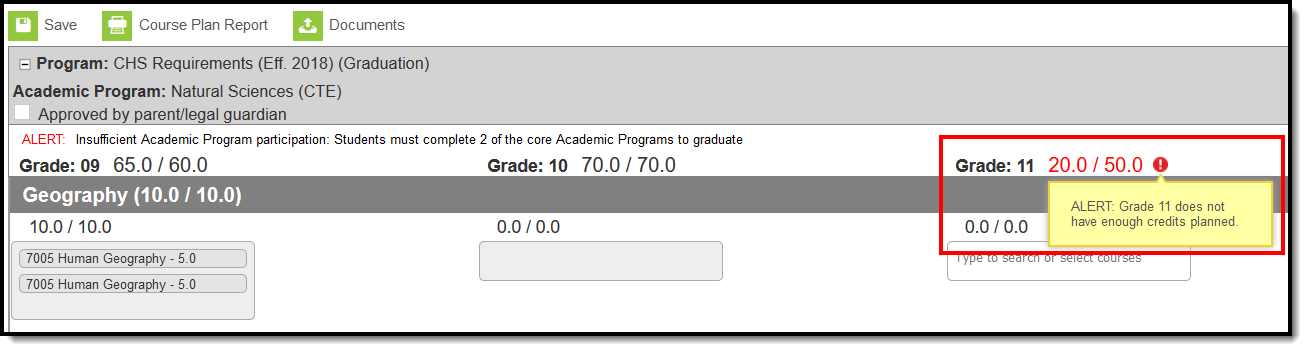 Alerts display for issues with courses in a particular grade level.
Course requirements for academic programs are considered not met when the student does not meet the Minimum Credits and the Minimum GPA Value.
- If a student has enough Earned Credits on their transcript, and exceeds the Minimum GPA to satisfy the Academic Program Course Requirement, the Alert does not display.
- If a student has enough Planned Credits to satisfy the Academic Program Course Requirement, the Alert does not display.
- If a student has a combination of Earned, Planned and/or In-Progress credits to satisfy the Academic Program Course Requirement, the Alert does not display (assuming the Minimum GPA has been met on Earned courses).
- Any planned courses assume the student meets the Minimum GPA per Course to satisfy the Academic Program Course Requirement.
Certain Portal Display Options apply here that can be turned on or off to show these rules.
- When the Enforce All Rules option is marked as part of the Academic Planner option, students can only save their academic plan if it meets ALL requirements and planning rules that have been established.
- When the Enforce All Rules options is NOT marked, students can save their plan without meeting all requirements, but all planning rules must still be met. Warning messages from failed requirements and failed planning rules display so users can see the issues but still save the entry.
 Both warnings and alerts display for issues found within a course plan.
Credit Type Assignment and display of alerts
There may be several alerts for a course plan, and they display in multiple locations - (1) at the beginning of the course plan above the Grade/Credit header, and (2) within a Credit type. The number of alerts at the beginning of the course plan can be reduced by adding a Credit Type to the Course Requirements when setting up Graduation and CTE programs.
Assigning Credit Types to Course Requirements gives you more working space on the Course Plan, and provides more information for students when they are planning courses as to what they still need to plan.
When no Display Alert location is selected for Program Criteria, the alert appears at the top of the student's Course Plan.
 Alerts for which no display location has been selected appear at the top of the course plan.
When a Credit Type is selected in the Display Alert field for Program Criteria, the alert displays under that credit type in the student's Course Plan.
 Alerts can be set to display for a selected credit type.
Course display and selection
Courses can be selected in a Course Plan as long as the course is active. Courses that appear in the dropdown lists are pulled from the student's most future enrollment calendar, based on the primary enrollment (partial or special education enrollments are not used).
Courses that are Recommended from a Graduation Program Course Requirement display in bold text.
Courses that are marked as Repeatable on the Course Editor can be added to the Course Plan multiple times, if the student has already taken the course in a previous year. Courses that are NOT marked as Repeatable can only be added to the Course Plan by the counselor. These courses display with the word RETAKE and display in all dropdowns for that credit type. For example, if a student took a Health course in grade 9, when choosing health courses for grades 10, 11 or 12, that same course (if not marked as Repeatable) would display in the dropdown for all grade levels in the Health credit type.
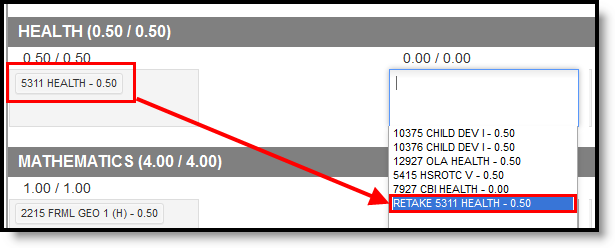 Repeatable courses display with the word RETAKE.
Courses that have been completed (have been posted to the transcript) and in-progress courses (student is currently scheduled into) display as such when hovering over the course.
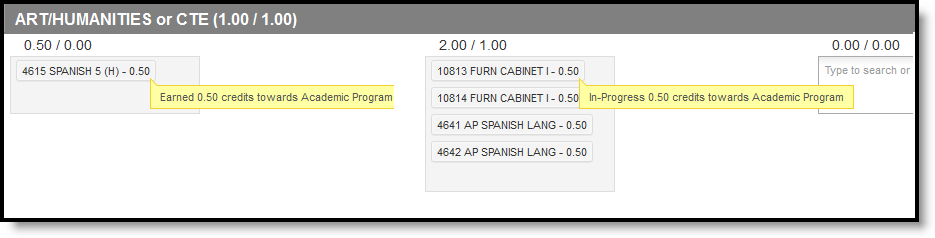 Hover Information displays for Earned Credits (Transcript) and In-Progress Courses.
Courses that have a planning rule of Parent of/Child of display both the parent course and the child courses.
- The correct credit value for each course (parent and child) displays.
- The correct total value per credit type for each course (parent and child) displays.
- The correct total value per grade level displays for each course (parent and child).
- When a parent course is removed from the course plan, the child courses are also removed.
- A child course with a different credit type displays in the correct credit type frame and displays the correct credit amount. All child courses display as locked.
- When selecting a course with a Parent of rule, and the child course has a different credit type, the credit type displays after each course to identity which credit type they are associated.
Planned courses that do not meet planning rules assigned on the course display as a planning rule violation.
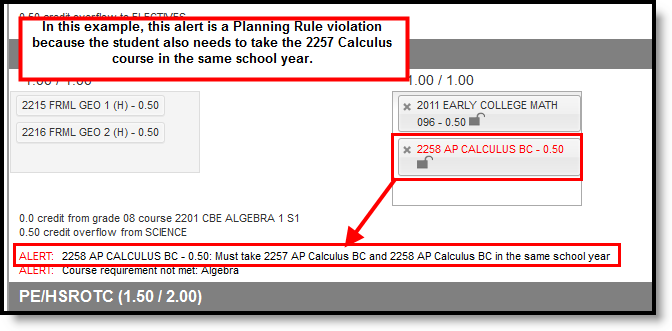 Planning rule violations display as alerts.
If a student has not taken or planned a required course tied to a course requirement, an alert displays.
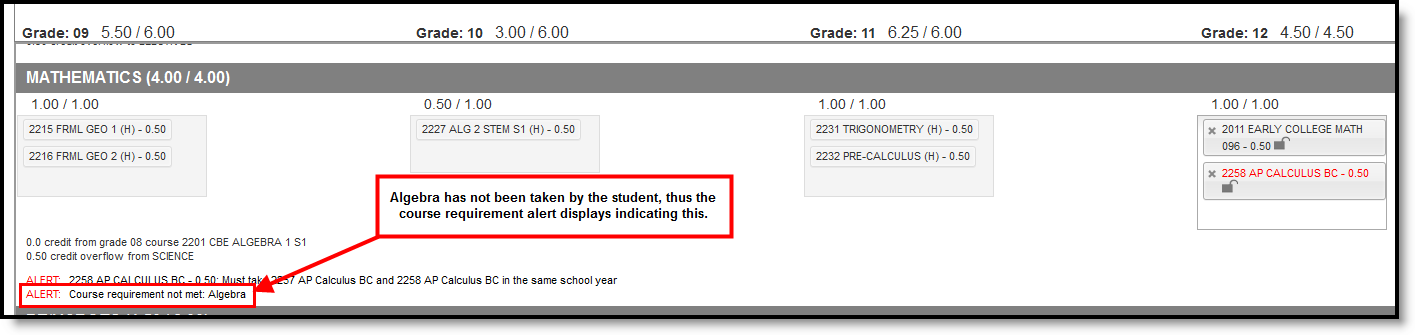 Course requirement issues display as alerts.
Credit Display
Existing credits applied to high school courses (those from middle school or transferred credit) display in the credit type section to which they apply. Only high school credits display, as long as the course has been successfully completed and credit has been earned.
In-progress courses also fulfill planning rules.
Any credit assigned to the credit type that is considered overflow displays as well.
 Previously earned credits display in the editor.
Course planning rules
Course Plans rely heavily on criteria that have been previously established, like credit groups and credit types, academic programs and their requirements. The Course Planning Rules also play a large part in course planning and affect the selection of courses and where those courses can be placed on a student's course plan. When planning rules are not met when the course plan is saved, an alert displays.
Middle school courses that are included in a course planning rule fulfill a prerequisite or equivalent planning rule at the high school.
 Alerts call out when rules and other requirements have not been met.
Course planning rules - impact on course plan
The following table provides details on how the planning rules interact with the Course Plan.
| Planning Rule | Course Display | Catalog Search Display | Alerts, Warnings and Errors |
|---|---|---|---|
| Prerequisite |
A course displays in red when a student selects a course that has a prerequisite rule but has not previously taken that prerequisite course or has not planned the prerequisite course.
|
If the prerequisite was met, the course cannot be selected for the same year in which the prerequisite course was taken. But the course can be selected in other years.
Both courses remain in the course catalog search results.
If the prerequisite was not met, the course cannot be selected and all buttons display in gray (inactive). |
If a course is missing its prerequisite(s) on the course plan, the user will get an error when attempting to save.
If a student takes the Prerequisite course(s) but does not meet or exceed the credit value to meet the requirement, an alert displays. Note that when the Prerequisite Planning Rule uses Parent/Child courses, the rule should only include the Parent course and its credits, not the Parent and Child and the sum of their credit.
If a student takes the Prerequisite course(s) but does not meet or exceed the Min GPA Value to meet the requirement, an alert displays. |
| Equivalent | Courses display in red if the user selects more than one course listed as an equivalent. |
A student can only take one course in the equivalent rule.
A counselor can select the course and the other course(s) will show in gray.
If the course and one of its equivalents has already been taken or planned, the course cannot be selected. |
N/A |
| Concurrent |
Courses display in red if the student hasn't selected a course that meets the concurrent rule.
All course numbers entered into the Transcript/Course Number field must be taken in a single year.
If a credit value is entered, the student must meet that credit amount AND plan each course entered in the Transcript/Course Number field. |
If a concurrent course is searched but its counterpart has not been requested, the course can be selected.
If a concurrent course is searched and its counterpart has been requested, the course can be selected. |
If both courses have not been selected in the same year, an alert message displays.
If only one of the courses has been selected, an alert message displays.
Failure to meet or exceed the credit minimum requirement triggers an Alert message. |
| Prerequisite and Concurrent |
A course that is selected on the student's course plan and has a prerequisite or concurrent rule will display in RED on a students course plan screen if they haven't taken or planned to take the course(s) that meet the prerequisite or concurrent rule. |
If a prerequisite or concurrent course is not in the course plan, user can search and select the course.
If a prerequisite or concurrent course is in the course plan, any remaining prerequisite or concurrent course can be added in any year in the course plan.
|
An alert message displays if a course is selected and the user has not selected the other course in a previous year or in the same school year.
Failure to meet the minimum credit requirement triggers an alert message. The student must meet or exceed this credit value on their transcript to meet the requirement.
Failure to meet or exceed the minimum GPA requirement triggers an alert message. The student must meet or exceed this value to be considered as on-track. |
| Parent Of |
Only the Parent Course is available for selection in the Course Plan. The Parent Course credit is a total of all the courses included in the parent/child setup.
If there is credit overflow, it displays the total amount of credits as a sum of the parent child courses. |
If the parent course is already on the course plan, it displays in gray. | N/A |
| Child Of | Courses marked as Child Of are not available for selection in the Course Plan. | N/A | N/A |
