Tool Search: Ed-Fi
This article describes the steps to configure Ed-Fi in Delaware for the 2026-2027 school year.
Configuring Ed-Fi for the 2026-2027 school year
This section describes the process necessary for configuring Campus to report Ed-Fi data for the next school year.
Step 1. Update to the most recent version of Infinite Campus
Update to the most recent version of Campus to enable the required schema and logic. If you do not update, you cannot report data for the 2026–27 school year.
Step 2. Create a new Ed-Fi configuration for 2026-2027

- Click New to open the Connection Detail editor.
- Select State as the connection type.
- Enter a connection name, such as 26-27 EdFi Configuration.
- Select the 2026-27 school year. Ensure that the 2026-27 School Year exists.
- Enter the following values:
Field Value / Description Ed-Fi Connection Type State O-Auth URL https://edfi.doe.k12.de.us/Delaware-api-2027/2027 API URL https://edfi.doe.k12.de.us/Delaware-api-2027/2027 Post-Amble /data/v3 ID Post-Amble /identity/v2 Timeout in Seconds This field defaults to 60 seconds. It specifies how long (in seconds) Campus waits before it considers the connection to Ed‑Fi timed out and stops processing Ed‑Fi events. When the Quartz job runs again, it reprocesses these events.
Connection Credentials Add Multiple Credentials Turn on this feature when multiple districts use the same Infinite Campus instance to create multiple connections to the state ODS in the same school year. Enter a Credential Name, client key, and client secret for each credential. To report data correctly, populate the District Number field for sites with multiple districts.
The District Number should be the Ed-Fi District Number for the school(s) selected. In Delaware, this can be anywhere from 1 to 4 characters long. Users must also select the School(s) that will use each credential.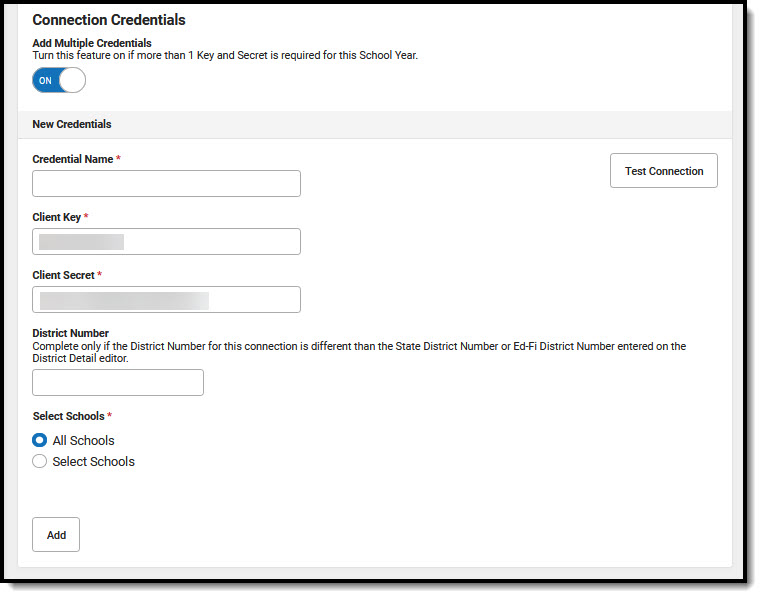
Client Key The Client Key is provided by the Delaware Department of Education (DDOE). Client Secret The Client Secret is provided by the Delaware Department of Education (DDOE). Test Connection Click Test Connection to verify the configuration values and confirm that the system connects to Ed‑Fi. Run this test before you select Save and create the new connection. Auto‑mapping does not work if you do not configure the initial connection correctly.
-
Click Save.
- Click Test Connection to verify the configuration and confirm the connection to Ed‑Fi. The system displays a Connection is valid message when the connection succeeds.
Step 3. Review the Ed-Fi setup checklist to ensure items are complete
- Review and update data as needed using the list below to ensure that Campus is set up correctly.
- After you finish, go to Step 4.
| Task | Campus Location |
|---|---|
| Enable Ed-Fi functionality via the Enable Ed-Fi system preference. | System Administration > Preferences > System Preferences > Enable Ed-Fi
|
| Enter Ed-Fi Configuration values. | Reporting > Ed-Fi > Configuration |
Set all Resources to 'Off' and map the Ed-Fi Codes to Campus Codes via the Ed-Fi Resource Preferences. |
Reporting > Ed-Fi > Configuration > Resource Preferences
Infinite Campus auto-maps most codes for the user. However, auto-mapping does not occur when the dictionary is unlocked (the user can create custom codes) or when the mapping depends on dates/terms (like the Sessions resource). Auto mapping only occurs if the user creates a successful connection (see Step 2). If the initial connection creation was not configured correctly, it will not properly auto-map. |
| Assign Ed-Fi IDs. | Demographics > Person Identifiers |
Assign tool rights for Ed-Fi. |
User Management > User Account Administration > User Account |
| Populate the District Ed-Fi Number | School & District Settings > District > District Information > District Detail > State District Number
This is typically your State District Number. Please confirm that this is correct for your location. |
| Populate the School Ed-Fi Number | School & District Settings > School > School Information > School Detail > State School Number This is typically your District Ed-Fi Number + State School Number, where the State School Number is 0-padded up to 4 characters on the left. Please confirm that this is correct for your location.
Example: If your District Ed-Fi Number is 12 and your State School Number is 345, your Ed-Fi School ID is likely 120345 |
| Confirm all Relationship Types have an associated State Code. | Census > People Setup > Relationship Type Setup |
| Confirm that all Attendance Codes that should be reported to the state (Excused and Unexcused Absences) have an associated State Code. | Attendance Office > Settings > Attendance Code Setup |
| Confirm that all behavior Event Types that should be reported to the state have an associated State Event Code (Mapping). | Behavior Office> Settings > Event Type Setup |
| Set the Ed-Fi Transcript Term Override for all manually added transcripts. | Student Information > General > Transcripts > New > Ed-Fi Transcript Term Override |
Set Calendar Dates on all reportable calendars
|
Scheduling & Courses > Calendar Setup > Day Setup |
| Add a Level to a Course, if applicable. | Scheduling & Courses > Courses > Section Information |
| Set Ed-Fi Term Descriptor Override on Course Sections. | Scheduling & Courses > Courses > Section Information |
| Add a Room to all Course Sections for state-reporting courses. | Scheduling & Courses > Courses > Section Information |
| Add a Teacher Role on Staff History for teachers who must report to Ed-Fi. | Scheduling & Courses > Courses > Section Staff History |
| Toggle Resources to 'On' in Ed-Fi Resource Preferences once all data setup is complete. | Reporting > Ed-Fi > Configuration > Resource Preferences |
Step 4. Perform a resync for the 2026-2027 scope year

Now that you have configured Ed‑Fi for the 2026–27 school year and reviewed the data, you can resync Ed-Fi data.
- Verify that 2026–27 is selected in the toolbar.
- Select the 2026–27 configuration from the Ed‑Fi Configuration dropdown.
- Resync all schools, people, courses, and course sections for the new year. Select All Schools, All People, All Courses, and All Sections.
- Select Select Dependencies to ensure that related data sends correctly. See the Recommended Resync Order for guidance on when to sync each resource. The Ed-Fi Resource Preference tool controls which options are available here.
- Select each data set to resync, enter the appropriate dates, and choose the resources.
- Note: For the first resync for 2026–27, turn on one resource at a time. This approach improves performance for large resyncs and helps you identify and resolve errors by resource. After the first resync, you can leave all resources selected.
- Click Start Resync
If the resync succeeds, Campus sends data to Ed‑Fi correctly. Check the Ed-Fi Error Log for any errors.
Beginning of the new school year
See the Beginning of School Year Process article for a general checklist of tasks to complete in Infinite Campus at the start of a new school year (not specific to Ed‑Fi).
