Tool Search: Ed-Fi
This article outlines the steps to properly move Ed-Fi to the next school year. It also contains general recommendations for processes to complete at the beginning and end of the school year.
For more information, see the Arizona Ed-Fi article.
Before you start
To have the schema and logic in place for AzEDS 12.0, it is critical that you update Campus to at least Release Pack Campus.2627 (June 2026) or higher. Failure to do this may result in an inability to properly report data for the next school year.
Set appropriate tool rights for users who need access to Ed-Fi tools.
Step 1 - Create a new Ed-Fi Configuration for the next school year

Create a new Ed-Fi configuration for the next school year. The image below shows the proper field entries for the Connection Configuration.
- Click New. The Ed-Fi Connection Detail editor displays.
- Select the Connection Type of State.
- Enter a Connection Name of 26-27 Ed-Fi Configuration or a similar name.
- Select the School Year of 2026-27. This requires the 2026-27 School Year to be created.
- Enter the values exactly as noted in the table below.
- Click Test Connection to verify that the configuration values are correct and that a connection to Ed-Fi was established. A "Connection is Valid" message displays when the connection is successful.
- Click Save.
| Field | Value |
|---|---|
| O-Auth URL | https://rest-api-r12.azeds.azed.gov/2027/ |
| API URL | https://rest-api-r12.azeds.azed.gov/2027/ |
| Post-Amble |
data/v3 |
| ID Post-Amble | identity/v2 |
| Client Key | This is the same Client Key as the previous year's Ed-Fi configuration, unless the Arizona Department of Education (ADE) instructs otherwise. |
| Client Secret | This is the same Client Secret as the previous year's Ed-Fi configuration, unless the Arizona Department of Education (ADE) instructs otherwise. |
| Timeout in Seconds | This field defaults to 60 seconds. If the connection exceeds this duration, Campus marks the connection as timed out and processes the events during the next time a quartz job runs. |
| Multiple Credentials |
Turn this feature on when more than one Key and Secret is required for the school year.
Sites with multiple districts must populate the District Number field for data to report correctly. The District Number field must be 9 characters in length. It is crucial that trailing zeroes are added to the number to make it 9 characters long. Any leading zeros are removed. For example, when the district number is 070280000, the leading zero is removed, yielding 702800000. 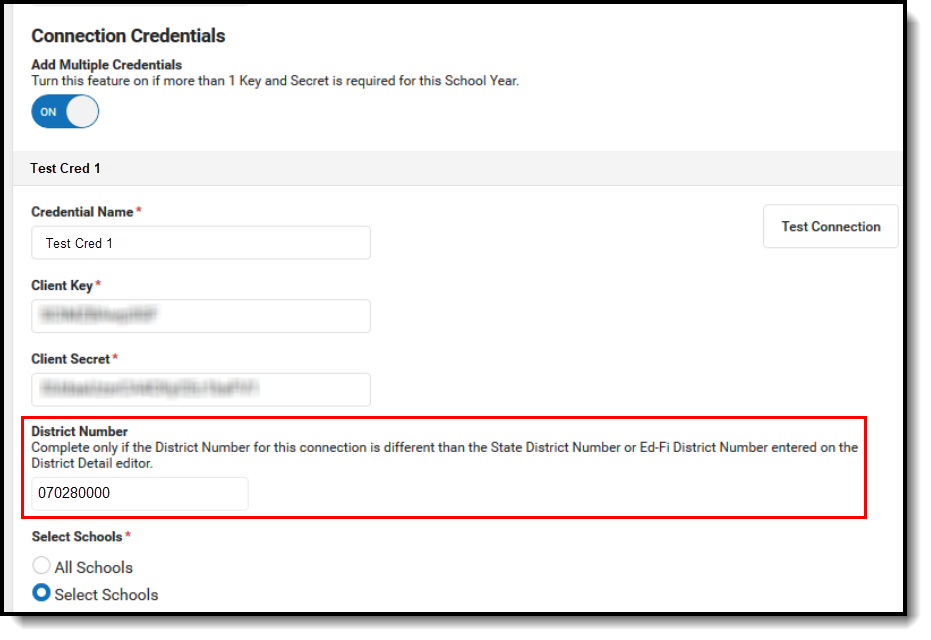 Connection Credentials
|
Step 2 - Review the Ed-Fi Setup Checklist to ensure items are complete
To ensure data is set up properly throughout Campus, review and/or update data based on the list below.
Once complete, proceed to Step 3.
| Task | UI Location |
|---|---|
| Turn OFF Ed-Fi Configurations that are no longer in use (e.g., from past years) | Ed-Fi Configuration |
| Enable Ed-Fi functionality via the Enable Ed-Fi system preference. | System Preferences > Enable Ed-Fi |
| Enter Ed-Fi Configuration values. | Ed-Fi Configuration |
|
Ensure all Resource Preference mappings for every resource are accurate using the Import Mapping functionality to save time. |
Ed-Fi Configuration > Resource Preferences |
| Assign Ed-Fi IDs. This can be done manually, one student at a time, or for multiple students at one time using the State ID Tool. | Demographics > Person Identifiers
Reporting > Ed-Fi State ID Tool |
|
Set tool rights for Ed-Fi. |
User Group Information > Tool Rights |
| Set the Days Per Week value on all reportable calendars. | Day Setup |
|
Set Calendar Dates on all reportable calendars. Instructional Days report based on the Instruction checkbox on each date; all other events report from the Day Events droplist dictionary values. |
Day Setup |
| Set Term Descriptor Override on Course Sections. | Section Information |
| Set the Ed-Fi Relation Type. | People Setup > Relationship Type |
| Set the Ed-Fi Transcript Term Override for all manually added transcripts. | Transcripts > New > Ed-Fi Transcript Term Override |
| Add a Room to all Course Sections for state-reporting courses. | Section Information |
| Add an Instruction Setting on Course Sections. | Section Information |
| Add a Level to a Course, if applicable. | Course Information |
| Add a Teacher Role on Staff History for teachers who need to report to Ed-Fi. | Section Staff History |
| Toggle Resources to 'On' in Ed-Fi Resource Preferences once all data setup is complete. | Ed-Fi Configuration > Resource Preferences |
Step 3. Perform an Ed-Fi Resync for the next scope year
 Resync data with the updated Configuration for the new school year
Now that the next school year's Ed-Fi Configuration is in place and data has been properly reviewed, use the Resync tool to resync Ed-Fi data.
- Verify that the 2026-27 school year is selected in the Context Switcher.
- Select the 2026-27 Configuration option from the Ed-Fi Configuration dropdown.
- Mark the All Schools, All People, All Courses, and All Sections checkbox. All schools, all Person IDs, all Course IDs, and all Course Section IDs need to be resynced for the next year.
- Mark the Select Dependencies checkbox to ensure related data is sent properly and complete. Review the Recommended Resync Order for guidance on when to sync each resource. The options marked in the Ed-Fi Resource Preferences tool determine which options are available for selection here.
- Mark the checkbox next to each data set that should be resynced, enter the appropriate dates, and mark the desired resources.
- Select Start Resync. Campus begins resyncing data to AzEDS
This action generates a large volume of items in the event queue, so it may be helpful to plan the resync for an off-peak time and resync in groups of calendars rather than all calendars at once.
Impact
With the new Ed-Fi Configuration created, data for the next school year can begin being sent to AzEDS.
Once the configuration is active and the Ed-Fi preference is enabled, database triggers fire on monitored tables, inserting records into the Ed-Fi Event Queue. The Ed-Fi processor (a Quartz job running approximately every minute) pulls from this queue and sends data to the ODS. Each qualifying change can generate up to two queue entries: one for Core and one for State resources.
Additional steps and information
Process for districts with 915 approval
For those who have been granted 915 approval, the Ed-Fi Configuration for the previous school year and the resources being sent need to be turned on.
Repeat Step 1 and Step 3 above, changing the 2026-27 configuration and school year to the 2025-26 configuration and school year. Once the resync for the previous year is complete, that configuration can be turned off.
Ed-Fi Configuration values by year
| Year | O-Auth URL | API URL | Post-Amble | ID Post-Amble |
|---|---|---|---|---|
| 2026-27 | https://rest-api-r12.azeds.azed.gov/2027/ | https://rest-apir12.azeds.azed.gov/2027// | data/v3 | data/v3 |
| 2025-26 | https://rest-api-r11.azeds.azed.gov/2026/ | https://rest-apir11.azeds.azed.gov/2026// | data/v3 | data/v3 |
| 2024-25 | https://rest-api-r10.azeds.azed.gov/2025/ | https://rest-api-r10.azeds.azed.gov/2025/ | data/v3 | identity/v2 |
| 2023-24 | https://rest-api-r9.azeds.azed.gov/ | https://rest-api-r9.azeds.azed.gov/ | data/v3/2024 | identity/v2/2024 |
What's next
After creating a new Ed-Fi Configuration, reviewing the Setup Checklist, and performing a resync, you can:
- Review the Ed-Fi Error Log for any errors that occurred during the resync.
- Confirm data was posted to the ODS by viewing the student's Ed-Fi Data Tool.
