Tool Search: Summer EBT
The Maryland Summer Electronic Transfer (EBT) extract collects data to identify students eligible for the Summer EBT program, also known as Maryland Sun Bucks. The program provides grocery benefits to low-income families with school-aged children during the summer months when schools are closed.
Refer to the Summer EBT PDF for details on report logic and report layout:
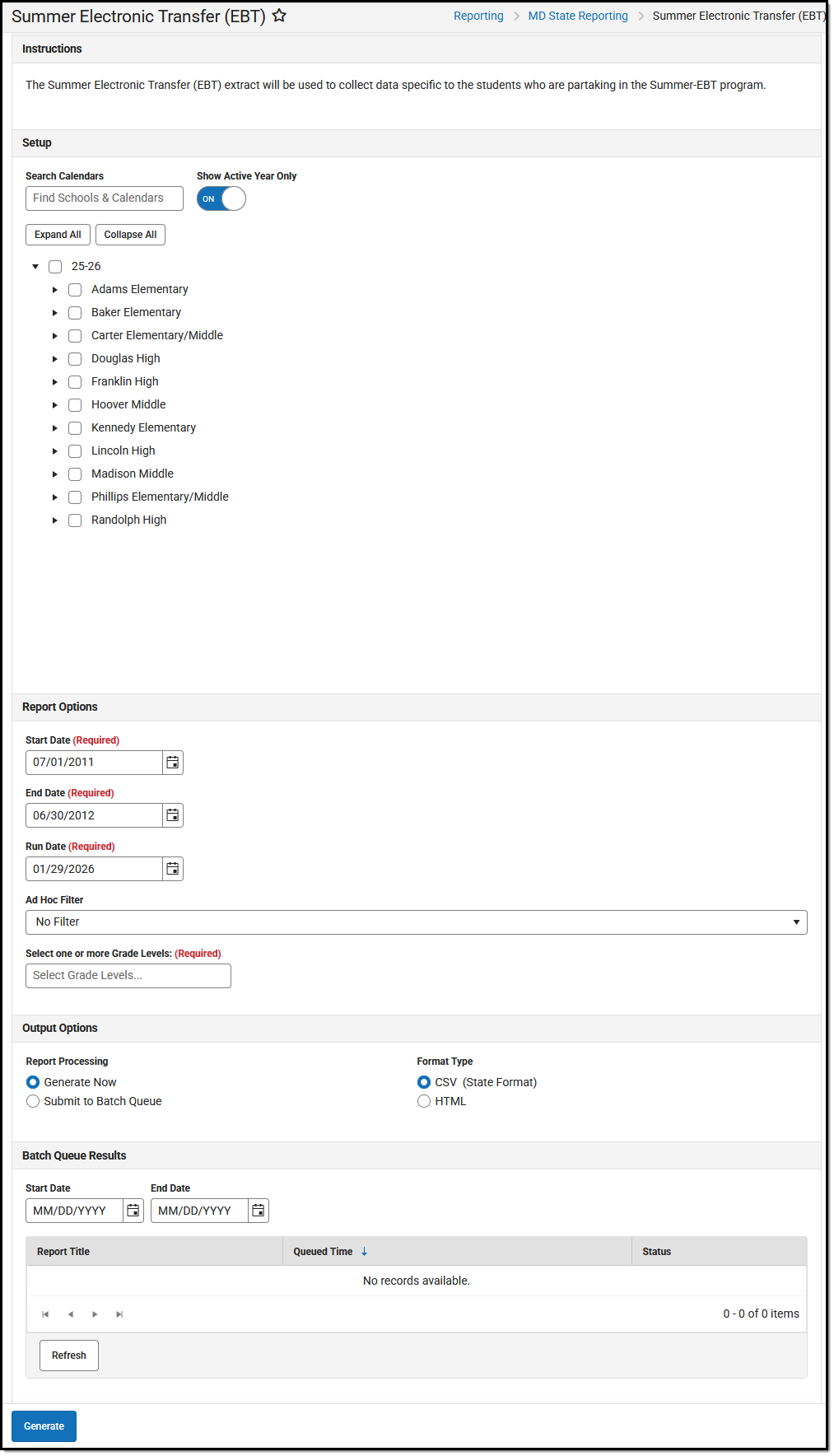 Summer EBT Extract Editor
Report Editor Fields
| Field | Description |
|---|---|
| Setup | |
| Search Calendars | Use the search field to narrow the list of calendars to select
|
| Show Active Year Only | When set to ON, only those calendars for the current school year are available for selection. When set to OFF, all calendars from all school years are available for selection. |
| Expand All / Collapse All | Toggle this option to show or hide the list of Schools/Calendars. |
| Report Options | |
| Start Date (Required) | The first date used to return data. Dates can be entered in mmddyy format, or use the calendar icon to select a date. |
| End Date (Required) | The last date used to return data. Dates can be entered in mmddyy format, or use the calendar icon to select a date. |
| Run Date (Required) | Defaults to the current date. |
| Ad Hoc Filter | Narrow report results to students included in the filter you select. |
| Select One or More Grade Levels | Only students in the selected grade levels who meet the other report requirements are included in the report. The list of grade levels includes only those that are in the selected calendar. |
| Output Options | |
| Report Processing |
|
| Format Type | Determines how the extract is generated.
|
| Batch Queue Results | Displays a list of the batch test items, including the:
The list can be filtered by entering a date range using the Start Date / End Date fields. |
Generate the Extract
- Select the Calendar(s)/School(s) to include in the report.
- Select the Start Date, End Date, and Run Date for the report.
- Select an Ad Hoc Filter to narrow the results, if desired.
- Select at least one Grade Level to include in the report.
- Select Generate Now or Submit to Batch Queue to generate the report in the desired format.
- Select the desired Report Processing option of Generate Now or Submit to Batch Queue.
- Select the Format in which the report should be generated.
- Select the Report Type from the drop-down list.
- Click Generate. The report displays in the selected format.
