The Online Registration Application Processing tools - Application Processing, Health Processing, and Student Processing - provide a central place for staff to review and process applications entered by parents/guardians submitted via the Portal.
This article identifies the tool rights recommended for Application Processing, Health Processing, and Student Processing tools.
Application Processing
Once a parent/guardian submits an Online Registration application, staff can use the Application Processing tool to review it and enroll a student in a school.
See the Application Processing article for information on using that tool.
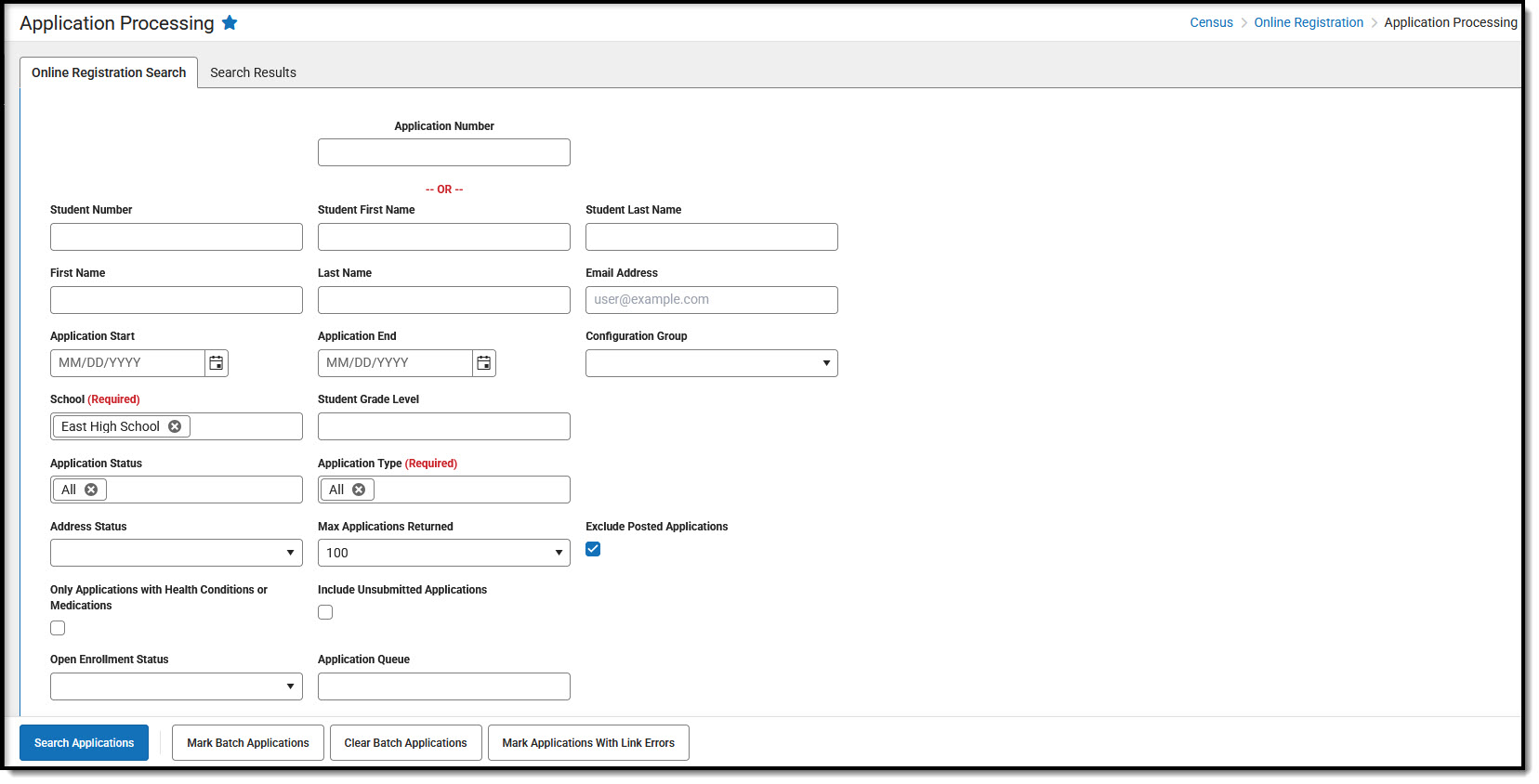 OLR Application Processing tool
Available Tool Rights
 OLR Application Processing tool
Subrights are in italics.
| R | W | A | D |
|---|---|---|---|
|
|
|
|
| OLR Application | |||
|
|
|
|
| Batch Processing | |||
|
|
|
|
Student Processing
Student Processing assigns an application to a school, creates enrollment records for new students, and/or flags the student as processed.
See the Student Processing article for information on using the tool.
 Student Processing Tool
To view the student's enrollments (Open Campus Enrollment button), users must have at least Read rights to Student Enrollments (Student Information > General > Enrollment) or Census Enrollments (Census > People > Enrollments).
Available Tool Rights
| R | W | A | D |
|---|---|---|---|
|
|
|
|
Health Processing
When health information, medications, and conditions are included on the application, health staff can review that information and assign medications or conditions to the student.
See the Health Processing article for information on using the tool.
 Health Processing Conditions, Medications List
To view student Health Conditions and Medications, users must have at least Read rights to Student Health Conditions (Student Information > Health > Conditions) and Student Health Medications (Student Information > Health > Medications).
| R | W | A | D |
|---|---|---|---|
|
|
|
N/A |
Suggested User Groups
- Online Registration Administrators User Group
- Online Registration Registrars User Group
- Online Registration Health User Group
See User Groups and Suggested Roles for more information.
