Tool Search: Report Comment Setup
The Report Comment Setup tool allows districts to add customized text to printed student report cards, transcripts, and e-transcripts. These comments can be school-, district-, or state-specific. Any number of comments can be created and selected/deselected as needed.
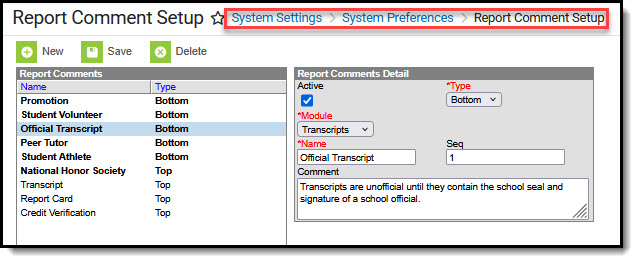 Report Comment Setup
 See the System Preference Tool Rights article for information on tool rights.
Report Comment Setup Field Descriptions
Report Comment Editor Field | Definition |
|---|---|
Active | When the checkbox is marked, the comment is considered active and can be selected on the student's Report Comments page. When not marked, the comment does not appear for selection. |
Type | Indicates where the comment displays on the report - either at the Top of the transcript, the Bottom of the transcript, or the eTranscript. For eTranscripts, the comment ONLY displays at the end of the eTranscript XML report. |
| Module | Indicates on which report the comment displays - Transcripts or Report Cards. |
Name | Lists the name of the report comment. Note: Users cannot see comment details; only the names. For this reason, administrators and personnel responsible for creating the report comments should name the comments so it is easy to determine which comment should be included. |
Sequence | Determines the order in which the comments display on the Report Comments tab and on the student's transcript and eTranscript. The sequence is based on the type of comment. For example, a sequence number of "1" can be applied to a report comment appearing at the top of the transcript and applied to a comment appearing at the bottom of the transcript. |
Comment | Lists the text that appears on the student's transcript. This comment can be no more than 255 characters. |
Create Report Comments
- Select the New icon from the action bar. A Report Comments Detail editor appears to the right of the Report Comments list.
- Mark the Active checkbox to indicate this comment can be used on transcripts and eTranscripts.
- Select the Type of comment this will be - either Top or Bottom.
- Choose the Module of the comment.
- Provide a name for the comment.
- Users cannot see comment details; only the names. For this reason, administrators and personnel responsible for creating the report comments should name the comments so that it is easy to determine which comment should be included
- Enter the appropriate Sequence number.
- Enter the Comment in the text field provided.
- Carriage returns are supported, allowing comments to be internally divided. This is visible on the printed report.
- Leading spaces in the Comments field are allowed when adding a comment, but do not print on the report.
- Click the Save icon when finished. The new comment is listed in the Report Comments list.
Once a report comment is saved and marked as active, it appears for selection on the student's Report Comments page.
There is no limit to the number of comments that can be created and added to the student's Report Comments tool. However, it is recommended to keep the total number of comments to a minimum, as excessive comments can affect the layout of the transcript and/or report card PDF and increase the size of the eTranscript XML file.
Active vs Inactive Comments
Report comments can be inactivated by deselecting the Active checkbox. Only active report comments can be chosen on the student's Report Comments page. Inactive report comments appear in text that is not bold; active comments appear in bold text.
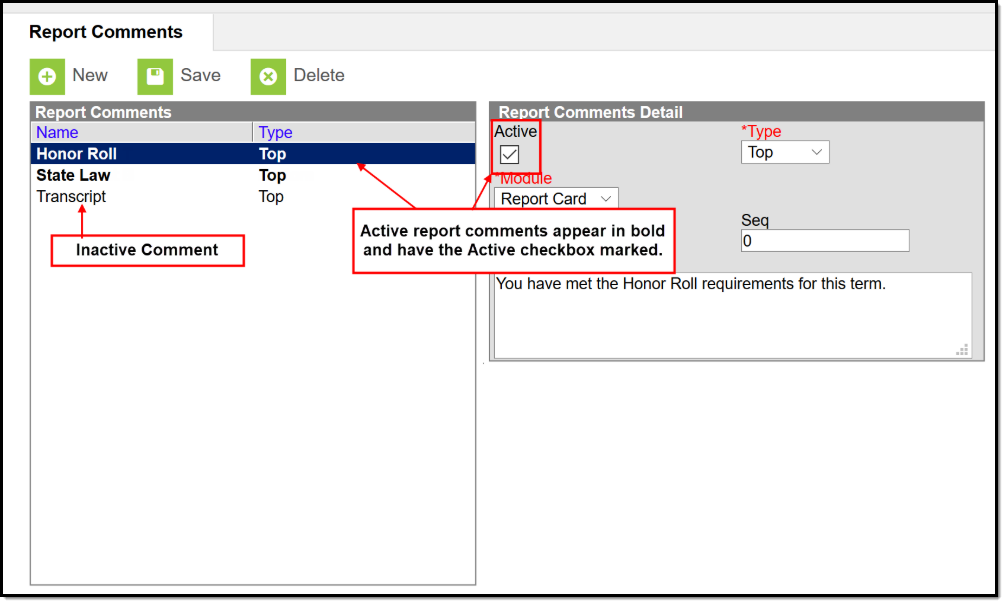 Active vs Inactive Comments
Add Comments to Reports
| 1. Navigate to the Report Preferences and mark the Report Comments field on a report. System Settings > System Preferences > Report Setup | 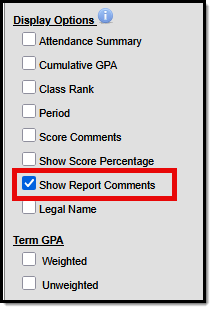 Report Card Report Card |
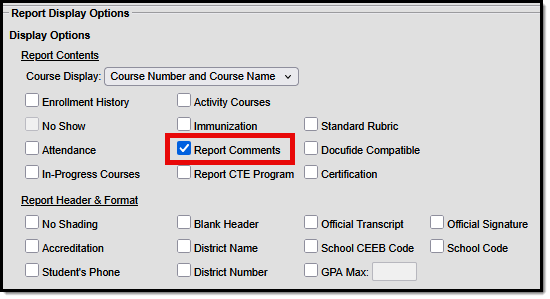 Transcript | |
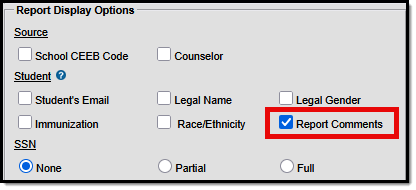 eTranscript eTranscript | |
| 2. Navigate to the student's Report Comments page and select the comments to display. If a report comment is marked active for a student's transcript, it is also active on the student's eTranscript. There is no separate option for adding a comment to an eTranscript report. | 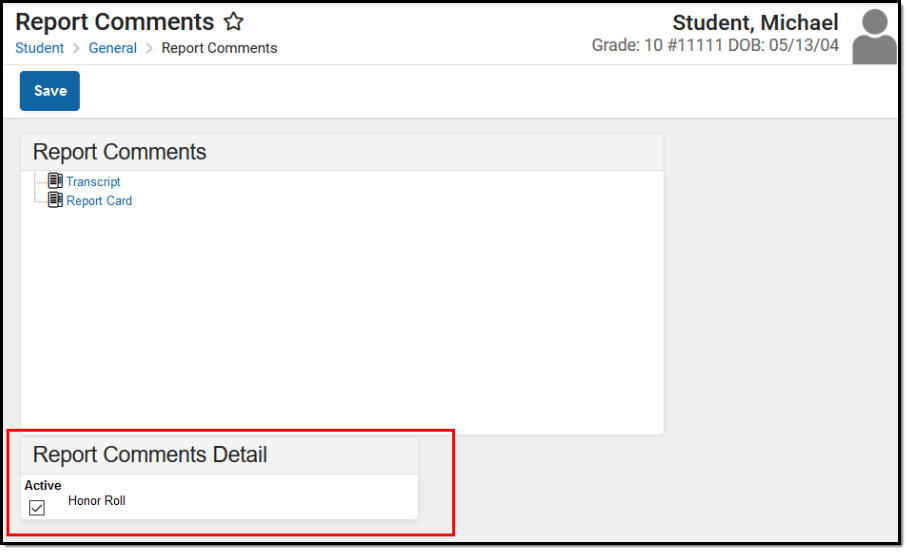 Student Report Comments Tool Student Report Comments Tool |
| 3. Use the Report Comments Batch Wizard to apply report comments to groups of students. | 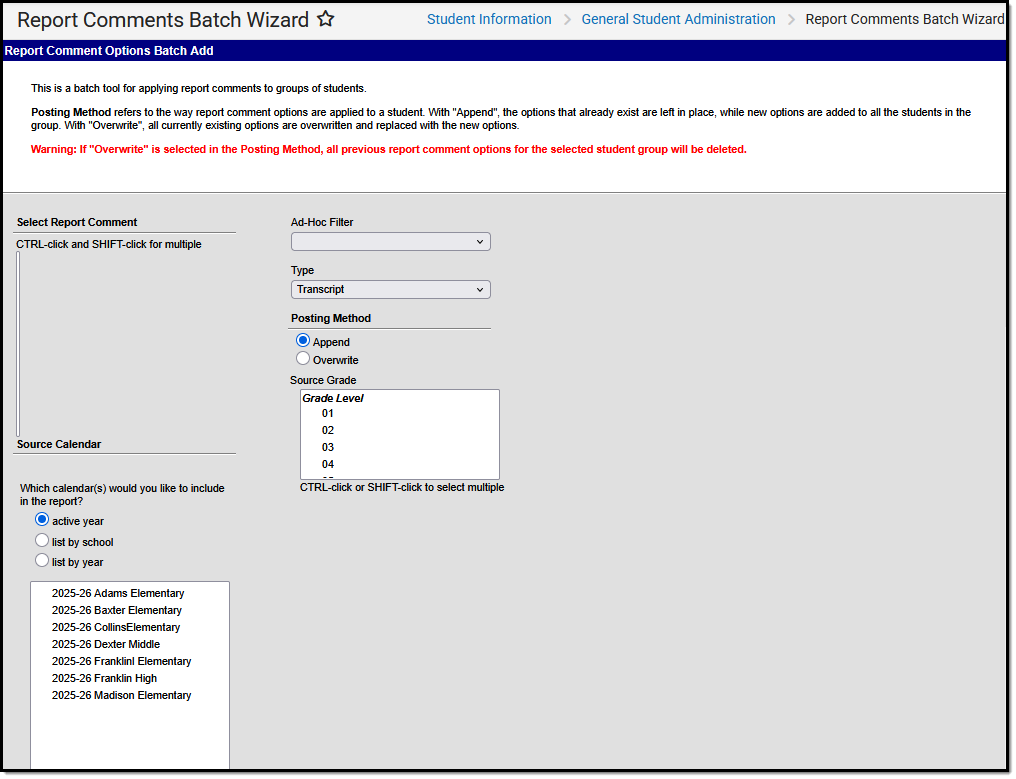 Report Comments Batch Wizard Report Comments Batch Wizard |
