Path: Student Information > Special Ed > Special Ed Documents
The Individual Education Plan is used to capture student special education plan information and match the required documentation provided by the state of Wisconsin. This document describes each editor, a description of each field on the editor, and any special considerations and instructions. For information on general functionality, navigation, and additional plan and evaluation features, see the core Plan and Evaluation Information article.
The current format of this document is the WI IEP 2026. Plan formats are selected in Plan Types.
Editor Home
Education Plan
The Education Plan editor includes general meeting and screening information and lists the dates associated with the plan, such as dates the plan is active.
This editor must be saved before entering data into other editors.
Education Plan Editor
Field
Description
Ad hoc
Validation
Plan Name
A text field used to name the plan.
N/A
N/A
Plan Type
Required
The type of plan. Options include:
Initial
Annual
Amendment
Amendment without a Meeting
N/A
The "Amendment" option defaults during the Amendment Process, but this can be modified if needed.
Placement Consent
The date consent to place was given by the parent/guardian.
N/A
N/A
IEP Meeting Date Required
The date of the IEP meeting.
Learner Planning > Learning Plans > meetingDate
This field is grayed out when "Amendment without a Meeting" is selected as the Plan Type.
Start Date Required
The first day of the plan.
Learner Planning > Learning Plans > planStartDate
This date cannot be on or before the IEP Meeting Date.
End Date Required
The last day of the plan.
Learner Planning > Learning Plans > planEndDate
This cannot be before the start date.
This field becomes read only during the Amendment process.
Eval Date Required
The date the student was evaluated for special education services.
N/A
This field auto-populates from the most recent Evaluation.
The Evaluation Date must be less than or equal to the IEP Meeting date.
For students transferring between public agencies: Evaluation Report reviewed and adopted (if applicable) by
A text field used to document the person who reviewed the evaluation provided by a different public agency.
N/A
N/A
On
The date the evaluation was reviewed.
N/A
N/A
For students transferring between public agencies: IEP reviewed and adopted (if applicable) by
A text field used to document the person who reviewed the IEP provided by a different public agency.
N/A
N/A
On
The date the IEP was reviewed.
N/A
N/A
Enrollment Information
The Enrollment Information editor reports Special Education information from the student's Enrollment.
Enrollment Information Editor
Field
Description
Ad hoc
Validation
Primary Impairment
The primary disability of the student. Options available are the same as those at Student Information > General > Enrollments > SPED > Primary Impairment.
Learner Planning > Learning Plans > disability1
When the editor is first opened, this field auto-populates with "N: Not IDEA Eligible or No Disability". On Save, this field cannot have "N: Not IDEA Eligible or No Disability" as a value.
This field auto-populates from the selected Enrollment on Refresh. Users can also manually edit the value if needed.
Secondary Impairment
The second disability of the student, if applicable. Options available are the same as those at Student Information > General > Enrollments > SPED > Primary Impairment.
Learner Planning > Learning Plans > disability2
This field auto-populates from the selected Enrollment on Refresh. Users can also manually edit the value if needed.
When "Significant Developmental Delay" is selected as the Primary Impairment, this field is grayed out.
Third Impairment
The third disability of the student, if applicable. Options available are the same as those at Student Information > General > Enrollments > SPED > Primary Impairment.
Learner Planning > Learning Plans > disability3
This field auto-populates from the selected Enrollment on Refresh. Users can also manually edit the value if needed.
When "Significant Developmental Delay" is selected as the Primary Impairment, this field is grayed out.
Fourth Impairment
The fourth disability of the student, if applicable. Options available are the same as those at Student Information > General > Enrollments > SPED > Primary Impairment.
Learner Planning > Learning Plans > disability4
This field auto-populates from the selected Enrollment on Refresh. Users can also manually edit the value if needed.
When "Significant Developmental Delay" is selected as the Primary Impairment, this field is grayed out.
Fifth Impairment
The fifth disability of the student, if applicable. Options available are the same as those at Student Information > General > Enrollments > SPED > Primary Impairment.
Learner Planning > Learning Plans > disability5
This field auto-populates from the selected Enrollment on Refresh. Users can also manually edit the value if needed.
When "Significant Developmental Delay" is selected as the Primary Impairment, this field is grayed out.
This field auto-populates from selected Enrollment on Refresh. User can also manually edit the values if needed.
School Phone
The phone number of the school associated with the student's Enrollment record.
N/A
This field auto-populates from selected Enrollment on Refresh from System Administration > Resources > School > (School Name that matches Enrollment record) > Phone. User can also manually edit the values if needed.
Grade
The student's current grade.
Enrollment > Grade
enrollment.grade
This field auto-populates from selected Enrollment on Refresh. User can also manually edit the values if needed.
District Information These fields are read-only.
District Number
The district number associated with the Enrolled school.
System Administration > Resources > District Information > State District Number
N/A
District Name
The district name associated with the Enrolled school.
System Administration > Resources > District Information > Name
N/A
District Address
The district address associated with the Enrolled school.
System Administration > Resources > District Information > Address
N/A
District Phone
The district phone number associated with the Enrolled school.
System Administration > Resources > District Information > Phone
N/A
Student Information
The Student Information editor displays basic information about the student such as demographic information. This is a read-only editor.
The Refresh button retrieves a fresh copy of data from the student's record. See the General IEP Information section for additional information.
When the Private Flag is marked on the Team Members tool for the student, all contact information on this editor is cleared out and a note on the editor displays, "The student record has been marked Private in the Team Members Tab. Contact information was not imported for this student and will appear blank below.". On the printed document it reads, "Unpublished" in each of those areas.
Student Information Editor
Field
Description
Ad Hoc
Last Name
The student's last name.
Census > People > Demographics > Last Name
identity.lastName
First Name
The student's first name.
Census > People > Demographics > First Name
identity.firstName
Middle Name
The student's middle name.
Census > People > Demographics > Middle Name
identity.middleName
Suffix
The student's suffix.
Census > People > Demographics > Suffix Name
identity.suffix
Race, Ethnicity
The student's state defined race.
Census > People > Demographics > State Race/Ethnicity
Birthdate
The student's birthdate.
Census > People > Demographics > Birth Date
identity.birthDate
Gender
The student's gender.
Census > People > Demographics > Gender
identity.gender
Home Primary Language
The student's home primary language.
Census > People > Demographics > First Language
identity.homePrimaryLanguage
Address
The student's address.
This field becomes a dropdown when more than one address exists for the student. The primary household displays by default.
Case Manager Information These fields are read-only.
Name
The first and last name of the team member.
Student Information > Special Ed > General > Team Members
Title
The role of the team member.
Student Information > Special Ed > General > Team Members
Phone
The phone number of the team member.
Student Information > Special Ed > General > Team Members
Parent/Guardian Information
The Parent/Guardian Information editor populates based on the guardian checkbox on the student's Relationships tool. The editor includes Demographics information for the student's guardian.
The Delete button next to each parent/guardian can be used to remove a parent/guardian from the IEP.
The Refresh button retrieves a new copy of parent/guardians' data. This also returns any accidentally deleted people. Manually entered fields do not change when the refresh button is clicked. The user must Save after clicking Refresh to capture changes.
When the Private Flag is marked on the Team Members tool for the parent/guardian, all contact information on this editor for that person is cleared out and a note on the editor display, "One or more records has been marked Private in the Team Members Tab. Contact information was not imported for those records and will appear blank below." On the printed document it reads, "Unpublished" in each of those areas.
When the Educational Surrogate Flag is marked on the Team Members tool, that person displays on the Parent/Guardian Information editor with "Educational Surrogate Parent" next to their name as the relationship and all other fields are hidden from the screen as well as on the printed document.
Parent/Guardian Information Editor
Field
Description
Ad Hoc
Validation
Last Name
The last name of the parent/guardian.
Census > People > Demographics > Last Name
identity.lastName
This field populates from Census. This is part of the header for the parent/guardian.
First Name
The first name of the parent/guardian.
Census > People > Demographics > First Name
identity.firstName
This field populates from Census. This is part of the header for the parent/guardian.
Middle Name
The suffix of the parent/guardian.
Census > People > Demographics > Suffix Name
identity.suffix
This field populates from Census. This is part of the header for the parent/guardian.
Suffix
The suffix of the parent/guardian.
Census > People > Demographics > Suffix Name
identity.suffix
This field populates from Census. This is part of the header for the parent/guardian.
Relationship
The relation of the parent/guardian to the student.
Census > People > Relationships
This field populates from Census. This is part of the header for the parent/guardian.
Print Sequence
The print order of the parent/guardian(s) on the IEP.
N/A
When no Sequence is selected, parent/guardian(s) print in the order displayed in the UI. When any Sequences are selected, only parent/guardian(s) with a sequence number prints in the order defined.
When there are multiple addresses for a person, ta drop down with an option to select which address displays. When there is only one address, the drop down only has one option. The populated address is the one marked "Primary."
Home Phone
The home phone number of the parent/guardian.
Census > People > Demographics > Household Phone
This field populates from Census.
Work Phone
The work phone of the parent/guardian.
Census > People > Demographics > Work Phone
This field populates from Census.
Cell Phone
The cell phone of the parent/guardian.
Census > People > Demographics > Cell Phone
This field populates from Census.
Email
The primary email address for the parent/guardian.
Census > People > Demographics > Email
This field populates from Census.
(I-3) Team Meeting Cover Page
The Team Meeting Cover Page editor lists the team meetings held regarding the student and the participants of the meeting. Team Meetings display based on the Meeting Date. The Print in Plan slider must be marked On for the team meeting record to appear on the printed document.
Team members added on the Team Members tool can be added to team meetings. Team members can be added manually on this editor, but are not saved in the system and have to be created each time they are included in a meeting.
Team Meeting List Screen
Team Meeting List Screen
Column Name
Description
Description
Padlock Icon
The user currently editing the team meeting record.
N/A
Meeting Date
The date of the meeting.
This is pulled from the Meeting Date field on the Team Meeting detail screen.
Meeting Location
The location of the meeting.
This is pulled from the Meeting Location field on the Team Meeting detail screen.
Print in Plan
Indicates this meeting prints in the IEP.
This field defaults to marked. Any action taken with this slider automatically updates on the Print in Plan slider on the Team Meeting list screen.
Team Meeting Detail Screen
Select an existing record or click New to view the Team Meeting detail screen.
Team Meeting Detail Screen
Field Name
Description
Validation
Team Meeting
Print in Plan
Indicates this meeting prints in the IEP.
This field defaults to marked. Any action taken with this checkbox automatically updates on the Print in Plan slider on the Team Meeting list screen.
Meeting Date
Required
The date of the meeting.
This field auto-populates with the Meeting Date from the Education Plan editor.
Meeting Time
The time of the meeting.
N/A
Meeting Location
The location of the meeting.
N/A
Invite Date
The date the invitation for the meeting was sent to participants.
N/A
Purpose of Meeting
Evaluation and Reevaluation
Options include:
Evaluation including determination of initial eligibility for special education
Reevaluation including determination of continuing eligibility for special education
N/A
Individualized Education Plan (IEP) (if student is eligible)
Options include:
Develop an initial IEP
Develop an annual IEP
Review/revise IEP
Transition - the consideration of post-secondary goals and transition services (Required for students beginning at age 14).
N/A
Placement (must be determined when the IEP is developed or reviewed/revised)
Options include:
Determine initial placement
Determine continuing placement
N/A
Other
Options include:
Review existing information to determine needs for additional assessments or other evaluation materials (IEP team meeting optional)
Conduct a manifestation determination (check appropriate boxes under IEP & Placement if changes in either are contemplated)
Determine setting for service during disciplinary change in placement (must check appropriate boxes under IEP & Placement)
Other
Specify *Required
A text field used to specify the reason for the meeting.
*This field displays and is required when "Other" is selected above.
If a purpose of this meeting is IEP development, review, and/or revision related to the academic, developmental and functional needs of the child, the IEP team considered the results of:
Initial or most recent evaluation
Indicates the IEP team considered the initial or most recent evaluation in their determination. Options include:
Yes
Not Applicable
N/A
Indicates the IEP team considered any statewide assessment in their determination. Options include:
Yes
Not Applicable
N/A
Indicates the IEP team considered any district-wide assessments in their determination. Options include:
Yes
Not Applicable
N/A
Documented Efforts If a parent did not attend or participate in the meeting by other means and did not agree to the time and place of the IEP team meeting, document three efforts to involve the parent(s)/guardian(s) +
Date
The date the attempt was made.
This field is duplicated a total of three times to document the three attempts.
Method
The method of contact.
This field is duplicated a total of three times to document the three attempts.
Result
The result of the attempt.
This field is duplicated a total of three times to document the three attempts.
Comments
Any additional comments needed to document the attempts.
N/A
Attendance
First Name/Last Name Required
The name of the participant.
The Team Member names listed are read-only. The name is pulled from the person's District Assignment and cannot be modified.
Role
The title of the participant.
N/A
LEA
The Local Education Agency contact.
At least one Team Member must be marked as LEA.
Invited
Indicates the participant was invited.
This determines whether or not the team member prints on the IEP.
Attended
Indicates the participant attended the meeting.
Team Members also display on the printed document when this is marked, even if the Invited checkbox has not been marked for them.
Delete Button
Removes the participant from the meeting.
N/A
Add
Creates a new participant to participate in the meeting who is not listed on the Team Members tool.
This does NOT create a record for the person on the student's Team Members tool.
(I-4) Present Levels
The Present Level editor indicates if the student is preschool or school age and includes all relevant information concerning the student's current interests, abilities, and performance.
All fields are required in order to Complete the editor.
(I-4) Present Levels Editor
Field
Description
A. Strengths Describe the student's strengths that can be used to engage the student in learning
A text field used to describe the student's strengths.
1. Describe the student's present level of academic achievement
A text field used to describe the student's present level of academic achievement.
2. Describe the student's present level of functional performance
A text field used to describe the student's present level of functional performance.
(I-4) Special Factors
The Special Factors editor identifies possible concerns that may interfere with the student's learning, such as behavior issues, limited English proficiency, visual or communication impairments or assistive technology.
(I-4) Special Factors Editor
Field
Description
1. Does the student's behavior impede their learning or that of others? *Required
Indicates if the student's behavior impedes their ability to learn or disrupt others' learning. Options include:
Yes
No
*This field is required in order to Complete the editor.
If yes, describe the student's behavioral needs
*Required
A description of the student's behavioral needs.
*This is required when Yes is selected in the corresponding dropdown.
Has a functional behavioral assessment (FBA) been conducted? *Required
Indicates if a functional behavioral assessment was conducted. Options include:
Not applicable
Yes
No
*This field is required in order to Complete the editor.
Date FBA Conducted *Required
The date the functional behavioral assessment was conducted.
*This field is required to save the editor when Yes is selected for the corresponding dropdown.
2. Is the student an English Learner (EL)? *Required
Indicates if the student is a English Learner. Options include:
Yes
No
*This field is required in order to Complete the editor.
If yes, describe how this factor affects the student's needs related to the IEP *Required
A description of how the student's EL status impacts the student's needs related to the IEP.
*This is required when Yes is selected in the corresponding dropdown.
3. In the case of a child who is blind or visually impaired, does the student need instruction in Braille or the use of Braille?
*Required
Indicates if the student requires instruction in Braille or needs to use Braille. Options include:
Not Applicable
Yes
No
Cannot be determined at this time
*This field is required in order to Complete the editor.
If yes, describe needs, including Braille needs *Required
A description of the student's Braille needs.
*This is required when Yes is selected in the corresponding dropdown.
If no, explain why not *Required
An explanation of why the student does not need Braille instruction nor needs to use Braille.
*This is required when No is selected in the corresponding dropdown.
4. Does the student have communication needs that could impede their learning? *Required
Indicates if the student has communication needs that impacts their learning. Options include:
Yes
No
*This field is required in order to Complete the editor.
a. If yes, describe the communication needs
*Required
A description of the student's communication needs.
*This is required when Yes is selected in the corresponding dropdown.
b. If the student is deaf, hard of hearing, or deafblind, describe (a) the student's language and communication needs; (b) opportunities for direct communication with peers and professional personnel in the student's language and communication mode; and, (c) academic level and full range of needs including opportunities for direct instruction in the student's language and communicative mode
A detailed description of the student's language/communication needs, opportunities for communication with peers/personnel, and opportunities for instruction in the student's language/communicative mode.
This field is available when Yes is selected for question 4.
5. Does the student need assistive technology services or devices?
*Required
Indicates the student has assistive technology needs. Options include:
Yes
No
*This field is required in order to Complete the editor.
If yes, describe the student's assistive technology needs
*Required
A description of the student's assistive technology needs.
*This is required when Yes is selected in the corresponding dropdown.
(I-4) Concerns of Parents/Family
The Concerns of Parents/Family editor record concerns of the family and student regarding the student's education and the effect of the student's disability on their education.
(I-4) Concerns of Parents/Family & Effect of Disability Editor
Field
Description
Validation
D. Concerns of the Parent(s)/Family
1. Describe the concerns of the parent(s)/family for enhancing the education of the student *Required
A description of the parent/guardian/family concern regarding the education of the student.
*This is required to Complete the editor.
2. Describe the concerns (if any) of the student for enhancing their education *Required
A description of the student's concern regarding their education.
*This is required to Complete the editor.
E. Effects of Disability
1. Describe how the student's disability affects their access, involvement and progress in the general education curriculum, including how the disability affects reading. *Required
A description of how the student's disability impacts their access, involvement, and progress in the general education curriculum.
*This is required to Complete the editor.
2. Does the student's disability adversely affect their progress toward meeting age/grade-level reading standards? *Required
Indicates if the student's disability negatively impacts their progress toward age/grade-level reading standards. Options include:
Yes
No
*This is required to Complete the editor.
3. Is this a student with the most significant cognitive disability whose achievement will be aligned with alternate achievement standards? *Required
Indicates the student will take alternate achievement standards. Options include:
Yes
No
*This is required to Complete the editor.
(I-4) Summary of Disability-Related Needs
The Summary of Disability - Related Needs editor describes each of the student's specific needs related to identified disabilities.
At lease one record must be saved in order to Complete this editor.
Summary of Disability-Related Needs List Screen
Summary of Disability-Related Needs List Screen
Column Name
Description
Padlock Icon
The user currently editing the team meeting record.
Sequence Number
The unique number associated with the need record.
Title
The name of the need.
Description
A description of the need.
Summary of Disability-Related Needs Detail Screen
Select an existing record or click New to view the detail screen.
(I-4) Summary of Disability-Related Need Detail Screen
Field
Description
Validation
Sequence Number
Required
The unique number associated with the need record.
This field auto populates with the next number in sequential order and requires unique numbers.
Title
Required
The name of the need.
N/A
Description
Required
A description of the need.
N/A
(I-4) Family Engagement
The Family Engagement editor describes how families are included in the student's education and whether goals in the previous goals have been reviewed.
Family Engagement Editor
Field
Description
Validation
II. Family Engagement
How will school staff engage parent(s)/families in the education of the student? *Required
A description of how the staff will engage the parent/guardian/family of the student in their education.
*This field is required to Complete the editor.
IV. Annual Goal Review
Previous IEP goals reviewed:
*Required
Indicates if the previous IEP goals have been reviewed. Options include:
Yes
No
N.A.
*This field is required in order to Complete the editor.
(I-5) Annual Review of Goals
The Annual Review of Goals editor is used to document when the student's goals had last been reviewed and whether or not the student has met that goal.
The goals available to select are pulled from the Measurable Annual Goals editor on the most recent, locked Plan. At least one record must be saved in order to Complete this editor.
Annual Review of Goals List Screen
Column Name
Description
Padlock Icon
The user currently editing the team meeting record.
Review Date
The date the goal was last reviewed.
Goal Number
The number of the goal.
Goal
The name of the goal.
Met or NOT Met
An indication if the goal has been reached or not.
Annual Review of Goals Detail Screen
Select an existing record or click New to view the detail screen.
Annual Review of Goals Detail Screen
Field
Description
Validation
Date of Annual Goal Review
Required
The date the goal was last reviewed.
This field auto-populates to the Meeting Date.
Transfer Goal
Indicates this goal is a Transfer Goal.
Goal *Required
A description of the Transfer Goal.
*When Transfer Goal is marked, this field displays and is required.
Annual Goal, including baseline and level of attainment. Include benchmark or short-term objective, if appropriate.
<# goal(s) to review>
The values available in this dropdown are pulled from the Measurable Annual Goals editor from the most recent, locked Plan.
When Transfer Goal is marked, this field does not display.
Was the goal/short term objective or benchmark met? Required
Indicates if the student has met the goal or not. Options include:
Met
Not Met
N/A
Student's current progress (include data). *Required
A description of the student's current progress.
*This field is required when Met OR Not Met is selected for the "Was the goal/short term objective or benchmark met?" question.
Include factors affecting lack of progress and plan to address in new IEP. *Required
A description of the factors impacting the student's progress toward their goal and the plan to address it in the new IEP.
*This field is required when Not Met is selected for the "Was the goal/short term objective or benchmark met?" question.
Not Applicable
Indicates there is no plan to address the factors impacting the student's progress.
When marked, the text field "Include factors affecting lack of progress..." above becomes unavailable.
When "Not Met" is marked for the question, Was the goal/short term objective or benchmark met, this checkbox is not available.
(I-4) Measurable Annual Goals
The Measurable Annual Goals editor lists measurable goals designed to improve the student's progress in general education and how accomplishing those goals is tracked and determined.
At lease one record must be saved in order to Complete this editor.
Measurable Annual Goals List Screen
Measurable Annual Goals List Screen
Column Name
Description
Padlock Icon
The user currently editing the team meeting record.
Goal Number
The goal number.
Goal
The name of the goal.
Measurable Annual Goals Detail Screen
Select an existing record or click New to view the detail screen.
(I-4) Measurable Annual Goal Detail Screen
Field
Description
Validation
III. Measurable Annual Goals
Goal #
Required
The unique goal number.
This field auto populates with the next number in sequential order and requires unique numbers.
Goal Title Required
The name of the goal.
N/A
1.Goal Statement
A description of the goal.
N/A
a. Baseline:
Student's current level of performance from which progress toward this goal will be measured
The student's current level of performance and measurement method.
N/A
b. Level of Attainment:
Must relate to the baseline measurement and reflect progress
The level at which the student will meet the goal.
N/A
2. Benchmarks for Short Term Objectives
Required for student with the most significant cognitive disability expected to participate in an assessment aligned with alternate academic achievement standards.
Not Applicable
Indicates this goal does not need a short term objective benchmark.
N/A
3. Annual goal addresses disability-related need(s) of the student.
Indicates which disability-related need the goal address.
The values available in the multi-select dropdown are pulled from the (I-4) Summary of Disability-Related Needs editor.
4. What procedures will be used for measuring the student’s progress toward meeting the annual goal from baseline to level of attainment?
The method of measuring the student's progress toward their goal.
N/A
5. When will reports about the student's progress toward meeting the annual goal be provided to the parent(s)?
The timing of progress reports towards the student's goal provided to the parent(s)/guardian(s).
N/A
6. Will annual goal (including benchmarks or short term objectives) be addressed during ESY?
Indicates if the goal will be addressed in an Extended School Year program. Options include:
Yes
No
N/A
N/A
Objectives <#: Name>
Users needs to enter a goal and save before the objective card is available.
Objective #
Required
The number of the objective.
N/A
Objective:
Required
A description of the objective.
N/A
Baseline:
Student's current level of performance from which progress toward this goal will be measured
The student's current level of performance and measurement method.
N/A
Level of Attainment:
Must related to the baseline measurement and reflect progress
The level at which the student will meet the objective.
N/A
Delete
Removes the objective record.
N/A
Add
Adds a new objective record.
N/A
(I-4) Supplementary Services
The Supplementary Services editor lists additional supports provided to the student, such as accommodations.
At lease one record must be saved in order to Complete this editor.
Supplementary Services List Screen
Supplementary Services List Screen
Column Name
Description
Padlock Icon
The user currently editing the team meeting record.
Sequence Number
The unique sequence number of the service.
Service Name
The name of the service.
Start Date
The first day of service.
End Date
The last day of service.
Supplementary Services Detail Screen
Select an existing record or click New to view the detail screen.
Supplementary Services Detail Screen
Field
Description
Validation
None Needed
Indicates the student does not require supplementary services.
When marked, all fields below are grayed out and the Program Modifications and Supports drop down populate with "NONE NEEDED."
Sequence Number Required
The unique sequence number for the service record.
This field auto-populates with the next number in sequential order and requires unique numbers.
Supplementary Aids and Services
Required
The type of aid or service to be provided to the student.
The values available in the dropdown are pulled and set up at System Administration > Special Ed > Services.
Description/Comments
A description or additional comments related to the type of aid or service.
N/A
Location
Required
The location at which the service takes place.
N/A
Address Goal(s) Required
Indicates which goal(s) the service addresses.
The values available in the multi-select field are pulled and setup in the (I-4) Measurable Annual Goals editor.
Address Need(s)
Required
Indicates the need(s) the service addresses.
The values available in the multi-select field are pulled and setup in the (I-4) Summary of Disability-Related Needs editor.
Duration and Frequency
Start Date Required
The first day of service.
This field auto-populates from the Start Date on the Education Plan editor.
End Date Required
The last day of service.
This field auto-populates from the End Date on the Education Plan editor.
Frequency and Amount
Required
A description of the frequency at which the service will be provided to the student.
N/A
(I-4) Special Education / Specially Designed Instruction
The Special Education / Specially Designed Instruction editor lists services provided to the student in a Special Education setting.
At lease one record must be saved in order to Complete this editor.
Special Education / Specially Designed Instruction List Screen
Special Education / Specially Designed Instruction List Screen
Column Name
Description
Padlock Icon
The user currently editing the team meeting record.
Sequence Number
The unique sequence number of the service.
Service Name
The name of the service.
Start Date
The first day of service.
End Date
The last day of service.
Special Education / Specially Designed Instruction Detail Screen
Select an existing record or click New to view the detail screen.
Special Education / Specially Designed Instruction Detail Screen
Field
Description
Validation
Sequence Number Required
The unique sequence number of the service.
This field auto populates with the next number in sequential order and requires unique numbers.
Special Education Service
Required
The type of service to be provided to the student.
The values available in the dropdown are pulled and set up at System Administration > Special Ed > Services.
Description/Comments
A description or additional comments related to the type of aid or service.
N/A
Location
Required
The location at which the service takes place.
N/A
Address Goal(s) *Required
Indicates which goal(s) the service addresses.
The values available in the multi-select field are pulled and setup in the (I-4) Measurable Annual Goals editor.
*This field is required when goals are available.
Duration and Frequency
Start Date
Required
The first day of service.
This field auto-populates from the Start Date on the Education Plan editor.
End Date
The last day of service.
This field auto-populates from the End Date on the Education Plan editor.
Minutes per Session Required
The number of minutes per service session.
N/A
Session Frequency Required
The number of sessions per frequency.
N/A
Frequency Required
The frequency of the sessions. Options include:
week
year
term
month
day
none
N/A
(I-4) Related Services
The Related Services editor lists developmental, corrective or other supportive services required to assist the student with a disability.
At lease one record must be saved in order to Complete this editor.
Related Services List Screen
Related Services List Screen
Column Name
Description
Padlock Icon
The user currently editing the team meeting record.
Sequence Number
The unique sequence number of the service.
Service Name
The name of the service.
Start Date
The first day of service.
End Date
The last day of service.
Related Services Detail Screen
Select an existing record or click New to view the detail screen.
Related Services Detail Screen
Field
Description
Validation
None Needed
Indicates the student does not require related services.
When marked, all fields below are grayed out and the Program Modifications and Supports drop down populate with "NONE NEEDED."
Sequence Number Required
The unique sequence number of the service.
This field auto populates with the next number in sequential order and requires unique numbers.
Related Service
Required
The type of service to be provided to the student.
The values available in the dropdown are pulled and set up at System Administration > Special Ed > Services.
Description/Comments
A description or additional comments related to the service.
N/A
Location
Required
The location at which the service takes place.
N/A
Address Goal(s)
Indicates which goal(s) the service addresses.
The values available in the multi-select field are pulled and setup in the (I-4) Measurable Annual Goals editor.
Address Need(s) Required
Indicates the need(s) the service addresses.
The values available in the multi-select field are pulled and setup in the (I-4) Summary of Disability-Related Needs editor.
Duration and Frequency
Start Date
Required
The first day of service.
This field auto-populates from the Start Date on the Education Plan editor.
End Date
The last day of service.
This field auto-populates from the End Date on the Education Plan editor.
Minutes per Session Required
The number of minutes per service session.
N/A
Session Frequency Required
The number of sessions per frequency.
N/A
Frequency Required
The frequency of the sessions. Options include:
week
year
term
month
day
none
N/A
(I-4) Program Modifications or Supports for School Personnel
The Program Modifications or Supports for School Personnel editor lists ways in which a standard education program has been modified to suit the student's needs.
At lease one record must be saved in order to Complete this editor.
Program Modification or Supports List Screen
Program Modification or Supports List Screen
Column Name
Description
Padlock Icon
The user currently editing the team meeting record.
Sequence Number
The unique sequence number of the service.
Service Name
The name of the service.
Start Date
The first day of service.
End Date
The last day of service.
Program Modification or Supports Detail Screen
Select an existing record or click New to view the detail screen.
Program Modification or Supports Detail Screen
Field
Description
Validation
None Needed
Indicates the student does not require related services.
When marked, all fields below are grayed out and the Program Modifications and Supports drop down populate with "NONE NEEDED."
Sequence Number Required
The unique sequence number of the service.
This field auto populates with the next number in sequential order and requires unique numbers.
Program Modifications or Supports Required
The type of program modification or support to be provided to the student.
The values available in the dropdown are pulled and set up at System Administration > Special Ed > Services.
Description/Comments
A description or additional comments related to the program modification or support.
N/A
Location
Required
The location at which the program modification or support takes place.
N/A
Address Goal(s)
Indicates which goal(s) the program modification or support addresses.
The values available in the multi-select field are pulled and setup in the (I-4) Measurable Annual Goals editor.
Address Need(s)
Indicates the need(s) the program modification or support addresses.
The values available in the multi-select field are pulled and setup in the (I-4) Summary of Disability-Related Needs editor.
Duration and Frequency
Start Date
Required
The first day of service.
This field auto-populates from the Start Date on the Education Plan editor.
End Date
The last day of service.
This field auto-populates from the End Date on the Education Plan editor.
Minutes per Session Required
The number of minutes per service session.
N/A
Session Frequency Required
The number of sessions per frequency.
N/A
Frequency Required
The frequency of the sessions. Options include:
week
year
term
month
day
none
N/A
(I-4) Student Participation/Participation in PhyEd
The Student Participation/Participation in PhyEd editor describes the extent to which the student participates in a regular education environment and in physical education classes.
(I-4) Student Participation/Participation in PhyEd Editor
Field
Description
Validation
The student will not participate full-time with non-disabled peers in the regular education environment, or for preschoolers, with non-disabled peers in age-appropriate settings. This includes students on a shortened day
Indicates the student will participate full-time with non-disabled peers in regular educational environment.
Users are only allowed to pick one option between this field and the one below. Marking one automatically unmarks the other.
The student will not participate full-time with non-disabled peers in the regular education environment, or for preschoolers, with non-disabled peers in age-appropriate settings. This includes students on a shortened day
Indicates the student will NOT participate full-time with non-disabled peers in regular educational environment.
Users are only allowed to pick one option between this field and the one above. Marking one automatically unmarks the other.
When marked, question 1 is available and required.
1. Describe the extent to which the student will not participate with non-disabled peers in the regular education environment, or age-appropriate settings in the case of a preschooler, including extracurricular and nonacademic activities *Required
A description of the extent to which the student will not participate with non-disabled peers in the regular education environment, etc.
*When the above checkbox is marked (The student will not participate...), this field is available and required.
B. Participation in Physical Education *Required
Options include:
N.A. (if the student is in a grade-level where physical education is not offered and the student does not require adapted physical education as part of a free appropriate public education.)
General Physical Education
Adapted Physical Education
*Section B is required in order to Complete the editor.
(I-7-A) Participation Guidelines for Alt Assessment
The Participation Guidelines for Alternate Assessment editor describes the student's current learning progress and educational setting in relation to participation in an Alternate Assessment.
Participation Guidelines for Alternate Assessment Editor
Field
Description
1.The student has a most significant cognitive disability. *Required
Indicates the student has a significant cognitive disability. Options include:
Yes
No
*This is required to Complete the editor.
Document evidence used to make determination *Required
Evidence to support the above determination.
*This is required to Complete the editor.
2. The student is instructed using the alternate achievement standards across all content areas. *Required
Indicates the student will be instructed using the alternate achievement standards. Options include:
Yes
No
*This is required to Complete the editor.
Document evidence used to make determination *Required
Evidence to support the above determination.
*This is required to Complete the editor.
3. Parent/guardian notification *Required
Indicates the parent has been notified about the determination. Options include:
Yes
No
*This is required to Complete the editor.
Document evidence used to make determination *Required
Evidence to support the above determination.
*This is required to Complete the editor.
The IEP team agrees that all three of the criteria describe the student, and determined the student must participate in alternate assessment(s). *Required
Indicates the IEP agrees that all three criteria above accurately describe the student. Options include:
Yes
No
*This is required to Complete the editor.
When all three questions above are No, this dropdown must also be No.
Document evidence used to make determination *Required
Evidence to support the above determination.
*This is required to Complete the editor.
(I-7) ACCESS for ELLs/Alt. ACCESS for ELLs
The Access for ELLs/ ALT Access for ELLs editor records whether the student is participating in either of those assessments for English language learners.
ACCESS for ELLs/Alt. ACESS for ELLs Editor
Field
Description
Validation
The student will take:
Options include:
ACCESS for ELLs
Alternate ACCESS for ELLs
The option chosen determines which fields display below.
1. ACCESS for ELLs This section displays when the ACCESS for ELLs option is selected above.
A. Test Administration Procedures: Certain procedures can be used for all ELs but may be required by a student with a disability in order to access the assessment. Please list any test administration procedures necessary for the student.
*Required
Any test administration procedures the student needs.
*This is required to Complete the editor.
B. Accessibility Tools: Accessible tools are available for all ELs but dependent upon whether the assessment is taking an online or paper assessment. Please list any accessibility tools necessary for the student. *Required
Any accessibility tools the student needs.
*This is required to Complete the editor.
Speaking *Required
Indicates whether or not the student requires speaking accommodations for the ACCESS for ELLs. Options include:
ACCESS for ELLs without accommodations in the language domain of speaking
ACCESS for ELLs with accommodations in the language domain of speaking
Domain Waived
*This is required to Complete the editor.
Accommodations *Required
A description of the speaking accommodations.
This field becomes available when the "with accommodations" option is selected.
*This is required to Complete the editor.
Listening *Required
Indicates whether or not the student requires listening accommodations for the ACCESS for ELLs. Options include:
ACCESS for ELLs without accommodations in the language domain of listening
ACCESS for ELLs with accommodations in the language domain of listening
Domain Waived
*This is required to Complete the editor.
Accommodations *Required
A description of the listening accommodations.
This field becomes available when the "with accommodations" option is selected.
*This is required to Complete the editor.
Reading *Required
Indicates whether or not the student requires reading accommodations for the ACCESS for ELLs. Options include:
ACCESS for ELLs without accommodations in the language domain of reading
ACCESS for ELLs with accommodations in the language domain of reading
Domain Waived
*This is required to Complete the editor.
Accommodations *Required
A description of the reading accommodations.
This field becomes available when the "with accommodations" option is selected.
*This is required to Complete the editor.
Writing *Required
Indicates whether or not the student requires writing accommodations for the ACCESS for ELLs. Options include:
ACCESS for ELLs without accommodations in the language domain of writing
ACCESS for ELLs with accommodations in the language domain of writing
Domain Waived
*This is required to Complete the editor.
Accommodations *Required
A description of the writing accommodations.
This field becomes available when the "with accommodations" option is selected.
*This is required to Complete the editor.
Any additional considerations:
A description of any additional considerations.
N/A
2. Alternate ACCESS for ELLs This section displays when the Alternate ACCESS for ELLs option is selected above.
Speaking *Required
Indicates whether or not the student requires speaking accommodations for the Alternate ACCESS for ELLs. Options include:
Alternate ACCESS for ELLs without accommodations in the language domain of speaking.
Alternate ACCESS for ELLs with accommodations in the language domain of speaking.
Domain Waived
*This is required to Complete the editor.
Accommodations *Required
A description of the speaking accommodations.
This field displays when the "with accommodations" option is selected.
*This is required to Complete the editor.
Listening *Required
Indicates whether or not the student requires listening accommodations for the Alternate ACCESS for ELLs. Options include:
Alternate ACCESS for ELLs without accommodations in the language domain of listening.
Alternate ACCESS for ELLs with accommodations in the language domain of listening.
Domain Waived
*This is required to Complete the editor.
Accommodations *Required
A description of the listening accommodations.
This field displays when the "with accommodations" option is selected.
*This is required to Complete the editor.
Reading *Required
Indicates whether or not the student requires reading accommodations for the Alternate ACCESS for ELLs. Options include:
Alternate ACCESS for ELLs without accommodations in the language domain of reading.
Alternate ACCESS for ELLs with accommodations in the language domain of reading.
Domain Waived
*This is required to Complete the editor.
Accommodations *Required
A description of the reading accommodations.
This field displays when the "with accommodations" option is selected.
*This is required to Complete the editor.
Writing *Required
Indicates whether or not the student requires writing accommodations for the Alternate ACCESS for ELLs. Options include:
Alternate ACCESS for ELLs without accommodations in the language domain of writing.
Alternate ACCESS for ELLs with accommodations in the language domain of writing.
Domain Waived
*This is required to Complete the editor.
Accommodations *Required
A description of the writing accommodations.
This field displays when the "with accommodations" option is selected.
*This is required to Complete the editor.
Any additional considerations:
A description of any additional considerations.
N/A
(I-7) ACT with Writing
The ACT with Writing editor stores information about the student's participation on the assessment, including official and locally approved accommodations.
(I-7) The ACT with Writing Editor
Field
Description
Validation
List any Universal Supports that are needed: *Required
A description of the universal supports needed.
*This is required to Complete the editor.
List any Designated Supports that are needed: *Required
A description of the designated supports needed.
*This is required to Complete the editor.
Reading *Required
Indicates whether or not the student requires speaking accommodations for the ACT with Writing assessment. Options include:
Reading without accommodations
Reading with accommodations
*This is required to Complete the editor.
Accommodations *Required
A description of the reading accommodations.
This field displays when the "with accommodations" option is selected.
*This is required to Complete the editor.
English *Required
Indicates whether or not the student requires English accommodations for the ACT with Writing assessment. Options include:
English without accommodations
English with accommodations
*This is required to Complete the editor.
Accommodations *Required
A description of the English accommodations.
This field displays when the "with accommodations" option is selected.
*This is required to Complete the editor.
Writing *Required
Indicates whether or not the student requires writing accommodations for the ACT with Writing assessment. Options include:
Writing without accommodations
Writing with accommodations
*This is required to Complete the editor.
Accommodations *Required
A description of the writing accommodations.
This field displays when the "with accommodations" option is selected.
*This is required to Complete the editor.
Mathematics *Required
Indicates whether or not the student requires mathematics accommodations for the ACT with Writing assessment. Options include:
Mathematics without accommodations
Mathematics with accommodations
*This is required to Complete the editor.
Accommodations *Required
A description of the mathematics accommodations.
This field displays when the "with accommodations" option is selected.
*This is required to Complete the editor.
Science *Required
Indicates whether or not the student requires science accommodations for the ACT with Writing assessment. Options include:
Science without accommodations
Science with accommodations
*This is required to Complete the editor.
Accommodations *Required
A description of the science accommodations.
This field displays when the "with accommodations" option is selected.
*This is required to Complete the editor.
Local educational agencies must submit a complete and current IEP to The ACT with Writing when they submit request for ACT-approved accommodations. *Required
Any additional comments.
*This is required to Complete the editor.
(I-7) PreACT Secure
The PreACT Secure editor stores information about the student's participation on the assessment, including official and locally approved accommodations.
(I-7) PreACT Secure Editor
Field
Description
Validation
List any Universal Supports that are needed: *Required
A description of the universal supports needed.
*This is required to Complete the editor.
List any Designated Supports that are needed: *Required
A description of the designated supports needed.
*This is required to Complete the editor.
Reading *Required
Indicates whether or not the student requires speaking accommodations for the ACT with Writing assessment. Options include:
Reading without accommodations
Reading with accommodations
*This is required to Complete the editor.
Accommodations *Required
A description of the reading accommodations.
This field displays when the "with accommodations" option is selected.
English *Required
Indicates whether or not the student requires English accommodations for the ACT with Writing assessment. Options include:
English without accommodations
English with accommodations
*This is required to Complete the editor.
Accommodations *Required
A description of the English accommodations.
This field displays when the "with accommodations" option is selected.
*This is required to Complete the editor.
Writing *Required
Indicates whether or not the student requires writing accommodations for the ACT with Writing assessment. Options include:
Writing without accommodations
Writing with accommodations
*This is required to Complete the editor.
Accommodations *Required
A description of the writing accommodations.
This field displays when the "with accommodations" option is selected.
*This is required to Complete the editor.
Mathematics *Required
Indicates whether or not the student requires mathematics accommodations for the ACT with Writing assessment. Options include:
Mathematics without accommodations
Mathematics with accommodations
*This is required to Complete the editor.
Accommodations *Required
A description of the mathematics accommodations.
This field displays when the "with accommodations" option is selected.
*This is required to Complete the editor.
Science *Required
Indicates whether or not the student requires science accommodations for the ACT with Writing assessment. Options include:
Science without accommodations
Science with accommodations
*This is required to Complete the editor.
Accommodations *Required
A description of the science accommodations.
This field displays when the "with accommodations" option is selected.
*This is required to Complete the editor.
Local educational agencies must submit a complete and current IEP to The ACT with Writing when they submit request for ACT-approved accommodations. *Required
Any additional comments.
*This is required to Complete the editor.
(I-7) District-Wide Assessment
The District-Wide Assessment editor provides extended options for recording student participation and accommodation in district assessments.
At least one record must be saved in either the District-Wide Assessments or Alternate District-Wide Assessment sections to mark this editor as Complete.
The following Ad hoc fields associated with the editor have been deprecated:
wiI7DistWide.dwaGrade
wiI7DistWide.dwaParticipate
wiI7DistWide.dwaNotAppropriate
wiI7DistWide.dwaNotApplicable
wiI7DistWide.dwaStudentTakes
wiI7DistWide.dwaAccommodations
wiI7DistWide.altDWAStudentTakes
wiI7DistWide.whyCannotPartDWA
wiI7DistWide.whySpecificAltDWA
wiI7DistWide.altDWAAccomm
District-Wide Assessment Editor
Field
Description
Validation
Reading Readiness Assessment *Required
Indicates if the student is eligible to take the reading readiness district-wide assessment. Options include:
The student is not in a grade level requiring reading readiness assessment
The student is in a grade requiring reading readiness assessment (Include screening assessment on the accommodations table below and describe any individual appropriate accommodations needed to measure the academic achievement and functional performance of the student)
The student is in a grade level requiring reading readiness assessment and the IEP team decided to advance the student to the diagnostic assessment (Include diagnostic assessment on accommodations table below and describe any individual appropriate accommodations needed to measure the academic achievement and functional performance of the student)
*This is required to Complete the editor.
Ad hoc Inquiries: Student > Learner Planning > Learning Plans > I-7 District-Wide Assessment > readingReadiness
Explain the decision to advance the student *Required
A description of the reasoning behind advancing the student.
*This field is available and required when "The student is in a grade level requiring reading readiness assessment and the IEP team decided to advance the student to the diagnostic assessment" is selected for the Reading Readiness Assessment.
This field is limited to 8000 characters.
Ad hoc Inquiries: Student > Learner Planning > Learning Plans > I-7 District-Wide Assessment > decisionToAdvance
Civics Test Eligibility *Required
Indicates if the student is eligible to take the civics district-wide assessment. Options include:
The student has already taken the civics test
The student is not eligible
The student is eligible to take the civics test this year
*This is required to Complete the editor.
Ad hoc Inquiries: Student > Learner Planning > Learning Plans > I-7 District-Wide Assessment > civicsTestEligibility
Civics Test Administration *Required
Indicates whether or not it is appropriate to administer the civics test to the student. Options include:
It is appropriate to administer the civics test to the student. (Complete district-wide table below)
It is not appropriate to administer the civics test to the student.
This field is available when "The student is eligible to take the civics test this year" is selected from the dropdown above.
*When available, this is a required field.
Ad hoc Inquiries: Student > Learner Planning > Learning Plans > I-7 District-Wide Assessment > civicsTestAdmin
District-Wide Assessments The following columns display:
Assessment(s) the student will take
Are accommodations needed?
Describe the needed accommodations
Select an existing record or the Add Assessment button to open the District-Wide Assessment side panel. Note that users must save the editor initially before adding Assessment records. The Template Bank associated with these fields is I-7 District-Wide Assessment Template. The following fields display in the side panel:
Assessment the student will take (This is limited to 300 characters. Ad hoc Inquiries: dwAssessment)
Are accommodations needed (Ad hoc Inquiries: dw.Accommodations)
If yes, describe the accommodations needed (This field is available and required when Yes is selected and is limited to 2000 characters. Ad hoc Inquiries: dwAccommodationsDescription)
Alternate District-Wide Assessment The following columns display:
Alternate district-wide assessment(s) the student will take
Describe why the student cannot participate in the district-wide assessment
Describe why the particular alternate district-wide assessment is appropriate
Are accommodations needed?
Describe the needed accommodations
Select an existing record or the Add Assessment button to open the Alternate District-Wide Assessment side panel. Note that users must save the editor initially before adding Assessment records. The Template Bank associated with these fields is I-7 District-Wide Assessment Template. The following fields display in the side panel:
Alternate district-wide assessment(s) the student will take (This field is limited to 300 characters. Ad hoc Inquiries: altAssessment)
Describe why the student cannot participate in the district-wide assessment (Ad hoc Inquiries: whyCannotParticipateDWA)
Describe why the particular alternate district-wide assessment is appropriate (Ad hoc Inquiries: whyAlternateDWAappropriate)
Are accommodations needed? (Ad hoc Inquiries: altAccommodations)
Describe the needed accommodations (This field is available and required when Yes is selected and limited to 2000 characters.)
(I-7) Dynamic Learning Maps
The DLM (Dynamic Learning Maps) editor stores information about the student's participation in the Dynamic Learning Maps assessment, including accessibility supports.
Dynamic Learning Maps Editor
Field
Description
Category 1: Accessibility features/supports provided within the DLM system must be activated via the Personal Needs Profile (PNP) prior to administering the assessment. Please list required supports: *Required
A list of the required supports for accessibility features/supports provided within the DLM.
A list of the required supports for additional tools/materials.
*This is required to Complete the editor.
Category 3: Accessibility features/supports provided outside of the DLM system. Please list required supports: *Required
A list of the required supports for outside the DLM.
*This is required to Complete the editor.
(I-7) Forward
The Forward editor records accommodations supplied to students participating in the Forward Exam.
Forward Editor
Field
Description
Validation
Please list any Designated Supports that may be required for the student at the time of testing: *Required
A list of any designates supports the student may need.
*This is required to Complete the editor.
English Language Arts
grades 3-8
*Required
Indicates whether or not the student requires English Language Arts accommodations for the Forward Exam. Options include:
ELA without accommodations
ELA with accommodations
The student is not in a grade level that includes Forward testing of this content area, during the timeframe of this IEP
*This is required to Complete the editor.
Accommodations *Required
A description of the English language arts accommodations.
This field displays when the "with accommodations" option is selected.
*This is required to Complete the editor.
Mathematics
grades 3-8
*Required
Indicates whether or not the student requires mathematics accommodations for the Forward Exam. Options include:
Mathematics without accommodations
Mathematics with accommodations
The student is not in a grade level that includes Forward testing of this content area, during the timeframe of this IEP
*This is required to Complete the editor.
Accommodations *Required
A description of the mathematics accommodations.
This field displays when the "with accommodations" option is selected.
*This is required to Complete the editor.
Science
grades 4 and 8
*Required
Indicates whether or not the student requires science accommodations for the Forward Exam. Options include:
Science without accommodations
Science with accommodations
The student is not in a grade level that includes Forward testing of this content area, during the timeframe of this IEP
*This is required to Complete the editor.
Accommodations *Required
A description of the science accommodations.
This field displays when the "with accommodations" option is selected.
*This is required to Complete the editor.
Social Studies
grades 4, 8 and 10
*Required
Indicates whether or not the student requires social studies accommodations for the Forward Exam. Options include:
Social Studies without accommodations
Social Studies with accommodations
The student is not in a grade level that includes Forward testing of this content area, during the timeframe of this IEP
*This is required to Complete the editor.
Accommodations *Required
A description of the social studies accommodations.
This field displays when the "with accommodations" option is selected.
*This is required to Complete the editor.
(I-11) Extended School Year
The Extended School Year editor indicates if the student requires services beyond the standard school time, such as beyond school hours or during breaks.
Extended School Year Editor
Field
Description
Validation
Does the child require extended school year (ESY) services to receive a free and appropriate public education (FAPE)? *Required
Indicates if the student requires extended school year services. Options include:
Yes
No
Additional text displays when Yes is selected: "If yes, specify all needed services under the (I-11) ESY Services Editor."
*This is required in order to Complete the editor.
If no, explain reasons rejected: *Required
A description of why extended school year services are not appropriate for the student.
*This field displays and is required when No is selected.
(I-11) ESY Services
The Extended School Year Services editor if the student requires services beyond the standard school time, such as beyond school hours or during breaks.
When No is selected on the Extended School Year editor, this editor is in a Not Needed status. When Yes is selected on the Extended School Year editor, at least one record must be saved in order to Complete the editor.
ESY Services List Screen
Extended School Year Services List Screen
Column Name
Description
Padlock Icon
The user currently editing the team meeting record.
Service Type
The type of service provided.
Service Provided
The name of the service.
Start Date
The first day of service.
End Date
The last day of service.
ESY Services Detail Screen
Select an existing record or click New to view the detail screen.
Extended School Year Services Detail Screen
Field
Description
Validation
Service Type Required
Indicates the ESY service type to be provided to the student. Options include:
Supplementary Aids and Services
Special Education/Specially Designed Instruction
Related Services Needed to Benefit from Special Education
Program Modifications or Supports for School Personnel
N/A
Service Provided Required
The name of the service.
The values available are setup from System Administration > Special Ed > Services. Different values display depending on the options selected in the Service Type field.
Description/Comments
A description or additional comments related to the type of aid or service.
N/A
Location
The location at which the service takes place.
N/A
Address Goal(s)
Indicates which goal(s) the service addresses.
The values available in the multi-select field are pulled and setup in the (I-4) Measurable Annual Goals editor.
Address Need(s)
Indicates the need(s) the service addresses.
The values available in the multi-select field are pulled and setup in the (I-4) Summary of Disability-Related Needs editor.
Duration and Frequency
Start Date
The first day of service.
N/A
End Date
The last day of service.
N/A
Minutes per Session
Amount
The number of minutes per service session.
N/A
Session Frequency
#times per
The number of sessions per frequency.
N/A
Service Frequency
The frequency of the sessions. Options include:
week
year
term
month
day
N/A
(P1/P2) Determination and Placement
The Determination and Placement editor describes the special education determination for the student and consent of the initial placement for the student.
(P1/P2) Determination and Placement Editor
Field
Description
Validation
Placement Required
Indicates the student's determination of placement for special education services. Options include:
Initial Placement
Continuing Placement
Selecting Initial Placement prints the P1 document and selecting Continuing Placement prints the P2 document. The UI remains the same.
Date of the placement determination *Required
The day the determination was made.
*This field is required in order to Complete the editor.
Date parent(s) provided with notice of placement and IEP *Required
The day the parent/guardian was provided notice of the placement and IEP.
*This field is required in order to Complete the editor.
The IEP developed or revised on *Required
The day the IEP was created OR revised.
*This field is required in order to Complete the editor.
Projected date of IEP implementation *Required
The projected day IEP implementation takes place.
*This field is required in order to Complete the editor.
If services are implemented somewhere other than the current enrollment school, enter the location here.
The alternate location for IEP implementation other than the student's current enrolled school.
When left blank, the value defaults to the School Name found on the Enrollment Status editor.
1.Will the student attend the school they would attend if non-disabled?
Indicates if the student will attend the school they would attend if non-disabled. Options include:
Yes
No
When Yes is selected, sub-questions 1a and 1b become available, but are not required.
When No is selected, sub-questions 1a and 1b are required.
a. List other options considered, if any, related to the school determination
*Required
A list of other options considered related to the placement determination.
*This field is required when No is selected for question 1.
b. Explain the reason(s) for rejecting the other school options considered, and describe any other factors relevant to the proposed action
*Required
A list of reasons why these other options were rejected and a description of any other factors relevant to the proposed action.
*This field is required when No is selected for question 1.
2. Other options considered and rejected. Refer to Form I-4, Section V. Is the student participating full-time in the regular education environment?
Indicates if the student will be removed from their regular education environment. Options include:
Yes
No
When Yes is selected, sub-questions 2a and 2b become available, but are not required.
When No is selected, sub-questions 2a and 2b are required.
a. List other options considered, if any
*Required
A list of other options considered related to the placement determination.
*This field is required when No is selected for question 2.
b. Explain why full-time participation in the regular education environment or age-appropriate settings with the use of supplementary aids and services cannot be achieved satisfactorily, the reason(s) for rejecting the other options considered, and describe any other factors relevant to the proposed action
*Required
A list of reasons why these other options were rejected and a description of any other factors relevant to the proposed action.
*This field is required when No is selected for question 2.
Child's Evaluation Report
Indicates if the student's Evaluation is enclosed or was previously received. Options include:
You previously received a copy of your child's evaluation report and a copy of their IEP is enclosed.
A copy of your child's evaluation report and IEP are enclosed.
Only one option can be made.
Contact Name
The special education contact for the district.
The name comes from from System Administration > Resources > District Information > (District Name) > SPED Contact First Name and SPED Contact Last Name.
This only populates if the information is available prior to the initial save. After the initial save, the user needs to manually enter data.
Phone
The phone number for the special education contact.
The phone comes from from System Administration > Resources > District Information > (District Name) > SPED Phone.
This only populates if the information is available prior to the initial save. After the initial save, the user needs to manually enter data.
Title
The title of the special education contact.
N/A
Alternate Contact Name
The alternate special education contact for the district.
The name comes from from System Administration > Resources > District Information > (District Name) > Alternate SPED Contact First Name and Alternate SPED Contact Last Name.
This only populates if the information is available prior to the initial save. After the initial save, the user needs to manually enter data.
Phone
The phone number for the alternate special education contact.
The phone comes from from System Administration > Resources > District Information > (District Name) > Alternate SPED Phone.
This only populates if the information is available prior to the initial save. After the initial save, the user needs to manually enter data.
Parent Consent/Permission for Initial Placement
The Parent Consent/Permission for Initial Placement editor is used to note the parent/guardian's consent for their student to receive special education services. This editor contains two checkboxes: "I give consent for my child [student's name] to receive special education services," and "I do not give my consent for my child [student's name] to receive special education services."
This editor is available and required when the Placement is Initial on the (P1/P2) Determination and Placement editor. This editor cannot be marked as Not Needed when the Placement is either Initial or Continuing.
This editor is often filled out and electronically signed by the student's parent/guardian. In order to send the plan for eSignature, this editor must be placed in the status Complete Pending eSignature. See the Wisconsin Document eSignature Editors process article for additional information.
The Parent Consent/Permission for Initial Placement editor in an In Progress status.
Contingency Plan
The Contingency Plan is used to document the various model of services that may be provided during unique circumstances.
At least one record must be saved in order to Complete the editor.
Contingency Plan List Screen
Contingency Plan List Screen
Column Name
Description
Padlock Icon
The user currently editing the team meeting record.
Service Type
The type of service provided.
Service Provided
The name of the service.
Contingency Plan Detail Screen
Select an existing record or click New to view the detail screen.
Contingency Plan Detail Screen
Field
Description
Validation
Service Type
Required
Indicates the service type to be provided to the student. Options include:
Supplementary Aids and Services
Special Education/Specially Designed Instruction
Related Services Needed to Benefit from Special Education
Program Modifications or Supports for School Personnel
N/A
Service Provided Required
The name of the service.
The values available are setup from System Administration > Special Ed > Services. Different values display depending on the options selected in the Service Type field.
Location
The location at which the service takes place.
N/A
Description/Comments
A description or additional comments related to the type of aid or service.
N/A
Address Goal(s)
Indicates which goal(s) the service addresses.
The values available in the multi-select field are pulled and setup in the (I-4) Measurable Annual Goals editor.
Address Need(s)
Indicates the need(s) the service addresses.
The values available in the multi-select field are pulled and setup in the (I-4) Summary of Disability-Related Needs editor.
Duration and Frequency
Minutes per Session
Amount
The number of minutes per service session.
N/A
Session Frequency
#times per
The number of sessions per frequency.
N/A
Service Frequency
The frequency of the sessions. Options include:
week
year
term
month
day
none
N/A
(1-10) Notice of Changes Without IEP Meeting
The Notice of Changes Without IEP Meeting editor is used to document changes made to the IEP without a meeting.
This editor is only available when the Amendment without a meeting Plan Type is selected on the Education Plan editor. A note displays at the top of the editor that reads, "You do not need to fill out this editor. "Amendment without a Meeting" is not the selected Plan Type in the Education Plan editor."
When this editor is available, at lease one record must be saved in order to Complete the editor.
Notice of Changes Without IEP Meeting List Screen
Notice of Changes Without IEP Meeting List Screen
Column Name
Description
Padlock Icon
The user currently editing the team meeting record.
Date of Communication
The day communication about the change was made.
Change to IEP
The change being made to the IEP.
Start Date for Change
The day the change takes place.
Print in Plan
Indicates this record prints in the IEP.
Notice of Changes Without IEP Meeting Detail Screen
Select an existing record or click New to view the detail screen.
Notice of Changes without IEP Meeting Detail
Field
Description
Validation
Print in Plan
Indicates this record prints in the IEP.
This field defaults to marked. Any action taken with this checkbox automatically updates on the Print in Plan slider on the list screen.
Date Form Completed Required
The date the documentation was completed for the change.
Date of Communication of Changes Required
The day communication about the change was made.
N/A
Start Date for Changes Required
The day the change takes place.
N/A
Name(s) and Title(s)
List Team Member(s) who communicated changes
The name and titles of the team members who communicated changes.
N/A
Contact Method Required
The contact method. Options include:
Met
Spoke on Phone
Exchanged Emails
Exchanged Text Messages
For this field to become available, the plan type must be "Amendment without a Meeting" on the Education Plan editor.
The changes are Required
The change itself.
N/A
The reason(s) for making the changes are
The reason for making the change.
N/A
Other options, if any, related to the above action which were considered and the reason(s) why they were rejected including a description of any other relevant factors include:
Any other options considered and why they were rejected.
N/A
None
Indicates no other options were considered.
When this is marked, the text area for the "Other options, if any..." field above becomes unavailable.
Contact Name
The special education contact name.
The name comes from from System Administration > Resources > District Information > (District Name) > SPED Contact First Name and SPED Contact Last Name.
This only populates if the information is available prior to the initial save. After the initial save, the user needs to manually enter data.
Phone
The phone number of the special education contact.
The phone comes from from System Administration > Resources > District Information > (District Name) > SPED Phone.
This only populates if the information is available prior to the initial save. After the initial save, the user needs to manually enter data.
Title
The title of the special education contact.
N/A
Alternative Contact Name
The alternate special education contact for the district.
The name comes from from System Administration > Resources > District Information > (District Name) > Alternate SPED Contact First Name and Alternate SPED Contact Last Name.
This only populates if the information is available prior to the initial save. After the initial save, the user needs to manually enter data.
Phone
The phone number for the alternate special education contact.
The phone comes from from System Administration > Resources > District Information > (District Name) > Alternate SPED Phone.
This only populates if the information is available prior to the initial save. After the initial save, the user needs to manually enter data.
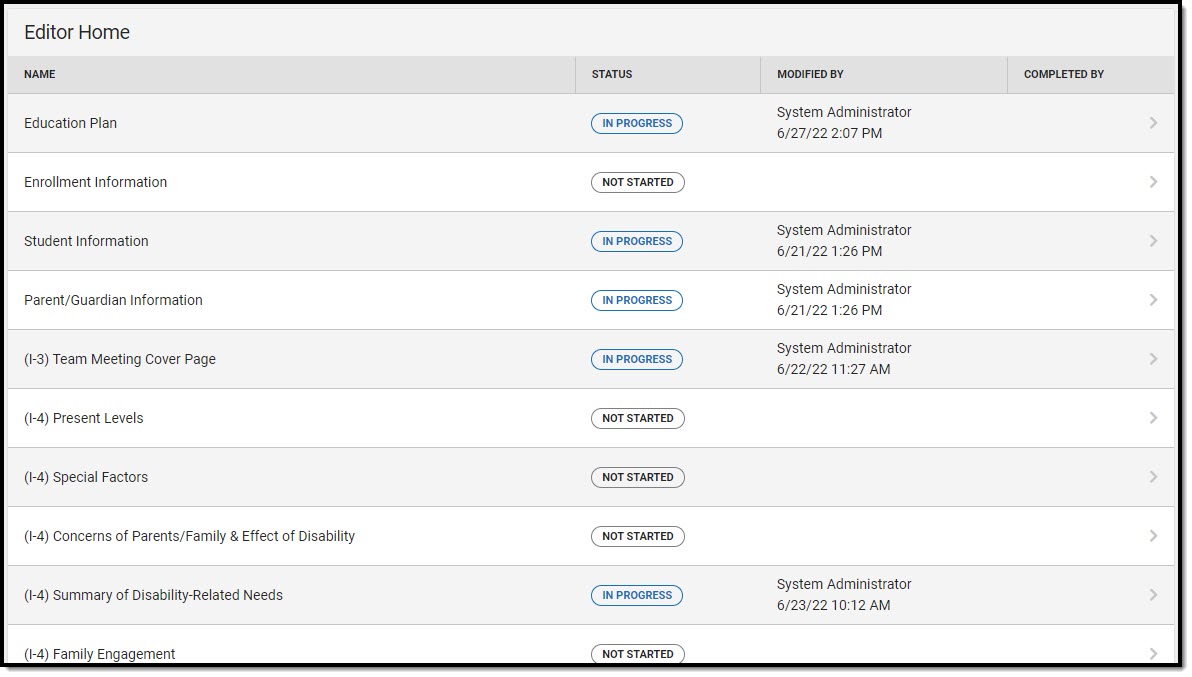 Editor Home
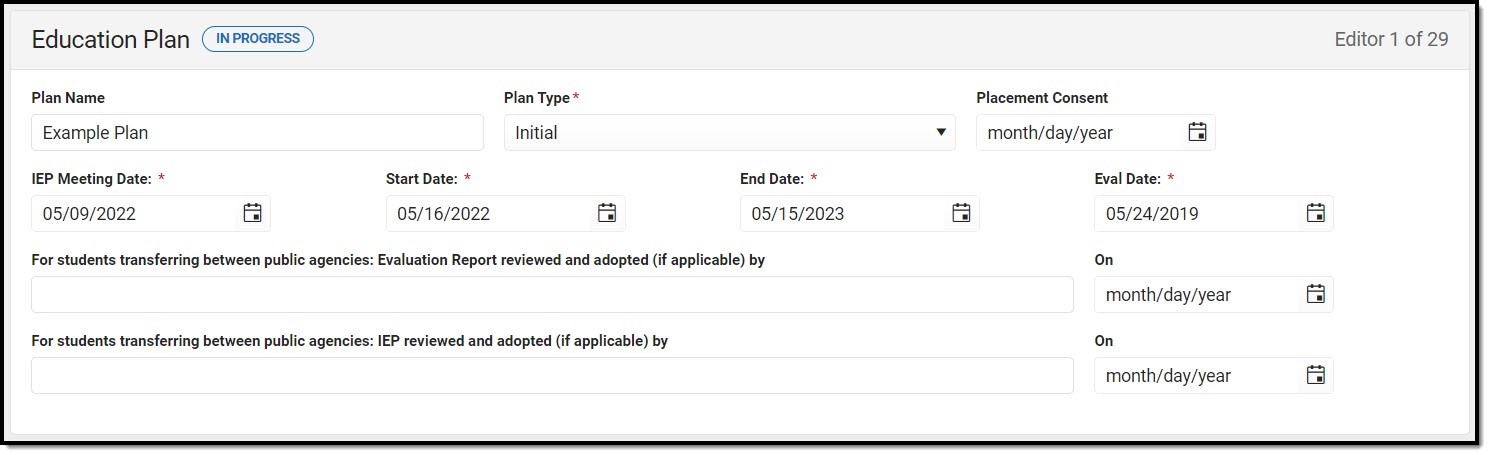 Education Plan Editor
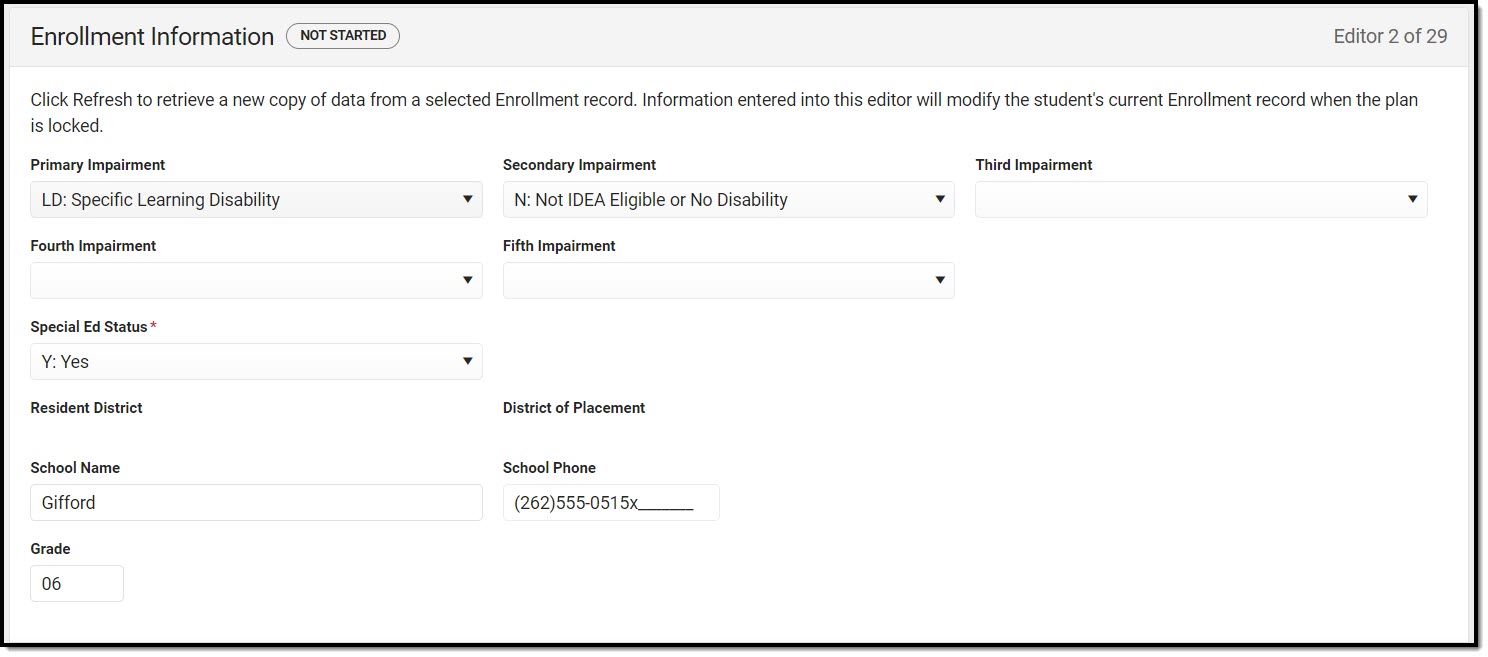 Enrollment Information Editor
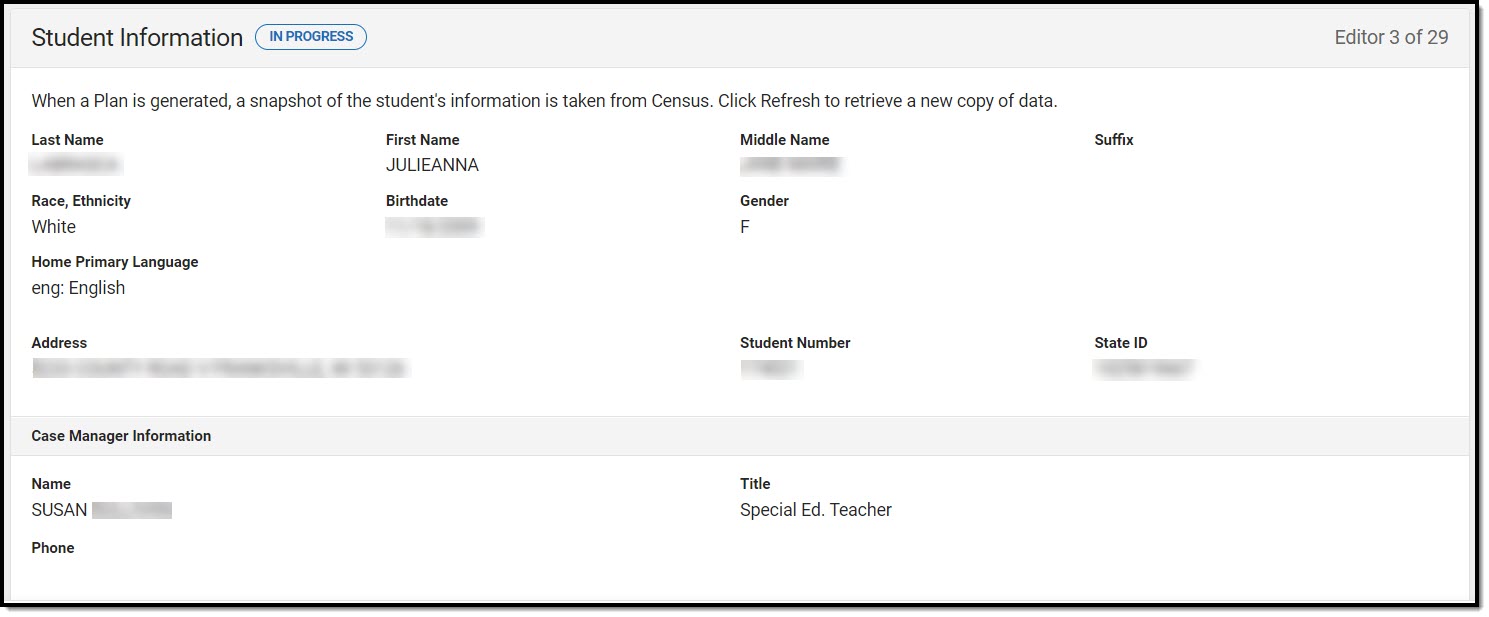 Student Information Editor
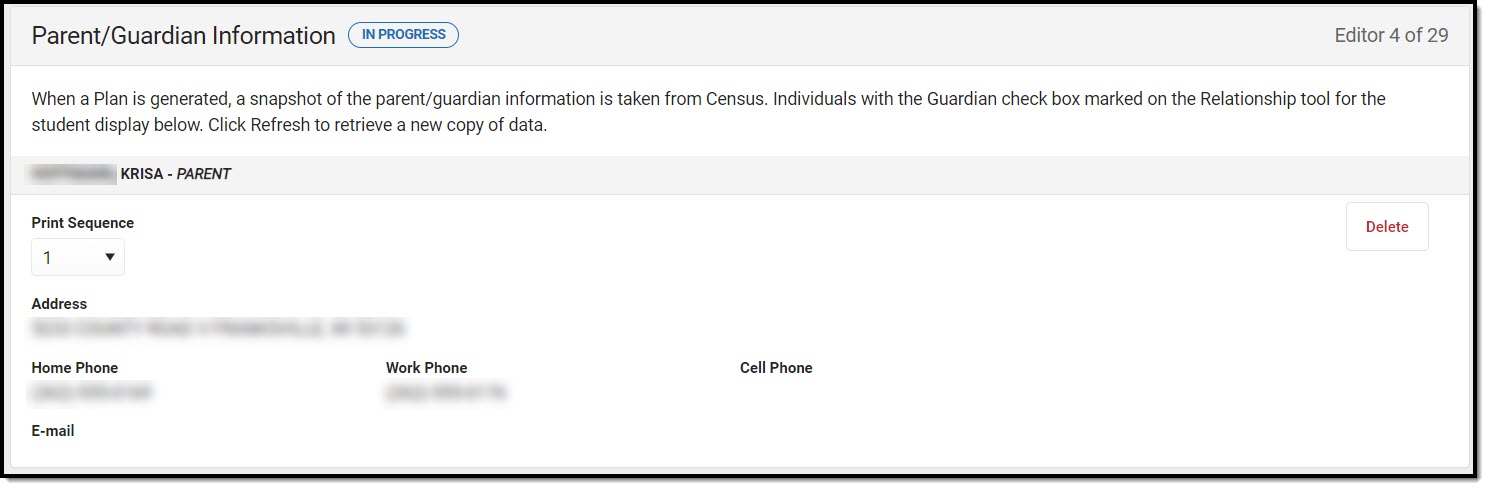 Parent/Guardian Information Editor
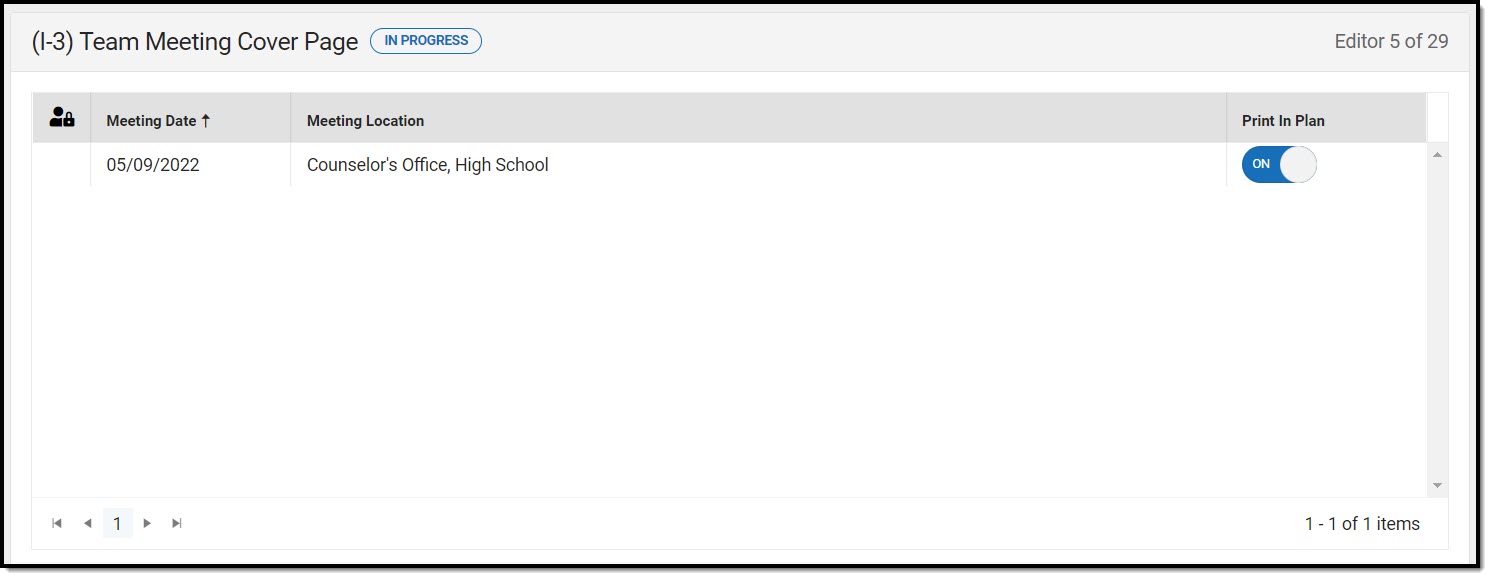 Team Meeting List Screen
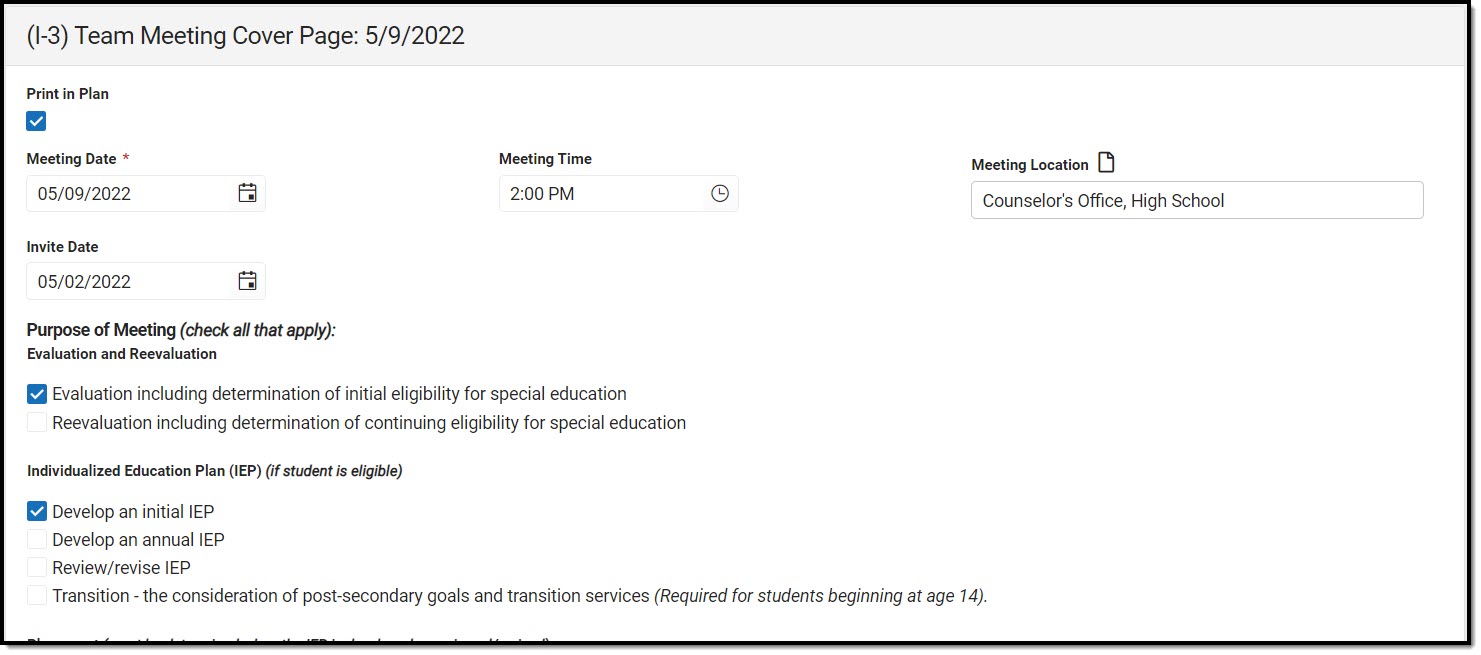 Team Meeting Detail Screen
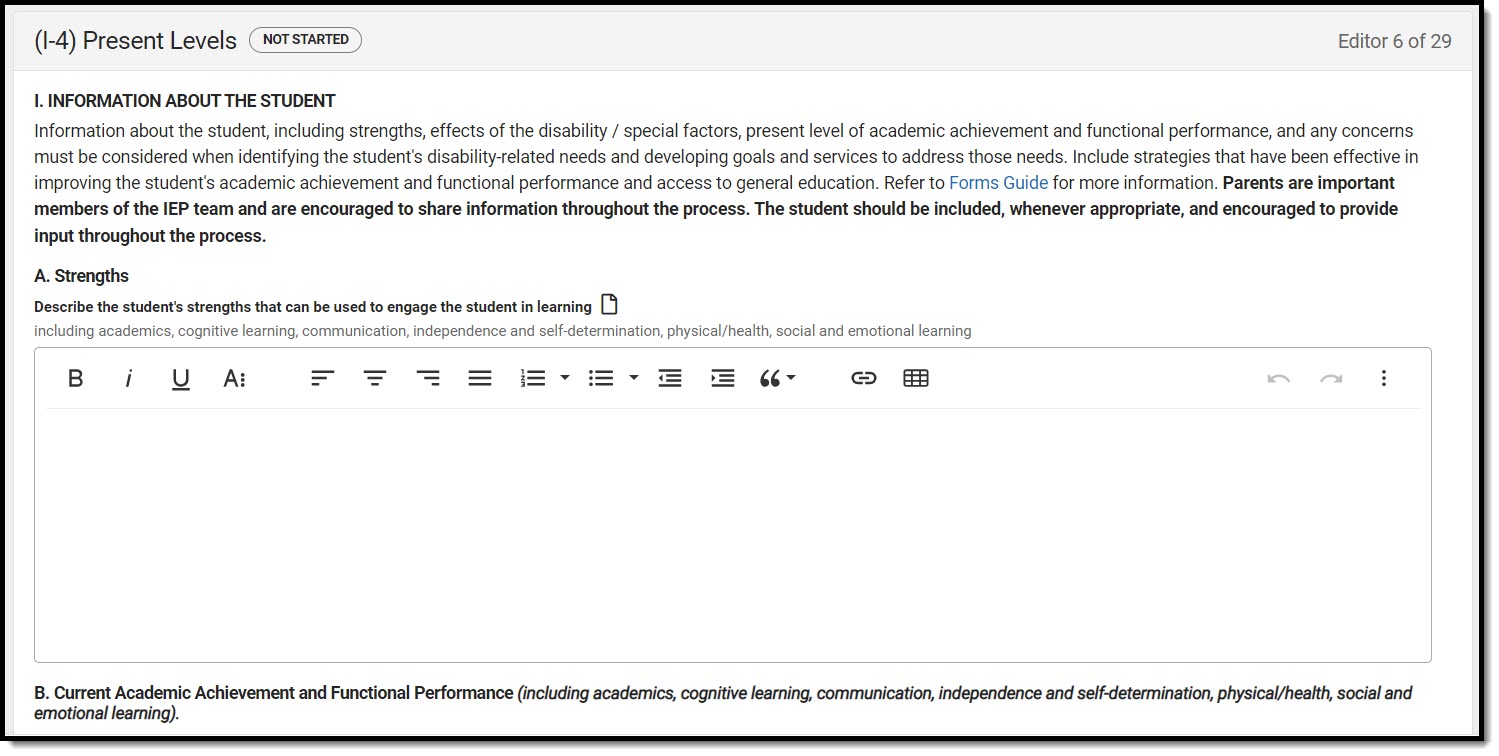 (I-4) Present Levels Editor
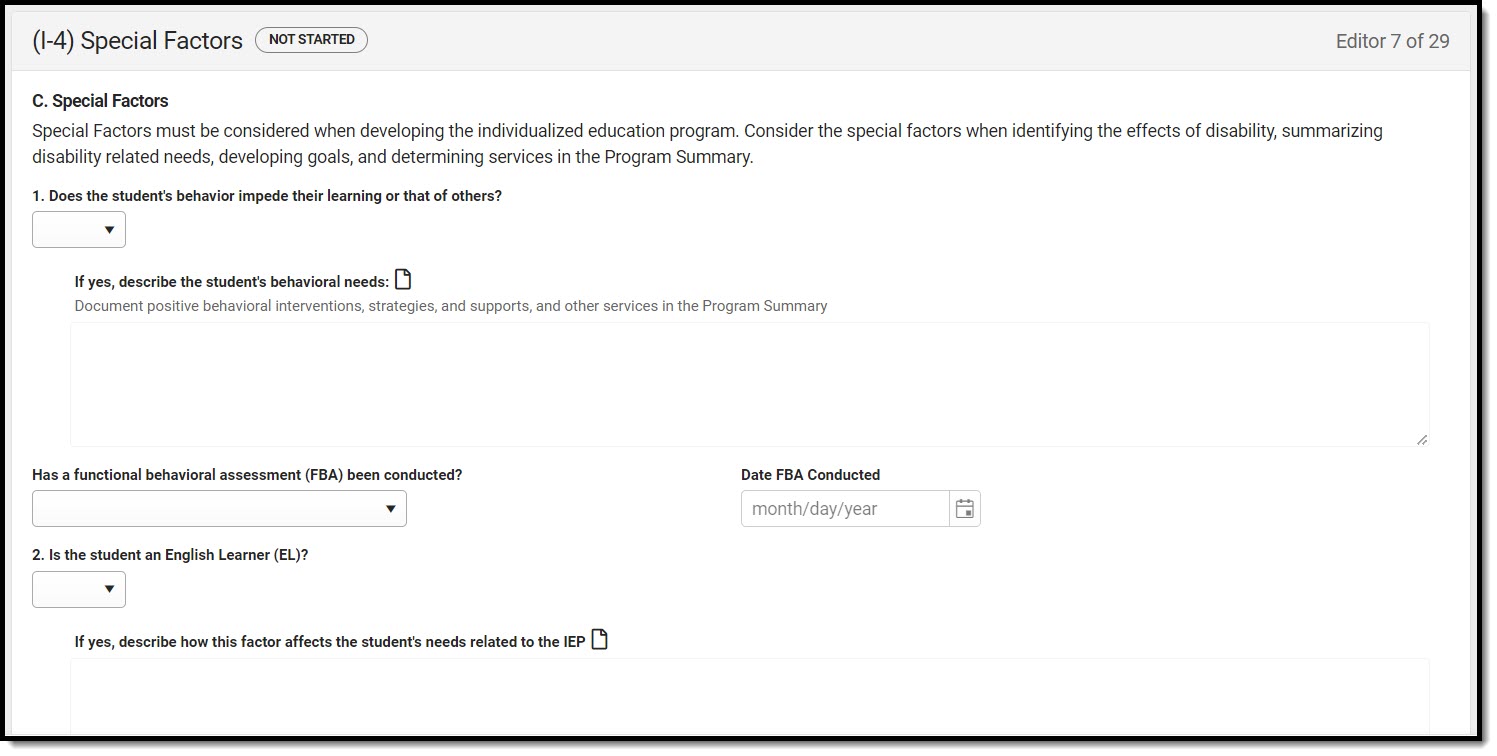 (I-4) Special Factors Editor
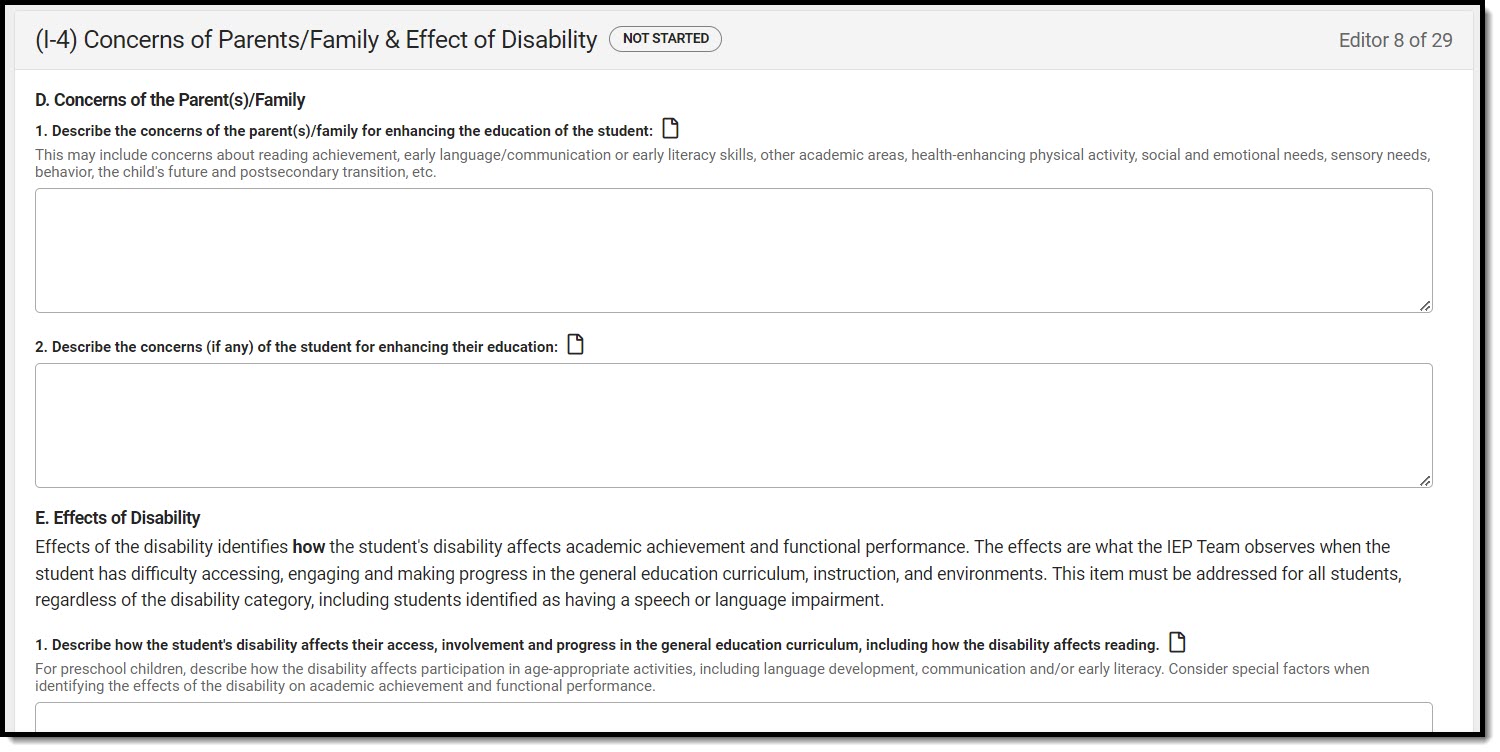 (I-4) Concerns of Parents/Family & Effect of Disability Editor
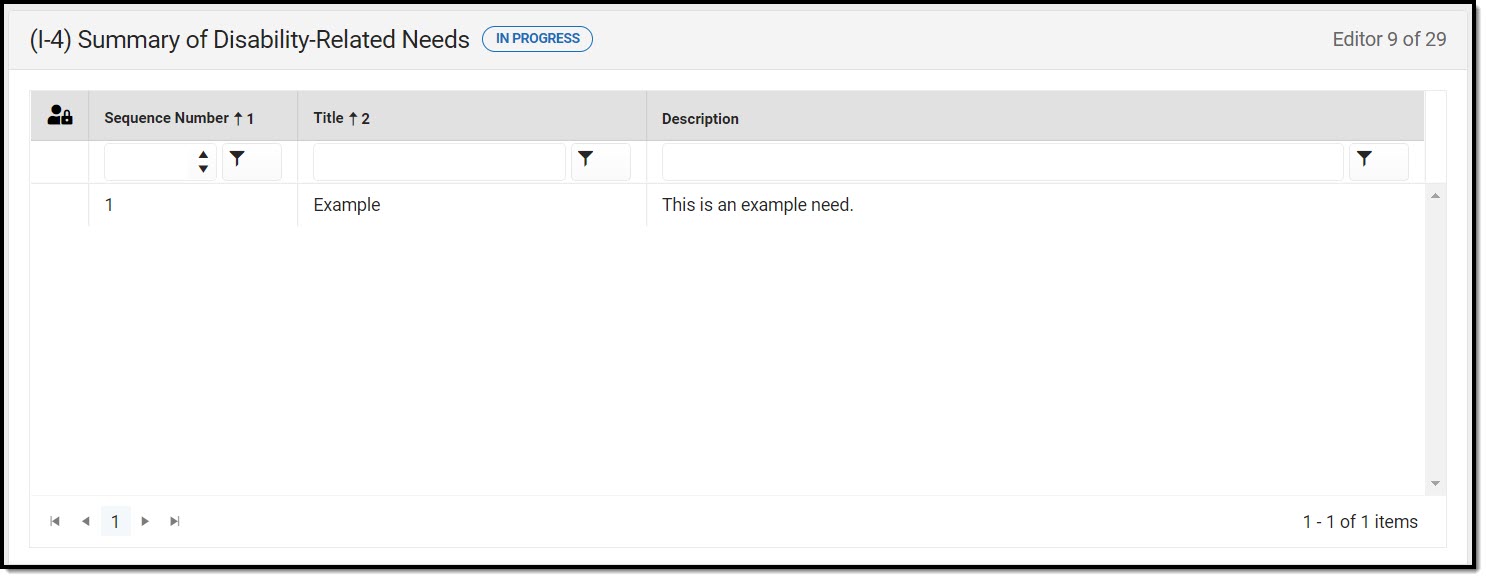 Summary of Disability-Related Needs List Screen
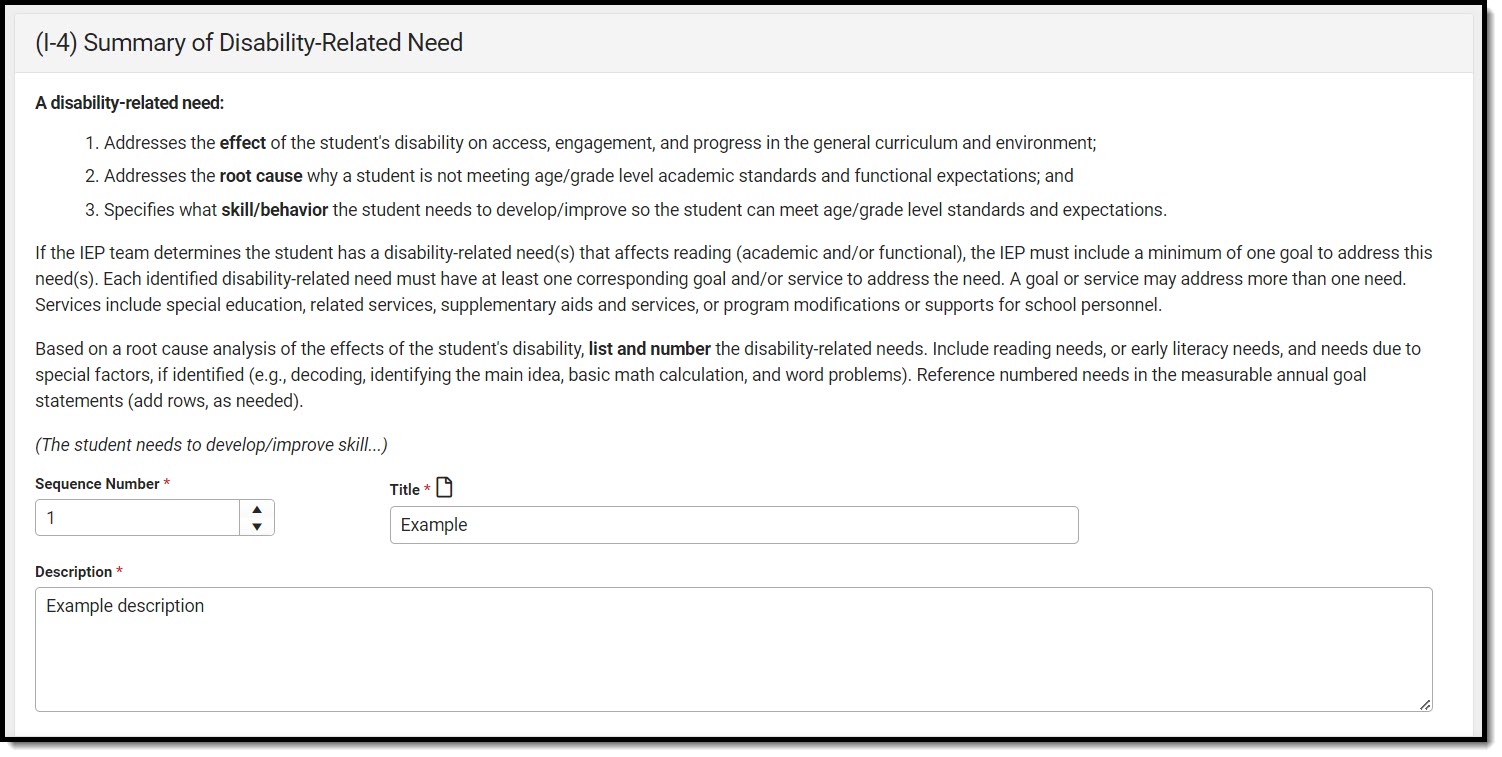 (I-4) Summary of Disability-Related Need Detail Screen
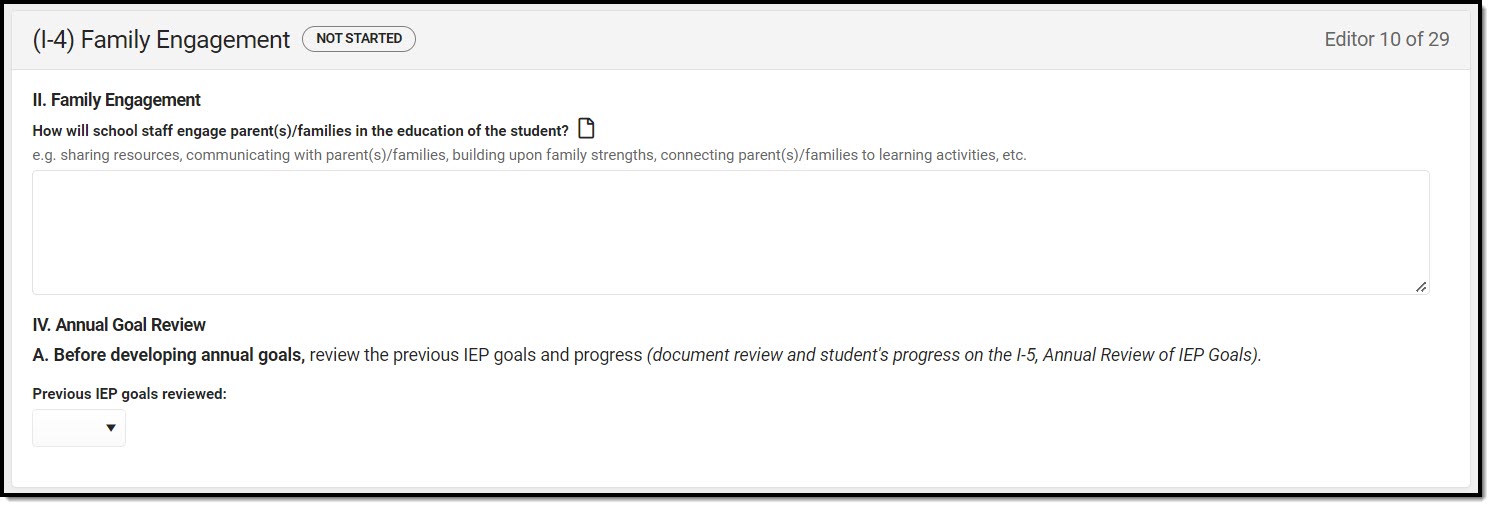 Family Engagement Editor
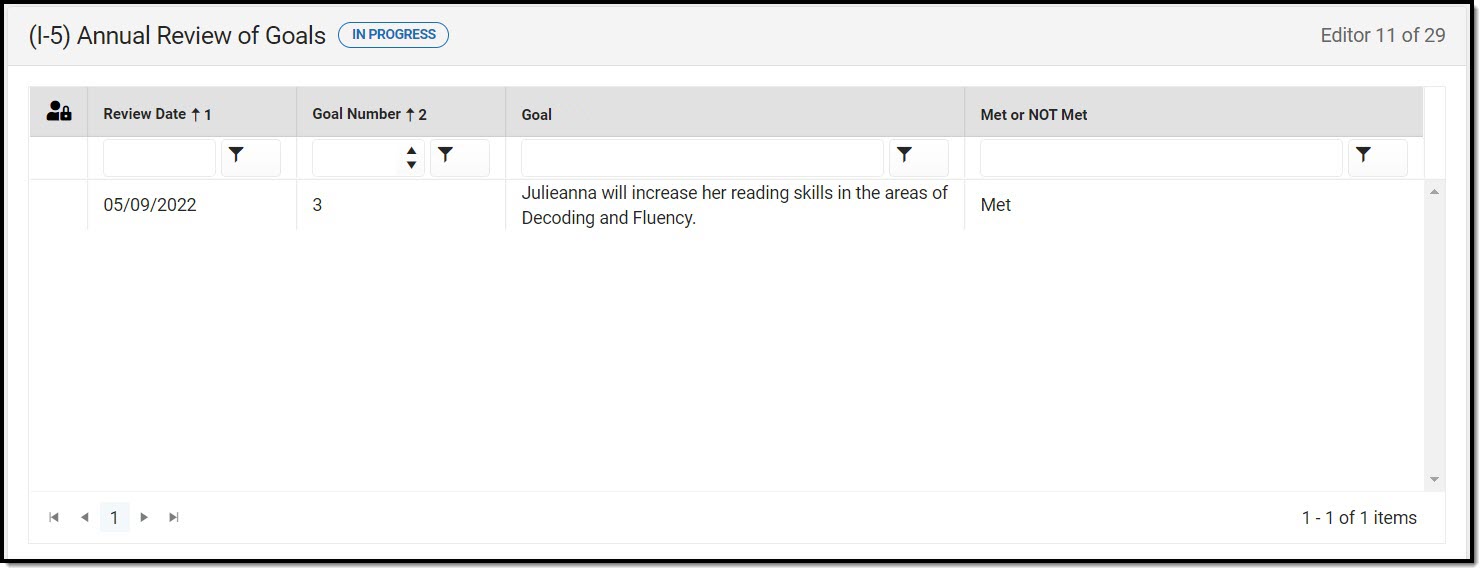
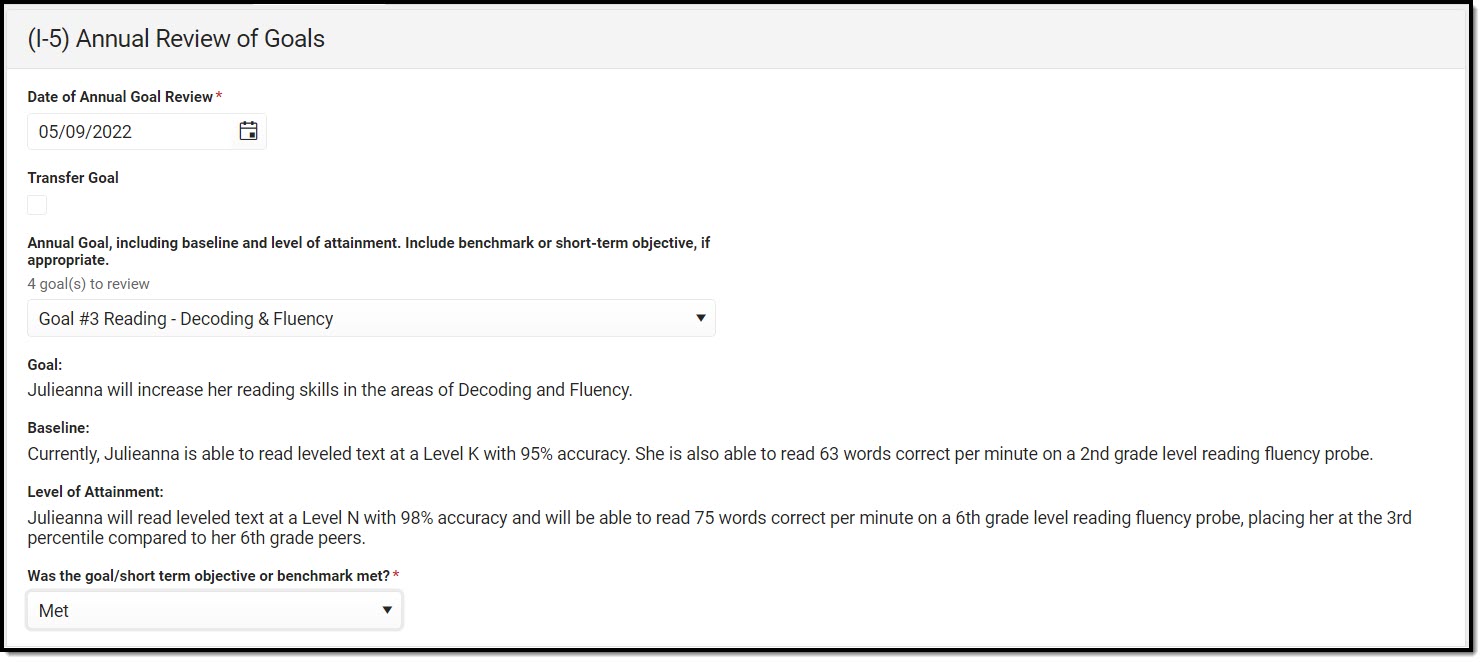 Annual Review of Goals Detail Screen
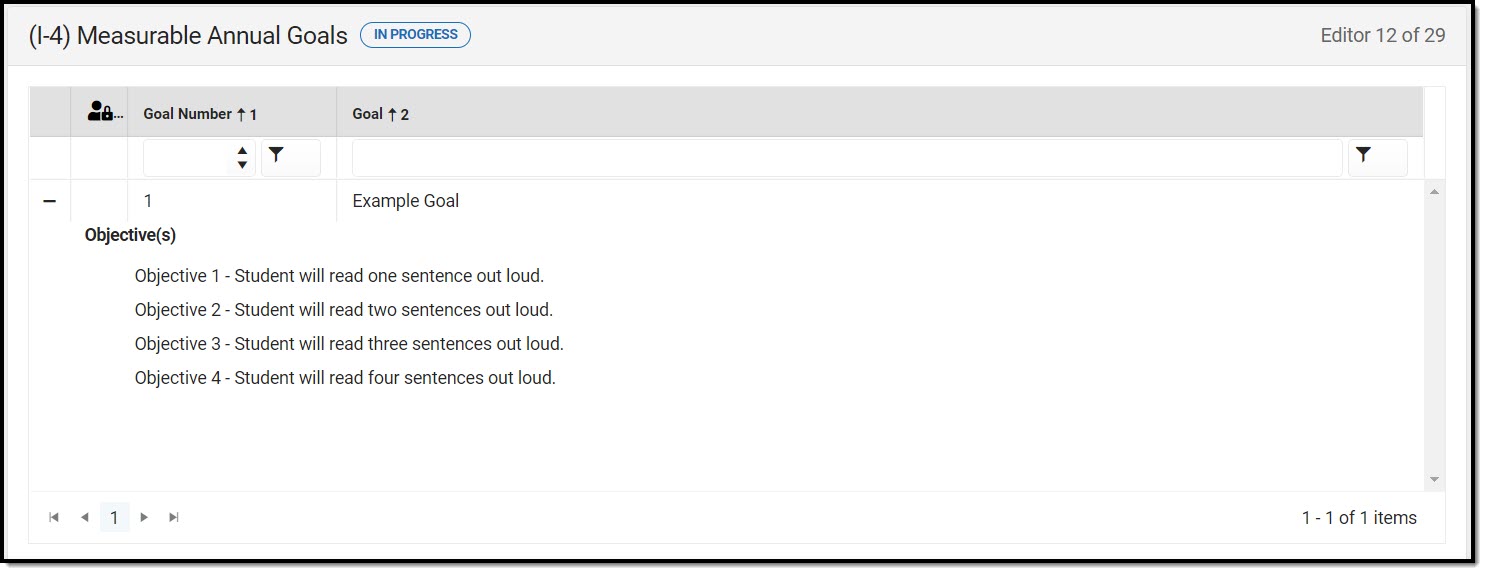 Measurable Annual Goals List Screen
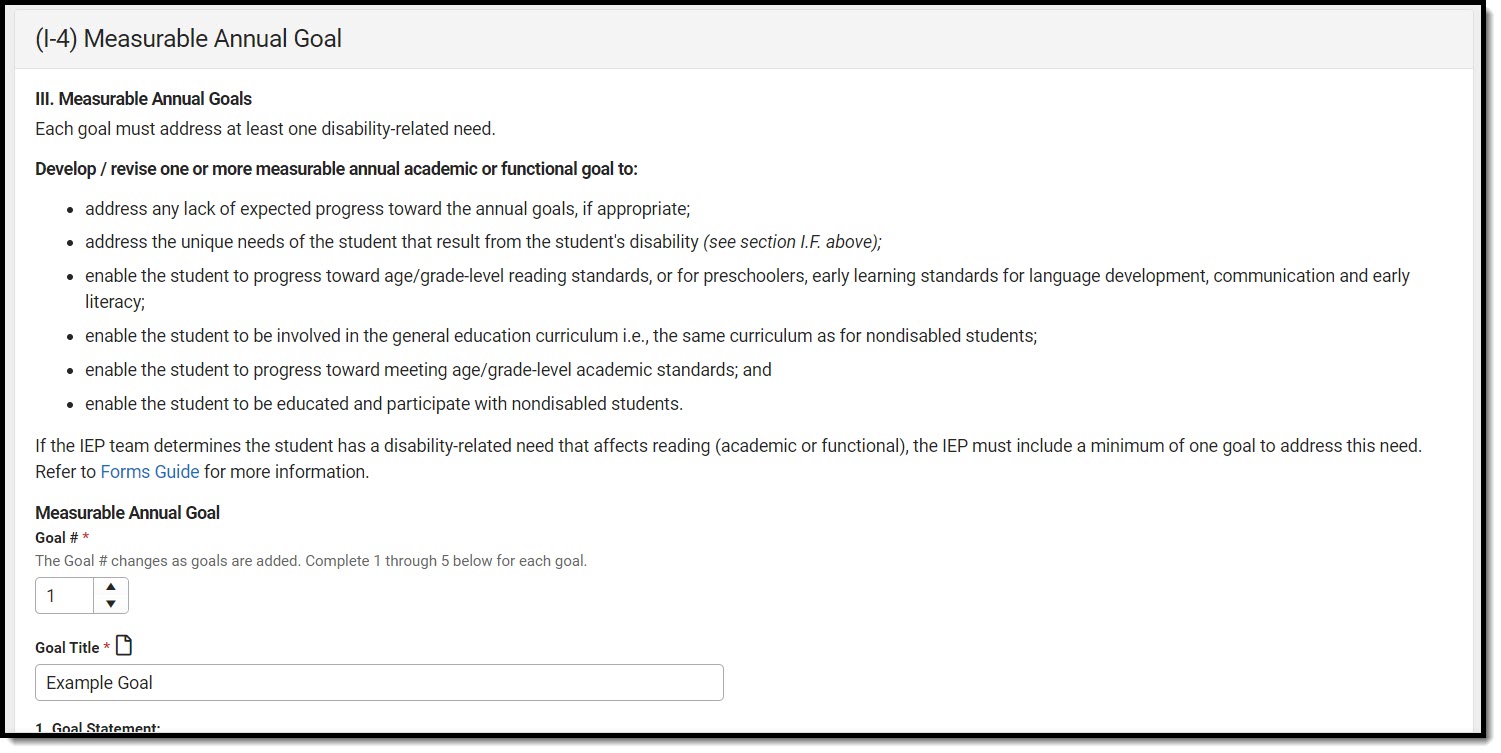 (I-4) Measurable Annual Goal Detail Screen
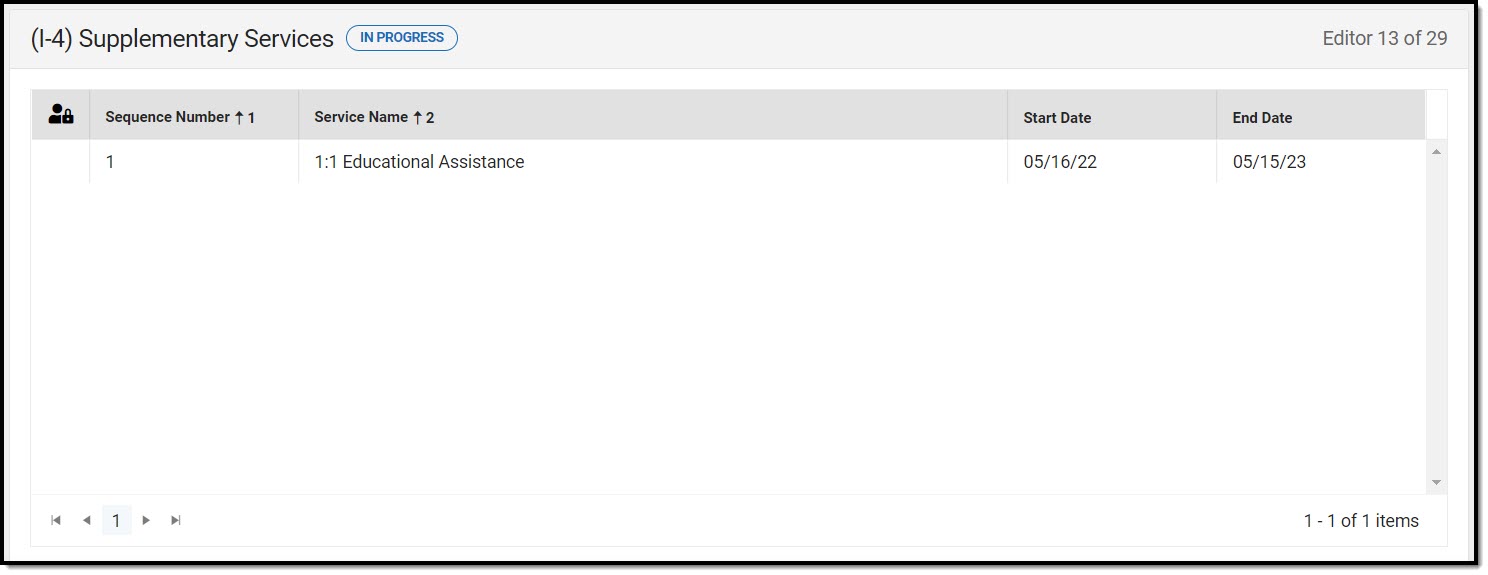 Supplementary Services List Screen
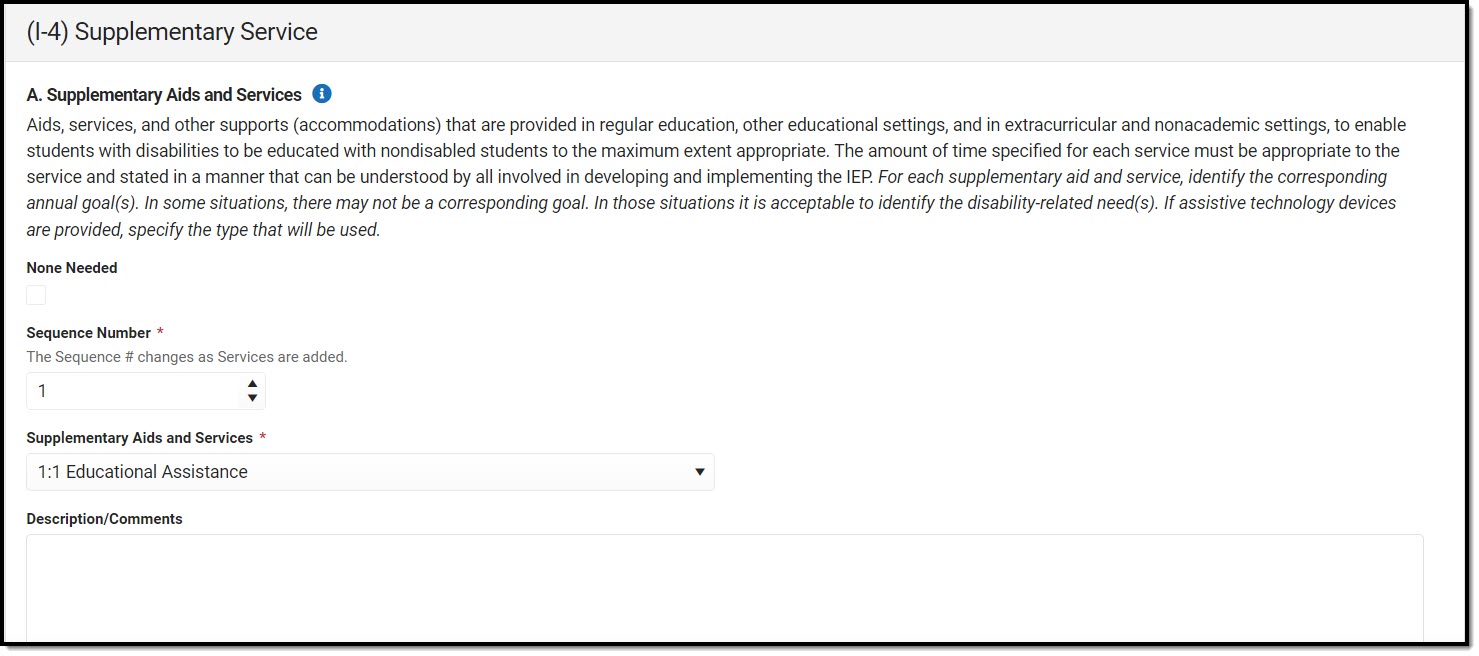 Supplementary Services Detail Screen
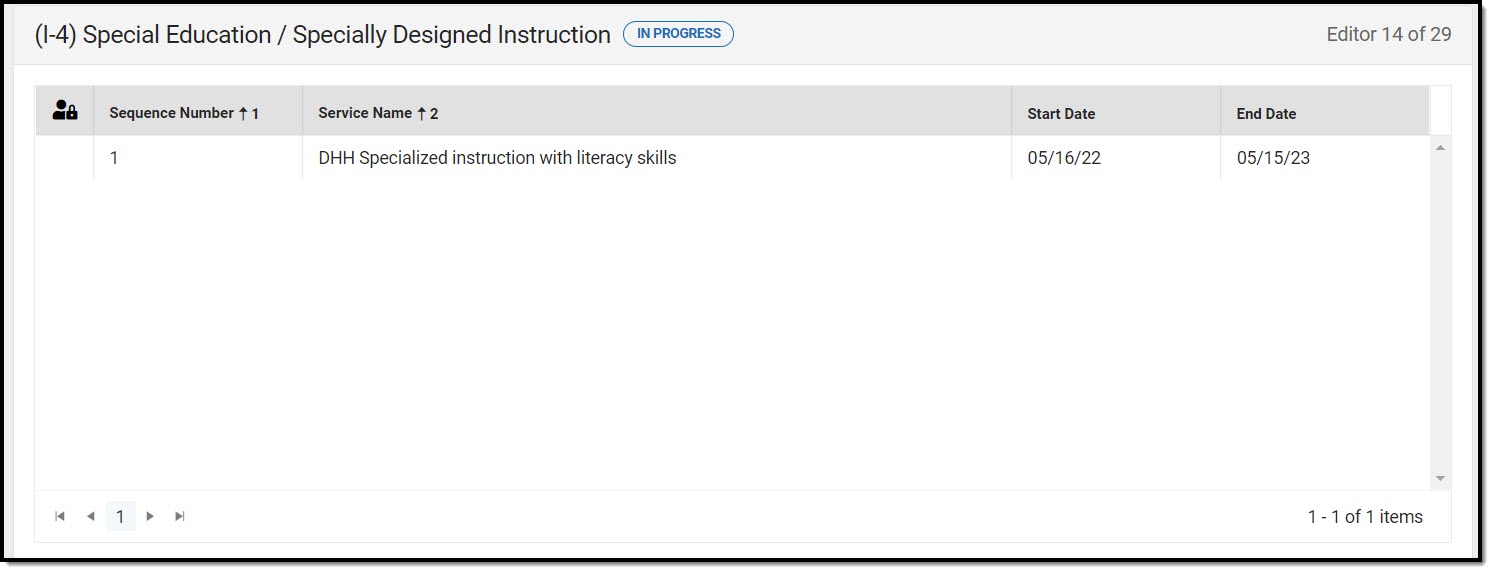 Special Education / Specially Designed Instruction List Screen
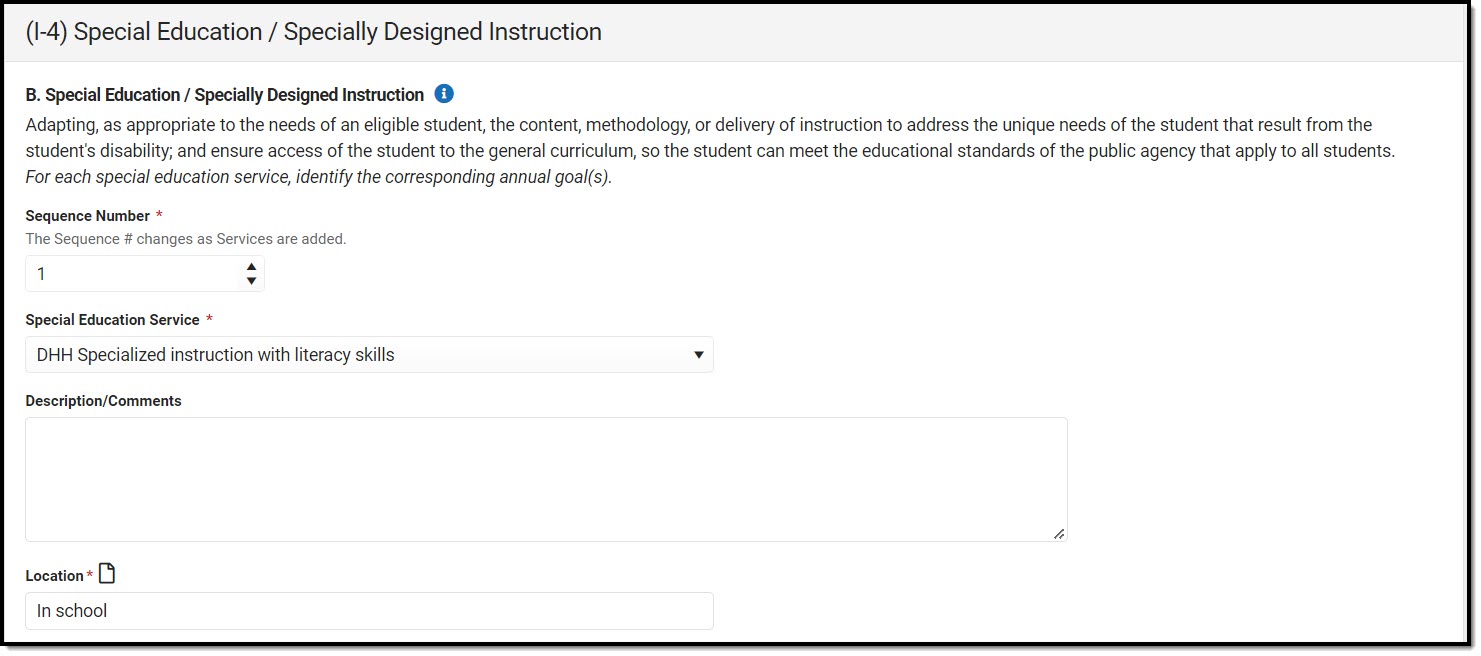 Special Education / Specially Designed Instruction Detail Screen
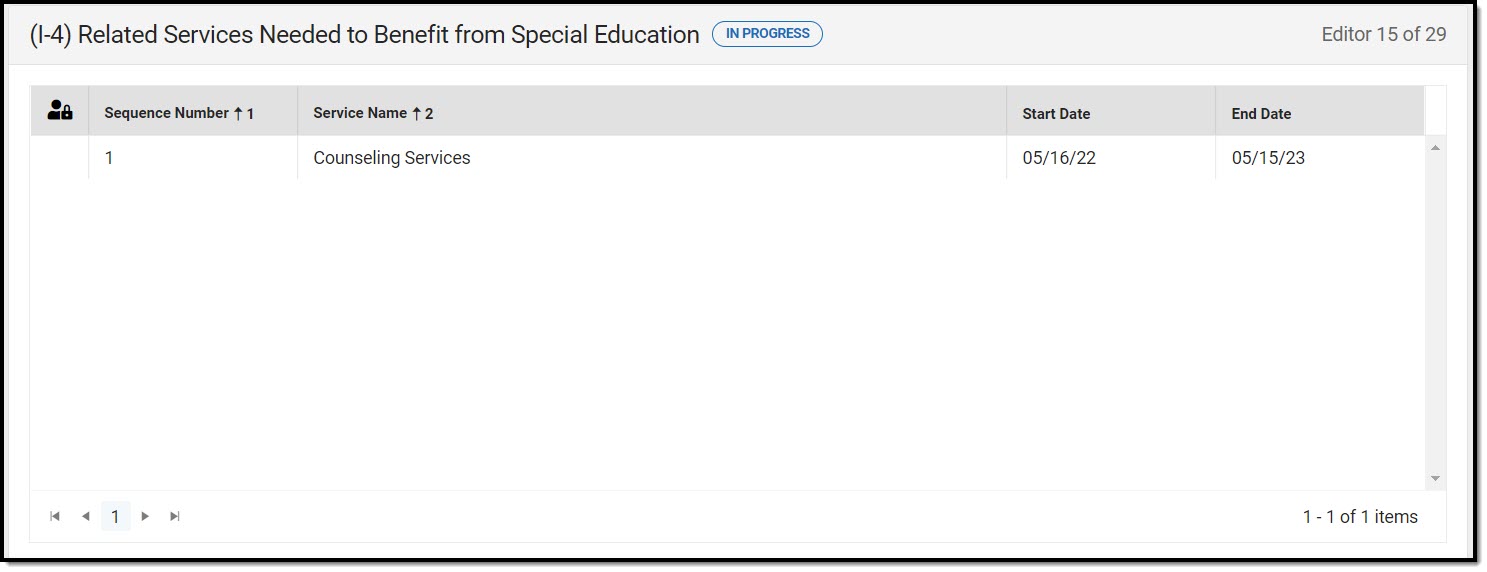 Related Services List Screen
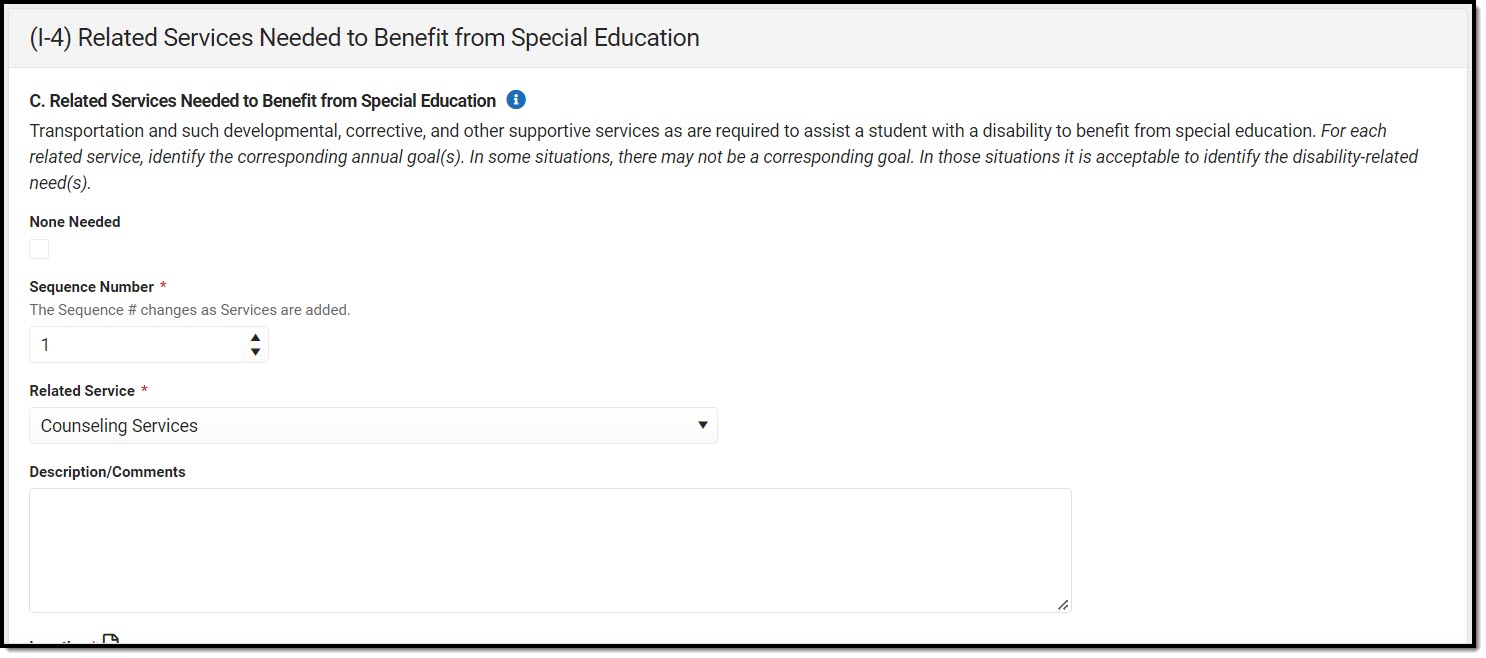 Related Services Detail Screen
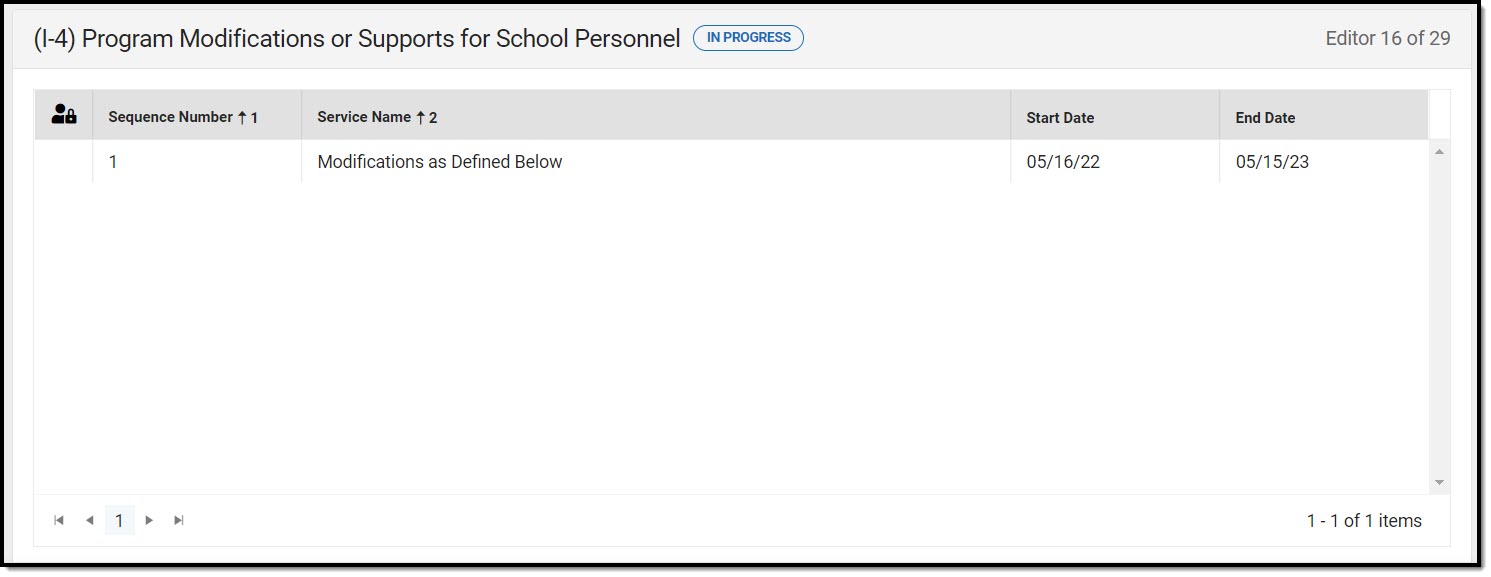 Program Modification or Supports List Screen
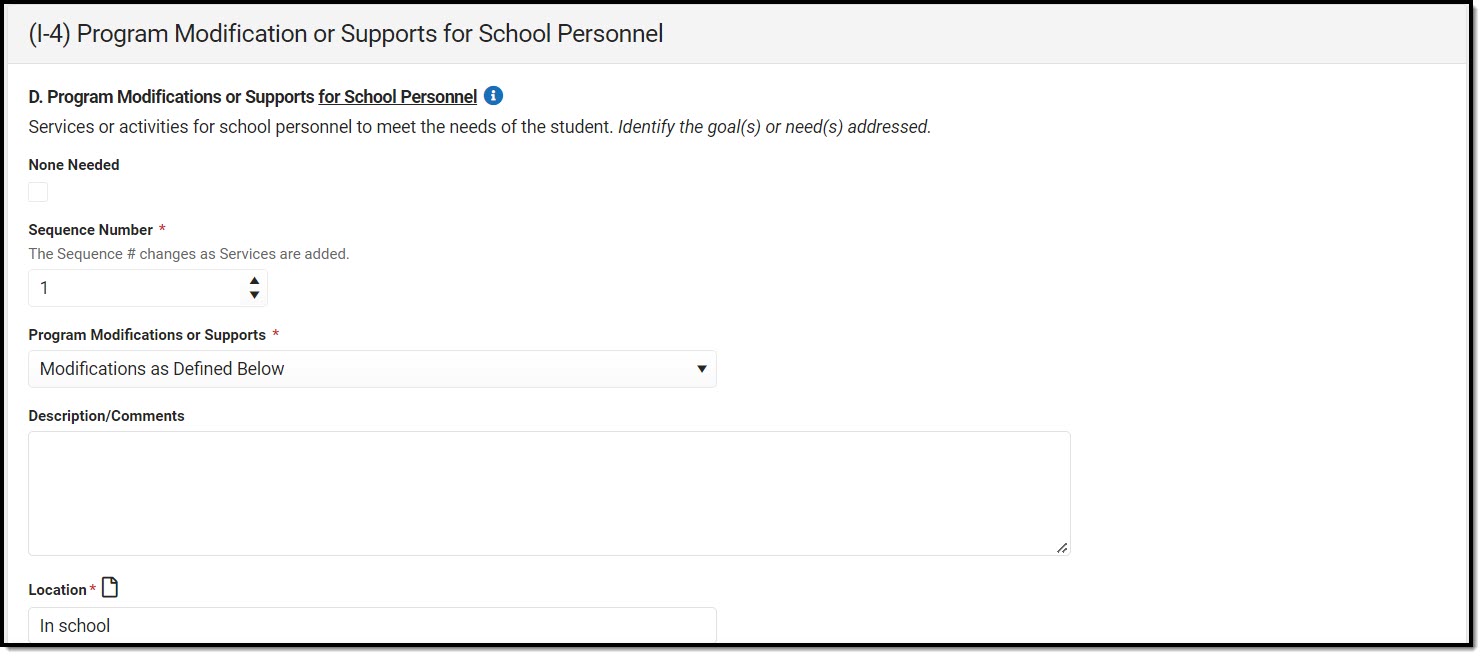 Program Modification or Supports Detail Screen
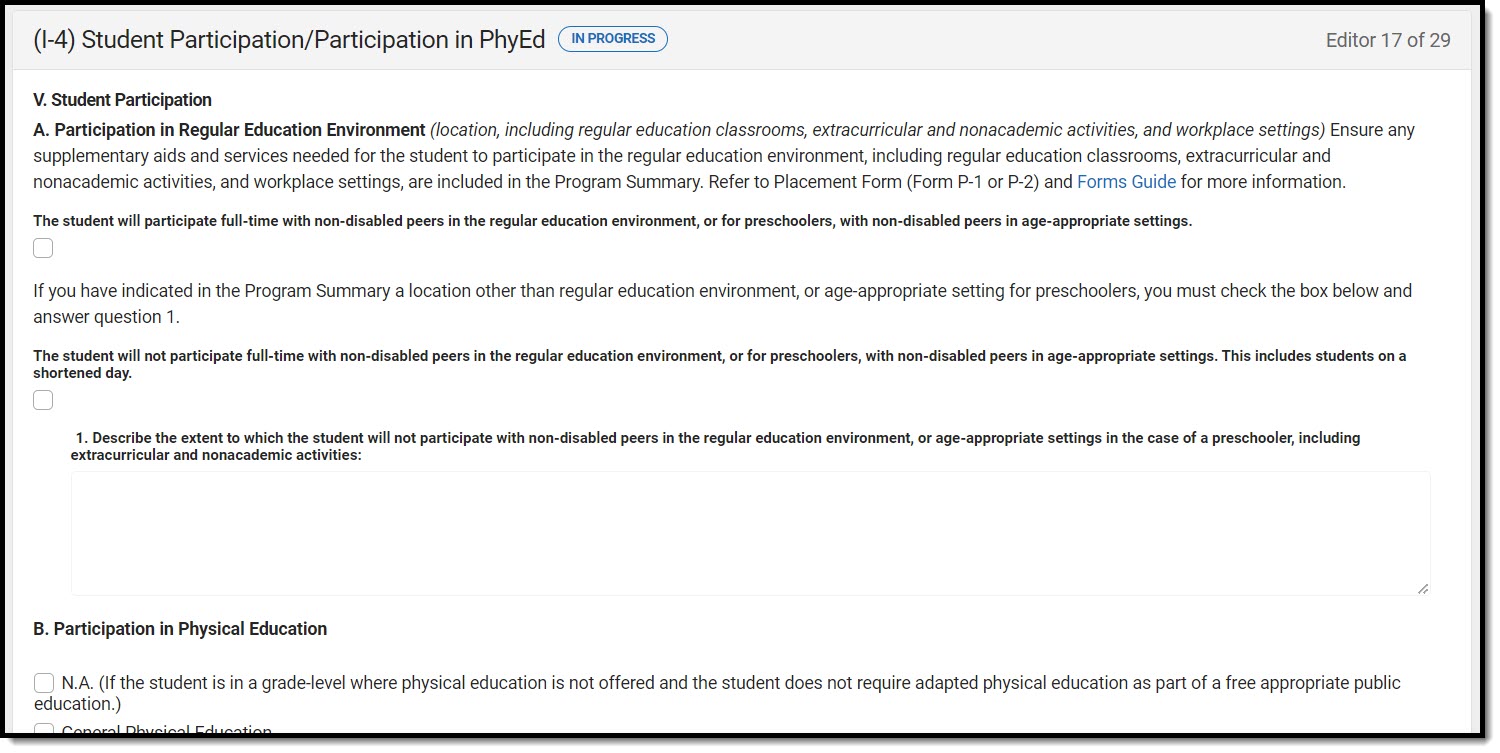 (I-4) Student Participation/Participation in PhyEd Editor
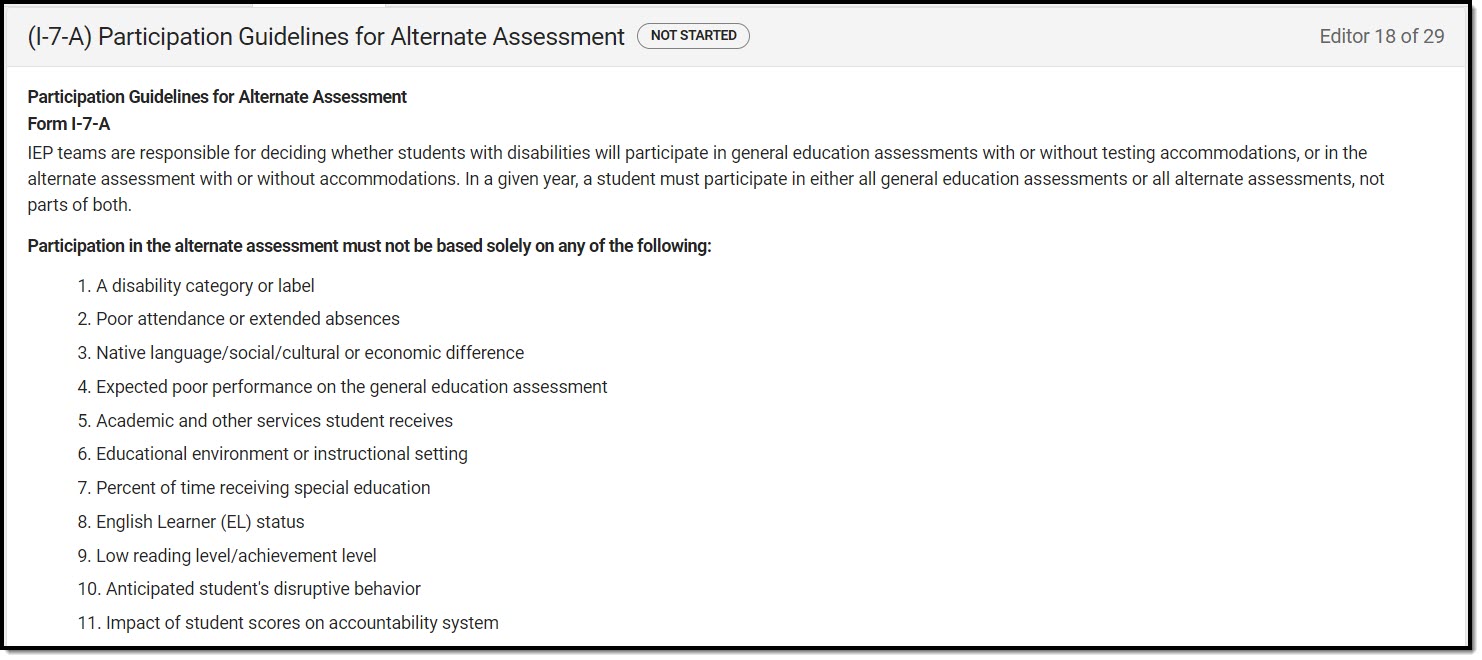 Participation Guidelines for Alternate Assessment Editor
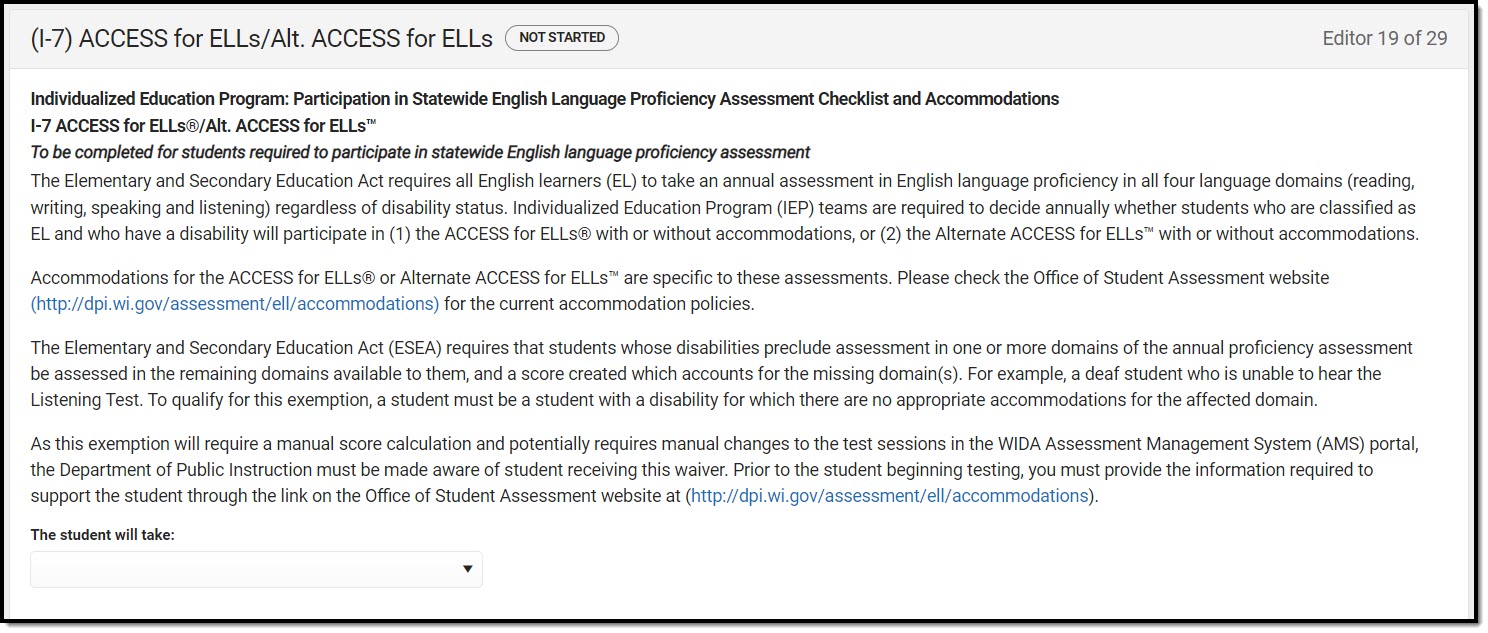 ACCESS for ELLs/Alt. ACESS for ELLs Editor
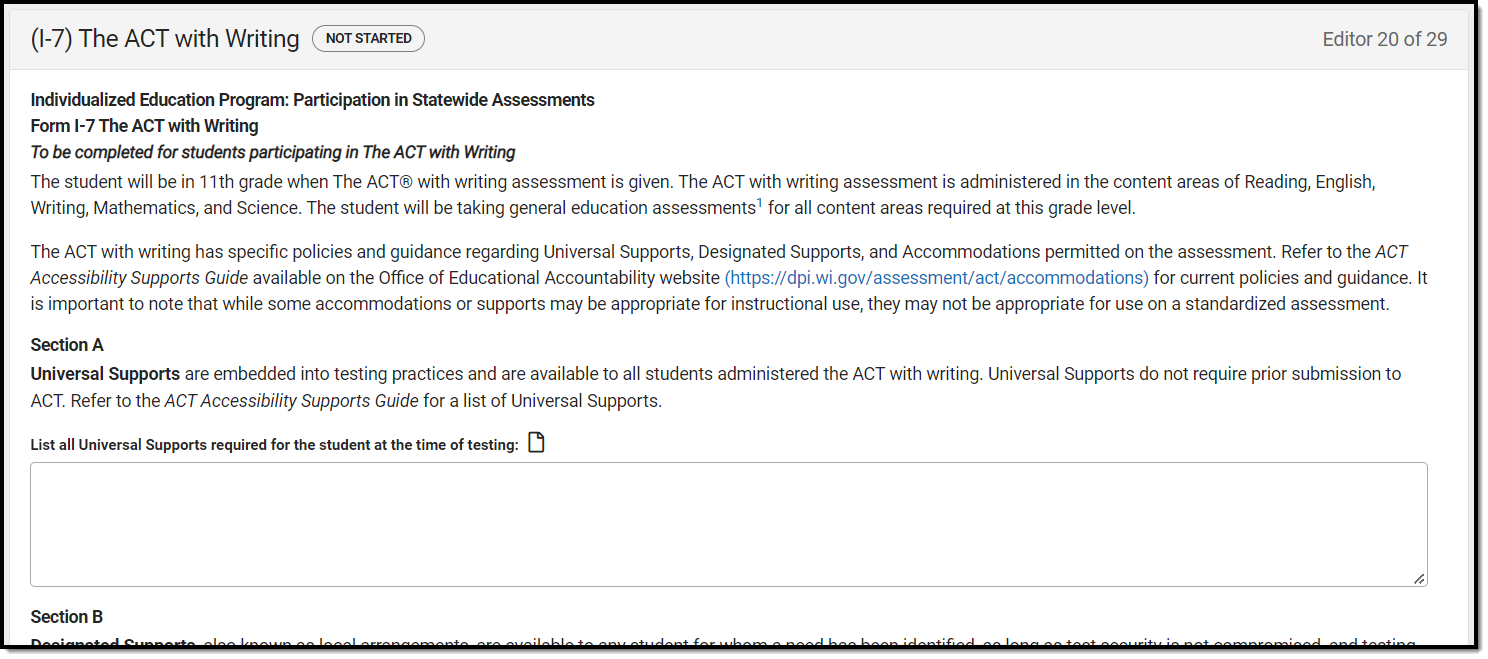 (I-7) The ACT with Writing Editor
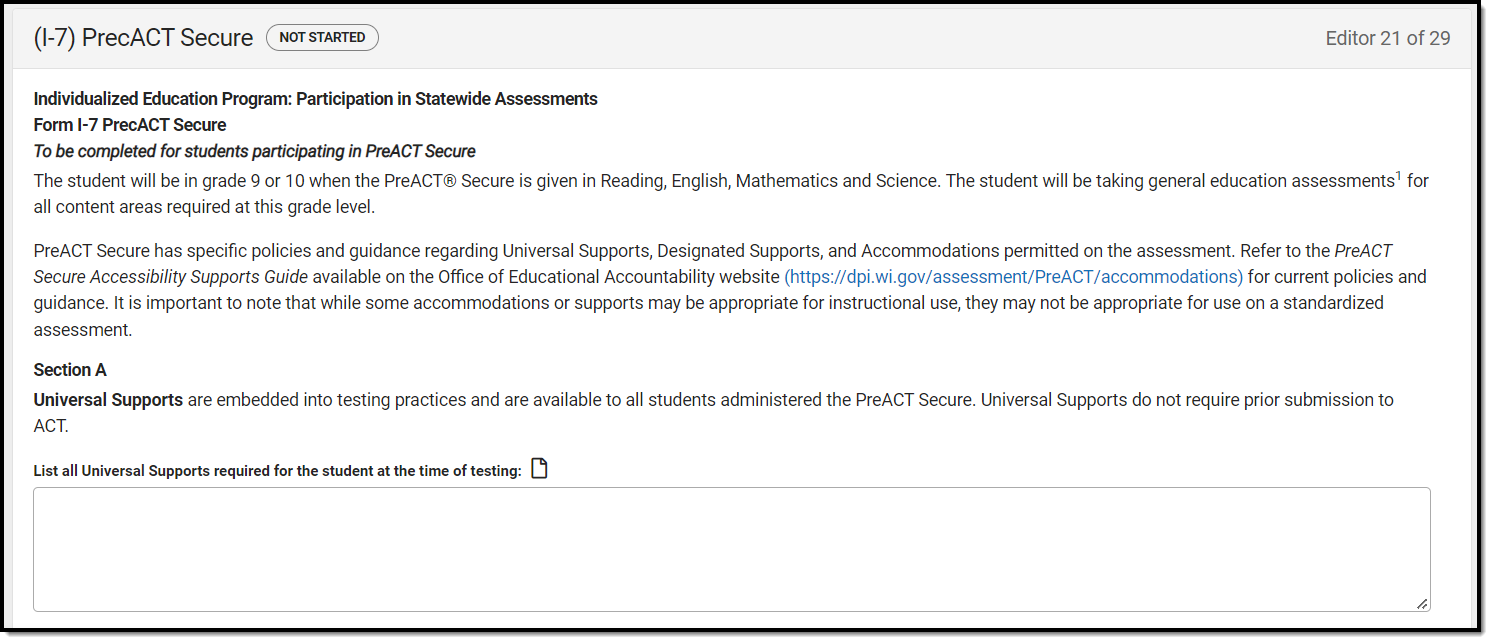 (I-7) PreACT Secure Editor
 District-Wide Assessment Editor
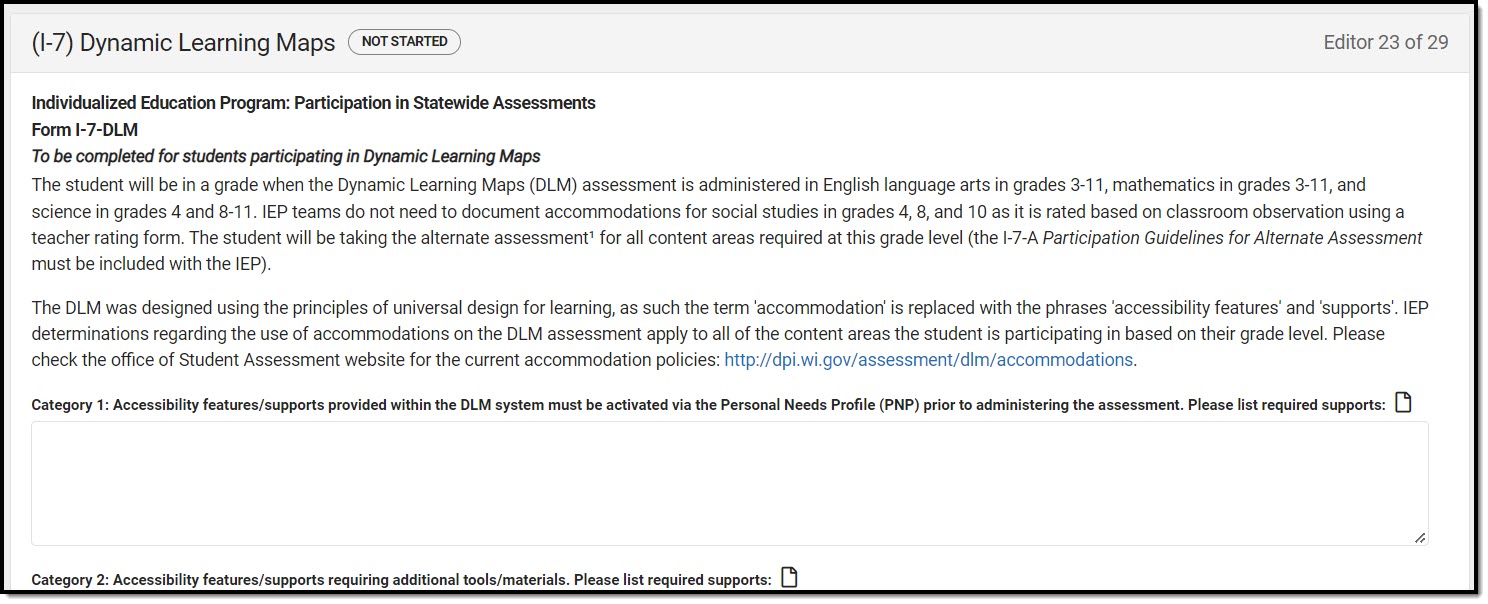 Dynamic Learning Maps Editor
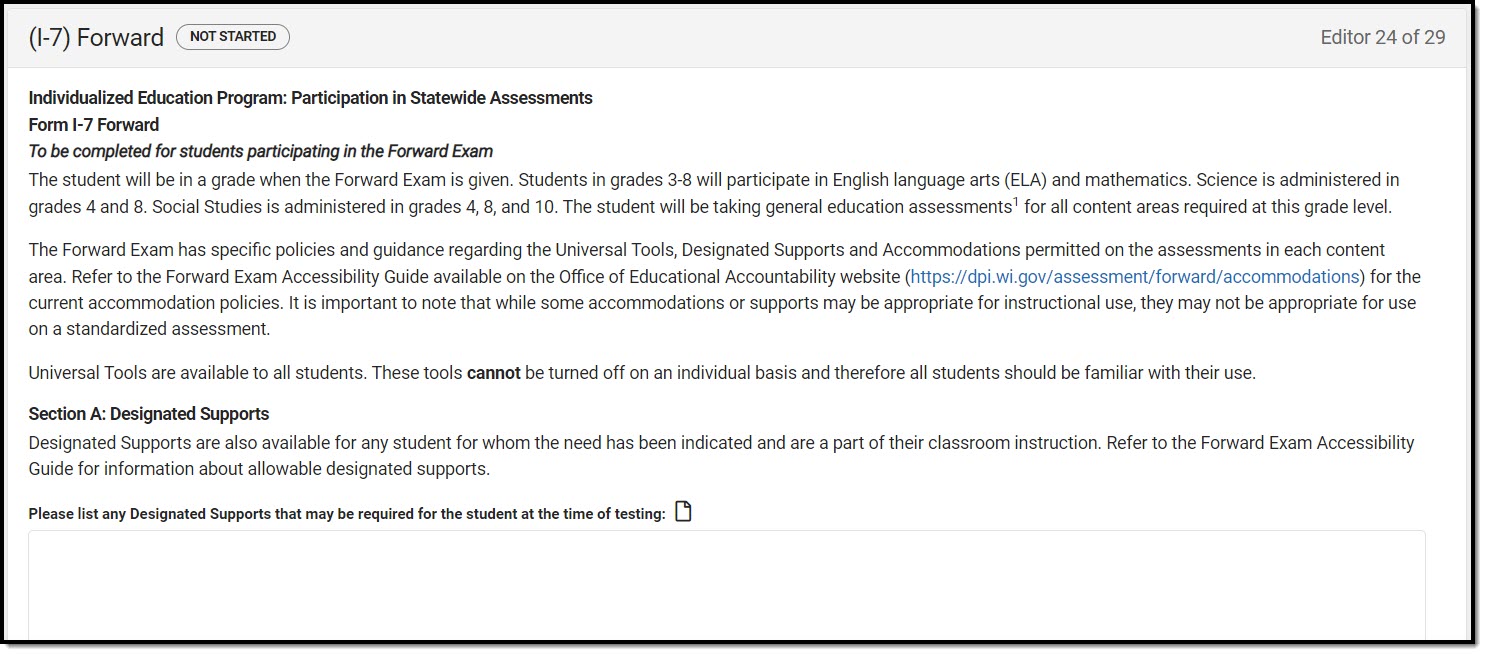 Forward Editor
 Extended School Year Editor
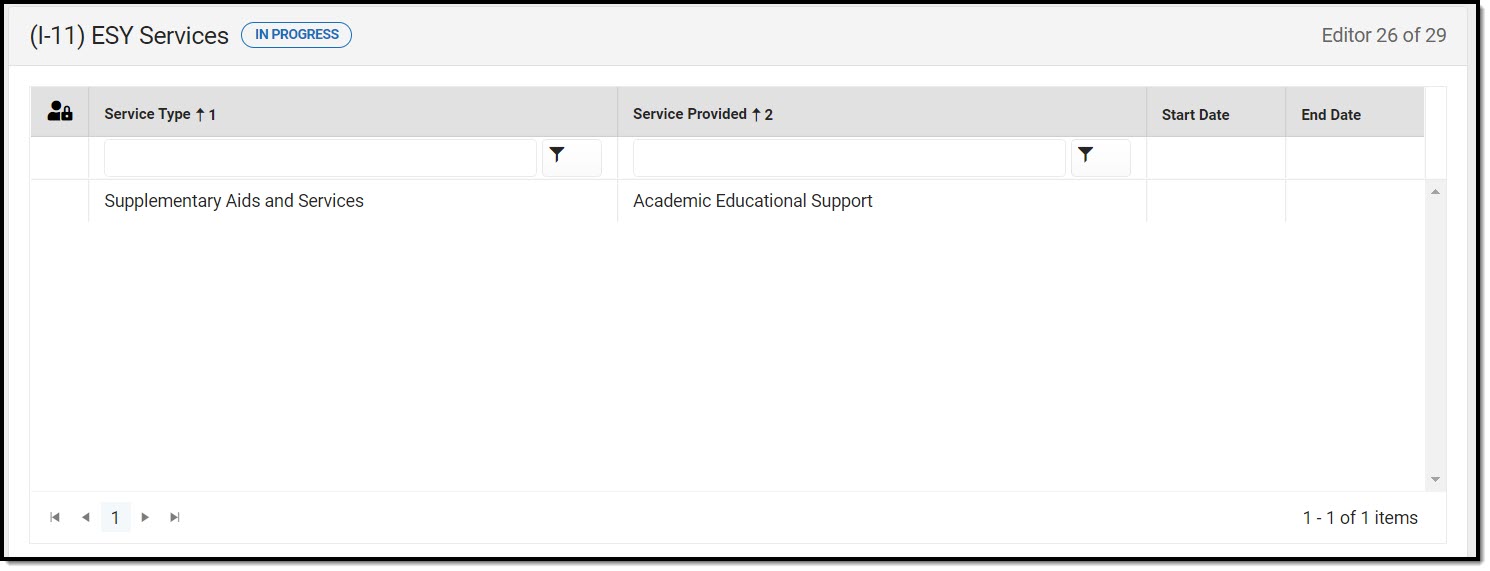 Extended School Year Services List Screen
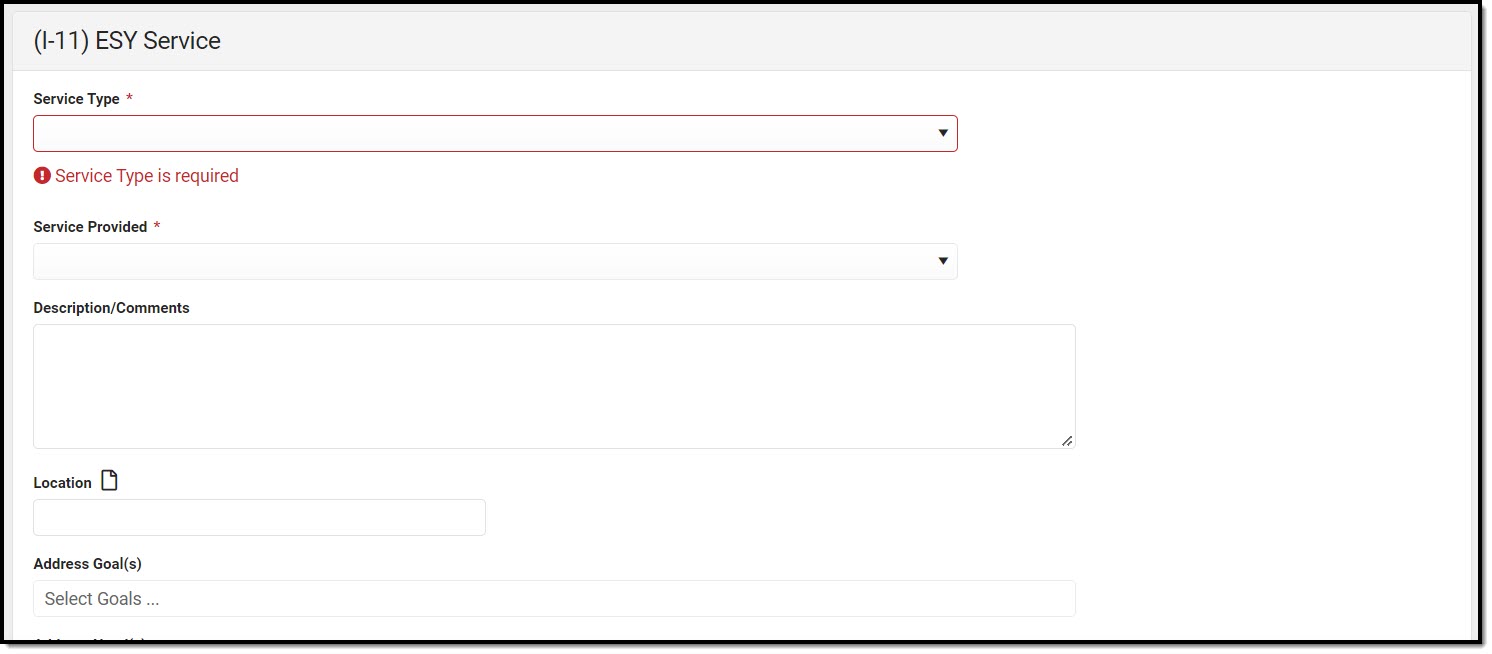 Extended School Year Services Detail Screen
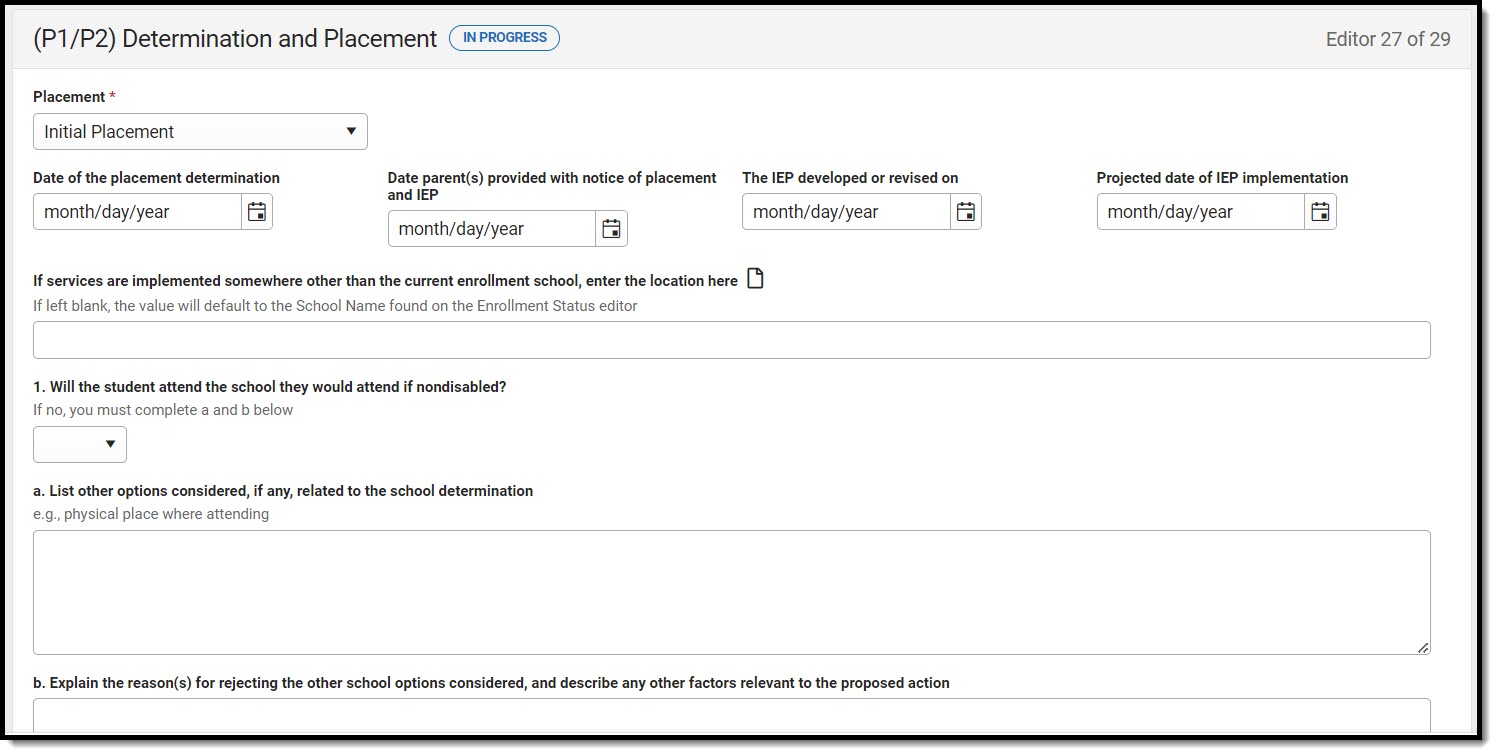 (P1/P2) Determination and Placement Editor
 The Parent Consent/Permission for Initial Placement editor in an In Progress status.
 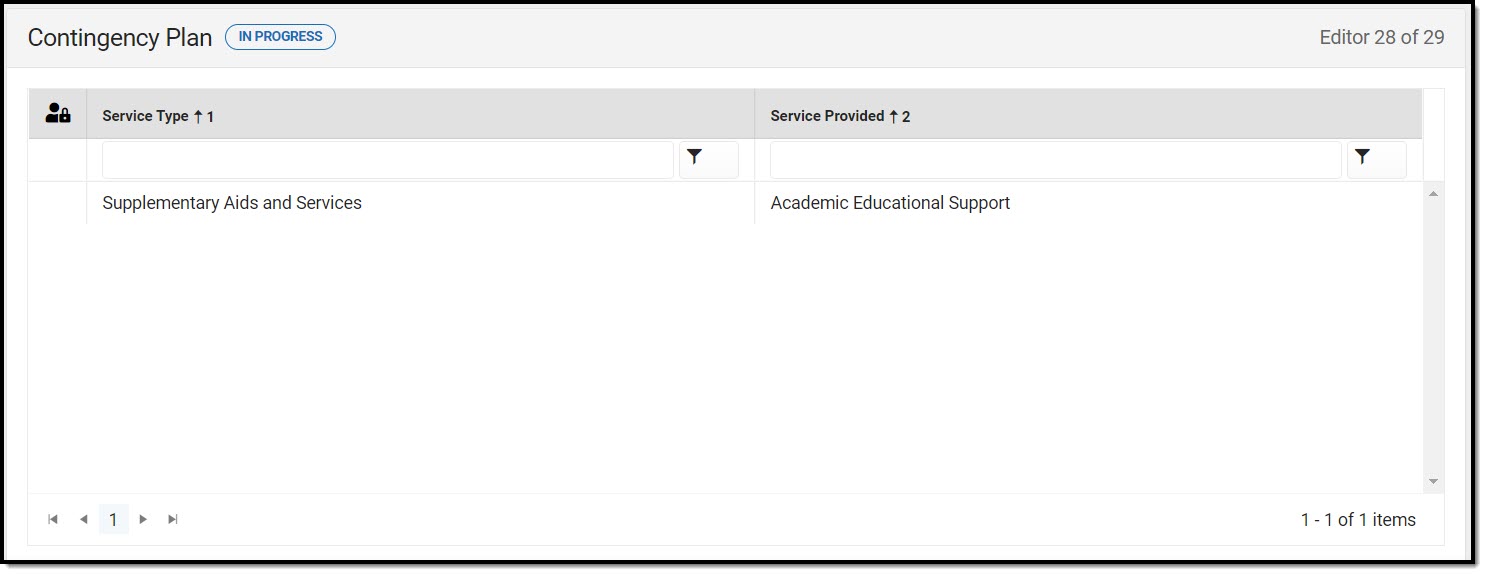 Contingency Plan List Screen
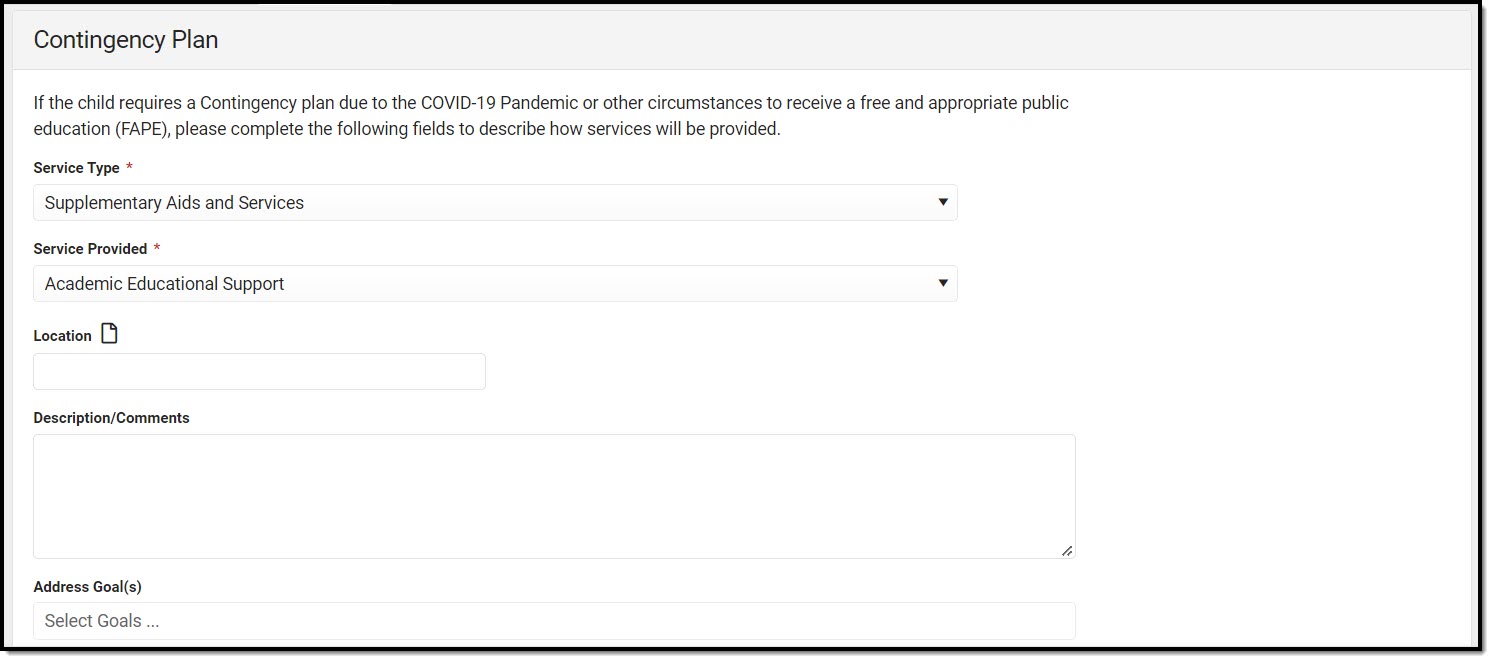 Contingency Plan Detail Screen
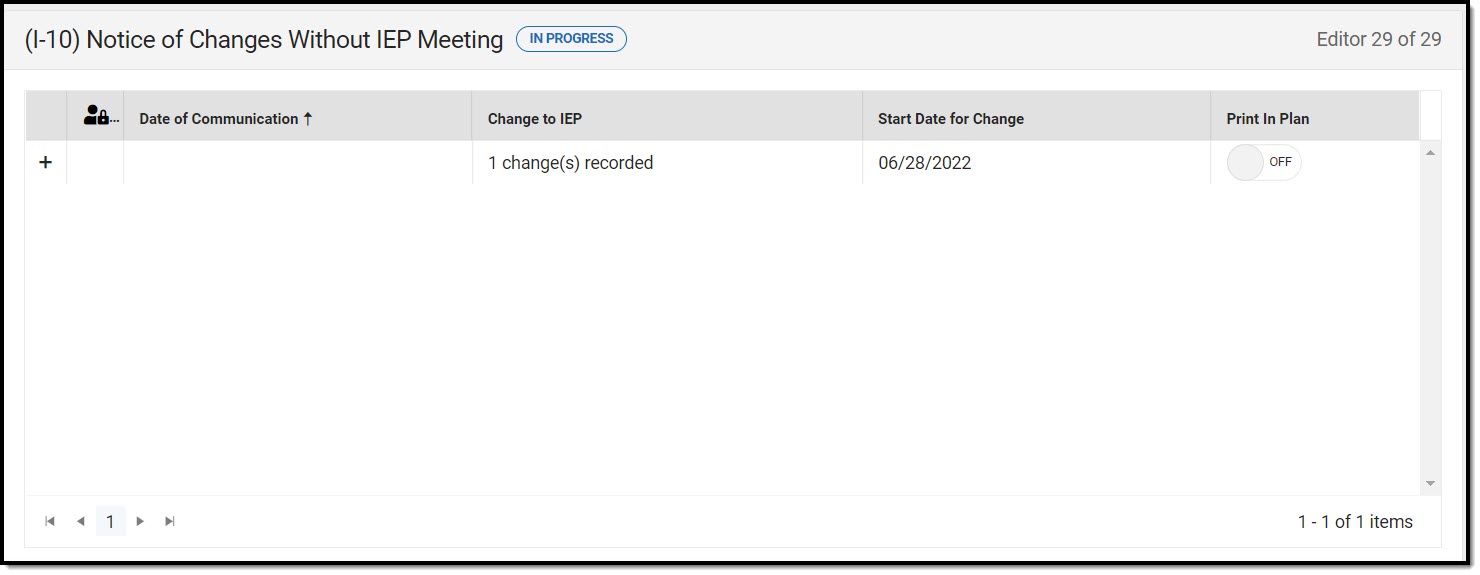 Notice of Changes Without IEP Meeting List Screen
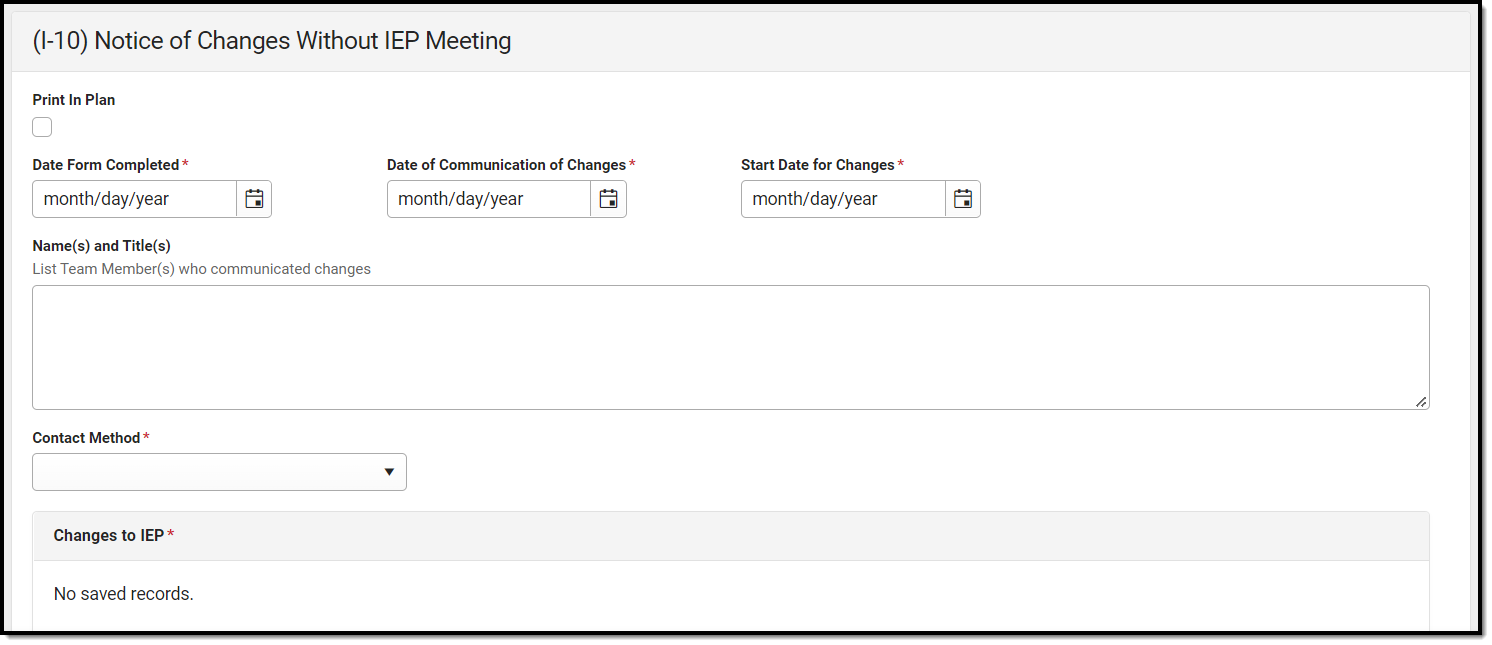 Notice of Changes without IEP Meeting Detail
