Path: Grading & Standards > Reports > eTranscript Batch > Batch Queue
Use the electronic release process to submit completed eTranscript batches to a configured third-party vendor. This guide explains how to release a completed eTranscript batch and verify that the transmission was successful.
Before you start
- Generate an eTranscript batch and allow processing to complete.
- Configure the vendor in Electronic Release Setup.
- Have the required eTranscript Batch and Electronic Release Setup tool rights.
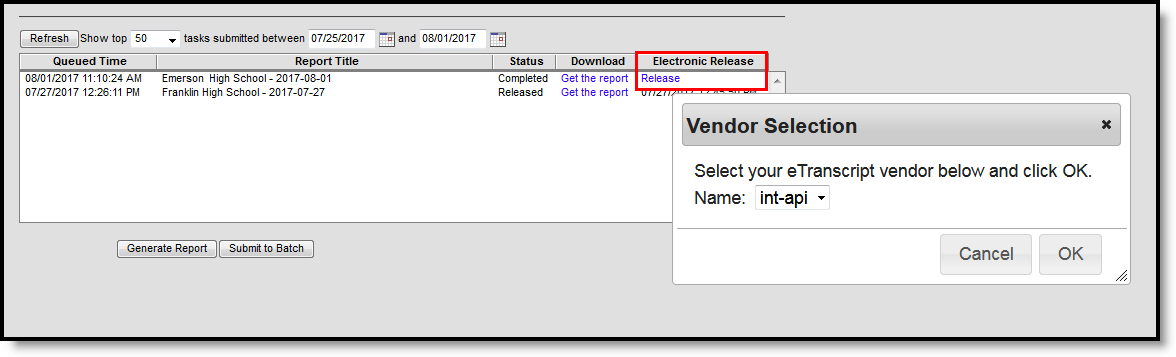 Use the release process to select a vendor and submit generated eTranscripts for electronic delivery.
Release eTranscripts to a vendor
- Open Batch Queue.
- Locate the completed eTranscript batch.
- Click Release.
- Select the appropriate vendor from the Name dropdown list.
- Click OK.
- Review the Electronic Release column to verify a release date and time display.
Impact
The XML batch is submitted to the selected vendor for electronic delivery. When the release process begins, the status changes to Sending. After the submission is successfully delivered, the status changes to Released and the Electronic Release column displays the date and time of the release.
Completed and released batches display a Get the report link in the Download column. Selecting this link opens the generated eTranscript report in XML format, allowing you to review the output transmitted to the vendor.
 Use the Batch Queue to download generated eTranscript files and review
the XML output produced by the batch process.
Troubleshooting
Electronic release fails
An Error status indicates the XML batch could not be sent. Common causes include:
- Missing required values in the XML output.
- A failure connecting to the vendor.
When an error occurs, the XML batch is not released and transcript data is not submitted to the vendor.
What's next
- Monitor the batch status in Batch Queue to confirm the status changes from Sending to Released. If the status remains unchanged, review the batch again later.
- Verify the Electronic Release column displays the date and time the batch was released to the vendor.
- Select Get the report in the Download column to review the XML output that was transmitted to the vendor.
- Investigate any batches with an Error status. Errors can occur when required XML data is missing or when the connection to the vendor fails. Correct the issue and release a newly generated batch if needed.
- Confirm the vendor has successfully received and processed the transcript data according to your school's/district's eTranscript procedures.
