Tool Search: Student Records Transfer
Records Transfer functionality varies from state to state.
See the Student Records Transfer Tool Rights article for information about tool rights needed to complete this process.
The Student Records Transfer tool allows districts to transfer integral student data electronically to other districts using the same regional or State Edition of Campus. The state or regional edition acts as the intermediary that facilitates the exchange process between districts.
To view details of student records transfer activity, select each student within the Transfers window.
 Records Transfer
There are three steps to completing a student records transfer:
- New District Requests a Student Records Transfer
- Former District Responds to a Student Records Transfer Request
- New District Receives Released Records from Former District
For a student records transfer to be possible, the state database must have a record of the student's former enrollment and the student's stateID number.
When the Student Records Transfer is requested or released, the messages and data are funneled through the state to the new district via the state agent.
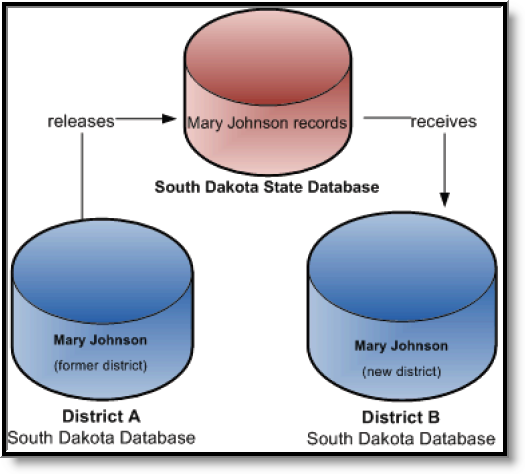 Example: Transfer Student Records
New District Requests a Student Records Transfer
Tool Search: Records Transfer
Submit a New Transfer Request
A records transfer may be requested at any time after the transfer student has been enrolled in the new district. The records transfer page will display immediately after the student’s new enrollment is saved.
- Navigate to the Records Transfer tool
- Select the New State Transfer Request icon (if applicable)
- Select the Submit Request button.
 Records Transfer
Process Inbox Status - Waiting
The new district’s Process Inbox and the student’s Records Transfer tab will both display a Waiting status until the former district responds.
Only users who have Notify Process Inbox tool rights and calendar rights (or All Calendars rights) to the school where the student is currently enrolled in will receive this message.
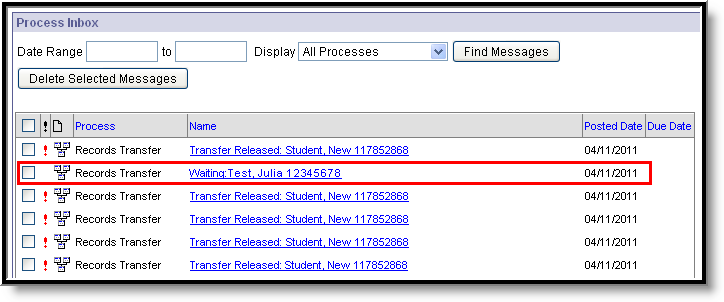 New District's Process Inbox - Waiting Status
During this time, the new district will not know what district the student previously attended.
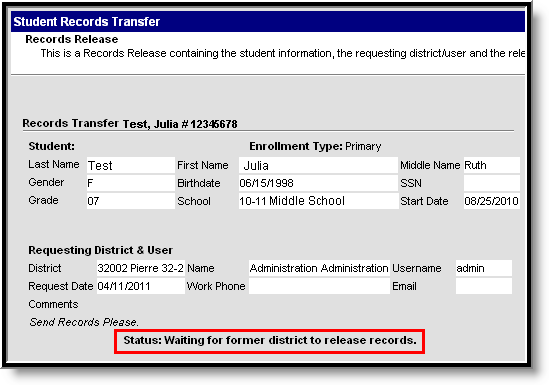 Records Transfer Tab - Waiting
If the student’s former district cannot be located because the state does not have a matching record for the student, a transfer error will appear to let the user know the request was unsuccessful. Clicking the link will display the reason for the error.
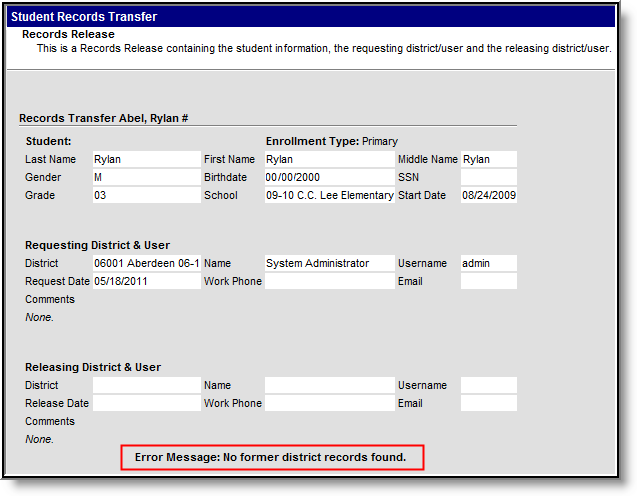 Records Transfer Tab - Error
Former District Responds to a Student Records Transfer Request
When a student records transfer is requested, the former district will receive a notification in his/her Process Inbox.
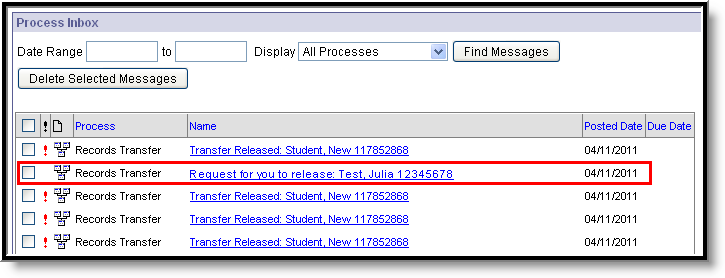 Former District's Process Inbox - Request to Release Records
Respond to Records Transfer Request
When the link is selected, the request displays the following screen with information on the student and new district:
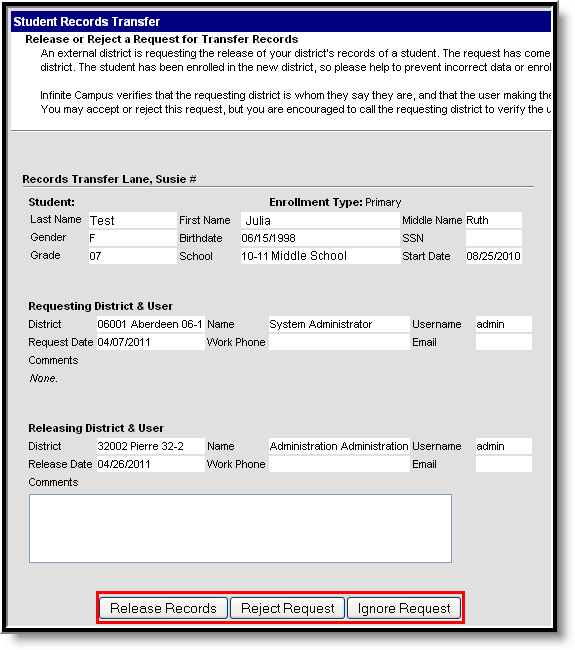 Former District - Incoming Records Request
The former district is expected to respond to the request in one of three ways:
- Release Records - Student records and the previous district's contact information is sent to the new district. A notice appears in the new district's Process Inbox stating "Transfer Released."
- Reject - No student records are sent to the new district. A notice appears in the new district's Process Inbox stating "Transfer Rejected." The previous district's contact information is visible.
-
Ignore- No student records or former district information is sent. A notice appears in the new district's Process Inbox stating "Transfer Rejected." This is an anonymous rejection with no indication of the former district.
The Ignore feature should only be used in the event that a former district has a valid, legal reason to withhold student information from the new district (e.g., court order, witness protection program agreement).
Enrollment Overlap Indicator
In case the former district has not ended the student’s enrollment in its district at the time it receives the Student Records Transfer request, an enrollment Overlap indicator will appear with the student’s current and active enrollment displayed.
 Enrollment Overlap Indicator
Selecting the Edit link will redirect the user to the student's Enrollments tab where his/her enrollment may immediately be ended.
The Overlap indicator only appears if a student's enrollment in his/her former district has not been ended. This message may be the first notification to the former district that a student has transferred and is enrolling into a new district.
Mismatched Data
To prevent mistaken transfers of student data, Campus only allows a district to release student records if an exact match is found between districts.
Therefore, if the new district enters the student’s information incorrectly (e.g., spells the name wrong or enters the wrong birthday), the former district will not be able to release the records for the student. When the new district user clicks on the records release link, an error will display.
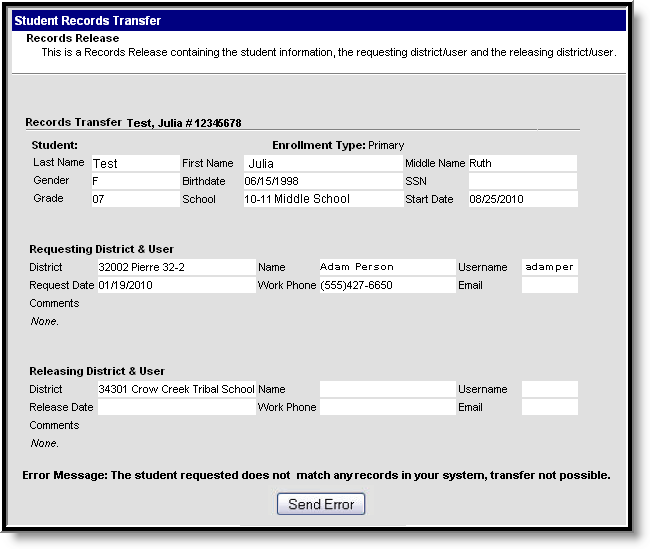 Data Integrity Error
Records Transfer Objects
See the Record Transfer Objects table for more information about which objects are transferred during the student records transfer.
New District Receives Released Records from Former District
When the former district selects the Release Records option, records are sent to the new district. The new district will receive a message link in its Process Inbox containing the student’s records and the former district’s contact information.
Based on assigned user rights, records transfers can be accessed in three areas of Campus:
- Process Alerts (formerly Process Inbox) (until deleted)
- Student Information > General > Student Records Transfer (permanent record)
- System Settings > Data Interchange > Student Records Transfer (permanent record)
A released records transfer message will contain two methods of receiving the transferred student records. It is the responsibility of the new district to complete the records transfer by importing and/or entering the relevant data.
- Transferred Documents – PDFs available for download, saving and/or printing.
- Data Import Wizards – Method of directly writing the former district data to the new district database. See the Student Records Transfer: Wizards article for more information on available Data Import Wizards.
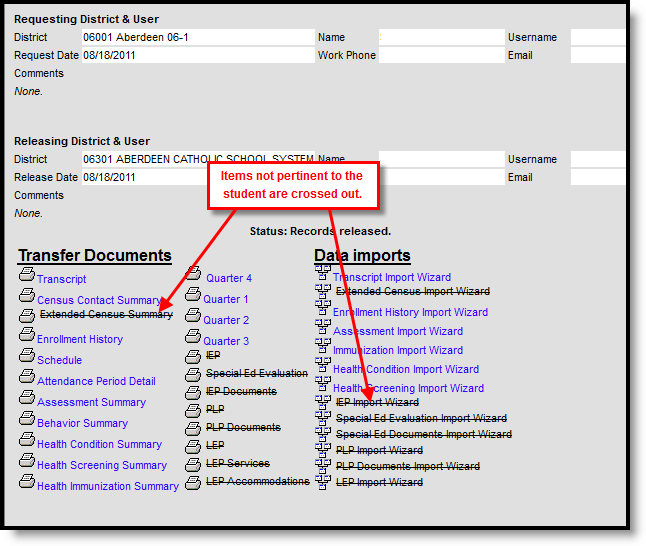 Released Records Message
When an item in the Transfer Documents or Data Imports section is crossed out on the release page, it indicates that the student did not have any relevant records for that transfer type.
Records Transfer Objects Table
The following table provides information on the recordsTransfer table.
The former district cannot preview or control which records are sent in the transfer. In addition, after a record is requested or released, it cannot be canceled.
|
Description |
Transfer Objects |
|---|---|
|
Information about the specific transfer request |
|
|
Information about the district and user requesting the records |
|
|
Comparison of the student's state ID and person IDs at all levels (both districts and state) |
|
|
Basic student information |
|
|
Information about the district and user releasing the records |
|
|
The student records are transferred when released
|
|
|
Exchange information |
|
All items are not applicable to all states.
