Path: Student Information > Program Administration > Flags Setup
This article serves as a reference to assist users in understanding how flags can be used in Campus.
The Flags Setup tool allows schools and districts to assign indicators to a student for particular programs, alerts, or notices that may assist with the student's success in school. Any number of flags can be created for a school or district, and any number of flags can be assigned to a student.
Flags are assigned to students either manually on the Student Flags tool or using the Batch Assignment Tool.
See the Flags Setup Tool Rights and the Student Flags Tool Rights articles for information on available tool rights.
Differences/similarities between Programs and Flags
Programs and flags are not the same, but can be used for similar purposes.
- Campus allows the tracking of both Flags and Programs separately.
- A district may have a flag called After School Club.
- A program could also be created with the same name.
- Programs and Flags can be state reported.
- Programs cannot have flag images associated with them.
- Flags that have been associated with students by a third party system cannot be converted to a program using the Convert to Program tool.
Active/inactive flags
Use this table to learn about how flag setup impacts the way flags display in Campus.
|
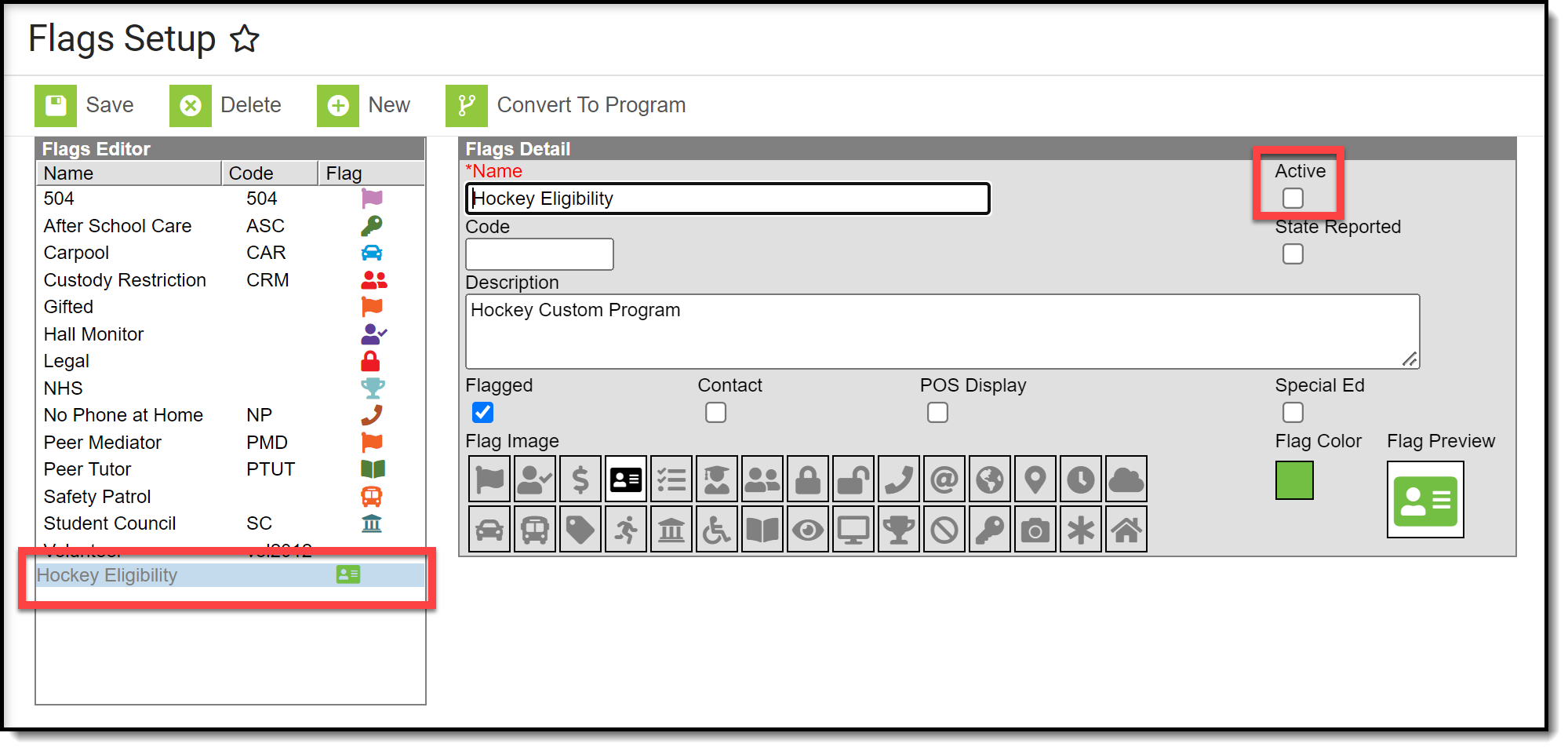 Deactivated Flag |
|
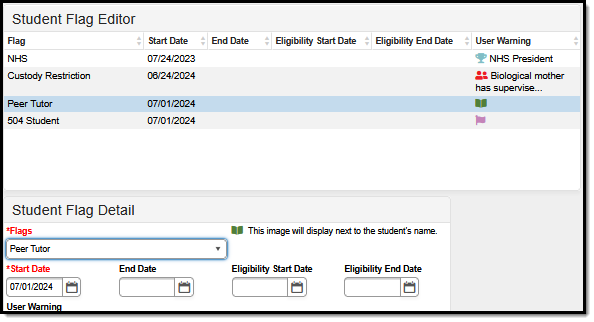 Student Flag Detail Student Flag Detail |
|
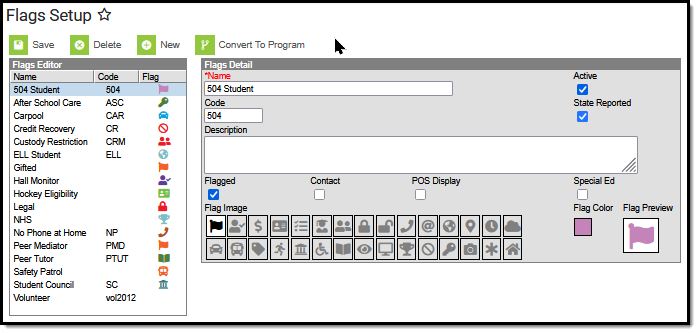 Flagged Image and Color 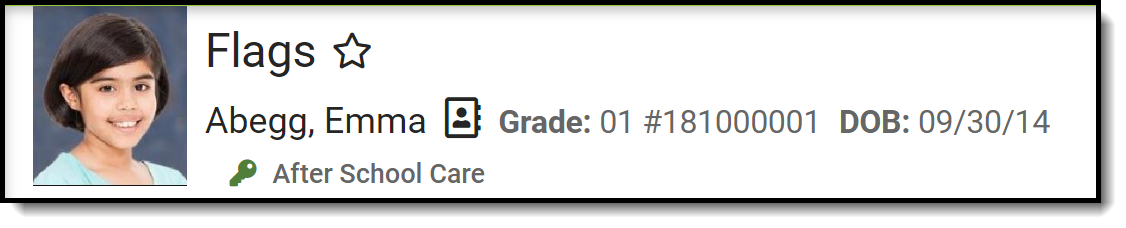 Flag Display |
Flags detail editor - checkbox descriptions
Checkbox |
Description |
|---|---|
Flagged |
When marked, indicates that a flag should display next to the student's name. An image and color must be selected to display in the header. |
Contact |
When marked, indicates the student has a note on record regarding who can be contacted on the student's behalf. Additional tool rights need to be assigned for users to view, add or modify contact-related flags for students. In order for this flag type to display next to the student's name, the Flagged checkbox must also be selected. |
POS Display |
When marked, indicates the flag displays next to the student's name on the Point-of-Sale terminal. In order for the flag to display on the POS Terminal, you must also add a note to the User Warning field when you assign the flag to a student (Student Information > General > Flags). If a note is not added in the User Warning field, the flag does not display. In order for this flag type to display next to the student's name, the Flagged checkbox must also be selected.
Student flags display in the POS terminal as soon as they are saved in Flags (Student), regardless of start date selected. |
| Special Ed | When marked indicates the student participates in Special Education. Only those with tool rights for the Special Education flag will be able to view this flag in the header next to a student's name. This flag also appears in the IEP column on section rosters and related tools for students it is assigned to. |
State Reported |
When marked indicates the program is reported in state extracts as a means of tracking student progress. Additional tool rights need to be assigned for users to view, add or modify state reported-related flags for students. In order for this flag type to display next to the student's name, the Flagged checkbox must also be selected. |
Vocational |
Not available in all states. When marked indicates the program is considered vocational more than academic. In order for this flag type to display next to the student's name, the Flagged checkbox must also be selected.
|
Related tools
To assign a medical alert flag, Health Conditions must be set to display a flag. See the Condition Setup article to learn how to do this.
