Tool Search: System Preferences
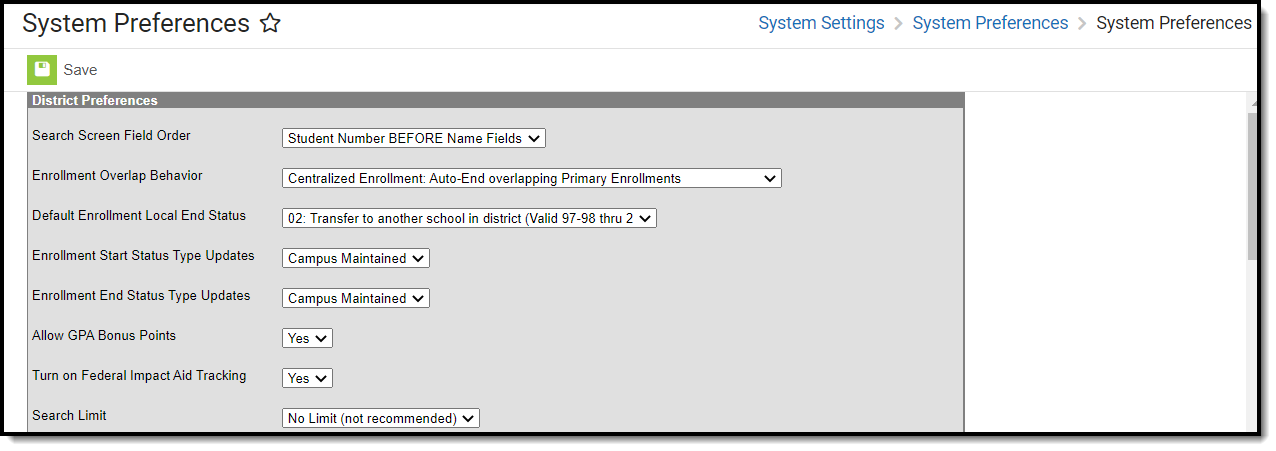
System Preferences allow for the configuration of settings for general use of Infinite Campus. These preferences should only be modified by a district administrator, as modifications affect system operations. Additional preferences may be contained within the module to which they relate.
See the System Preference Tool Rights article for tool rights information.
The following information outlines the available options for each preference and the product area affected. When applicable, click on the name of the preference in the table to view additional information.
Attendance Preferences
Enable Attendance Auditing
More Information: Attendance
The Enable Attendance Auditing system preference indicates whether the district is auditing student attendance records. Setting this preference to Yes requires a significant amount of data storage.
The following reports are available for auditing attendance records.
- Attendance Change Tracking (Attendance > Reports)
- Section Change Tracking (Attendance > Reports)
- Attendance Change Tracking (Campus Instruction > Reports (Attendance))
These reports are available to users (as long as tool rights are assigned) even when this preference is not set to Yes. When this preference is not enabled, data is excluded from the report.
Attendance auditing provides a comprehensive record of attendance changes, ensuring compliance with electronic signature requirements and other state reporting obligations.
This preference can be enabled or disabled at any time. Data is only stored for the time when it is turned on (set to Yes). Reports can still be generated when it is turned off, but only the data stored during the time it is turned on is returned on the reports.
Texas districts: This is a read-only option set to Yes and cannot be modified. This preference is critical for attendance auditing utilized by state reporting.
Kentucky districts: This preference and the attendance tracking reports are not available.
Calculate Attendance Recovery Earned Hours Nightly
More Information: Attendance Recovery
NOTE: The stored procedure updates the Hours Earned value only; the Days Used value is not automated.
When set to No, the nightly stored procedure does not run. For schools that do not track Attendance Recovery through course attendance, the preferences should be set to No.
Calculate ELOP Days Nightly
More Information: Expanded Learning Opportunities
When set to Yes, a nightly stored procedure runs that automatically updates the Learning Hours - External value entered in the Expanded Learning Opportunities record when courses are used to track participation hours.
When set to No, the nightly stored procedure does not run.
Behavior Management Preferences
Discipline Duration Calculation
More Information: Behavior Management
Determines how the value for the Duration in School Days field for a Behavior Resolution is calculated when the Calculate End Date/Duration option is marked on a Resolution Type. Options are:
- Standard: Calculates the Duration in School Days field to the nearest whole number.
- Detail: Calculates the Duration in School Days field to the hundredths place (NNN.NN) based on the start and end date/time.
Census Preferences
Birth Date Required for Student Locator
More Information: Student Locator
This preference determines whether a staff person searching for a student using the Student Locator is required to enter a Birth Date as part of the initial search.
- When set to No, users need to enter the Last Name, First Name and Gender in order for the Search field to be activated.
- When set to Yes, users need to enter the Last Name, First Name, Gender AND the student's Birth Date in order for the Search field to be activated.
Kentucky Users ONLY
This preference is set to Yes and cannot be modified.
Turn on Federal Impact Aid Tracking
More Information: Impact Aid, Address
When set to Yes, the Impact Aid tool and Impact Aid Site field on the Address editor display. These fields are used to report Impact Aid information in the Impact Aid and Military Connections Site and Impact Aid Employment Reports.
When set to No, the Impact Aid tool displays with a message indicating the preference is not turned on. The Impact Aid Site field on the Address editor does not display.
School Boundary Warnings
More Information: Census, Address, Schools, Enrollment
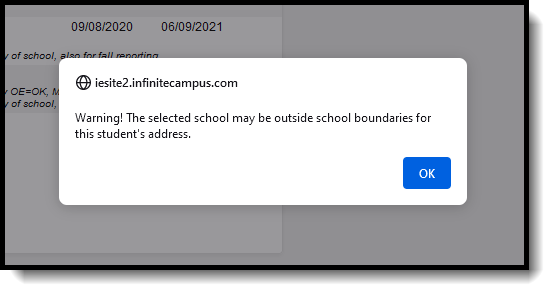
When set to On, users receive a warning when attempting to enroll a student in a school outside of the student's geographical boundary.
The School Boundary Warnings preference validates the student's primary address against the chosen school of enrollment. The warning does not stop the enrollment from being created; it is an indication that the student's primary address is outside of the enrollment boundaries for normal enrollments. District policy may require additional proof of residence or a student's need to be enrolled in the selected school.
Having this preference on is recommended in larger districts that have multiple elementary schools, middle schools or high schools. When a larger district also uses a Centralized Enrollment process, this preference is also helpful in managing student enrollments.
School Boundaries settings on the Household Address need to be established prior to enrolling students.
When the preference is set to On, a warning message displays when enrolling a student into a school that is not associated with the student's household address.
When the preference is set to Off, no warning displays when enrolling students, no matter if the Schools of enrollment have been associated with the address.
When the Require Student Assignment checkbox is marked on the Calendar and this preference is set to On, an enrollment cannot be saved for a student if the student's address is outside of the entered school boundaries, unless an override type is established that allows the enrollment to occur.
Allow Duplicate Student State IDs
More Information: Demographics, Student Locator, Add Person
When set to Yes, students may be assigned the same state ID number.
When set to No, each state ID number must be unique; when a duplicate ID is entered, an error message displays.
For districts that are part of a State Edition where state IDs are auto-generated, a value of Pending displays when adding a new student in the State ID field. This applies to the following states:
- Kentucky
- Maine
- Montana
- South Dakota
When a state ID import is used, duplication could still occur. The preference does not prohibit an import from importing a duplicate ID. This is the responsibility of the state to ensure IDs are not duplication.
Student State ID Method
More Information: Demographics, Student Locator
The Student State ID Method system preference determines how Student State IDs are generated for new students within Campus. This is only available for districts linked to a state edition.
For State-linked districts, the Student State ID Method field indicates how Student State IDs are assigned to new district students.
This field is likely to be set to a value of State Assigned, meaning Student State IDs are generated by the state in the format indicated by the state value. Any district-level Student State IDs are overwritten by the state-level value (if discrepancies exist).
When the field is set to a value of Generation Off, Student State IDs are not automatically generated; instead, they manually entered via the Demographics tool.
Enrollment records created through the Student Locator are not automatically assigned a Student State ID; however, there is an option to manually enter an ID (if known). Student State IDs created at the district level sync to the state.
State Edition users are able view the Student State ID Method (and Student State ID Window) value enabled at the state.
The following table describes each field value:| Value | Description |
|---|---|
| District Controlled | Indicates Student State IDs are not automatically generated for new students within state-linked District Editions or at the state level. Users need to manually enter Student State ID data on the Demographics tool. Student State IDs entered at the district are synced up the state. |
| 2-digit year + 7 digit random | Indicates new students are auto-generated with a Student State ID where the first two digits represent the current year followed by 7 random digits (i.e., 123334445, where 12 = current year and 3334445 = seven random digits). |
| 9-digit random, no leading zeroes | Indicates new students are auto-generated with a Student State ID made up entirely of 9 random digits and no leading zeroes. |
| 10-digit random, no leading zeroes | Indicates new students are auto-generated with a Student State ID made up entirely of 10 random digits and no leading zeroes. |
| 9-digit windowing sequential with leading zeroes | Indicates new students are auto-generated a Student State ID made up of 9 digits where the 9 digit number is generated in sequential order (with leading zeroes) within the range designated by the Min and Max State Student ID Window values.
|
| 10-digit windowing sequential with leading zeroes | Indicates new students are auto-generated a Student State ID made up of 10 digits where the 10 digit number is generated in sequential order (with leading zeroes) within the range designated by the Min and Max State Student ID Window values.
|
Student State ID Window
More Information: Demographics
This option is only available when the Student State ID Method is set to 9-digit or 10-digit windowing sequential with leading zeroes.
This preference sets the Minimum and Maximum number range allowed when generating Student State IDs.
Staff State ID Method
More Information: Demographics
Staff State ID Window
More Information: Demographics
This option is only available when the Student State ID Method is set to 6-digit windowing sequential with leading zeroes.
This preference determines the Minimum and Maximum Number range for generating Staff State IDs.
Display last known district in Student Locator
More Information: Student Locator
Display last known district in Staff Locator
More Information: Staff Locator
When set to Yes, the staff person's last known district is displayed within the Staff Locator when search staff members.
SSN Staff Search Only
More Information: Staff Locator
When set to Yes, staff can only be searched by Social Security Number.
Allow Multiple Primary Addresses
More Information: Census, Address
When set to Yes, users are allowed to have multiple Primary home addresses within Campus.
Require Employment Record for District Assignment
More Information: District Employment, District Assignments
The Require Employment Record for District Assignment preference requires staff members to have a District Employment record before having a District Assignment record.
Districts that are not state-linked can modify this preference, as desired.
State edition customers and state-linked districts do not have the option to modify this preference. The preference is determined by the state Department of Education and updated by Infinite Campus. The setting is view/read-only in those situations.
This preference is enabled for users in Maine.
A corresponding District Employment Record is defined as such:
- The start and end dates for the District Assignment must match or fall within the dates of a single District Employment Record.
- A District Assignment record cannot end after the latest District Employment End Date.
- A District Assignment record cannot start before the earliest District Employment Start Date.
A validation occurs when a District Assignment Record is created without the existence of a District Employment Record.
Employment Record Set to Yes
A District Assignment record cannot be created/edited/saved unless there is a corresponding District Employment record.
When ending a District Employment record, all District Assignment records in a district are automatically ended if there is no other District Employment record in the district that can completely contain the Assignment.
For example, when there is a District Employment record that begins January 1 with no end date, and a second District Employment that begins February 1 with no end date and a District Assignment record that begins January 15 with no end date, the first District Employment record, when ended, ends the District Assignment record, because the remaining District Employment record cannot fully contain that assignment as it started prior to that record.
When the district assignment starts AFTER the District Employment record ends, the assignment is not ended. The user needs to correct this situation in order to end the employment record by doing one of the following:
- Changing the end date of the employment record to be later than the start date of the latest assignment
- Deleting the assignment
- Changing the assignment start date to be earlier than the employment end date
Employment records cannot be deleted when there is a corresponding District Assignment unless there is another Employment Record in that district that can contain all district employments. The following error message displays when (1) there are district assignments in that district, and (2) there is no other district employment that can contain the district assignments.
When an employment record is saved and end date is entered, validation occurs to verify no District Assignment records start after the entered end date.
Employment Record Preference Set to No
When the District Employment Record preference is set to No, the staff person may have a District Assignment record without having a District Employment record.
When the District Employment record is saved and an end date is entered, the same alert message displays. When the user chooses to continue, only those assignments that start prior to the end date entered is ended.
My Data Impact
When a staff person requests a change to the District Employment or District Assignment, no validation is done at the request level. Validation is done at the Request Approval level. The validations mentioned above are used and the request cannot be approved until the validation issues are resolved.
Require Race/Ethnicity Data for
More Information: Demographics, Add Person, Student Locator, Staff Locator
This preference indicates the type of person record in Campus for which race/ethnicity information is required.
For Kentucky districts, this field is controlled by the state. Values set at the state level are pushed down to districts.
Require Race Selection
For Kentucky districts, this field is controlled by the state. Values set at the state level are pushed down to districts.
More Information: Demographics, Add Person, Student Locator, Staff Locator
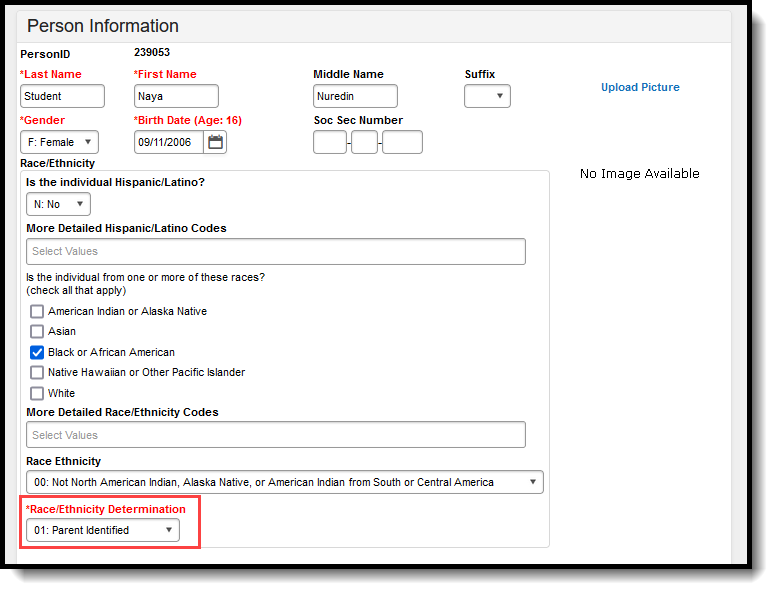
This preference setting indicates when race information is required, based on the answer to the "Is the individual Hispanic/Latino?" question on the Demographics tool.
Available selections for this option vary depending on the selection of the Require Race/Ethnicity Data For preference.
- When the Require Race/Ethnicity Data For preference is set to No One, the Require Race Selection preference is set to Never.
- For all other settings of the Require Race/Ethnicity Data For preference, options for Require Race Selection are Only when Hispanic/Latino = No and Always.
For Kentucky districts, this field is controlled by the state. Values set at the state level are pushed down to districts.
Require Race/Ethnicity Determination for
More Information: Demographics
The Race/Ethnicity Determination for preference sets logic for when the Race Determination field is a required field.
For Kentucky districts, this field is controlled by the state. Values set at the state level are pushed down to districts.
Gender to display in tools/reports
More Information: Displayed Gender
This setting determines which gender record districts would like to appear in tools and reports for students. Gender is the default selection and displays students' gender identity. If the preference is changed and set to Legal Gender, legal gender will display for students when it is recorded in Infinite Campus. Legal Gender is not a required field. If no legal gender is recorded, gender identity will display.
Cross-Site Enrollment Preferences
More Information: Cross-Site Enrollment
Default State Exclude for Cross-Site Enrollments
This setting determines whether a student's partial enrollment, which is created when they are scheduled into a course, is included in state reports.
This preference is available only when Cross-Site Enrollment Participation is enabled at the District level.
Ed-Fi and SIF Preferences
Enable Ed-Fi
More Information: Ed-Fi
This preference allows you to enable, disable, or access Ed-Fi tools in Campus before syncing to the Ed-Fi system.
- Yes = Ed-Fi functionality is enabled and Ed-Fi data syncs from Campus to the Ed-Fi system (when properly enabled via Ed-Fi Configuration tools).
-
Tools Only = You are able to fill out Ed-Fi fields (such as Ed-Fi ID) within Campus but this data does not sync to the Ed-Fi system until this field is set to Yes.This is especially useful when setting up Ed-Fi IDs for students within a school or district so that data properly syncs between Campus and Ed-Fi prior to enabling it.
-
No = Ed-Fi functionality is not enabled for the district and users cannot access Ed-Fi tools within Campus.
Days to keep SIFSentRecordHistory records
More Information: SIF Unity, SIF Data Exchange
This preference allows you to set the amount of time SIF Logs are stored.
Send Final Grade Only
More Information: SIF (Iowa)
Enrollment Preferences
Enrollment Overlap
More Information: Enrollments
This preference determines how multiple enrollments in the same school year are handled within Campus. These settings are enforced when managing enrollments from anywhere within Campus (Student Enrollment, Census Enrollment, Student Locator, etc.).
- Centralized Enrollment: Auto-End Overlapping Primary Enrollments. This option automatically enters an End Date for the old primary enrollment when a new overlapping enrollment is created. This date is the date before the Start Date of the new enrollment record. When a new Non-Primary Enrollment has the same date as another primary enrollment, both enrollments remain active. When the start dates are the same, a message displays indicating the primary enrollment cannot overlap with another primary enrollment. The existing enrollment ends with the entered start date and is set to No Show.
- Decentralized Enrollment: Allow Overlapping Primary Enrollments. Allows primary enrollments to overlap. Red exclamation points display next to the overlapping enrollments on the Enrollments tool.
- Overlap Warning: Auto-end overlapping primary enrollment. Warn the user. Warns the user when a new primary enrollment overlaps with another primary enrollment. The user may click OK and continue creating the enrollment. The new enrollment's start date is compared to any existing enrollment's start date. When the start dates are the same, a message displays indicating the primary enrollment cannot overlap with another primary enrollment. The existing enrollment ends with the entered start date and is set to No Show.
- Strict Prevent and Warn Primary: Prevent overlapping of primary enrollments in any calendar. Warn the User. Allow secondary enrollment overlaps. This option prevents the overlapping of primary enrollment records in any calendar. A warning appears when the user attempts to create a new primary enrollment that overlaps another primary enrollment. The enrollment is not saved, and selecting OK on the warning message results in an error message.This option DOES NOT allow partial enrollments to exist without there already being a primary enrollment. This prevents the ability to have two enrollments in the same calendar, even if the enrollments are in separate schedule structures and even if the enrollments are varying service types (primary, secondary, etc.). This option DOES NOT prevent the creation of a new Primary enrollment that overlaps a No Show enrollment.
- Strict Prevent and Warn Non-Primary: Prevent any primary enrollment overlap in any calendar, allow Non-Primary Enrollments with no primary enrollment. This option prevents primary enrollments from overlapping in any calendar, but Non-Primary Enrollments can overlap when there are no primary enrollments.This prevents the ability to have two enrollments in the same calendar, even if the enrollments are in separate schedule structures and even if the enrollments are varying service types (primary, secondary, etc.). This option DOES NOT prevent the creation of a new Primary enrollment that overlaps a No Show enrollment.
Maine Users ONLY: The Enrollment Overlap Behavior preference does not affect Non-Primary enrollments.
This applies to both State and District Editions of Campus. Enrollments where Service Type = N: Special Ed Services may also overlap regardless of System Preferences.
Maine Users ONLY: The Enrollment Overlap Behavior preference does not affect Non-Primary enrollments.
This applies to both State and District Editions of Campus. Enrollments where Service Type = N: Special Ed Services may also overlap regardless of System Preferences.
Default Enrollment Local End Status
More Information: Enrollments
Indicates which end status is automatically assigned to enrollments when enrollments are ended.
This preference only appears when the Enrollment Overlap preference is set to the following:
- Centralized Enrollment.
- Overlap Warning: Auto-end overlapping primary enrollment. Warn the user.
Accept State Excluded Grade Levels and Enrollments
More Information: Enrollments
The Accept State Excluded Grade Levels and Enrollments state system preference indicates whether or not items marked for state-exclusion at the district level are accepted at the state level.
The state-level System Preferences tool allows districts to configure settings for general use of Infinite Campus. These preferences should only be modified by a system administrator, as modifications affect system operations.
- When the Accept State Excluded Grade Levels and Enrollments state system preference is set to a value of No, enrollments marked as "State Exclude" do NOT display at the state level. These items do not display on the state user interface nor are they saved in the state database.
- When the Accept State Excluded Grade Levels and Enrollments state system preference is set to a value of Yes, enrollments marked as "State Exclude" display at the state level. These items are displayed on the state user interface and are saved in the state database.
Enrollment Start Status Type Updates
More Information: Enrollment Start Status Setup
Districts can map local enrollment statuses to state enrollment statuses when local statuses are very specific to a situation or to that district, but still need to be included in state reports.
This preference determines whether districts or Campus maintain the mapped status types for enrollment start statuses.
- When set to User Maintained, no automatic maintenance occurs in Campus, and users (districts) are expected to manually create all necessary enrollment start status mappings.
- When set to Campus Maintained, the auto-maintenance process occurs within Campus, and users (districts) do not need to manually create enrollment start status mappings. This is the default selection.
Enrollment End Status Type Updates
More Information: Enrollment End Status Setup
Districts can map local enrollment statuses to state enrollment statuses when local statuses are very specific to a situation or to that district, but still need to be included in state reports.
This preference determines whether districts or Campus maintain the mapped status types for enrollment end statuses.
- When set to User Maintained, no automatic maintenance occurs in Campus, and users (districts) are expected to manually create all necessary enrollment end status mappings.
- When set to Campus Maintained, the auto-maintenance process occurs within Campus, and users (districts) do not need to manually create enrollment end status mappings. This is the default selection.
Fees Preferences
Autopay Fees with Surplus Balance
More Information: Fees (Student), Fees (Person)
The Auto-pay Fees with Surplus Balance preference automatically pays any fee with surplus from another fee.
- When a deposit is created after adjusting a fee assignment where the total adjustments plus total payments is greater than the fee amount.
- When part of a payment is voided on a fee assignment. This auto-pays any other fees that may exist (but not the one where the payment was just voided).
- When a new fee assignment is created when there is a surplus balance. This auto-pays the newly created fee first and then any remaining surplus is automatically paid to other fees.
A message displays when making a payment for Students and Persons when a surplus exists alerting the office person the deposit is applied to other fees

Auto Post Course Fees
More Information: Walk-In Scheduler , Requests & Rosters
The Auto Post Course Fees preference posts any course fees to the Student Fees tool automatically (after the Course Fee Wizard is used) when students are scheduled into a course section through the Walk-In Scheduler or when using Batch Edit Student Rosters, Batch Edit Course Rosters, and Roster Builder in the Requests & Rosters tool.
When set to Yes, course fees auto-populate for students who are scheduled through the Walk-In Schedule.
Auto-Post Course Fees Process
The posting of course fees is a three-part process:
- Set the Auto-Post Course Fees preference to Yes.
- Add a fee to a Course.
- Run the Course Fee Wizard by course.
When the Course Fee Wizard Select Fees to Post section Posted for Terms is not zero, the fees post for all students who are added to that course's section roster.
Grading and Scores Preferences
Allow GPA Bonus Points
More Information: Score Groups and Rubrics, Grading Scales
Indicates whether or not GPA bonus points are allowed for Score Groups.
Disable Custom Comments when Posting Grades
More Information: Posting Grades, Grading by Student (Section), Grading by Task (Section)
When set to Yes, teachers are not allowed to enter individual comments on posted student grades.
Number of Significant GPA Decimal Places
Indicates how many significant decimals (decimals to the right of the period) are allowed for GPA values.
This field may be read-only for certain states.
Require all scores for Composite Grading
More Information: Grade Calc Options (Course Masters), Grade Calc Options (Courses), Grade Calc Options (Campus Instruction)
When set to Yes, teachers are not able to post a composite grade until the student grades that make it up have also been posted. This preference takes roster start and end dates into account for students who were not enrolled in the section for the full time covered by the composite setup.
This preference causes a Bypass Composite Rule checkbox to display in the Score Groups and Rubrics. When marked for a grade, tasks with that grade are excluded from composite calculation.
Graduation Preferences
NGA Cohort Years after NCLB
More Information: Student Graduation
The NGA Cohort Years after NCLB system preference allows users to dictate how many additional years are available for selection when entering NGA Cohort End Year values on the student Graduation tool.
Lock State Graduation Records
More Information: Student Graduation
This preference is available for State Edition.
This preference determines how student graduation records at the state level behave for district-linked installations.
- When locked, existing state graduation records are not automatically updated by new graduation records synced from districts. State Graduation records for students who do not already have those records are still created. State users can manually change the record when the district appeals changes to the student's graduation tool.
- When not locked (default setting), existing state graduation records are automatically updated with new graduation records synced from districts.
Groups Preferences
Groups Communication Tool
More Information: Groups
This preference makes the tool available for the whole district. The Group Administration and Groups tools do not display in Campus for any users until this preference is enabled. Groups cannot be created until at least one user has the Groups Administration tool right. See the Enable the Groups Tool article for more information.
Automatically Add Guardians to Student's Joined Groups
More Information: Groups
When enabled, this preference adds a student's guardian(s) to any groups that the student joins. Guardians are those with the Guardian checkbox marked on their Relationship to a student.
This setting is not retroactive; enabling this setting does not add Guardians to groups that students are already in. Nor does it remove Guardians from groups if it is enabled and then later turned off.
Health Preferences
Flag Health Conditions
More Information: Health Conditions
This preference determines the display of health conditions assigned to students.
This preference does not impact the "Allow Flag" checkbox on the Conditions Setup tool for ICD-10 and ICD-11 codes. However, both this preference and the Allow Flag checkbox must be marked to display health flags in students' headers. When this preference is set to No, the health flag does not display next to the student’s name even when the Allow Flag checkbox is marked in the Condition Setup tool.
When the Flag Health Conditions preference is set to Yes, a flagged condition marked on the Condition List that is assigned to a student displays an EMT symbol next to the student's name. This allows other staff who have that student in a class or are part of the student's learner plan team can see this condition and be aware of certain situations that may be difficult for that student.
When the Flag Health Condition preference is set to No, the EMT symbol does not display next to the student's name, even when a condition is marked as "Allow Flag" in the Condition List or when the condition is marked as flagged when assigning that condition to a student.
Default Health Conditions
More Information: Health Conditions
The default Health Conditions preference allows users to use the Campus default conditions in addition to their custom conditions or just custom conditions.
- No - When the preference is set to No, only custom health conditions display.
- ICD-9 Conditions - When the preference is set to ICD-9 Conditions, the ICD-9 health conditions and custom health conditions display.
- ICD-10 Conditions - When the preference is set to ICD-10 Conditions, the ICD-10 health conditions and custom health conditions display.
- ICD-11 Conditions - When the preference is set to ICD-10 Conditions, the ICD-11 health conditions and custom health conditions display.
Point of Sale Preferences
Allow access to Student Number as PIN Features
More Information: General (POS Preferences), Set Student Number as PIN Wizard
This preference allows the POS admin to update the Set Student Number as PIN POS Preference and run the Set Student Number as PIN Wizard in update mode.
Programs Preferences
Display Fifth Year EL Monitoring
More Information: English Learners
This preferences allows student monitoring of English Learner services to be extended as a result of state changes (e.g., pandemic-related updates or testing delays).
- When set to Yes, the student's EL tool displays a read-only Fifth Year Monitoring label.
- When set to No, this label does not display.
Reporting Preferences
Batch Queue Expiration Days
More Information: Batch Queue, Batch Queue (Admin), Task Scheduler
The Batch Queue Expiration Days field of the System Preferences allows a system administrator to specify the length of time a Batch Queue report should display on the Batch Queue and Admin Queue tools before it is deleted.
When reports should never be automatically deleted by the Batch Queue Maintenance task, this field should be left blank (null).
The value entered in the Batch Queue Expiration Days field should reflect the maximum number of days a Batch Queue report is allowed to display on the Batch Queue and Admin Queue tools. When a report exceeds the maximum number of days allotted by this field, it is deleted by the automated Batch Queue Maintenance task executed by the Task Scheduler.
A Batch Queue/Admin Queue report is not deleted when a user has manually designated otherwise it be spared from deletion per one of the following methods:
- Keep Until I Delete Option - This is set when the report is set up and assigned to the Batch Queue by marking the Keep Until I Delete checkbox from the Batch Queue Reporting Options.
- Report Never Expires - This is set in the Expires After and Never Expires fields of the Batch Queue Detail editor of the Batch Queue / Admin Queue tools.
Data Source for Ad hoc
More Information: Query Wizard, Letter Builder, Data Export, Data Analysis, Data Warehouse Settings
This preference allows users to choose what database to use when generating and creating Ad hoc Reporting Filters (using the Filter Designer Query Wizard and Pass-Through Query tools).
Users can select to query data from the Data Warehouse database (default selection) or the Live Site.
This preference only displays when the district has a Data Warehouse database available.
Scheduling Preferences
Enable Scheduling Validations
More Information: Walk-In Scheduler
When set to Yes, provides users a warning in the Walk-In Scheduler when deleting or end-dating a course when the action results in a gap in the student's schedule.
When set to No, the warning does not display.
Days to Flag Roster Additions
More Information: Campus Instruction, Course Sections, Attendance
The Days to Flag Roster Additions system preference determines the length of time a student's name displays in green color within a section roster in both the Instruction module and on Course Section rosters. This gives the teacher and any office staff an indication that the student is new to the section.
This preference is based on calendar days.
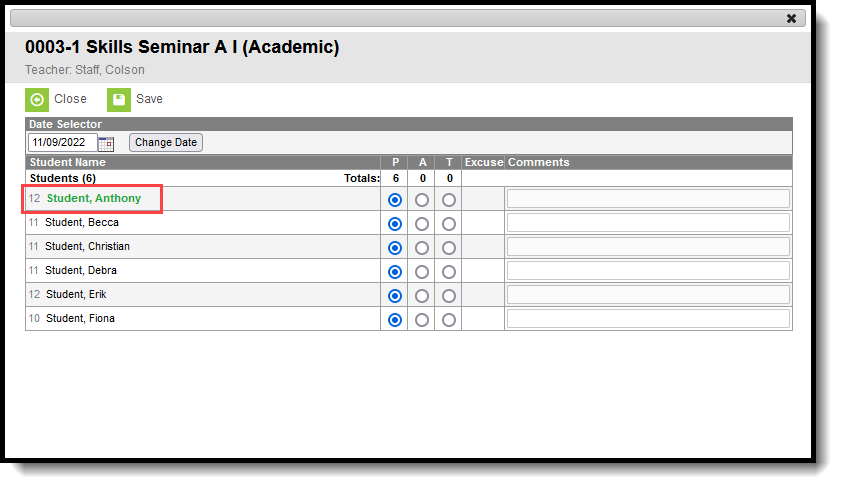
The Days to Flag Roster Additions system preference determines the length of time a student's name displays in green color within a section roster in both the Instruction module and on Course Section rosters. This gives the teacher and any office staff an indication that the student is new to the section.
This preference is based on calendar days and the
Note the following:
- This preference determines the number of days the start date is green in roster views.
- The roster start date is considered Day 0 of the roster flag time period. If the roster start date is in the past, a student may never display in green text.
- When no roster start date has been entered for a section, the student's name does not display in green.
Any students with a start date entered on a section roster displays in green font in the following areas for the specified number of days:
|
|
Cascade Enrollment End Date to Blended Learning Group Assignment End Date
More Information: Blended Learning Groups
This preference determines whether a student's Blended Learning Group Assignment is ended when the student's Enrollment record is ended. The Blended Learning Group has the same End Date as the Enrollment record.
- When set to Yes, once the enrollment record is ended, the Blended Learning Group assignment is also ended. When there are Blended Learning Group assignments beyond the enrollment end date, they are also deleted.
- When set to No, the Blended Learning Group assignment is NOT ended when the Enrollment record is ended.
See the Blended Learning Groups article for more information.
School Choice Preferences
Enable Student Assignment Validation
More Information: School Choice
The Enable Student Assignment Validation is used in the School Assignment Process (School Choice). This preference works in conjunction with the School Boundary Warnings and the Enable Sequential School Choice Applications preferences.
When turned on, a student needs to reside within the boundaries of the chosen school or have an Override indicating the student can be enrolled in the school. Setting this preference to Yes also requires the School Boundary preference to be set to Yes. When this is turned on, the schools assigned to the Schools tab within the address need to be marked as the Resides school.
When this preference is set to yes, the following logic is used in the Enrollment Roll Forward tool:
- Continuous programs - If the student is participating in a continuous program and the current school does not offer the next grade, rather than mapping the next school from the school boundary table the processing will map the next school based on the program boundaries for the continuous program. If there is no mapping in the program boundaries that offers the next grade, then the student will roll using the school boundaries.
- Next grade level in same school - When student assignment is used the roll forward will ensure that the student is within school boundaries. If the student has an override to attend the school for a program that requires program boundaries, the roll forward will also ensure that the student is within the program boundaries. If the student is outside program boundaries or school boundaries and does not have an override that would allow the enrollment the student will be rolled into their next calendar using school boundaries processing.
- Promotion to new building based on School Boundary mapping - With student assignment a student may have a cluster of schools within their school boundaries that all offer the same grade level, however one of those schools will be marked as the Resides school. The student is allowed to attend any of those schools that are within their boundary, however the Resides school will be the default when rolling along school boundary mappings.
- Destination Calendar and grade on the options page - Specifying a destination calendar/grade is only allowed for calendars and/or grades that do not require student assignment.
Enable Sequential School Choice Application Processing
More Information: School Choice
This preference processes a student's applications for school enrollment in an orderly fashion, based on the student's ranking of desired schools as part of the School Choice process. When this preference is set to Yes, applications will be processed based on the student's first, second or additional choices for school enrollment.
School Choice allows a student to submit as many applications for school enrollment as necessary, or as the student/parent is willing to submit. Using this preference ranks the applications based on the student's preferences and desires.
Use this in conjunction with the Enable Student Assignment Validations and School Boundary Warnings preferences.
Processing applications using the Process Application Wizard will only process approvals for the highest priority of a student's application.
Search Preferences
Search Screen Field Order
More information: Advanced Search for Students
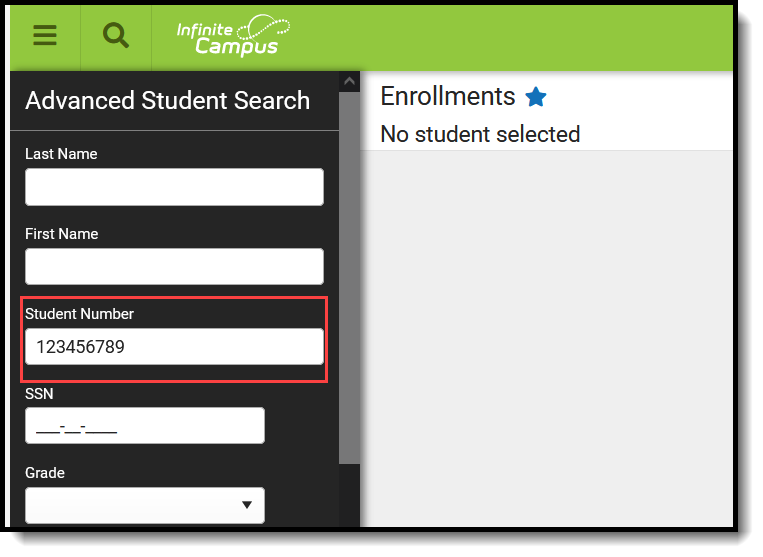
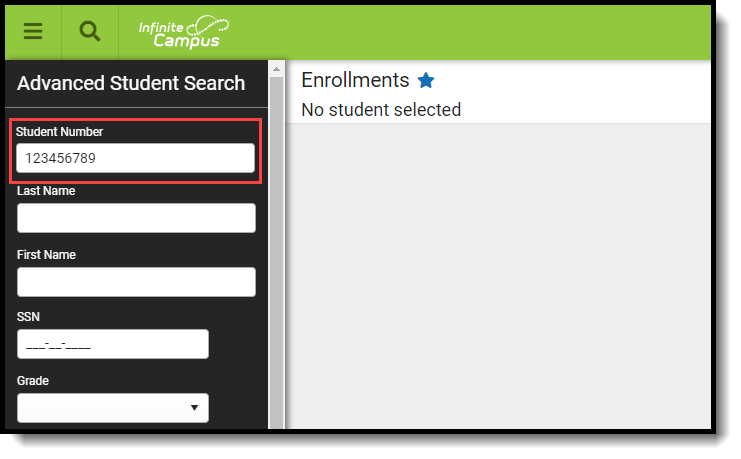
The Search Screen Field Order system preference determines the location of the Student Number field in relation to name fields when conducting an Advanced Search for students.
- Student Number AFTER Name Fields. The Student Number field displays as the third field on the Advanced Student Search screen.
- Student Number BEFORE Name Fields. The Student Number field displays as the first field on the Advanced Student Search screen.
Search Limit
More Information: Searching in Infinite Campus
The Search Limit system preference enables districts to limit the number of results returned by a search, thereby improving search and system performance.
The Search Limit preference offers several levels: 100, 500, 1000, 3000, 5000, and No Limit. Once saved, the limit applies to the search results displayed on the Search.
In the interest of search response time and system performance, Infinite Campus does not recommend setting the "No Limit" option.
Exceeding Search Limits
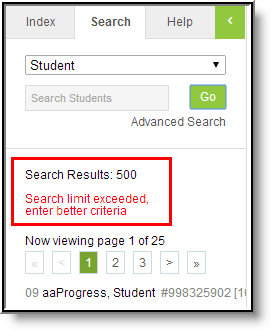
When a system preference is set, if search results exceed the limit specified in the Search Limit field, red text displays, advising the user to provide additional criteria to yield a smaller set of results.
Student Information Preferences
Show Counselor in the Student Header
More Information: Student Information
When set to Yes, the name of a student's Counselor displays in their information header.
Enable Default Transcript
More Information: Transcript
When set to Yes, the Campus-provided Default transcript report is available for generation. When set to No, this option is not available.
Record Transfer Enrollment Type(s)
More Information: Student Records Transfer
This preference is available for State Edition.
This preference allows you to determine which district to send a Records Transfer request to based on the enrollment type of the student’s most recent enrollment record(s).
For example, when this field is set to ‘Primary (P) OR Special Ed (N)’ and the student has a Primary enrollment in District A and a more recent Special Ed enrollment record in District B, District B would be sent the enrollment record request.
Options include:
- Primary (P) Only - This is the default setting
- Primary (P) OR Partial (S)
- Primary (P) OR Special Ed (N)
- Primary (P) OR Special Ed (N) OR Partial (S)
Learner Planning Copy Plan
More Information: Learner Plan Documents
Determines how learner plans are locked after being copied.
- Leave the original plan's locking as it was prior to copy
- Lock the original plan after copy
- Only allow copy of a locked plan
See the Plan Copy Wizard article for more information.
Tuition
Enable Tuition
More Information: TuitionTuition provides schools and districts with tools to manage tuition billing and payment processes for programs such as private schools, preschools, non-resident students, and summer sessions.
- When set to No, the Tuition tools are not available.
- When set to Yes, Tuition tools are available.
User Management Preferences
Authentication Type Droplist Default
More Information: User Account
The value set in this field determines the default value that appears in the Authentication Type field on a person’s User Account tool.
This field is only available if more than one Authentication Type is enabled on your site (i.e., LDAP and/or SAML).
This setting applies to automated and manually created user accounts.
