Activity forms can be updated or changed once registration is open. Removed forms will stop being assigned to new registrations and existing students with those forms will have them moved to "Additional Forms". If newly added forms are required, existing students will be notified and their Required Forms Complete and Registration Confirmed statuses will be unchecked, while new registrants receive only the current forms.
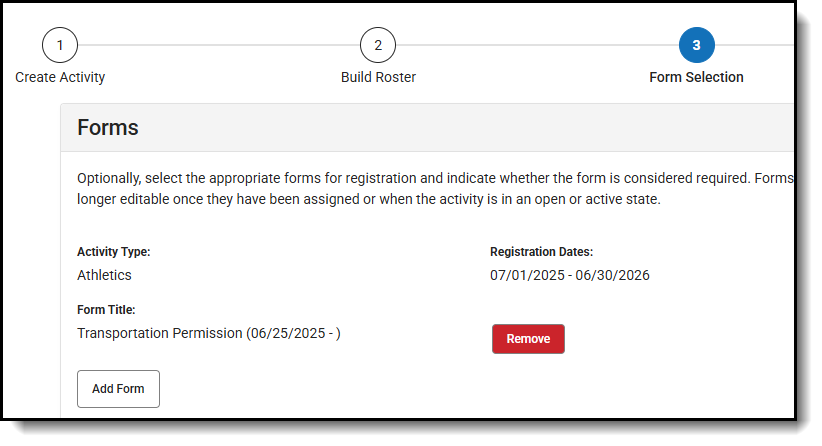
Add a form
- Click Edit on the activity that will be updated.
- Select 3 - Form Selection.
- Click Add Form.
- Choose the form from the Form Title drop-down and if the form is required.
- Click Save. A Forms Changed alert will appear to confirm the addition.
- Click Continue. Existing students will be notified if the new form is required.
Remove a form
- Click Edit on the activity that will be updated.
- Select 3 - Form Selection.
- Click Remove for each form you want to delete.
- Click Save. A Forms Changed alert will appear to confirm the removal.
- Click Continue. Existing students with the removed forms can view them under "Additional Forms".
