WARNING: DATA DELETION IS PERMANENT
Please be sure all your setup settings are correct before running Data Deletion. Once a run is started, even if forced to stop, some data may be lost if not done immediately or correctly.
Tool Search: Student Data Deletion
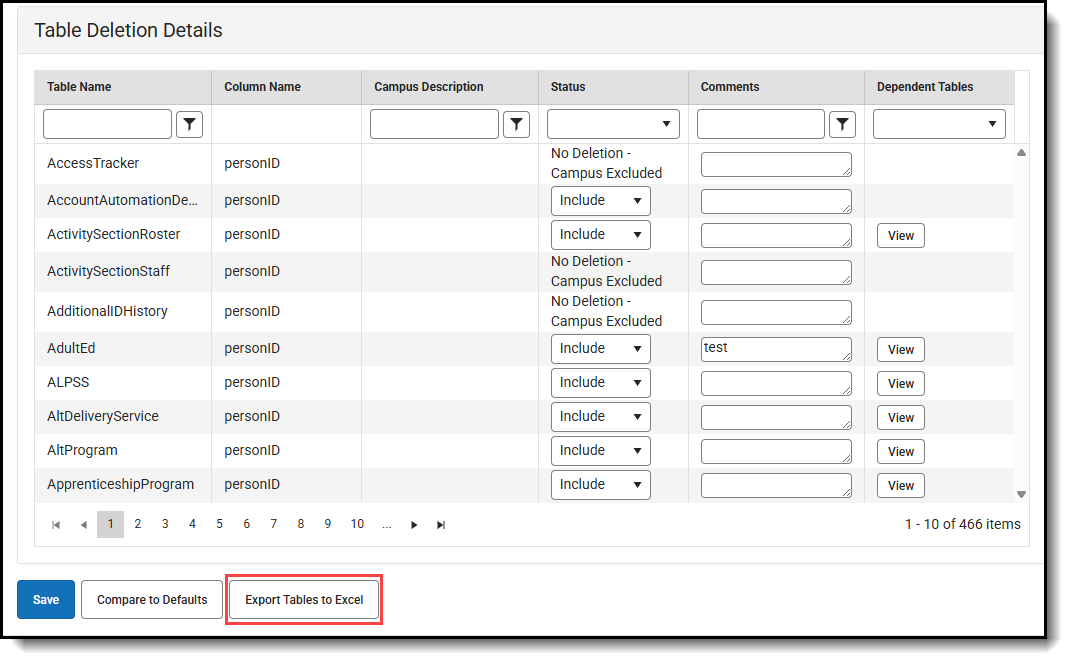
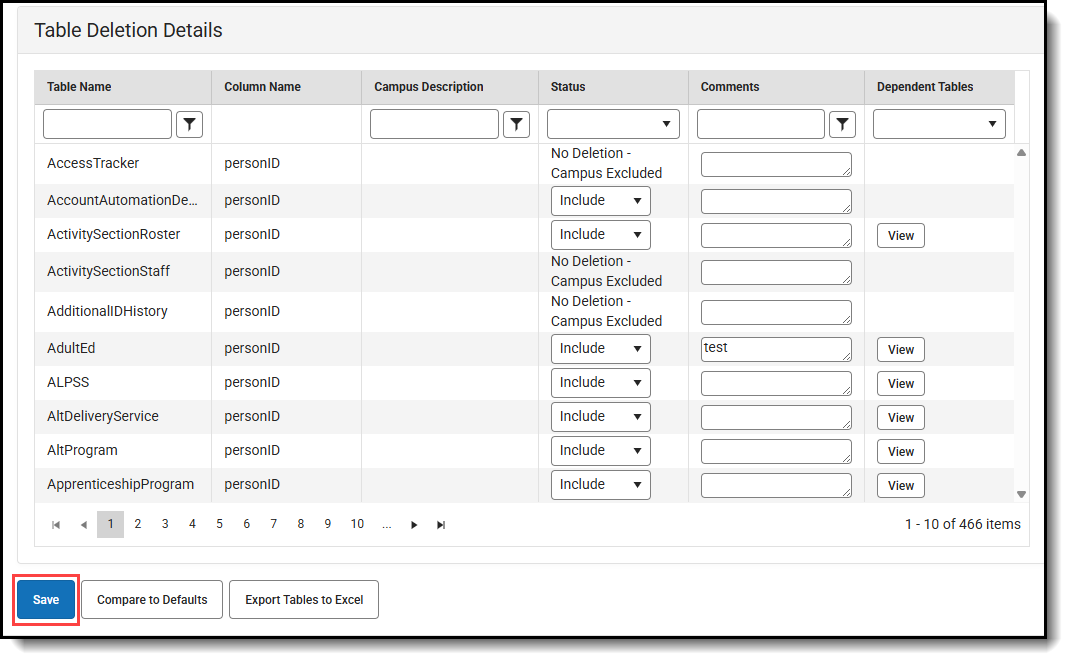
The Tables Deletion Details is where tables can be selected to keep or remove data (Include/Exclude).
Some tables are excluded by Campus and cannot be set to allow deletion. Any changes to the Campus Excluded tables would need to go through the DOE.

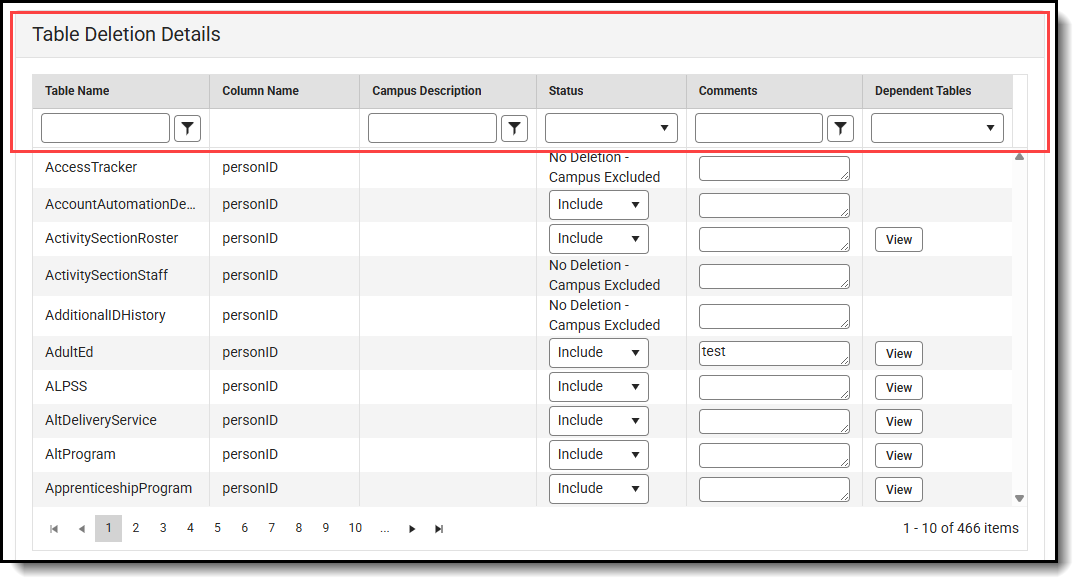
Using Search Filters
The column filters allow you to search for any information within any column. Enter text into one of the filter fields and click the filter button to select one of the options available to filter. Click the clear button to reset the filter.
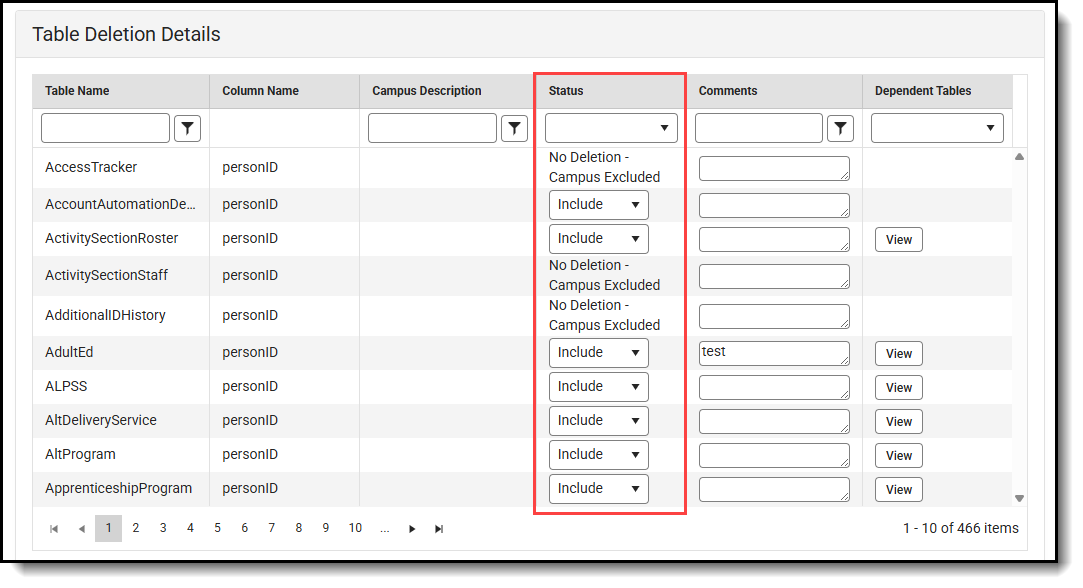
Viewing Deletion Status
The Status column will show the status for each of the Tables with the Column Name indicating what the personID for the ex-student will match. Campus Excluded records cannot be changed.
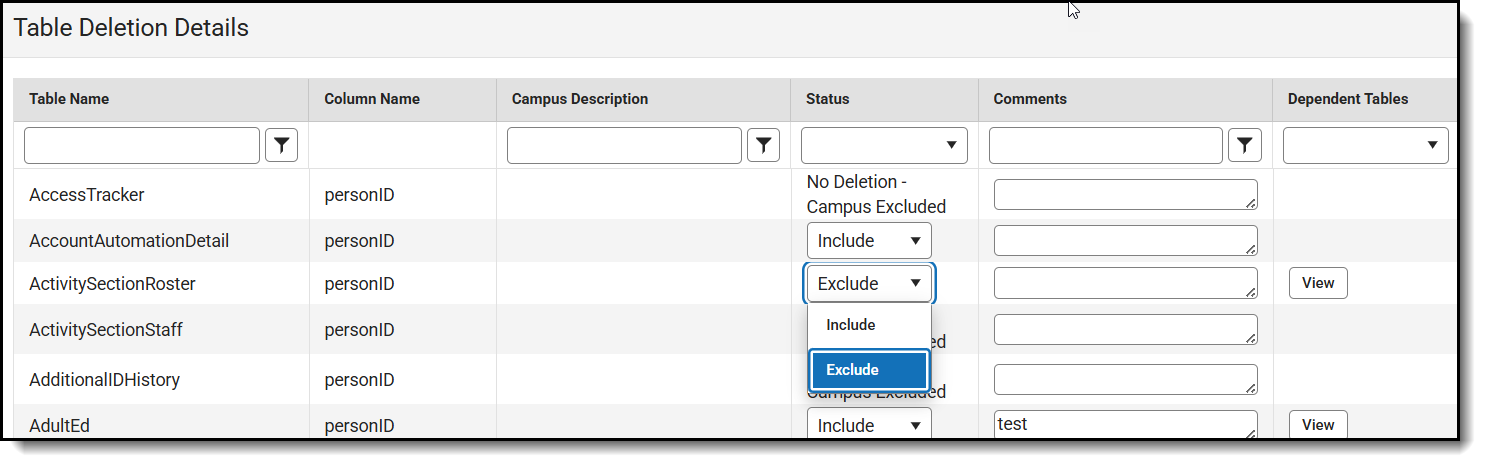
Using Table Setup Editor
Any tables with the Status of "Exclude" can be exempted from data deletion. To exclude a table, select the status dropdown in its row and choose Exclude. Comments can be added in the Comments field for each table. After making any changes, click Save.
Warning: The user must press the Apply button in the Table Setup Editor panel AND press the Update Deletion Tables button on the main screen to save the changes.
Save Updated Deletion Tables
After making any changes using the Table Deletion Details, click the Save button to save all changes. A successful save will display a Run Success message in the upper right.
Warning: The user must press the Apply button in the Table Setup Editor panel AND press the Update Deletion Tables button on the main screen to save the changes.
Show Dependent Tables
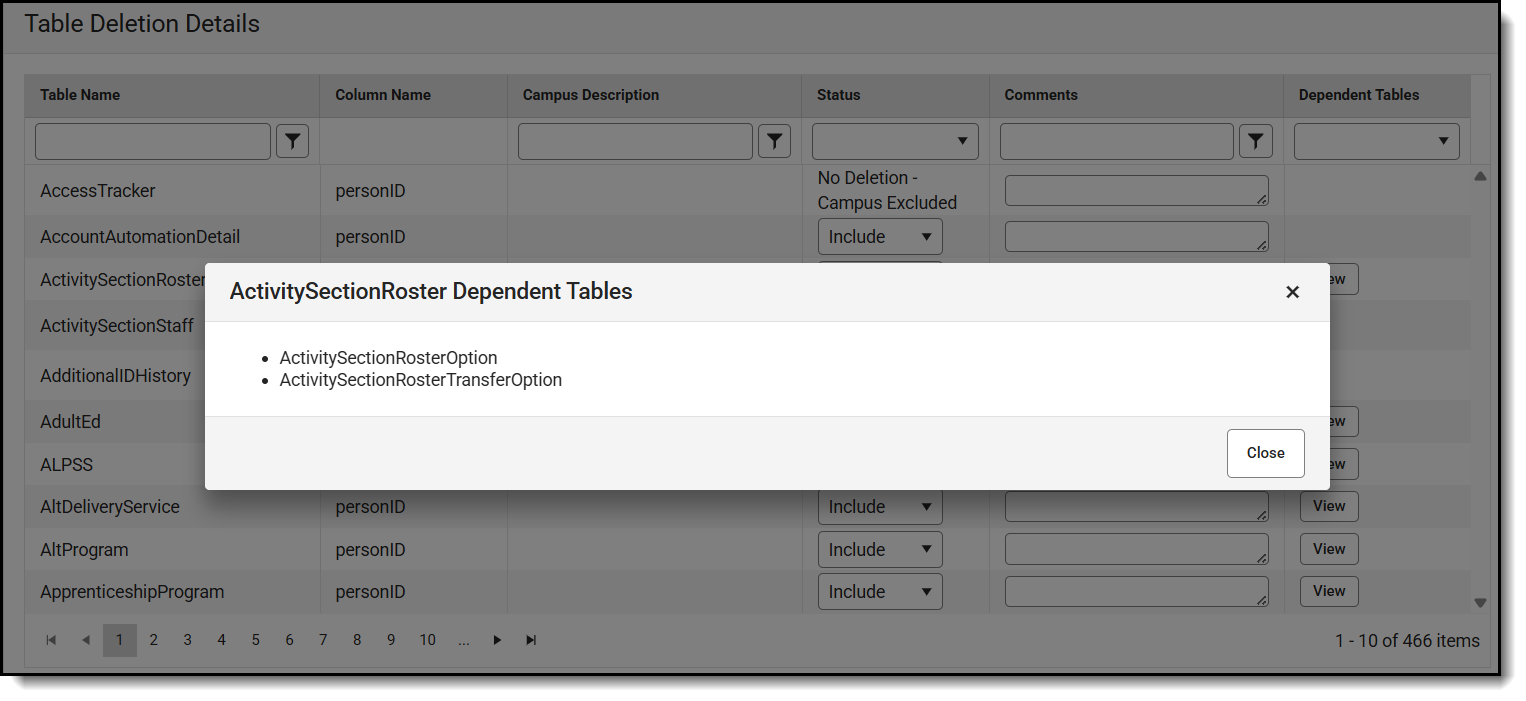
By clicking the View button in the Dependent Tables column, you can view the tables that have dependents that rely on the existence of a record in a higher level table. If the higher level table is selected for deletion, the dependent tables will also have their records removed for that student. The dependent tables are also listed in the Excel Export.
Reset Default Deletion Tables
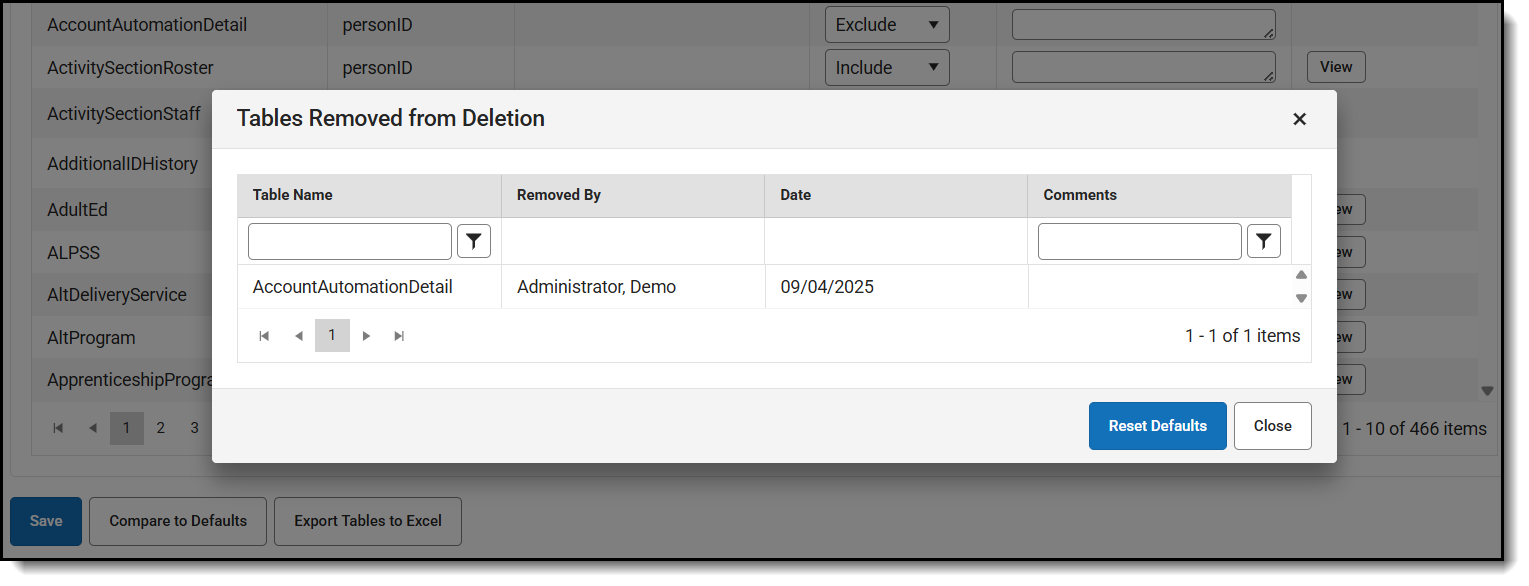
Selecting the Compare to Defaults buttons will display a panel that shows the changes made from the default configuration.
Warning: Unlike the Table Deletion Detail, selecting the Reset Defaults will immediately save the changes and reload the grid.
Exporting Tables in Excel
For a comprehensive view of all available tables along with their corresponding column information, use the "Export Tables to Excel" option. This feature allows you to download an Excel file that contains detailed data for all tables at once.